
Introduction
Thank you for choosing the GEQUDIO GB-2 Bluetooth Headset. This manual provides detailed instructions to help you set up, operate, and maintain your headset, ensuring optimal performance and a clear communication experience. The GB-2 headset is designed for clear sound quality, passive noise reduction, and multi-device connectivity, making it ideal for both professional and personal use.
Scope of Delivery
Upon opening the package, please ensure all components are present:
- GEQUDIO GB-2 Headset
- Charging Dock
- USB-C Charging Cable
- User Manual (this document)
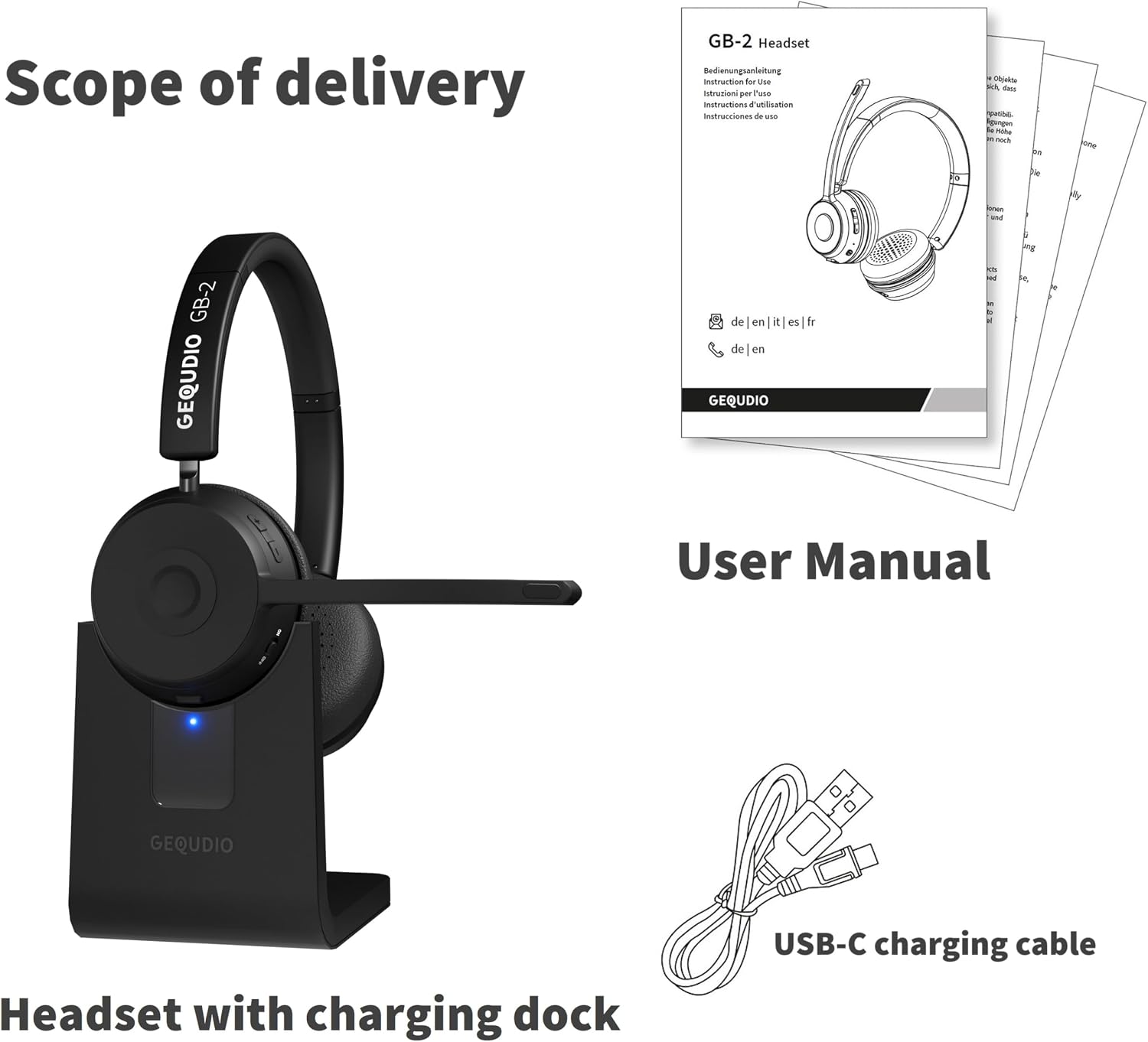
Image: Contents of the GEQUDIO GB-2 package, including the headset, charging dock, USB-C cable, and user manual.
Setup
1. Charging the Headset
Before first use, fully charge your GEQUDIO GB-2 headset. A full charge takes approximately 2 hours and provides up to 39 hours of music playback or 37 hours of talk time, with a standby time of up to 500 hours.
- Connect the USB-C charging cable to the charging dock or directly to the headset's USB-C port.
- Connect the other end of the USB-C cable to a compatible USB power source (e.g., computer, wall adapter).
- The indicator light on the headset/dock will show charging status (e.g., red for charging, blue for fully charged).

Image: The GEQUDIO GB-2 headset offers fast charging and extended standby time, as shown by a user working comfortably.
2. Powering On/Off
To power on or off the headset, locate the On/Off button on the earcup.
- Power On: Press and hold the On/Off button for approximately 3 seconds until you hear an audible prompt or see the indicator light flash.
- Power Off: Press and hold the On/Off button for approximately 3 seconds until you hear an audible prompt or see the indicator light turn off.

Image: A user's hands operating the power button on the GEQUDIO GB-2 headset, which supports auto-pairing upon activation.
3. Bluetooth Pairing
The GEQUDIO GB-2 headset uses Bluetooth for wireless connection. It supports auto-pairing after the initial setup.
- Ensure the headset is powered off.
- Press and hold the On/Off button for approximately 5-7 seconds until the indicator light flashes blue and red alternately, indicating pairing mode.
- On your device (smartphone, PC, laptop), enable Bluetooth and search for available devices.
- Select "GEQUDIO GB-2" from the list of found devices.
- Once connected, the indicator light on the headset will flash blue periodically.

Image: The GEQUDIO GB-2 headset being held near a laptop, illustrating its readiness for wireless connection.
4. Multi-Device Connectivity (Multipoint)
The GEQUDIO GB-2 headset can connect to two devices simultaneously, allowing seamless switching between them (e.g., a smartphone and a laptop).
- Pair the headset with the first device following the steps above.
- Disable Bluetooth on the first device.
- Put the headset back into pairing mode and pair it with the second device.
- Re-enable Bluetooth on the first device. The headset should now be connected to both devices.

Image: A visual representation of the GEQUDIO GB-2 headset's multipoint feature, connecting to two devices like a smartphone and a laptop with a range of up to 50 meters.
Operating the Headset
The headset features intuitive controls for managing calls and media playback.

Image: Detailed view of the GEQUDIO GB-2 headset controls, highlighting multi-function buttons for calls and media, volume adjustment, power, and microphone mute.
1. Call Management
- Answer Call: Press the Multi-function button once.
- End Call: Press the Multi-function button once during a call.
- Reject Call: Press and hold the Multi-function button for approximately 2 seconds.
- Redial Last Number: Double-press the Multi-function button when not on a call.
- Mute Microphone: Press the Mute button on the microphone boom. Press again to unmute.

Image: A user engaged in a hands-free call using the GEQUDIO GB-2 headset, highlighting its integrated microphone.
2. Music Playback
- Play/Pause: Press the Multi-function button once.
- Volume Up: Press the Volume Up button.
- Volume Down: Press the Volume Down button.

Image: A user adjusting the GEQUDIO GB-2 headset, emphasizing its crystal-clear audio quality for both music and calls.
3. Wearing the Headset
The GEQUDIO GB-2 is designed for comfort during extended use. Adjust the headband for a snug fit and position the microphone boom close to your mouth for optimal voice clarity.
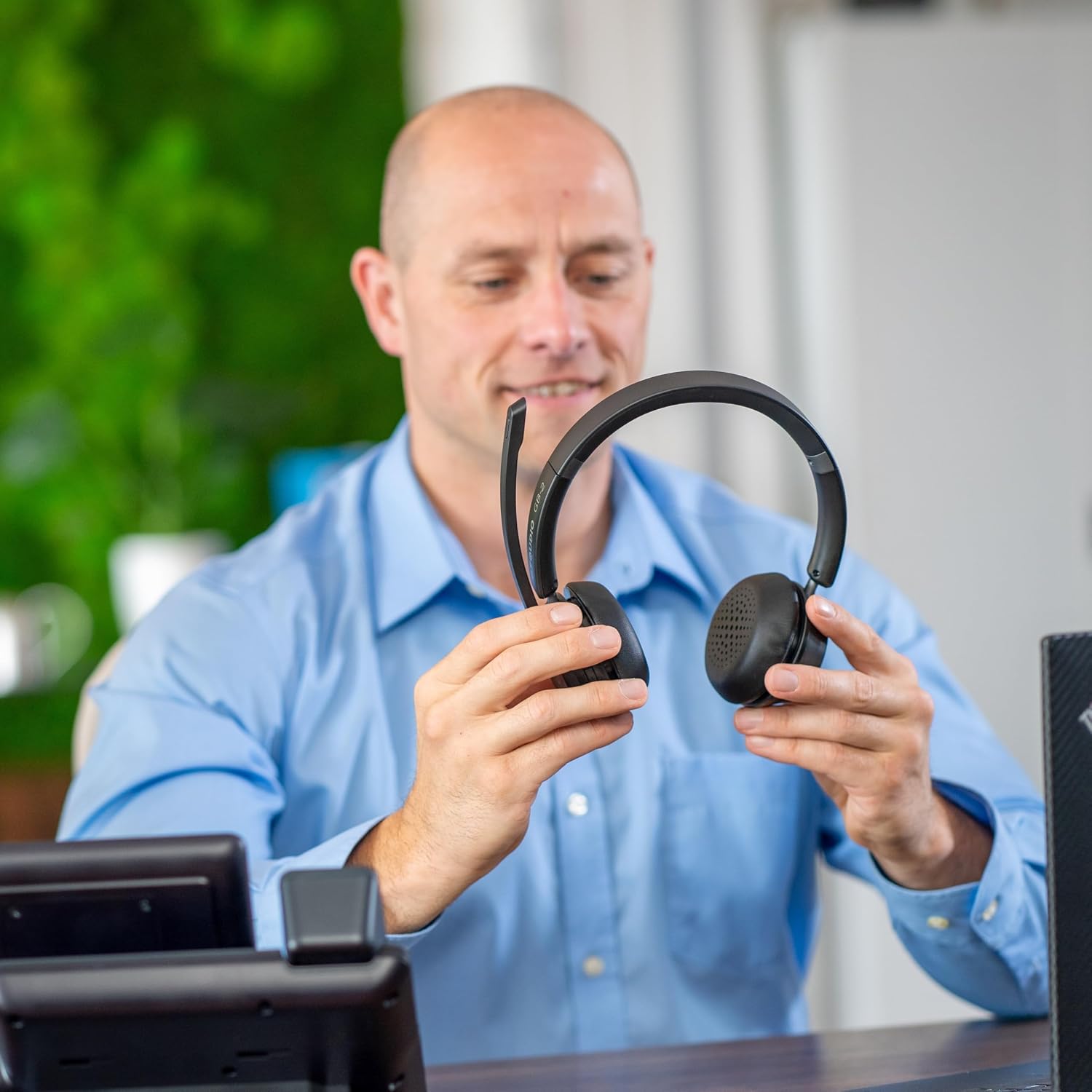
Image: A user examining the GEQUDIO GB-2 headset, demonstrating its ergonomic design for comfortable wear.
Maintenance
Proper care ensures the longevity and performance of your GEQUDIO GB-2 headset.
- Cleaning: Use a soft, dry cloth to wipe the headset. Do not use abrasive cleaners or solvents.
- Storage: Store the headset in a cool, dry place away from direct sunlight and extreme temperatures.
- Battery Care: To preserve battery life, avoid fully discharging the headset frequently. Charge it regularly, even if not in use for extended periods.
- Water Resistance: The headset is rated as water-resistant, but it is not waterproof. Avoid submerging it in water or exposing it to heavy rain.
Troubleshooting
If you encounter issues with your GEQUDIO GB-2 headset, refer to the following common solutions:
| Problem | Possible Cause | Solution |
|---|---|---|
| Headset does not power on. | Low battery. | Charge the headset for at least 30 minutes. |
| Cannot pair with device. | Headset not in pairing mode; Bluetooth off on device; device too far. | Ensure headset is in pairing mode (flashing red/blue). Turn on Bluetooth on your device. Move device closer to headset (within 10 meters). |
| No sound or poor sound quality. | Volume too low; headset not selected as audio output; interference. | Increase headset and device volume. Check device's audio settings to ensure GB-2 is selected. Move away from other wireless devices. |
| Microphone not working. | Microphone muted; headset not selected as input device. | Press the Mute button to unmute. Check device's sound settings to ensure GB-2 is selected as the input device. |
| Headset disconnects frequently. | Out of range; low battery; interference. | Stay within range (up to 50m with direct connection). Charge the headset. Reduce interference sources. |
If the problem persists after trying these solutions, please contact GEQUDIO customer support.
Technical Specifications
| Feature | Specification |
|---|---|
| Model Name | GEQUDIO GB-2 |
| Item Model Number | WA9712 |
| Wireless Technology | Bluetooth |
| Connectivity Technology | Wireless |
| Headphone Jack | Bluetooth |
| Ear Placement | On-Ear (Supra-Aural) |
| Form Factor | Over-Ear (Supra-Aural) |
| Noise Isolation | Acoustic Isolation (Passive Noise Reduction) |
| Impedance | 32 Ohms |
| Frequency Response | 20000 Hz |
| Control Method | Tactile (Buttons) |
| Compatible Devices | Phones, PCs, Laptops (Bluetooth enabled) |
| Special Features | Very long battery life, Multi-device connectivity |
| Battery Type | Lithium-polymer |
| Rechargeable Battery | Yes |
| Charging Time | 2 hours |
| Music Playback Time | Up to 39 hours |
| Talk Time | Up to 37 hours |
| Standby Time | Up to 500 hours |
| Weight | 225 Grams |
| Material | Acrylonitrile Butadiene Styrene (ABS) |
| Water Resistance Level | Water-resistant |
| Color | Black |
Warranty and Support
Warranty Information
GEQUDIO products are manufactured to high-quality standards. Spare parts availability is guaranteed for 2 years from the date of purchase.
Customer Support
For any questions, technical assistance, or warranty claims, please contact GEQUDIO customer service. Refer to the contact information provided with your purchase or visit the official GEQUDIO website for support details.

Image: GEQUDIO logo indicating German Customer Service, emphasizing support availability.

