
1. Introduction
Thank you for choosing the Guiheng Wired Mini Optical Mouse. This manual provides essential information to help you set up, operate, and maintain your new mouse. Please read these instructions carefully to ensure optimal performance and longevity of your device.
2. Product Overview
The Guiheng Wired Mini Optical Mouse is designed for reliable and comfortable use across various computing environments. Its compact and ergonomic design makes it suitable for office, business, home, and travel use.
Key Features:
- Wired USB Connectivity: Ensures a stable connection without the need for batteries or wireless pairing.
- Optical Tracking Technology: Provides smooth and precise cursor control on most surfaces.
- Ergonomic and Ambidextrous Design: Comfortable for both left and right-handed users during extended use.
- Plug-and-Play: No drivers or software installation required.
- Wide Compatibility: Works with Windows, Linux, and Mac operating systems.
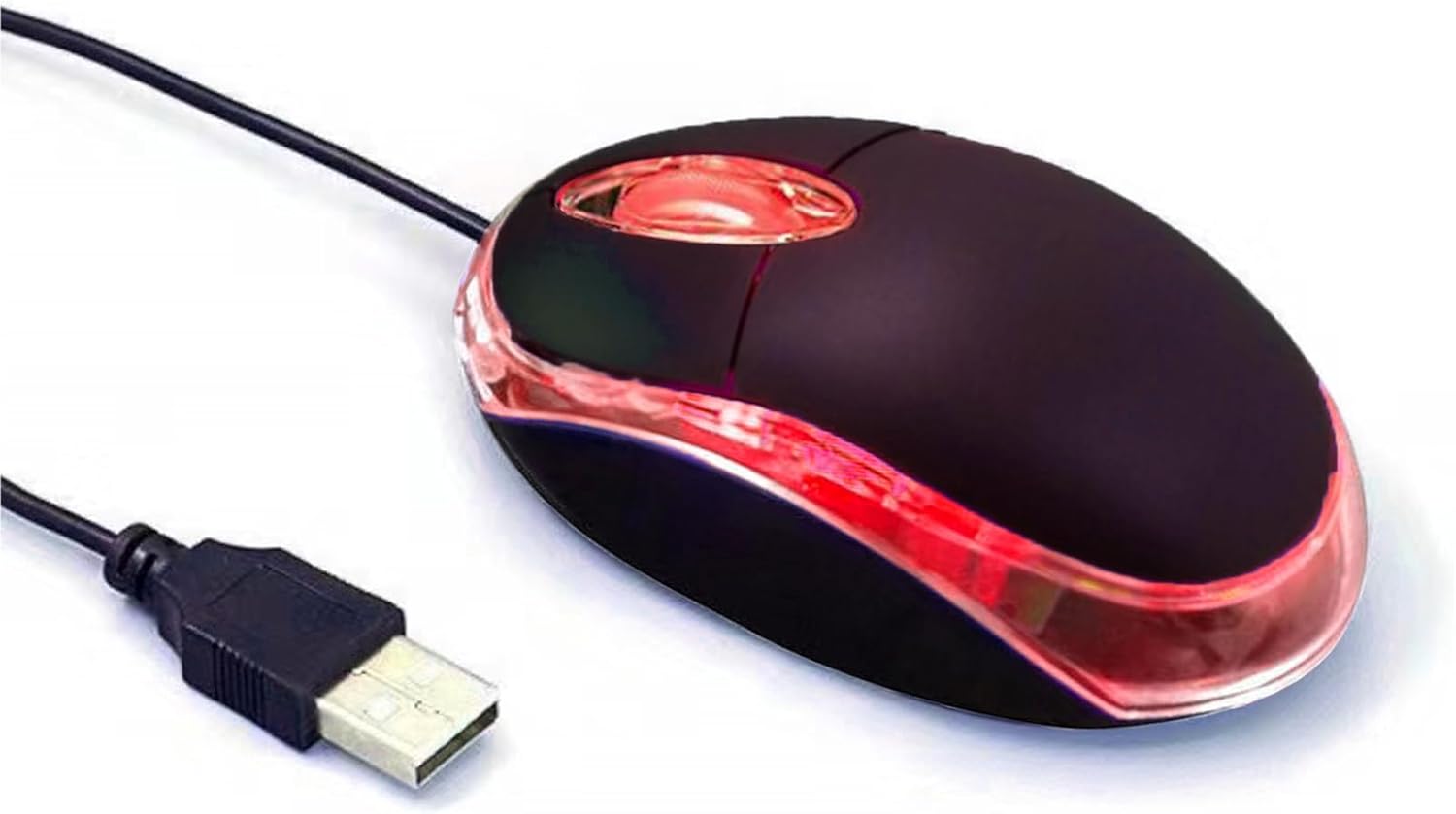
Image: The Guiheng Wired Mini Optical Mouse featuring its red LED illumination and attached USB cable, ready for connection.

Image: A close-up view of the Guiheng mouse, emphasizing its compact appearance and ergonomic shape designed for comfortable hand feel.
3. Setup Instructions
Setting up your Guiheng Wired Mini Optical Mouse is a simple plug-and-play process.
- Locate a USB Port: Identify an available USB-A port on your computer (laptop, desktop, PC, Chromebook, MacBook).
- Connect the Mouse: Insert the USB connector of the mouse firmly into the USB port.
- Automatic Recognition: Your operating system (Windows, Linux, Mac) will automatically detect and configure the mouse. No additional drivers or software installation is required.
- Begin Use: Once recognized, the mouse is ready for immediate use. You can start scrolling and clicking.

Image: A visual representation highlighting the simple one-step USB connection process for the mouse, emphasizing its plug-and-play functionality.
4. Operating Instructions
The Guiheng Wired Mini Optical Mouse operates like a standard three-button mouse with a scroll wheel.
- Left Button: Primary click function for selecting items, opening links, and executing commands.
- Right Button: Secondary click function, typically used to open context menus.
- Scroll Wheel: Used for vertical scrolling through documents and web pages. It can also function as a middle click button for specific applications.

Image: A hand positioned on the Guiheng mouse, illustrating a comfortable grip and typical usage with the red LED lighting visible.

Image: The Guiheng mouse placed on a desk beside a laptop, demonstrating its compact size and suitability for various workspaces.
5. Maintenance
Proper care will extend the life of your mouse.
- Cleaning: Use a soft, dry, or slightly damp cloth to clean the exterior of the mouse. Avoid harsh chemicals or abrasive cleaners.
- Optical Sensor: Keep the optical sensor on the underside of the mouse clean and free from dust or debris to ensure accurate tracking.
- Cable Care: Avoid sharply bending or pulling the USB cable to prevent damage.
- Storage: When not in use, store the mouse in a clean, dry environment.

Image: The underside of the Guiheng mouse, clearly showing the optical tracking sensor and product labeling, indicating the "fine light source" for accurate movement detection.
6. Troubleshooting
If you encounter issues with your mouse, please refer to the following common solutions:
- Mouse Not Responding:
- Ensure the USB cable is securely plugged into a working USB port on your computer.
- Try plugging the mouse into a different USB port.
- Restart your computer.
- Erratic Cursor Movement:
- Clean the optical sensor on the underside of the mouse.
- Ensure you are using the mouse on a clean, non-reflective, and opaque surface. Mouse pads are recommended.
- Buttons or Scroll Wheel Not Working:
- Test the mouse on another computer to determine if the issue is with the mouse or the computer's settings.
- Check your operating system's mouse settings for any unusual configurations.
- LED Light Always On:
- This is normal operation for the Guiheng Wired Mini Optical Mouse. The internal LED light remains on when connected to a powered USB port.
7. Specifications
| Brand | Guiheng |
| Model | B0D186SKGR |
| Connectivity Technology | USB (Wired) |
| Movement Detection Technology | Optical |
| Special Features | Ergonomic Design, Portable |
| Color | Black |
| Item Weight | 1.41 ounces (approximately 40 grams) |
| Package Dimensions | 4.17 x 2.83 x 1.38 inches (10.6 x 7.2 x 3.5 cm) |
| Compatibility | Windows 7/8/10/XP, Vista 7/8, Linux, Mac |
8. Warranty and Support
For warranty information or technical support, please refer to the retailer where you purchased this product or visit the official Guiheng website. Please have your product model number (B0D186SKGR) available when contacting support.
For general inquiries, you may also refer to the product listing page on Amazon for seller contact information.