
1. Introduction
The Ferguson Regent i351S is a versatile internet radio designed to provide a rich audio experience with multiple connectivity options. This manual offers detailed instructions for setting up, operating, and maintaining your device, ensuring you can fully utilize its features including Wi-Fi, DAB+, FM radio, Bluetooth, Spotify Connect, and dual alarms. Please read this manual thoroughly before first use and keep it for future reference.
2. Safety Information
To ensure safe operation and prevent damage, please observe the following safety precautions:
- Do not expose the device to rain, moisture, or extreme temperatures.
- Avoid placing the unit near heat sources such as radiators, stoves, or other heat-producing appliances.
- Do not block any ventilation openings. Ensure adequate space around the unit for proper airflow.
- Only use attachments/accessories specified by the manufacturer.
- Unplug the device during lightning storms or when unused for long periods.
- Do not open the casing. Refer all servicing to qualified service personnel.
- Keep the device away from strong magnetic fields.
3. Package Contents
Please check the package contents upon unpacking. If any items are missing or damaged, contact your retailer.
- Ferguson Regent i351S Internet Radio
- Power Adapter
- Remote Control
- Quick Start Guide
4. Product Overview
Familiarize yourself with the main components and controls of your Ferguson Regent i351S.
4.1 Front Panel and Display
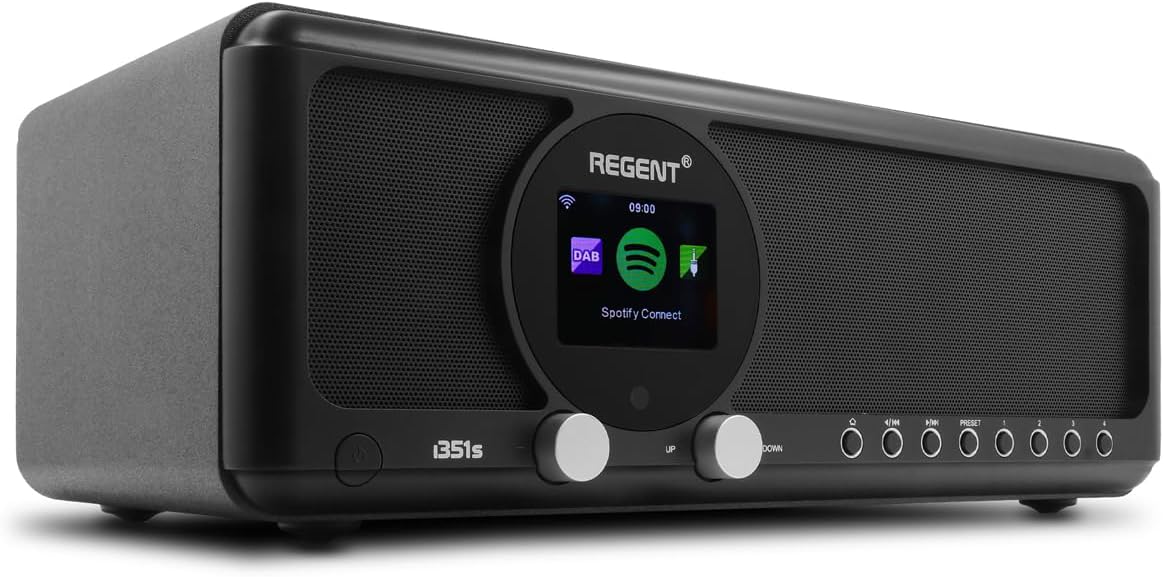
Image: Front view of the Ferguson Regent i351S Internet Radio, showcasing the central color display, dual speakers, and control knobs/buttons.
The front panel features a prominent 2.4-inch TFT color display, two main control knobs (Up/Down), and several function buttons for navigation and mode selection. The stereo speakers are located on either side of the central display.
4.2 Rear Panel and Connections

Image: Rear view of the Ferguson Regent i351S Internet Radio, showing the telescopic antenna, USB port, power input, and bass reflex port.
The rear panel includes the telescopic antenna for DAB+/FM reception, a USB port for media playback, an AUX-in port for external audio sources, a 3.5mm headphone output, and the power adapter input.
4.3 Remote Control

Image: The remote control unit for the Ferguson Regent i351S Internet Radio, featuring various buttons for power, volume, navigation, mode selection, and presets.
The included remote control allows convenient operation of all radio functions from a distance.
4.4 Product Dimensions

Image: Diagram showing the dimensions of the Ferguson Regent i351S Internet Radio: 33 cm (length), 17.30 cm (depth), and 11.50 cm (height).
The radio measures approximately 41 cm (length) x 17 cm (width) x 22 cm (height).
5. Setup Guide
Follow these steps for initial setup of your internet radio.
- Power Connection: Connect the supplied power adapter to the DC IN port on the rear of the radio and then plug it into a wall outlet.
- Initial Power On: Press the Power button on the front panel or remote control to turn on the radio.
- Language Selection: The display will prompt you to select your preferred language. Use the navigation knobs or remote to select and confirm.
- Network Setup (Wi-Fi):
- The radio will scan for available Wi-Fi networks. Select your network from the list.
- Enter your Wi-Fi password using the on-screen keyboard and navigation controls.
- Alternatively, if your router supports WPS, you can select the WPS option on the radio and activate WPS on your router for a quick connection.
- Once connected, the Wi-Fi icon will appear on the display.
- Time and Date: The radio will automatically synchronize the time and date via the internet connection.
6. Operating Instructions
Learn how to use the various audio modes and features of your Ferguson Regent i351S.
6.1 Internet Radio
Access a vast selection of online radio stations from around the world.
- From the main menu, select "Internet Radio".
- You can browse stations by location, genre, or search for specific stations.
- Select a station to begin playback.
- To save a station as a preset, press and hold the "Preset" button until the save menu appears.
6.2 DAB+ Radio
Enjoy high-quality digital audio broadcasting.
- Extend the telescopic antenna fully.
- Select "DAB+" from the main menu. The radio will automatically scan for available DAB+ stations.
- Use the navigation controls to select a station from the list.
6.3 FM Radio
Tune into traditional FM radio broadcasts with RDS information.
- Extend the telescopic antenna fully.
- Select "FM" from the main menu.
- Use the tuning controls to manually scan or auto-scan for stations.
- RDS (Radio Data System) information, such as station name, will be displayed if available.
6.4 Bluetooth Connectivity (Two-Way BT Transmitter)
The Regent i351S features unique two-way Bluetooth 5.0 capabilities, allowing both transmission and reception of high-quality audio.
- Receiving Audio (Bluetooth Speaker Mode):
- Select "Bluetooth" from the main menu. The radio will enter pairing mode.
- On your smartphone or other Bluetooth device, search for "Regent i351S" and pair.
- Once connected, you can stream audio from your device to the radio.
- Transmitting Audio (Bluetooth Transmitter Mode):
- This mode allows the radio to send its audio output to Bluetooth headphones or speakers.
- Navigate to the Bluetooth settings on the radio and select "BT Transmitter" mode.
- Put your Bluetooth headphones/speaker into pairing mode.
- The radio will search for and connect to your Bluetooth audio device.
6.5 Spotify Connect
Stream your Spotify playlists directly through the Regent i351S without needing Bluetooth pairing.

Image: Close-up of the Ferguson Regent i351S display, showing the Spotify Connect logo and interface.
- Ensure your radio is connected to the same Wi-Fi network as your smartphone or tablet running the Spotify app.
- Open the Spotify app on your device.
- Play a song and tap the "Devices Available" icon (usually a speaker or computer icon).
- Select "Regent i351S" from the list of available devices.
- The radio will begin streaming directly from Spotify.
6.6 USB/AUX Input
Connect external audio sources or play media from a USB drive.
- USB Playback: Insert a USB drive into the USB port on the rear panel. Select "USB" mode from the menu to browse and play audio files.
- AUX Input: Connect an external audio device (e.g., MP3 player) to the AUX IN port using a 3.5mm audio cable. Select "AUX In" mode to listen to audio from the connected device.
6.7 Dual Alarms
Set up two independent alarms with customizable sources and times.
- Access the "Alarm" settings from the main menu.
- Select Alarm 1 or Alarm 2 to configure.
- Set the alarm time, source (e.g., buzzer, FM, DAB+, Internet Radio), volume, and recurrence (daily, weekdays, weekends, once).
- Confirm settings to activate the alarm.
6.8 Remote Control App
Control your radio using a dedicated mobile application for smartphones.
- Download the official Ferguson remote control app from your device's app store (e.g., Google Play Store for Android).
- Ensure your smartphone and the radio are connected to the same Wi-Fi network.
- Open the app and follow the on-screen instructions to connect to your Regent i351S.
- The app provides full control over radio functions, including mode selection, station browsing, volume, and presets.
7. Maintenance
Proper care will ensure the longevity of your Ferguson Regent i351S.
- Cleaning: Use a soft, dry cloth to clean the exterior of the radio. Do not use abrasive cleaners, waxes, or solvents.
- Antenna: Handle the telescopic antenna carefully to avoid bending or breaking.
- Storage: If storing the radio for an extended period, unplug it from the power outlet and store it in a cool, dry place.
8. Troubleshooting
Refer to this section for solutions to common issues you might encounter.
| Problem | Possible Cause | Solution |
|---|---|---|
| No power | Power adapter not connected; Power outlet faulty. | Ensure the power adapter is securely connected. Try a different power outlet. |
| No sound | Volume too low; Mute activated; Incorrect audio source selected. | Increase volume. Check if mute is active. Select the correct audio source (e.g., Internet Radio, DAB+). |
| Wi-Fi connection unstable or lost | Weak Wi-Fi signal; Incorrect password; Router issues. | Move the radio closer to the Wi-Fi router. Re-enter Wi-Fi password. Restart your Wi-Fi router. Ensure no interference from other devices. |
| Cannot find DAB+/FM stations | Antenna not extended; Poor signal area. | Fully extend the telescopic antenna. Try repositioning the radio for better reception. Perform a full scan for stations. |
| Bluetooth pairing fails | Device not in pairing mode; Radio not in correct Bluetooth mode. | Ensure both the radio and your external device are in Bluetooth pairing mode. Check if the radio is set to BT Receiver or BT Transmitter mode as needed. |
| Remote control not working | Dead batteries; Obstruction between remote and radio. | Replace batteries in the remote control. Ensure a clear line of sight to the radio's IR receiver. |
9. Specifications
| Brand | Ferguson |
| Model Number | i351s |
| Color | Black |
| Connectivity Technology | Auxiliary, Bluetooth, USB, Wi-Fi |
| Special Features | Mobile app control, Built-In Clock, Weather alarm, Spotify Connect, DAB, DAB+ and FM tuner with RDS, Wi-Fi, Unique Two-Way Bluetooth IN/OUT Transmitter |
| Compatible Devices | Speaker, Smartphone, Earphone |
| Product Dimensions (L x W x H) | 41 cm x 17 cm x 22 cm |
| Tuning Technology | Spotify Connect, Internet Radio, DAB, DAB+ and FM tuner with RDS |
| Power Source | AC adapter powered |
| Supported Radio Bands | 2 bands |
| Included Components | Quick Start Guide |
10. Warranty Information
The Ferguson Regent i351S comes with a manufacturer's warranty. Please refer to the warranty card included in your package for specific terms and conditions.
- Spare Parts Availability: 2 Years
- Software Updates Guaranteed Until: Information not available
Keep your proof of purchase for any warranty claims.
11. Support
For further assistance, technical support, or service inquiries, please contact Ferguson customer support through their official website or the contact information provided with your product documentation.
You may also visit the product page on Amazon for additional resources and FAQs.


