
1. Introduction
The YGiTK Northern Galaxy Light Aurora Projector with Wireless Speaker (Model BL-XK03) is designed to create a captivating aurora and starry sky projection with integrated audio capabilities. This manual provides detailed instructions for setup, operation, maintenance, and troubleshooting to ensure optimal performance and user experience.

Image 1: YGiTK Northern Galaxy Light Aurora Projector with Wireless Speaker.
2. Product Features
- Aurora Effect & Multi-Color Modes: Projects realistic northern lights with starry accents. Offers 4 single colors (red, green, blue, white) and dual-color combinations, with auto-switch and breathing modes.
- Brightness & Timer Adjustment: Features 4-level brightness adjustment (30%, 50%, 70%, 100%) and 30/60-minute timers. Default auto-off after 4 hours.
- Projection Angle & Patterns: Swivel wheel stand allows 350° adjustment for flexible positioning. Includes a moon projection pattern.
- Wireless Speaker & Music Sync: Built-in wireless speaker connects to phones for music playback with a dual-speaker design. Music-responsive mode synchronizes lights and stars with rhythm.
- Remote & Independent Control: Includes a remote for one-touch control of aurora, stars, and projection lights. Aurora and stars can be toggled independently.

Image 2: Creative combinations of various lighting effects.
3. Package Contents
Verify that all items are present in the package:
- YGiTK Northern Galaxy Light Aurora Projector
- Remote Control
- USB-C Power Cable
- Tripod Stand
- User Manual
Image 3: Product and included accessories.
4. Setup
4.1 Attaching the Stand
- Locate the tripod stand and the projector unit.
- Screw the tripod stand into the threaded hole at the bottom of the projector until secure.
- Adjust the stand's legs for stability and desired height. The projector can rotate 360 degrees on the stand.

Image 4: Removable swivel base and dual speaker design.
4.2 Power Connection
- Connect the provided USB-C power cable to the USB-C port on the projector.
- Plug the other end of the USB-C cable into a compatible USB power adapter (5V 2A recommended, not included).
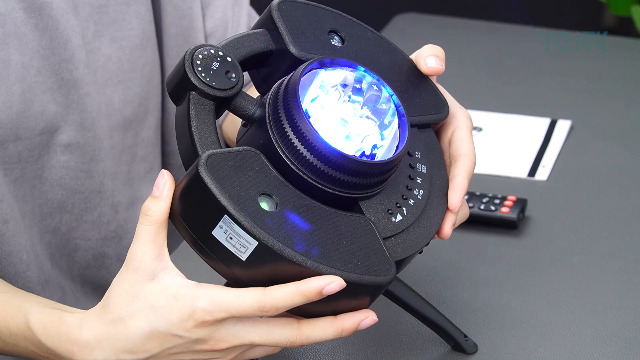
Video 1: Official YGiTK video demonstrating the projector's features and setup, including power connection.
5. Operating Instructions
5.1 Power On/Off
Press the power button on the projector or the remote control to turn the device on or off.
5.2 Light Modes and Colors
- Use the 'LED Mode' button on the remote or projector to cycle through different aurora color modes (red, green, blue, white, and combinations).
- The 'Lighting Control' button allows switching between static, auto-switch, and breathing modes for the aurora effect.
- The star projection can be toggled on/off independently using the dedicated star button on the remote.
- The moon projection can also be toggled on/off independently.

Image 5: Illustration of timing modes for the projector.
5.3 Brightness Adjustment
Adjust the brightness of the projection using the brightness adjustment buttons on the remote or projector. There are four levels: 30%, 50%, 70%, and 100%.
5.4 Timer Function
Set an automatic shut-off timer for 30 or 60 minutes using the timer buttons on the remote. The projector has a default auto-off feature after 4 hours if no timer is set.
5.5 Wireless Speaker Pairing
- Ensure the projector is powered on.
- Activate Bluetooth on your mobile device or other audio source.
- Search for available Bluetooth devices and select "BL-XK03" (or similar name) to pair.
- Once paired, you can play audio through the projector's built-in speakers.
- Use the music sync mode to make the lights pulse with the music rhythm.
5.6 Remote Control Usage
The included remote control allows for convenient adjustment of all functions from a distance of up to 5 meters. Buttons include power, light modes, brightness, timer, music controls (play/pause, next/previous track, volume), and independent control for aurora and stars.

Image 6: Easy operation with remote control and on-device buttons.
6. Maintenance
- Cleaning: Use a soft, dry cloth to clean the projector's exterior. Do not use liquid cleaners or abrasive materials.
- Lens Care: Gently wipe the projection lens with a microfiber cloth to remove dust or smudges. Avoid touching the lens directly with fingers.
- Storage: When not in use, store the projector in a cool, dry place away from direct sunlight and extreme temperatures.
7. Troubleshooting
| Problem | Possible Cause | Solution |
|---|---|---|
| Projector does not turn on. | No power or loose connection. | Ensure the USB-C cable is securely connected and the power adapter is working. Use a 5V 2A adapter. |
| Lights are dim or not projecting clearly. | Brightness setting is low or lens is dirty. | Increase brightness using the remote. Clean the projection lens with a microfiber cloth. Ensure the room is dark. |
| Wireless speaker not connecting. | Bluetooth not enabled or device not in pairing mode. | Ensure Bluetooth is enabled on your device and the projector is discoverable. Try restarting both devices. |
| Remote control not working. | Batteries are dead or remote is out of range. | Replace remote batteries. Ensure you are within 5 meters of the projector and pointing the remote towards it. |
8. Specifications
| Feature | Detail |
|---|---|
| Model Number | BL-XK03 |
| Brand | YGiTK |
| Color | Black |
| Material | Plastic |
| Light Source Type | LED |
| Power Source | Corded Electric (USB 5V 2A) |
| Light Source Wattage | 9 Watts |
| Projection Area | 161-538 sq ft |
| Remote Control Distance | ≤ 5M |
| Item Weight | 1.83 pounds (0.83 Kilograms) |
| Product Dimensions | 8.46"L |
9. Warranty and Support
YGiTK products are designed for quality and reliability. For warranty information, technical support, or customer service inquiries, please refer to the contact details provided on the product packaging or the official YGiTK website. Keep your purchase receipt for warranty claims.