
1. Introduction
Thank you for choosing the Wbacon 7-in-1 External DVD Drive. This device provides a comprehensive solution for modern computers that often lack built-in optical drives. It allows you to read and write CDs and DVDs, and expands your connectivity with multiple USB ports and card reader slots. Its plug-and-play design ensures ease of use across various operating systems.
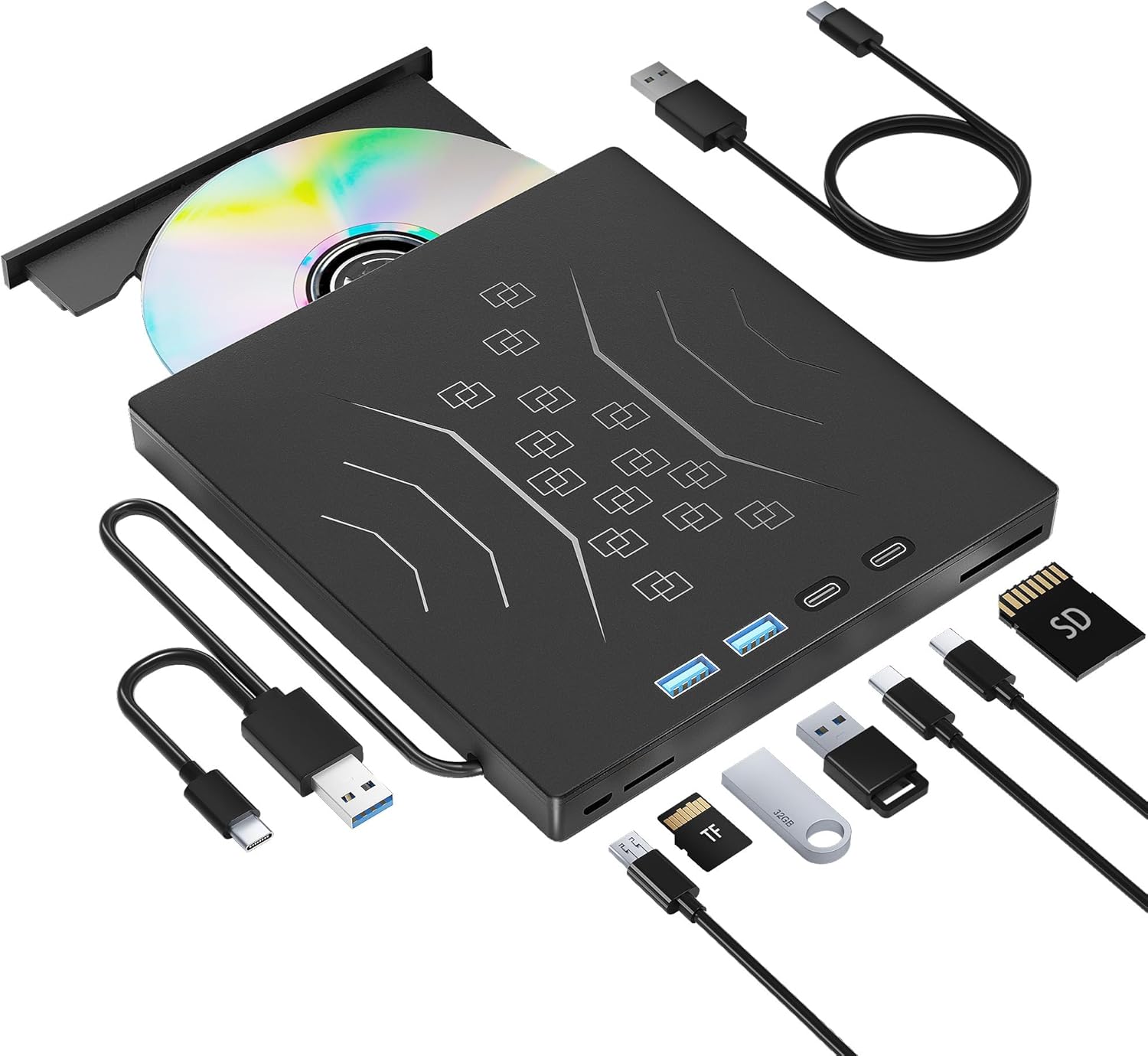
Image: The Wbacon 7-in-1 External DVD Drive, showcasing its compact design and various included cables and adapters for connectivity.
2. Key Features
- High Performance: Equipped with advanced USB 3.0 and Type-C technology, offering data transfer rates up to 5 Gigabits/s (625MB/s). Backward compatible with USB 2.0/1.1. Features a maximum 8x DVDR read speed and 24x CD write/read speed.
- Multifunction 7-in-1 USB Hub: Integrates 1 USB 3.0 port, 1 USB 2.0 port, 2 Type-C ports, 1 TF (Micro SD) slot, and 1 SD card slot. This versatile hub supports various USB devices like hard drives, mice, keyboards, and allows direct transfer of photo and video files from cameras. Note: The SD port and TF port cannot be used simultaneously.
- Plug & Play: No additional drivers are required for operation. Simply connect the device to your computer's USB or Type-C port to begin use.
- Enhanced Stability: Boasts high error correction, anti-skid, and quiet operation capabilities. Includes a skip-proof rubber pad to prevent sliding on surfaces.
- Portable Design: Ultra-slim and lightweight, making it easy to carry. Features an embedded data cable for convenience and organization.

Image: A detailed view of the drive's side, highlighting the power port, TF slot, USB 3.0, USB 2.0, two Type-C ports, and SD slot.
3. Setup Guide
- Connect the Drive: Locate the embedded data cable on the underside of the DVD drive. Connect the USB-A or Type-C end of this cable to an available USB 3.0 or Type-C port on your laptop or desktop PC.
- Power Connection (Optional): For stable performance, especially when using multiple USB devices or burning discs, connect the additional power cable (if included) to the drive's power port and a suitable USB power source (e.g., a USB wall adapter or another USB port on your computer).
- System Recognition: Your operating system should automatically detect and install the necessary drivers. The DVD drive icon will appear in 'This PC' (Windows) or on the desktop/Finder (Mac).
- Ready for Use: Once recognized, the drive is ready for reading or writing CDs/DVDs, and the integrated USB ports and card slots are active.

Image: Step-by-step visual guide demonstrating the plug-and-play setup process for both Windows and Mac operating systems.
4. Operating Instructions
4.1 Using the CD/DVD Drive
- Inserting a Disc: Gently press the eject button on the drive to open the disc tray. Place your CD or DVD onto the tray, ensuring it is centered. Gently push the tray back into the drive until it clicks shut.
- Reading Discs: Once the disc is inserted, your computer's operating system should automatically detect it. You can then access the disc's contents through 'This PC' (Windows) or Finder (Mac), or use media player software to play audio/video.
- Burning Discs: To burn data to a blank CD-R/RW or DVD-R/RW, use your computer's built-in burning software (e.g., Windows Media Player, Finder) or third-party burning applications. Follow the software's instructions to select files and initiate the burning process.
- Ejecting a Disc: Press the eject button on the drive, or right-click the drive icon in your computer's file explorer and select 'Eject'.
4.2 Using the USB Hub and Card Reader
- USB Ports: Connect USB devices such as flash drives, external hard drives, mice, keyboards, or other peripherals to the available USB 3.0, USB 2.0, or Type-C ports on the drive.
- SD/TF Card Slots: Insert your SD or TF (Micro SD) memory card into the corresponding slot. The card will appear as a removable drive in your computer's file explorer, allowing you to transfer files. Remember: Only one card slot (SD or TF) can be used at a time.

Image: The external DVD drive in use, illustrating its capabilities for watching movies, playing games, connecting USB devices, transferring documents, and listening to music.
5. Compatibility
The Wbacon 7-in-1 External DVD Drive is designed for wide compatibility with various devices and operating systems:
5.1 Supported Systems & Devices
- Operating Systems: Windows 11/10/8/7/XP, Vista 7/8, Linux, Mac OS 10.6 or above.
- Devices: Mac Book, Mac, Notebooks, Desktop PCs, Laptops, All-in-One PCs.
5.2 Not Supported
- Surface Pro
- Ubuntu
- TVs
- Blu-ray Discs (This is a DVD/CD drive only, not a Blu-ray player/burner)
- iPads
- Projectors
- Chromebooks
- Car systems
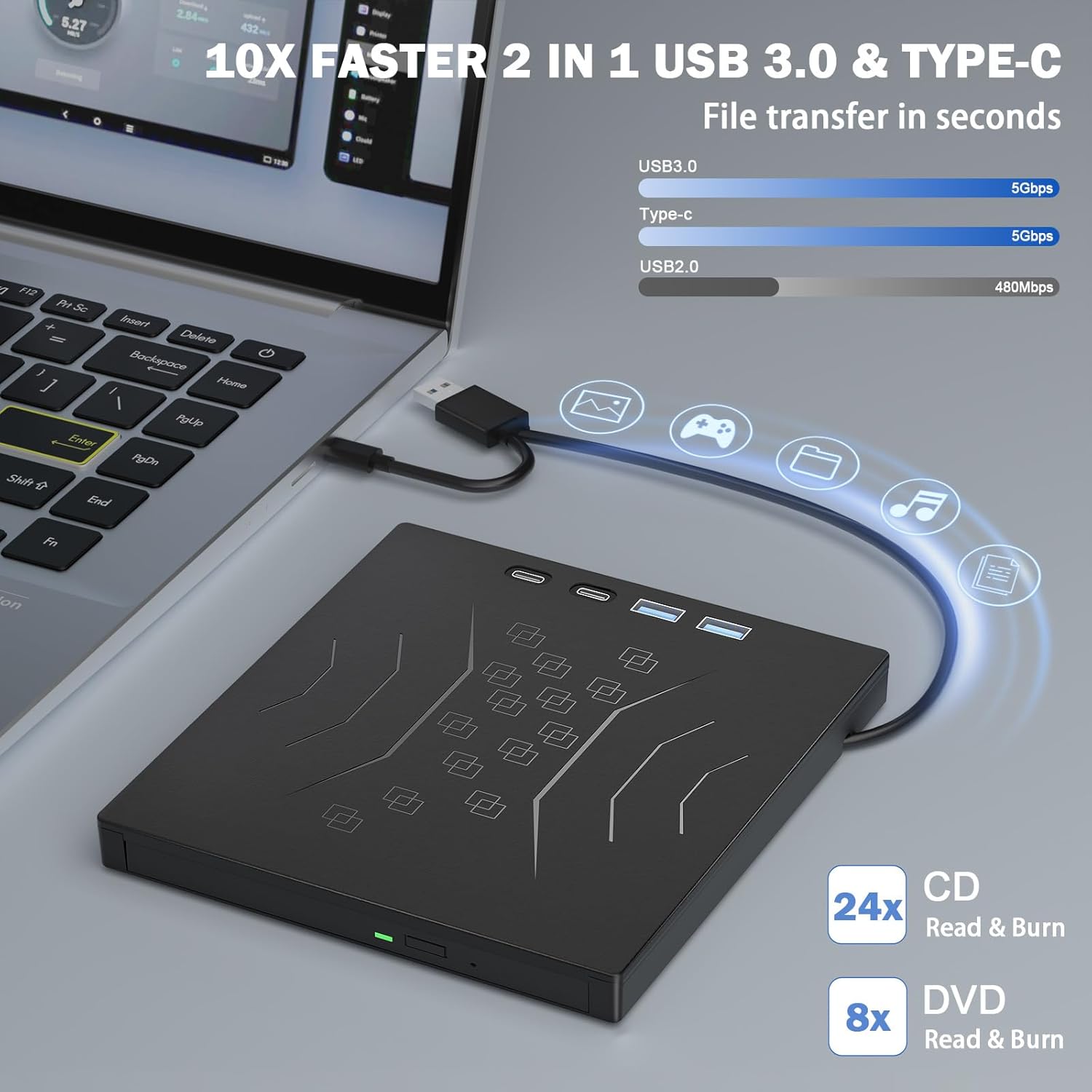
Image: A visual representation of the drive's compatibility, listing various supported operating systems and devices, and clearly indicating unsupported platforms.
6. Specifications
| Feature | Specification |
|---|---|
| Brand | Wbacon |
| Model Number | Wbacon 7 in 1 External DVD Drive |
| Hardware Platform | Laptop, PC |
| Operating System Support | Windows 11/10/8/7/XP, Vista 7/8, Linux, Mac OS 10.6+ |
| Item Weight | 12.6 ounces (approx. 357g) |
| Package Dimensions | 7.09 x 6.5 x 1.14 inches |
| Optical Storage Write Speed | DVD: 8x, CD: 24x |
| Hardware Interface | USB 3.0, Type-C |
| Special Features | Lightweight, Plug & Play, 7-in-1 Hub (USB 3.0, USB 2.0, 2x Type-C, TF, SD) |
7. Troubleshooting
- Drive Not Recognized:
- Ensure the embedded data cable is securely connected to a functioning USB 3.0 or Type-C port on your computer.
- Try connecting to a different USB port.
- If using a USB hub, connect the drive directly to the computer.
- Restart your computer.
- Disc Not Reading/Writing:
- Ensure the disc is clean and free of scratches or smudges.
- Verify the disc type is compatible (CD-R/RW, DVD-R/RW). This drive does NOT support Blu-ray discs.
- Ensure the disc is inserted correctly, label side up.
- Try a different disc to rule out a faulty disc.
- Ensure adequate power supply, especially for burning. Use the additional power cable if available.
- USB Ports/Card Slots Not Working:
- Confirm the main embedded data cable from the drive is properly connected to your computer. The USB hub functionality relies on this connection.
- Ensure only one card (SD or TF) is inserted at a time.
- Try connecting a different USB device to isolate the issue.
- Slow Performance:
- Ensure the drive is connected to a USB 3.0 or Type-C port on your computer for optimal speed. Connecting to a USB 2.0 port will result in slower speeds.
- Close other demanding applications running on your computer.
8. Maintenance
- Cleaning: Use a soft, dry, lint-free cloth to clean the exterior of the drive. Do not use liquid cleaners or abrasive materials.
- Disc Care: Always handle discs by their edges. Keep discs clean and store them in protective cases to prevent scratches.
- Storage: When not in use, store the drive in a cool, dry place away from direct sunlight and extreme temperatures.
- Cable Management: Utilize the embedded data cable design to keep the cable neatly stored when transporting the drive.
9. Warranty and Support
Wbacon is committed to providing high-quality products. For any product-related inquiries, technical support, or warranty claims, please contact Wbacon customer service through the retailer's platform or the official Wbacon website. Please have your purchase details and model number ready when contacting support.