
Roinvou Roinvou-A7463A3195A4MI2US31-C251
Roinvou Android 9-inch Touch Screen User Manual for Hyundai Sonata (2009-2010, Manual A/C)
Model: Roinvou-A7463A3195A4MI2US31-C251
Introduction
This manual provides comprehensive instructions for the installation, operation, and maintenance of your Roinvou Android 9-inch Touch Screen Car Stereo. This unit is specifically designed for Hyundai Sonata models from 2009 to 2010 with manual A/C controls. It integrates advanced features such as Wireless CarPlay, Android Auto, WiFi, Bluetooth, GPS Navigation, FM RDS Radio, and supports a backup camera for enhanced driving experience.
Please read this manual thoroughly before installation and use to ensure proper functionality and to maximize your product's potential. Keep this manual for future reference.
Vehicle Compatibility
This Roinvou car stereo is compatible with the following vehicle:
- Hyundai Sonata: 2009-2010 models with Manual A/C version.
Important Note: Before purchasing and installing, verify that the power cable port on the detail page matches your original car's wiring. This unit is designed for vehicles with manual A/C controls only.
What's in the Box
Upon opening the package, please ensure all the following components are present:
- Roinvou for Hyundai Sonata Car Stereo (Main Head Unit)
- Power Cable
- RCA Harness
- GPS Antenna
- AHD Backup Camera
- External Microphone
- Rear Camera Input Cable
- Dual USB Cable
- Installation Tool

Image Description: A visual representation of the Roinvou car stereo and all its included accessories, such as the main unit, various cables, antennas, backup camera, microphone, and installation tools.
Setup and Installation
Professional installation is recommended. Ensure the vehicle's battery is disconnected before beginning installation.
1. Pre-Installation Check
Confirm that the power cable port of the new stereo matches your vehicle's original wiring harness. Incompatible connections can cause damage.
2. Physical Installation
Carefully remove your vehicle's original radio and dashboard panel. Install the new Roinvou head unit into the dashboard opening, ensuring a secure fit. The provided frame panel will help integrate the new unit seamlessly.

Image Description: The dashboard of a Hyundai Sonata showing the Roinvou Android head unit successfully installed, replacing the original radio.
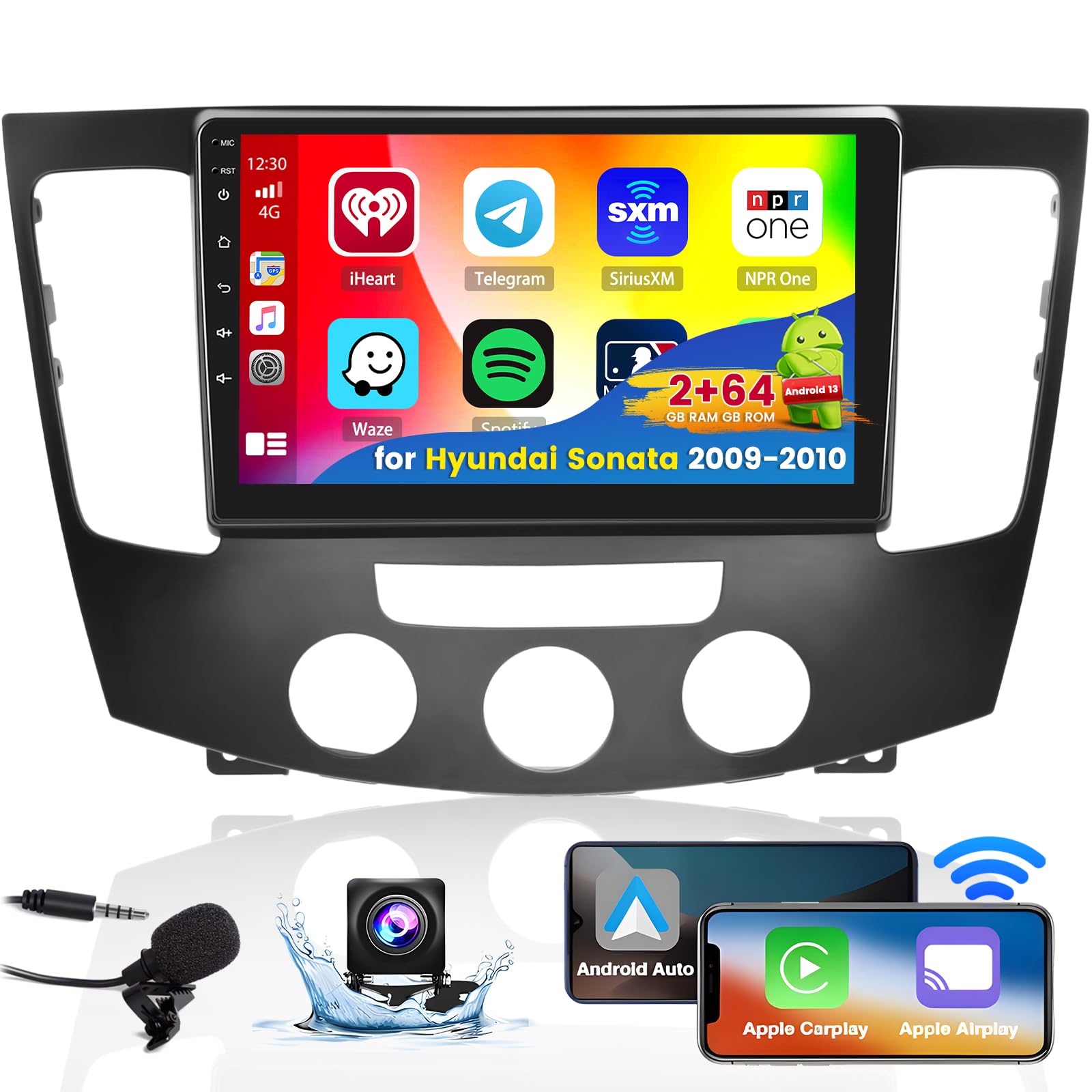
Image Description: The dashboard of a Hyundai Sonata displaying the original radio unit before the installation of the Roinvou Android head unit.
3. Wiring Connections
Connect the power cable, RCA harness, GPS antenna, and other peripheral cables as shown in the wiring diagram. Ensure all connections are firm and correct to prevent malfunctions.
- Power Cable: Connect to the vehicle's power supply.
- RCA Harness: For audio/video input/output.
- GPS Antenna: Mount in a location with a clear view of the sky for optimal signal reception.
- AHD Backup Camera: Connect the camera's video output to the 'Rear Camera Input' cable. The camera's power (red wire) connects to the reversing light positive (+12V), and ground (black wire) connects to the vehicle's chassis ground. The 'Reversing light positive' (pink wire) from the head unit should also be connected to the reversing light positive for automatic switching.
- External Microphone: Plug into the designated microphone input for clear hands-free calls.
- Dual USB Cable: Provides USB connectivity for media and smartphone integration.

Image Description: A detailed wiring diagram illustrating how to connect the Roinvou car stereo to the vehicle's electrical system, including connections for the backup camera, GPS antenna, and USB ports.
Operating Instructions
Your Roinvou Android car stereo offers a wide range of features. This section guides you through its primary functions.
1. User Interface (UI) and Display
The unit features a 9-inch HD capacitive touch screen with a 1024x600 resolution, providing a clear visual experience. It runs on a powerful Android system and offers 28 customizable UI themes to personalize your display.

Image Description: A collage of 28 different user interface themes displayed on the Roinvou car stereo screen, demonstrating customization options.
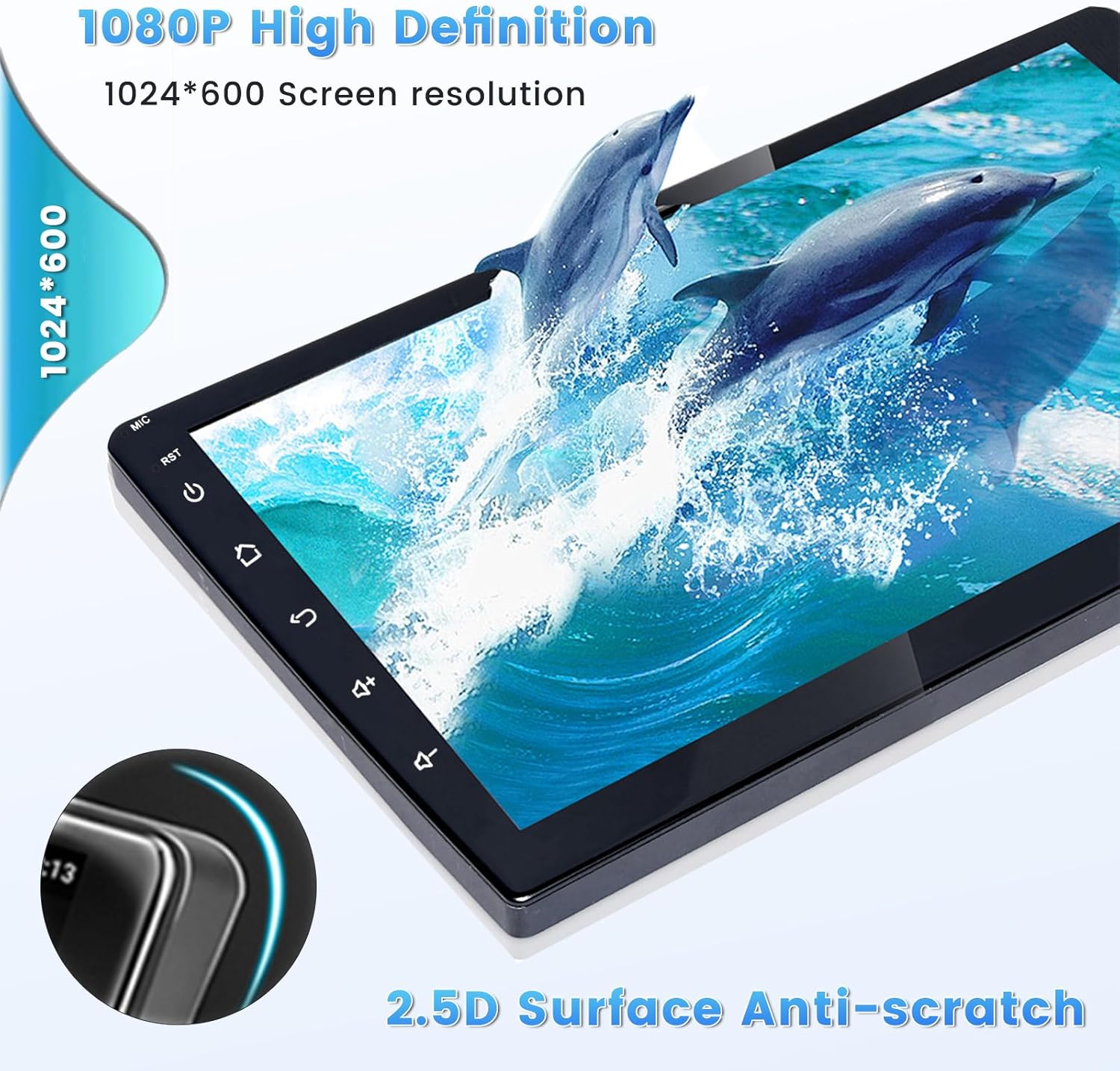
Image Description: A close-up view of the Roinvou car stereo screen, emphasizing its 1080P High Definition display with 1024x600 resolution and a 2.5D anti-scratch surface.
2. Wireless/Wired CarPlay & Android Auto
Connect your smartphone for seamless integration. This unit supports both wireless and wired connections for Apple CarPlay and Android Auto.
- Wireless Connection: Pair your phone via Bluetooth.
- Wired Connection: Use your phone's original USB data cable.
Once connected, you can access navigation, make/receive calls, send messages, and listen to music using voice commands (Siri/Google Assistant) or the touch screen.

Image Description: A split image showing the Roinvou car stereo displaying both Apple CarPlay and Android Auto interfaces, with a driver interacting with the system for navigation and calls.
3. Bluetooth Functionality
The built-in Bluetooth module allows for hands-free calling, phone book synchronization, and wireless music streaming from your smartphone.

Image Description: A graphic showing the Roinvou car stereo with Bluetooth features, including a phone call interface and music playback, with a person enjoying music in a car.
4. GPS Navigation
The unit includes built-in GPS navigation. You can download offline maps from the Play Store or use online maps when connected to WiFi.

Image Description: A visual representation of the Roinvou car stereo displaying navigation maps, with icons for offline and online map services, and a winding road graphic.
5. FM/RDS Radio
Enjoy your favorite radio stations with the integrated FM/RDS radio tuner. The unit supports various sound effects and EQ adjustments for optimal audio quality.

Image Description: The Roinvou car stereo screen showing the FM/RDS radio interface with frequency display and preset buttons, alongside people enjoying music.
6. Media Playback
The unit supports various media formats for music and video playback via USB or internal storage. The HD capacitive touch screen enhances the visual experience.
7. Steering Wheel Control (SWC)
The stereo supports steering wheel controls, allowing you to manage functions without taking your hands off the wheel.
- Without CANBUS Decoder: Connect the steering wheel control wires (Key1/Key2) in the power cable to the corresponding port or wire of your original car. Then, navigate to the 'SteeringWheelKey' app on the unit to manually match and activate button functions.
- With CANBUS Decoder: Connect the CANBUS before powering on the machine. Then, go to Apps > Settings > Factory Settings (1234) > CAN Settings. Select the brand of the CANBUS decoder and then the matching model and year according to your vehicle's actual situation.

Image Description: A graphic illustrating the steering wheel control setup process, showing the 'SteeringWheelKey' app interface and instructions for both CANBUS and non-CANBUS vehicles.
8. Backup Camera & Reversing Input
The unit automatically switches to the reverse image display when the vehicle is put into reverse gear, providing a clear view for parking and maneuvering. The included AHD backup camera offers high definition, waterproof design, wide angle, and night vision capabilities.

Image Description: A diagram showing the wiring for the backup camera and a simulated view on the Roinvou car stereo screen, complete with parking guidelines and icons indicating HD, waterproof, wide angle, and night vision features.
9. WiFi Connection
Connect to a WiFi network to download various applications from the Play Store, stream online music, watch videos on YouTube, and browse the internet.

Image Description: A graphic showing the Roinvou car stereo connected via WiFi, with various app icons floating around, symbolizing access to online content and applications.
10. UI Function & Carplay and Android Auto Connection Video
Video Description: This video demonstrates the various UI functions of the Roinvou Android car stereo, including navigation, music playback, audio settings, radio, and file management. It also shows the connection process for both Apple CarPlay and Android Auto, highlighting Bluetooth pairing and USB debugging steps for seamless smartphone integration.
Maintenance
To ensure the longevity and optimal performance of your Roinvou car stereo, follow these maintenance guidelines:
- Cleaning: Use a soft, dry cloth to clean the screen and exterior. Avoid abrasive cleaners or solvents that could damage the surface.
- Software Updates: Periodically check for software updates through the unit's settings menu to ensure you have the latest features and bug fixes. A stable internet connection is required for updates.
- Temperature: Avoid exposing the unit to extreme temperatures, both hot and cold, for extended periods.
- Power Cycle: If the unit becomes unresponsive, perform a soft reset by turning off the vehicle's ignition and restarting it. If issues persist, consult the troubleshooting section.
Troubleshooting
If you encounter any issues with your Roinvou car stereo, refer to the following common problems and solutions:
| Problem | Possible Cause | Solution |
|---|---|---|
| Unit does not power on. | Incorrect power wiring; Blown fuse; Vehicle battery issues. | Check power cable connections. Inspect vehicle fuses. Ensure vehicle battery is charged. |
| No sound or distorted audio. | Incorrect speaker wiring; Volume too low; EQ settings misconfigured. | Verify speaker connections. Adjust volume. Reset EQ settings to default. |
| Bluetooth not connecting or unstable. | Phone not in pairing mode; Incorrect pairing code; Interference. | Ensure phone's Bluetooth is on and discoverable. Re-enter pairing code (default: 1234). Try pairing in a different location. |
| GPS signal weak or inaccurate. | GPS antenna improperly placed; Obstructions. | Relocate GPS antenna to a position with a clear view of the sky. |
| Backup camera not displaying. | Incorrect camera wiring; Camera power issue; Software setting. | Check camera power and video connections. Ensure the pink 'Reversing light positive' wire is correctly connected. Verify camera settings in the unit's menu. |
| Steering Wheel Controls not working. | Incorrect wiring; Improper software configuration. | Refer to the 'Steering Wheel Control' section in Operating Instructions for correct wiring and software setup. |
| CarPlay/Android Auto not connecting. | Incorrect USB cable; USB debugging not enabled (Android); Permissions not granted. | Use original USB cable. Ensure USB debugging is enabled on Android phone. Grant all requested permissions during connection. |
Specifications
Key technical specifications of the Roinvou Android 9-inch Touch Screen Car Stereo:
| Feature | Detail |
|---|---|
| Brand | Roinvou |
| Model Number | Roinvou-A7463A3195A4MI2US31-C251 |
| Operating System | Android |
| Screen Size | 9 Inches |
| Resolution | 1024 x 600 |
| Touch Screen Type | Capacitive |
| Memory Storage Capacity | 2 GB RAM |
| Internal Storage | 64 GB ROM |
| Connectivity Technology | Bluetooth, USB, Wi-Fi |
| Special Features | Wireless CarPlay, Wireless Android Auto, Mirror Link, GPS Navigation, FM RDS Radio, Backup Camera Support, DSP Sound, 28 Desktop Themes, Steering Wheel Control |
| Supported Satellite Navigation System | GPS |
| Audio Output Mode | Stereo |
| Mounting Type | Dashboard Mount |
Warranty and Support
Your Roinvou car stereo comes with a 1-Year Warranty from the date of purchase. This warranty covers manufacturing defects and ensures your product functions as intended under normal use.
Customer Support
For any questions, technical assistance, or warranty claims, please contact Roinvou customer service. You can reach us through the Amazon platform or directly via email.
- Via Amazon: Navigate to your order history, find the Roinvou product, and click 'Ask a question' or 'Contact Seller'.
- Email: roinvouservices@163.com
Our technical team and customer service are available to assist you. All messages will be replied to within 24 hours, regardless of holidays.

Image Description: A graphic illustrating two methods to contact Roinvou customer support: through the Amazon platform by clicking 'Contact Seller' and directly via the email address roinvouservices@163.com.
Ask a question about this manual
Ask about setup, troubleshooting, compatibility, parts, safety, or missing instructions. Manuals+ will review the question and use this page’s manual context to help answer it.