
1. Introduction
The GoveeLife Wireless Mini Smart Button Sensor provides convenient one-touch control for your GoveeLife smart devices. This manual will guide you through the installation, setup, and operation of your smart button, enabling seamless integration into your smart home ecosystem.

Image: Overview of a smart home setup with GoveeLife devices, illustrating how the smart button can activate various elements.
2. Safety Information
- Ingestion Hazard: This product contains a button cell or coin battery. Swallowing a button cell or coin battery can cause severe internal burns in as little as 2 hours and can lead to death. Keep new and used batteries away from children. If the battery compartment does not close securely, stop using the product and keep it away from children. If you think batteries might have been swallowed or placed inside any part of the body, seek immediate medical attention.
- Do not expose the device to extreme temperatures or humidity.
- Do not disassemble or modify the device.
- Use only specified battery types.
3. What's in the Box
Verify that all components are present before proceeding with setup.
- Button Sensor x 2
- CR2 Battery (pre-installed)
- Adhesive Tape
- User Manual

Image: Contents of the GoveeLife Wireless Mini Smart Button Sensor package, including two sensors, adhesive, and documentation.
4. Setup
4.1 Battery Installation
The button sensor comes with a pre-installed CR2 battery. Before first use, you must remove the insulation strip.
- Gently open the back cover of the button sensor.
- Locate and pull out the blue plastic insulation strip from the battery compartment.
- Ensure the battery is properly seated and close the back cover securely.

Image: A close-up view of the GoveeLife Smart Button Sensor, highlighting the battery compartment and the insulation strip to be removed.
4.2 Pairing with Govee Home App
The GoveeLife Smart Button Sensor requires pairing with the Govee Home app to function.
- Download the Govee Home app from the App Store (iOS) or Google Play Store (Android).
- Open the Govee Home app and create an account or log in.
- Tap the "+" icon in the top right corner of the app to add a new device.
- Select the GoveeLife Wireless Mini Smart Button Sensor from the device list.
- Follow the on-screen instructions to complete the pairing process. This typically involves holding down the button on the sensor for a few seconds until an indicator light flashes.

Image: The GoveeLife Smart Button Sensor displayed next to a smartphone showing the Govee Home app interface during the pairing process.
4.3 Mounting the Sensor
You can place the sensor on any flat surface or use the provided adhesive tape for fixed installation.
- For fixed installation: Clean the desired surface thoroughly. Peel off the protective film from one side of the adhesive tape and attach it to the back of the sensor. Peel off the other side and firmly press the sensor onto the wall or surface for at least 30 seconds.
- Ensure the sensor is placed within the effective Bluetooth range of your GoveeLife dual-mode devices (up to 55m/180ft).
5. Operating the Smart Button Sensor
5.1 One-Touch Control
The GoveeLife Smart Button Sensor allows you to control multiple GoveeLife smart devices with a single press. You can configure specific actions or scenes within the Govee Home app.
- Single Press: Press the button once to trigger the assigned action or scene.

Image: A person pressing the GoveeLife Smart Button Sensor to activate or deactivate smart lights in a room.
5.2 Alternate Mode
The alternate mode feature allows the button to toggle between executing a command and turning off the devices associated with that command.
- If the button is pressed to execute tasks in a "command" (e.g., turn lights ON), the next press will turn OFF all devices in that same "command."
- This mode is configured within the Govee Home app for specific automations.

Image: A person using the GoveeLife Smart Button Sensor to control a smart fan and air purifier, demonstrating versatile control.
5.3 Maximum Compatibility
The GoveeLife Button Switch supports up to 50 GoveeLife smart ecological devices. It works best when connected to GoveeLife dual-mode devices (sold separately) that support both Wi-Fi and Bluetooth, acting as a distributed gateway.

Image: A diagram illustrating the GoveeLife Smart Button Sensor at the center, wirelessly connecting to and automating various GoveeLife smart devices like air purifiers, lights, dehumidifiers, and plugs.
5.4 Important Notes
- This device cannot connect to Alexa or Google Assistant directly.
- The distributed gateway functionality requires GoveeLife dual-mode devices (e.g., smart plugs, air purifiers) to extend the effective range.
6. Maintenance
6.1 Cleaning
Wipe the sensor with a soft, dry cloth. Do not use liquid cleaners or abrasive materials.
6.2 Battery Replacement
The sensor is powered by a CR2 battery, which typically lasts for approximately four months depending on usage. Replace the battery when the indicator light on the sensor no longer illuminates or the device becomes unresponsive.
- Open the back cover of the button sensor.
- Remove the old CR2 battery.
- Insert a new CR2 battery with the correct polarity.
- Close the back cover securely.
7. Troubleshooting
| Problem | Possible Cause | Solution |
|---|---|---|
| Sensor is unresponsive. | Low battery or out of range. | Replace the battery. Ensure the sensor is within 55m/180ft of a GoveeLife dual-mode device. |
| Cannot pair the sensor with the app. | Bluetooth is off or incorrect pairing steps. | Ensure Bluetooth is enabled on your smartphone. Follow the pairing instructions in Section 4.2 carefully. |
| Devices do not respond to button press. | Incorrect automation settings in the app or devices are offline. | Check your "Auto Run" settings in the Govee Home app. Ensure the target GoveeLife devices are online and functioning correctly. |
| Alternate mode is not working as expected. | Misconfiguration of alternate mode. | Review the alternate mode settings for your automation in the Govee Home app. The button toggles between executing the command and turning off devices in that command. |
8. Specifications
- Model: B5122
- Product Dimensions: 1.69 x 1.57 x 0.47 inches
- Item Weight: 1.44 ounces
- Battery: 2 CR2 batteries required (one included)
- Wireless Range: Up to 55m/180ft (Bluetooth, with GoveeLife dual-mode devices)
- Compatibility: Supports up to 50 GoveeLife smart ecological devices.
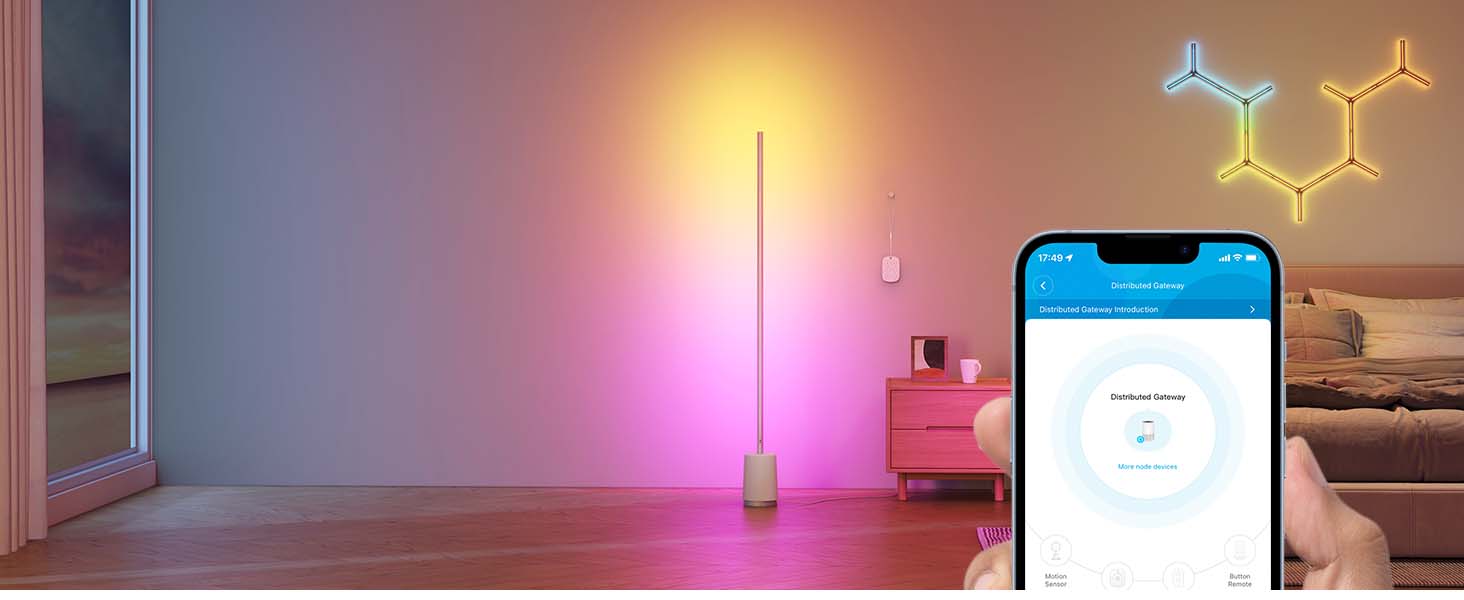
Image: An illustration demonstrating the 55m/180ft wireless Bluetooth range of the GoveeLife Smart Button Sensor.
9. Warranty & Support
For warranty information and technical support, please refer to the official GoveeLife website or contact GoveeLife customer service directly. The product typically includes a standard manufacturer's warranty, details of which can be found on the product packaging or the GoveeLife support portal.
Manufacturer: GoveeLife
Online Support: Visit www.govee.com for FAQs, troubleshooting guides, and contact information.
