
Keychron V6 Max
Keychron V6 Max Wireless Custom Mechanical Keyboard User Manual
Model: V6 Max | Brand: Keychron
Introduction
This manual provides detailed instructions for the Keychron V6 Max Wireless Custom Mechanical Keyboard. It covers everything from initial setup and connectivity to advanced customization, maintenance, and troubleshooting. The V6 Max is a full-size 100% layout keyboard designed for enhanced typing comfort and versatility, featuring 2.4 GHz and Bluetooth 5.1 wireless connectivity, QMK/VIA programmability, and hot-swappable switches.
Package Contents
Please verify that all items listed below are included in your package:
- 1x Fully Assembled Keyboard (including Case, PCB, PC Plate, Sound Absorbing Foam, Stabilizers, Keycaps, Switches)
- 1x Type-A 2.4 GHz Receiver
- 1x Type-C 2.4 GHz Receiver
- 1x USB Cable (Type-C to Type-C)
- 1x Type-A to Type-C Adapter
- 1x Extension Adapter for Receiver
- 1x Keycap & Switch Puller
- 1x Screwdriver & Hex Key
Setup
Initial Setup
Upon unboxing, ensure the keyboard is placed on a stable, flat surface. Familiarize yourself with the layout and the location of the connectivity switch on the top edge of the keyboard.
Connectivity
The Keychron V6 Max supports three connection modes: 2.4 GHz wireless, Bluetooth 5.1, and USB-C wired.
- 2.4 GHz Wireless: For optimal performance, plug the 2.4 GHz receiver (Type-A or Type-C) into your device. The keyboard boasts a rapid 1000 Hz polling rate in this mode.
- Bluetooth 5.1: The keyboard can connect to up to 3 devices via Bluetooth. To pair, switch the keyboard to Bluetooth mode, activate pairing mode (refer to the keyboard's specific key combination for Bluetooth pairing, usually Fn + 1/2/3), and select the keyboard from your device's Bluetooth settings.
- USB-C Wired: Connect the keyboard directly to your device using the provided USB-C to USB-C cable. This mode also supports a 1000 Hz polling rate and charges the keyboard.

Operating System Switch
A dedicated switch on the keyboard allows you to toggle between Windows and macOS layouts, ensuring full compatibility with your operating system.

Charging
The keyboard is equipped with a 4000 mAh rechargeable Li-polymer battery, providing up to 100 hours of working time (with lowest brightness). Connect the keyboard via USB-C cable to charge.

Operating the Keyboard
Key Features
- 108 Keys Full-Size Layout: Provides a complete set of keys for various tasks.
- Gasket Design & Sound-Absorbing Foam: Enhances typing comfort and acoustics.
- Double-Shot PBT Keycaps: Offers excellent oil resistance and prevents legend fading.
- Programmable Knob: A multi-function rotary knob for volume control or custom assignments.

Customization with QMK/VIA
The V6 Max is fully customizable with QMK/VIA firmware. You can remap any key, create macros, and adjust lighting effects using the Keychron Launcher web app. Simply connect the keyboard via cable to access the web app and personalize your layout for macOS, Windows, or Linux.

Keycap and Switch Information
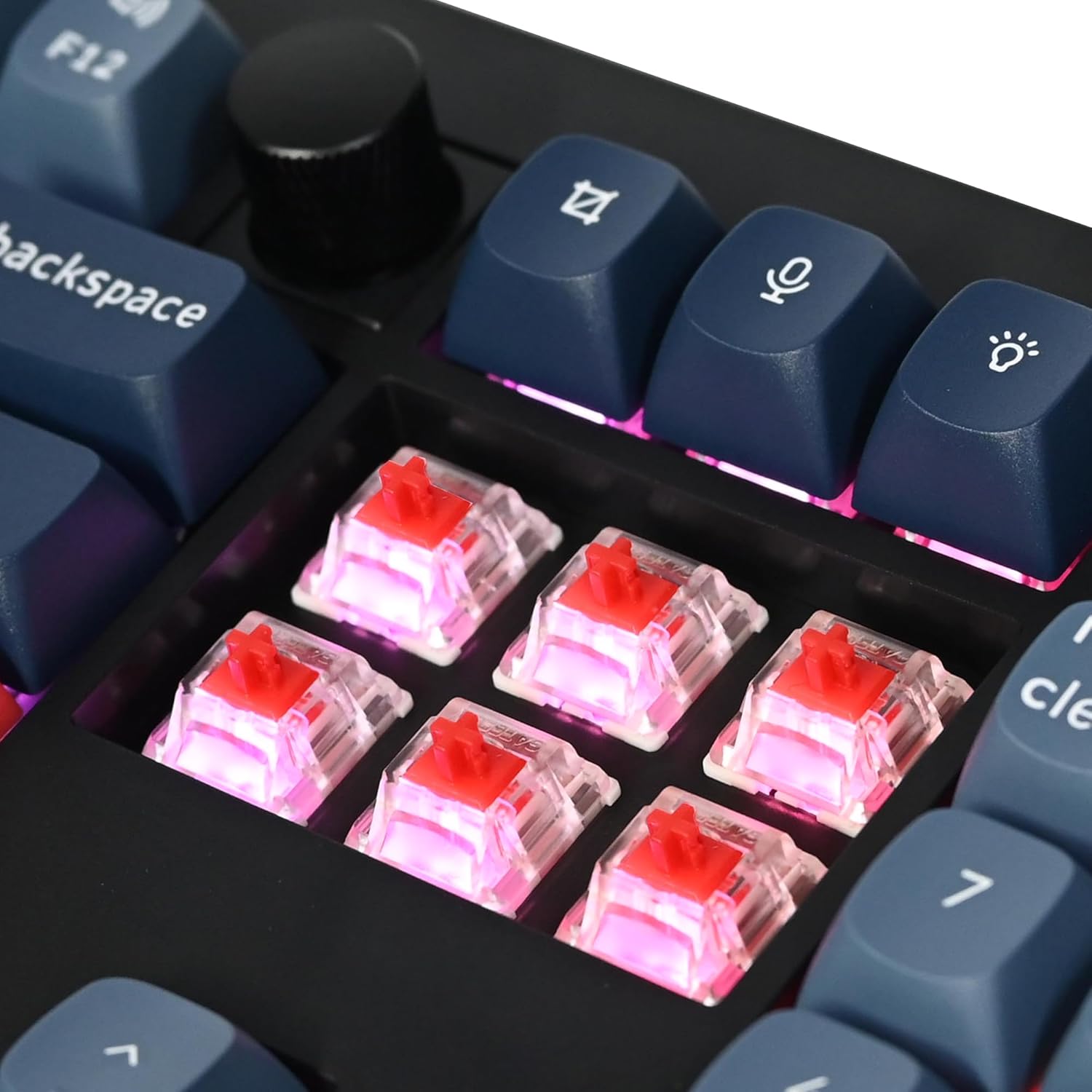
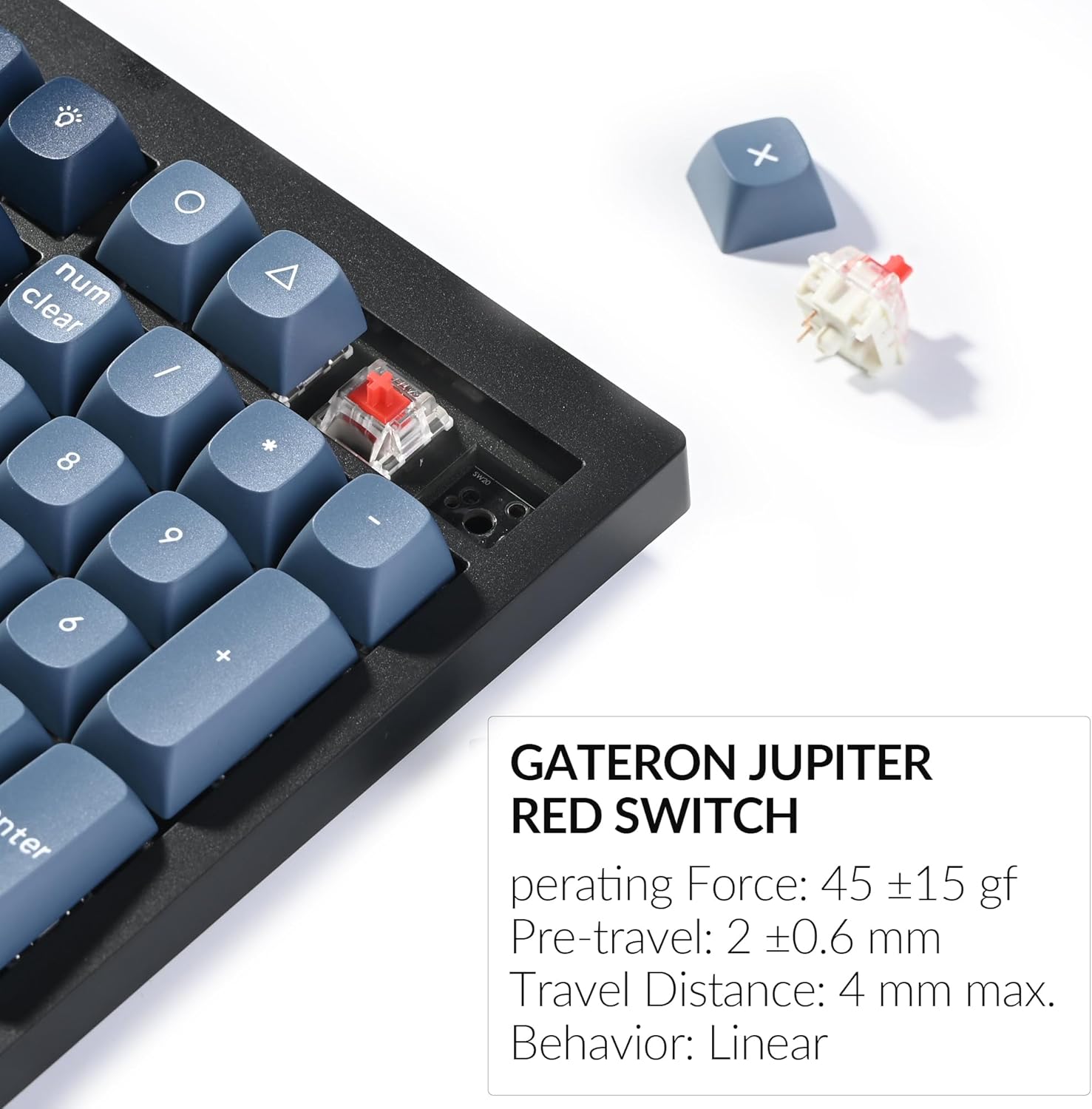
The keyboard comes with OSA profile double-shot PBT keycaps, known for their durability and resistance to shine. It features pre-lubed Gateron Jupiter Red switches, which are linear switches with a smooth press. The hot-swappable PCB allows you to change switches without soldering, compatible with most 3-pin and 5-pin MX mechanical switches.


RGB Backlighting
The V6 Max features south-facing RGB backlighting. You can adjust the hue, saturation, brightness, effect speed, and various lighting modes using combination keys on the keyboard.
Maintenance
Cleaning
To clean your keyboard, use a soft, lint-free cloth. For dust and debris between keycaps, use compressed air. For stubborn stains, a slightly damp cloth with mild soap can be used, ensuring no liquid enters the keyboard. Always disconnect the keyboard before cleaning.
Switch and Keycap Replacement
The hot-swappable design allows for easy replacement of switches and keycaps. Use the provided keycap puller to gently remove keycaps and the switch puller to remove switches. Align new switches carefully before pressing them into place. Ensure the pins are straight to avoid bending.
Troubleshooting
Common Issues
- Connectivity Problems: Ensure the keyboard is in the correct mode (2.4 GHz, Bluetooth, or wired) for your connection type. Re-pair Bluetooth devices if connection is lost. For 2.4 GHz, try a different USB port or the extension adapter.
- Keys Not Responding or Double-Typing: This can sometimes be caused by debris under the switch or a faulty switch. Try cleaning the area around the affected key or replacing the switch using the hot-swap feature.
- Backlighting Issues: Check if the RGB is enabled and adjust brightness/effects using the keyboard shortcuts. Ensure the keyboard battery has sufficient charge.
- Keyboard Not Recognized: Try connecting via a different USB port or cable. Ensure the Windows/macOS switch is set correctly for your operating system.
Resetting the Keyboard
If you encounter persistent issues, performing a factory reset may resolve them. Refer to the official Keychron support resources or the comprehensive user guide for specific instructions on how to reset your V6 Max keyboard.
Specifications
| Feature | Detail |
|---|---|
| Product Dimensions | 17.63 x 5.87 x 1.28 inches (447.9 x 149 x 32.5 mm) |
| Item Weight | 3.74 pounds (1110 g ± 10 g) |
| Manufacturer | Keychron |
| Item Model Number | V6 Max |
| Batteries | 1 Lithium Polymer battery required (included) |
| Battery Capacity | 4000 mAh |
| Connectivity Technology | 2.4 GHz Wireless, Bluetooth 5.1, USB-C Wired |
| Polling Rate | 1000 Hz (2.4 GHz & wired) / 90 Hz (Bluetooth) |
| Number of Keys | 108 |
| Keycap Material | OSA Double-shot PBT |
| Switch Type | Hot-swap Gateron Jupiter Red Switch (3-pin & 5-pin compatible) |
| Backlighting | South-facing RGB |
| Compatible Devices | Laptop, PC, Tablet, Smartphone |
| Operating System Compatibility | macOS, Windows, Linux |
Warranty and Support
For detailed warranty information and technical support, please refer to the official Keychron website or the comprehensive user guide PDF. You can download the full user guide here.
Keychron is committed to providing high-quality products and support. If you encounter any issues not covered in this manual, please contact Keychron customer service for assistance.
Related documentsV6 Max


Ask a question about this manual
Ask about setup, troubleshooting, compatibility, parts, safety, or missing instructions. Manuals+ will review the question and use this page’s manual context to help answer it.