
Product Overview
The Laviniar 15-in-1 USB C Docking Station is a versatile connectivity hub designed to expand the capabilities of your laptop, especially for Windows-system devices. It transforms a single USB-C port into a comprehensive workstation, offering multiple display outputs, high-speed data transfer ports, robust power delivery, and reliable network connectivity.
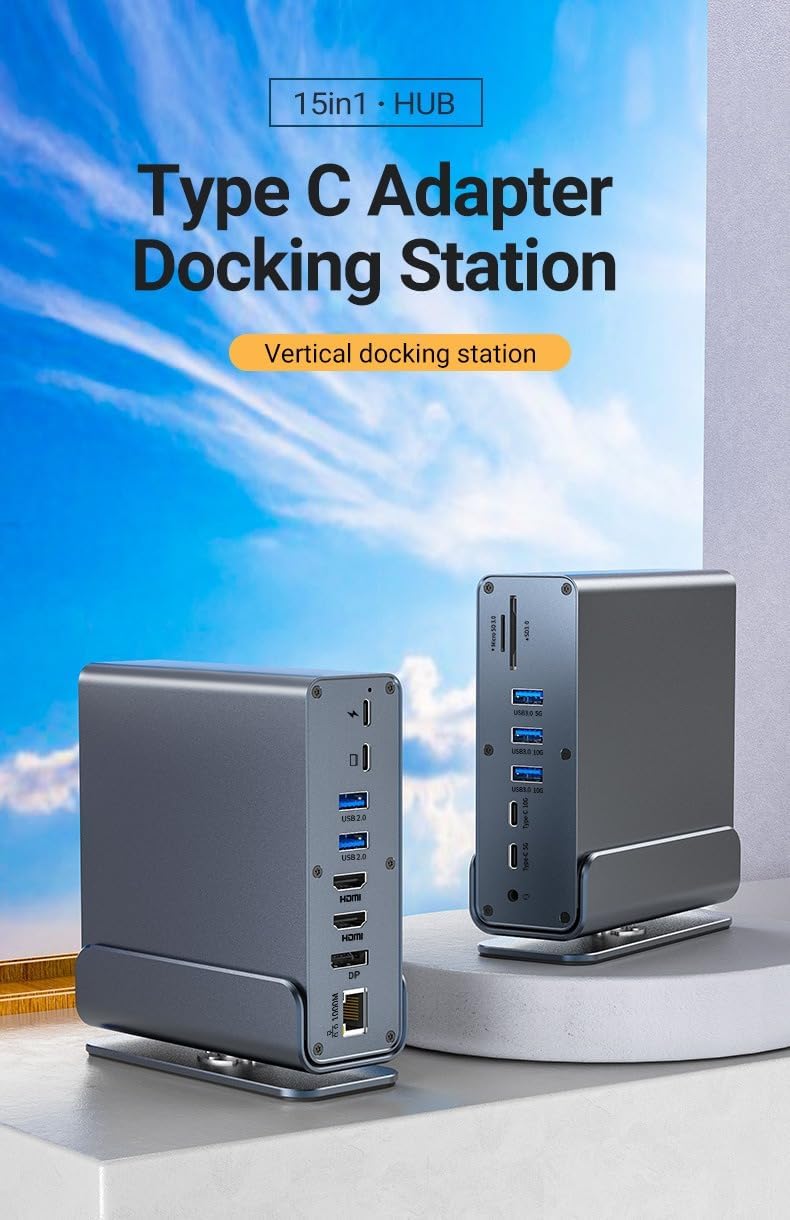
Figure 1: Laviniar 15-in-1 USB C Docking Station, showcasing its vertical design.
This docking station is engineered to enhance productivity by supporting dual 4K HDMI and a DisplayPort for triple monitor setups, enabling both mirror and extend modes. It features a 100W Power Delivery port to charge your laptop, multiple USB-A and USB-C ports for high-speed data transfer up to 10Gbps, a Gigabit Ethernet port for stable internet, and dedicated slots for SD/TF cards, along with a 3.5mm audio jack.
Key Features and Port Layout
The Laviniar 15-in-1 docking station provides extensive connectivity options. Familiarize yourself with the port layout for optimal use.

Figure 2: Detailed diagram of the 15-in-1 multifunctional expansion ports.
- Power Delivery (PD) Port: Up to 100W fast charging for your laptop.
- PC Host (USB-C): Connects to your notebook, mobile phone, or tablet for data transmission.
- USB 2.0 Ports (x2): For connecting peripherals like wireless keyboards and mice without lag.
- HDTV (HDMI) Ports (x2): Supports 4K@60Hz resolution for external displays.
- DP Port: Supports 4K@60Hz resolution for external displays.
- Gigabit Network Port (RJ45): Adaptive 1000M/100M/10M Ethernet for stable internet connection.
- SD/TF 3.0 Card Slots: For fast reading and data transfer from memory cards.
- USB 3.0 Ports (x3): 5Gbps transmission rate for general USB devices.
- USB 3.0 Ports (x2): 10Gbps transmission rate for high-speed data transfer devices like external drives.
- USB-C 3.2 Port: 10Gbps transmission rate for high-speed USB-C devices.
- USB-C 3.0 Port: 5Gbps transmission rate for general USB-C devices.
- 3.5mm Audio Jack: For connecting headphones or speakers.
Setup Guide
Follow these steps to set up your Laviniar 15-in-1 Docking Station:
- Connect to Power: Connect a compatible USB-C power adapter (not included) to the PD 100W charging port on the docking station. This will power the docking station and provide pass-through charging to your laptop.
- Connect to Laptop: Use the provided USB-C cable to connect the PC Host (USB-C) port on the docking station to a USB-C port on your laptop. Ensure your laptop's USB-C port supports video output and power delivery for full functionality.
- Connect External Displays:
- For single or dual monitor setup: Connect your monitors using the HDMI and/or DP ports.
- For triple monitor setup: Connect up to three external displays using a combination of the two HDMI ports and one DP port. The docking station supports resolutions up to 4K@60Hz for dual displays and 1080P for triple displays.

Figure 3: Example of a multi-screen expansion setup using the docking station.
- Connect Network Cable: For a stable wired internet connection, connect an Ethernet cable to the Gigabit Network Port (RJ45) on the docking station.
- Connect USB Peripherals: Plug your USB devices (e.g., external hard drives, USB flash drives, keyboard, mouse, printer) into the available USB-A 3.2 (10Gbps), USB-A 3.0 (5Gbps), USB-C 3.2 (10Gbps), or USB-C 3.0 (5Gbps) ports.
- Insert Memory Cards: If needed, insert your SD or TF memory cards into the corresponding SD/TF 3.0 card slots.
- Connect Audio Devices: Plug your headphones or speakers into the 3.5mm Audio Jack.
The docking station is plug-and-play for most functions, requiring no driver installation for basic operation.
Operating Instructions
Display Modes
The docking station supports both Mirror Mode and Extend Mode for multiple displays. You can configure these settings through your laptop's display settings (e.g., Windows Display Settings).
- Dual Monitor Output: Connect two monitors to the HDMI ports or one HDMI and one DP port for 4K@60Hz resolution on both.
- Triple Monitor Output: Connect three monitors using the two HDMI ports and one DP port. The resolution for triple display is 1080P.

Figure 4: Visual representation of 4K@60Hz HD display clarity.
Data Transfer
Utilize the high-speed USB ports for efficient data transfer:
- 10Gbps Ports: The USB-A 3.2 and USB-C 3.2 ports offer speeds up to 10Gbps, ideal for transferring large files, such as 20GB in approximately 16.4 seconds.
- 5Gbps Ports: The USB-A 3.0 and USB-C 3.0 ports provide 5Gbps speeds for standard data transfer needs.
- SD/TF Card Slots: Transfer photos and videos directly from your camera's memory cards at fast speeds.

Figure 5: Illustration of USB port types and their respective transfer rates.
Network Connection
The Gigabit Ethernet port ensures a stable and fast wired internet connection.
- Simply connect an RJ45 Ethernet cable from your router/modem to the docking station's Ethernet port.
- Supports 1000Mbps network speed and is backward compatible with 100Mbps/10Mbps.

Figure 6: Close-up of the Gigabit Network Port.
Maintenance
To ensure the longevity and optimal performance of your docking station, follow these maintenance guidelines:
- Cleaning: Gently wipe the exterior of the docking station with a soft, dry, lint-free cloth. Avoid using liquid cleaners, aerosols, or solvents.
- Storage: When not in use for extended periods, store the docking station in a cool, dry place away from direct sunlight and extreme temperatures.
- Handling: Handle the device with care. Avoid dropping it or subjecting it to strong impacts.
- Ventilation: Ensure the docking station has adequate ventilation to prevent overheating. Do not block any ventilation openings.

Figure 7: The 360° rotatable and separable design allows for flexible placement and easier maintenance access.
Troubleshooting
If you encounter issues with your Laviniar 15-in-1 Docking Station, refer to the following common problems and solutions:
- No Display Output:
- Ensure the USB-C connection between the laptop and the docking station is secure and that your laptop's USB-C port supports video output (DisplayPort Alternate Mode).
- Verify that the HDMI/DP cables are securely connected to both the docking station and the monitors.
- Check your laptop's display settings to ensure the external monitors are detected and configured correctly (e.g., extended or mirrored).
- Try restarting your laptop and reconnecting the docking station.
- No Power Delivery to Laptop:
- Ensure a compatible USB-C power adapter is connected to the PD port of the docking station.
- Verify that the power adapter is functioning correctly.
- Confirm your laptop supports USB-C Power Delivery.
- USB Devices Not Recognized:
- Ensure the USB devices are properly plugged into the docking station's USB ports.
- Try connecting the USB device directly to your laptop to confirm it functions independently.
- If using a high-power USB device (e.g., external HDD), ensure the docking station is connected to a power source.
- No Internet Connection via Ethernet:
- Check if the Ethernet cable is securely connected to both the docking station and your router/modem.
- Verify that your router/modem is working and providing internet access.
- Check your laptop's network settings to ensure the Ethernet adapter is enabled.
If problems persist, please contact customer support for further assistance.
Specifications
| Feature | Detail |
|---|---|
| Model Number | 101150001 |
| Product Dimensions | 4.8 x 1.65 x 5.12 inches (4.8"L x 1.65"W x 5.12"H) |
| Number of Ports | 15 |
| Total USB Ports | 7 (2x USB-A 3.2, 3x USB-A 3.0, 1x USB-C 3.2, 1x USB-C 3.0) |
| Total HDMI Ports | 2 |
| DisplayPort (DP) | 1 |
| Ethernet Port | 1 (Gigabit RJ45) |
| Card Reader | SD/TF 3.0 |
| Audio Jack | 3.5mm |
| Power Delivery (PD) | Up to 100W |
| Hardware Interface | 3.5mm Audio, Ethernet, HDMI, MicroSD, SPD, USB 3.0 Type A, USB 3.0 Type C |
| Compatible Devices | Laptop (Windows-system devices recommended) |
Warranty and Support
Laviniar is committed to providing high-quality products and excellent customer service. As a valued customer, you are entitled to 24-hour uninterrupted service from the date of purchase of your docking station.
For any inquiries, technical support, or warranty claims, please refer to the contact information provided in your product packaging or visit the official Laviniar website. Your satisfaction is our priority.