
Introduction
This manual provides comprehensive instructions for the setup, operation, and maintenance of your Dcorn 4K Digital Microscope. Designed for detailed observation, this microscope features a 10-inch display, 2000X magnification, and a 52MP camera sensor, making it suitable for various applications including soldering, coin observation, and scientific inspection.
Key features include:
- 4K Video & 52MP Stills: Capture high-resolution images and videos of microscopic details.
- 10-Inch IPS Display: Large screen for comfortable and clear viewing.
- HDMI Output: Connect to external monitors for larger displays.
- Remote Control: Convenient operation for zoom, photo, and video functions.
- Adjustable LED Lights: Two flexible side lights and integrated ring light for optimal illumination.
- 64GB TF Card: Included for storage of captured media.
What's in the Box
Verify that all components are present upon unboxing:
- Digital Microscope *1
- Extension Tube *1
- 64GB TF Card *1
- User Manual *1
- Guidebook *1

Figure 1: Included components of the Dcorn 4K Digital Microscope.
Setup Instructions
- Assemble the Stand: Screw the extension tube into the metal base. Ensure it is securely tightened.
- Attach the Microscope Unit: Loosen the screws on the microscope holder. Slide the microscope unit into the holder, ensuring the display is facing forward. Tighten the screws to secure the unit.
- Connect Power: Plug the power cable into the base and connect it to a power source.
- Connect Lights: Plug the flexible side lights into the designated USB ports on the base.
- Insert TF Card: Insert the provided 64GB TF card into the micro SD slot on the microscope display unit.
- Remove Protective Film: Gently peel off the protective film from the display screen.
- Remote Control Setup: Remove the plastic tab from the remote control's battery compartment to activate it.
Video 1: Overview of the Dcorn 4K Digital Microscope's features and capabilities.
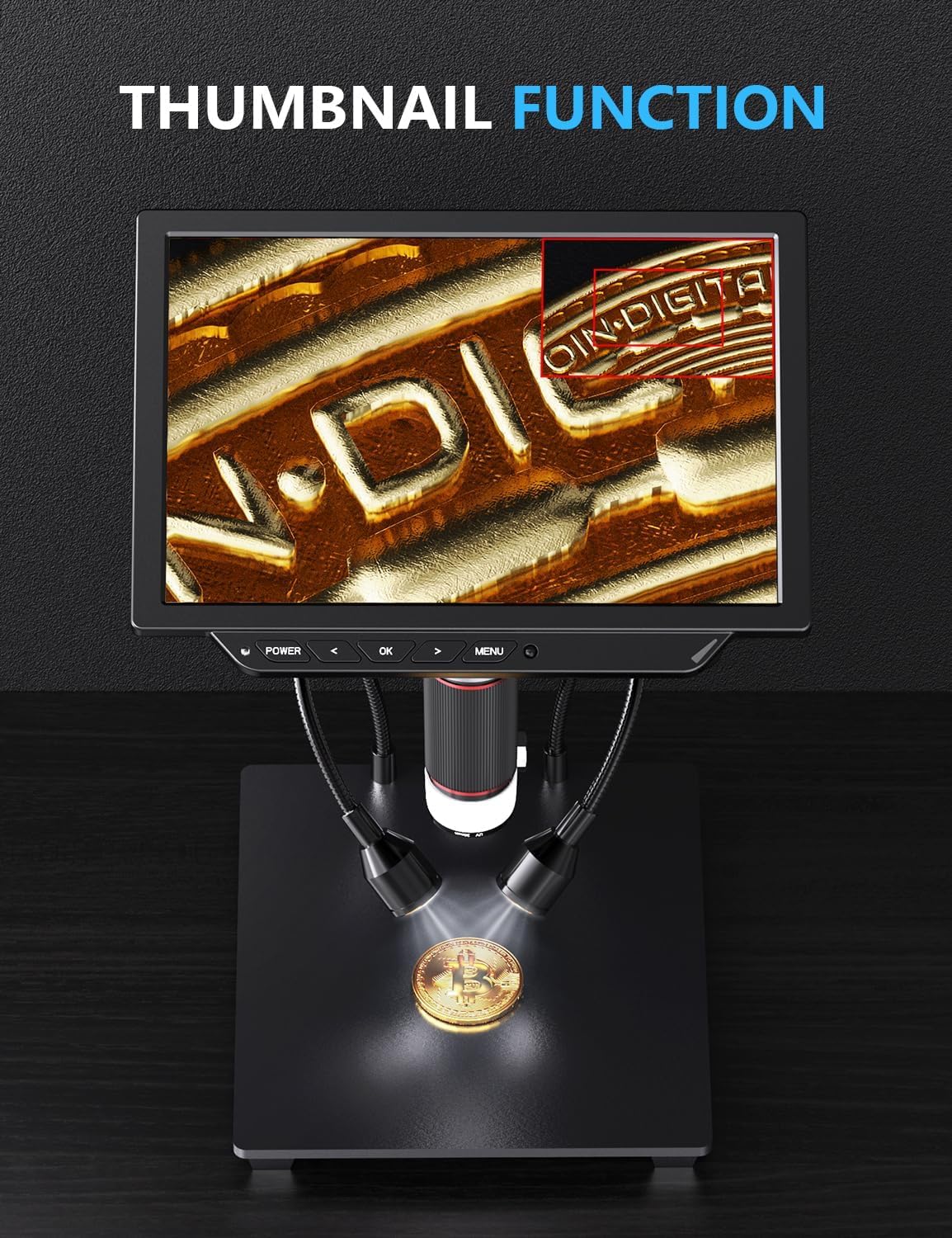
Figure 2: Assembled Dcorn 4K Digital Microscope ready for use.
Operating Instructions
Powering On/Off
Press the POWER button on the display unit to turn the microscope on or off.
Adjusting Magnification and Focus
- Manual Adjustment: Use the knobs on the stand to raise or lower the microscope unit for coarse magnification adjustments. Rotate the focus ring on the microscope lens for fine-tuning the image clarity.
- Remote Control: Use the zoom in/out buttons on the remote control for digital magnification adjustments.

Figure 3: Demonstrating various magnification levels.
Adjusting Lighting
The base features controls to dim or brighten the two flexible side lights. The microscope unit also has an integrated ring light for additional illumination.
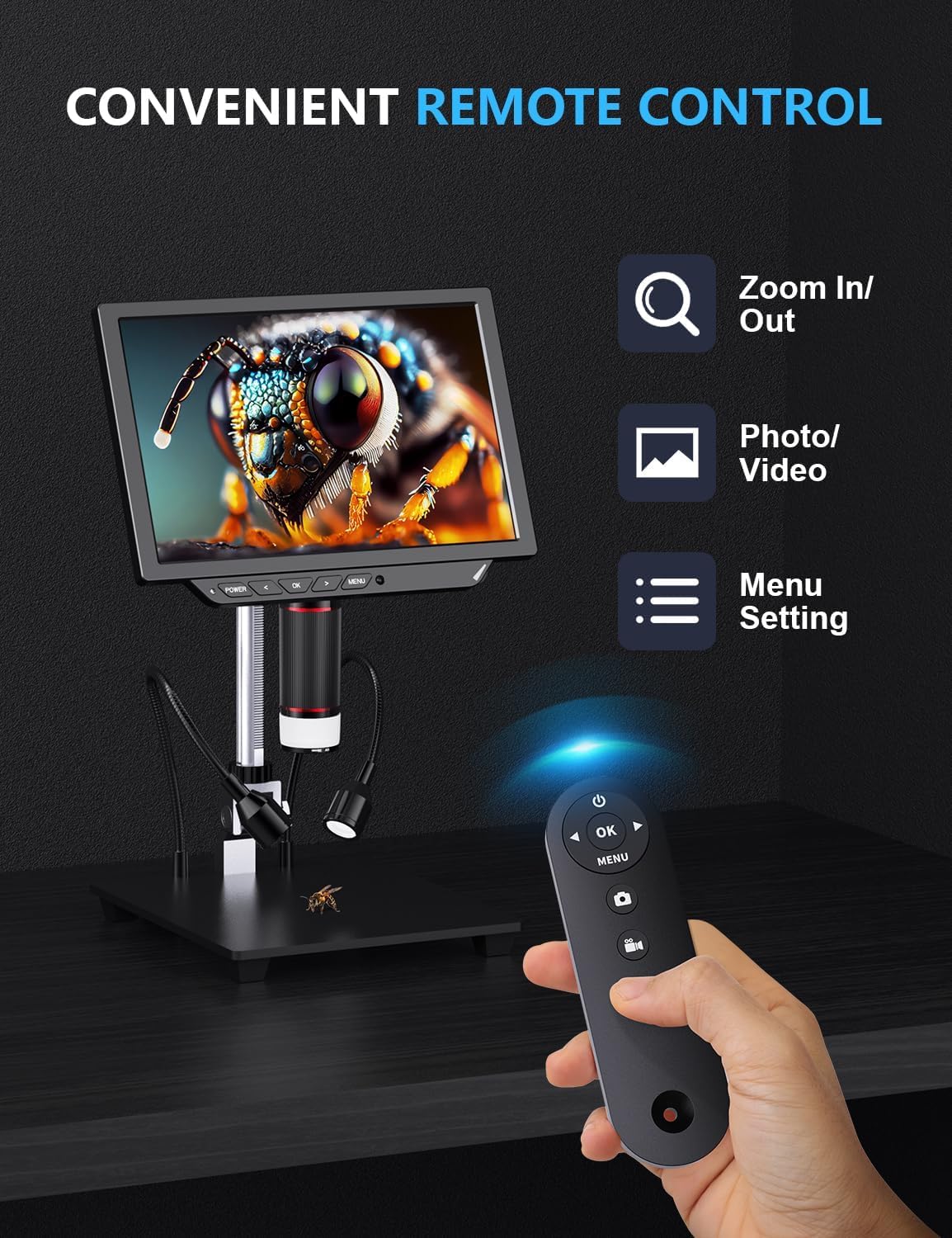
Figure 4: Using the remote control for convenient operation.
Capturing Photos and Videos
Use the dedicated buttons on the display unit or the remote control to capture 52-megapixel still images or record 4K (3840x2160P at 30fps) videos. All media is saved to the inserted 64GB TF card.
HDMI Output
Connect an HDMI cable from the microscope's HDMI output port to an external monitor or PC for a larger viewing experience. This is ideal for collaborative viewing or presentations.

Figure 5: Connecting to an external display via HDMI.
Maintenance
- Cleaning the Lens and Screen: Use the provided cleaning cloth or a soft, lint-free cloth to gently wipe the microscope lens and display screen. Avoid abrasive materials or harsh chemicals.
- Storage: When not in use, store the microscope in a clean, dry place away from direct sunlight and extreme temperatures.
- Battery Care: The microscope includes a Lithium Polymer battery. For optimal battery life, avoid fully discharging the battery frequently and store it with a partial charge if not used for extended periods.
Troubleshooting
- No Power:
- Ensure the power adapter is securely connected to both the microscope base and a working power outlet. Check if the power button has been pressed.
- Blurry Image:
- Adjust the focus ring on the microscope lens. Also, ensure the microscope unit is at an appropriate height from the object being viewed by adjusting the stand's knobs.
- Remote Control Not Responding:
- Verify that the plastic tab has been removed from the remote control's battery compartment. Ensure there are no obstructions between the remote and the microscope's sensor.
- No Image on External Monitor (HDMI):
- Check that the HDMI cable is securely connected to both the microscope and the external monitor. Ensure the external monitor is set to the correct HDMI input source.
Specifications
| Feature | Detail |
|---|---|
| Model Number | DMR4K-10-BOOK |
| Magnification Maximum | 2000 x |
| Video Resolution | 4K (3840x2160P at 30fps) |
| Still Image Resolution | 52MP (9600x5400P) |
| Display Size | 10 inches |
| Light Source Type | LED (Integrated ring light + 2 flexible side lights) |
| Storage | 64GB TF Card (included) |
| Output Ports | HDMI, USB |
| Material | Metal, Plastic |
| Item Weight | 4.66 pounds (2.12 Kilograms) |
| Batteries | 1 Lithium Polymer battery required (included) |
| Voltage | 240 Volts |
Warranty and Support
For warranty information and customer support, please refer to the contact details provided in the included Guidebook or visit the official Dcorn website. Protection plans are available for purchase separately to extend coverage for your device.
- 2-Year Protection Plan: Available for purchase.
- 3-Year Protection Plan: Available for purchase.