
1. Introduction
Thank you for choosing the Alxum External CD/DVD Drive. This versatile 8-in-1 device provides seamless optical disc capabilities for your laptop or PC, along with integrated multiple ports for enhanced connectivity. Designed for ease of use and portability, it supports fast data transfer speeds and is compatible with various operating systems.
2. Key Features
- Versatile External CD DVD Drive: Seamlessly adds optical disc capabilities to your laptop, blazing through CD and DVD recording and playback with impressive 8x CD and 24x DVD speeds.
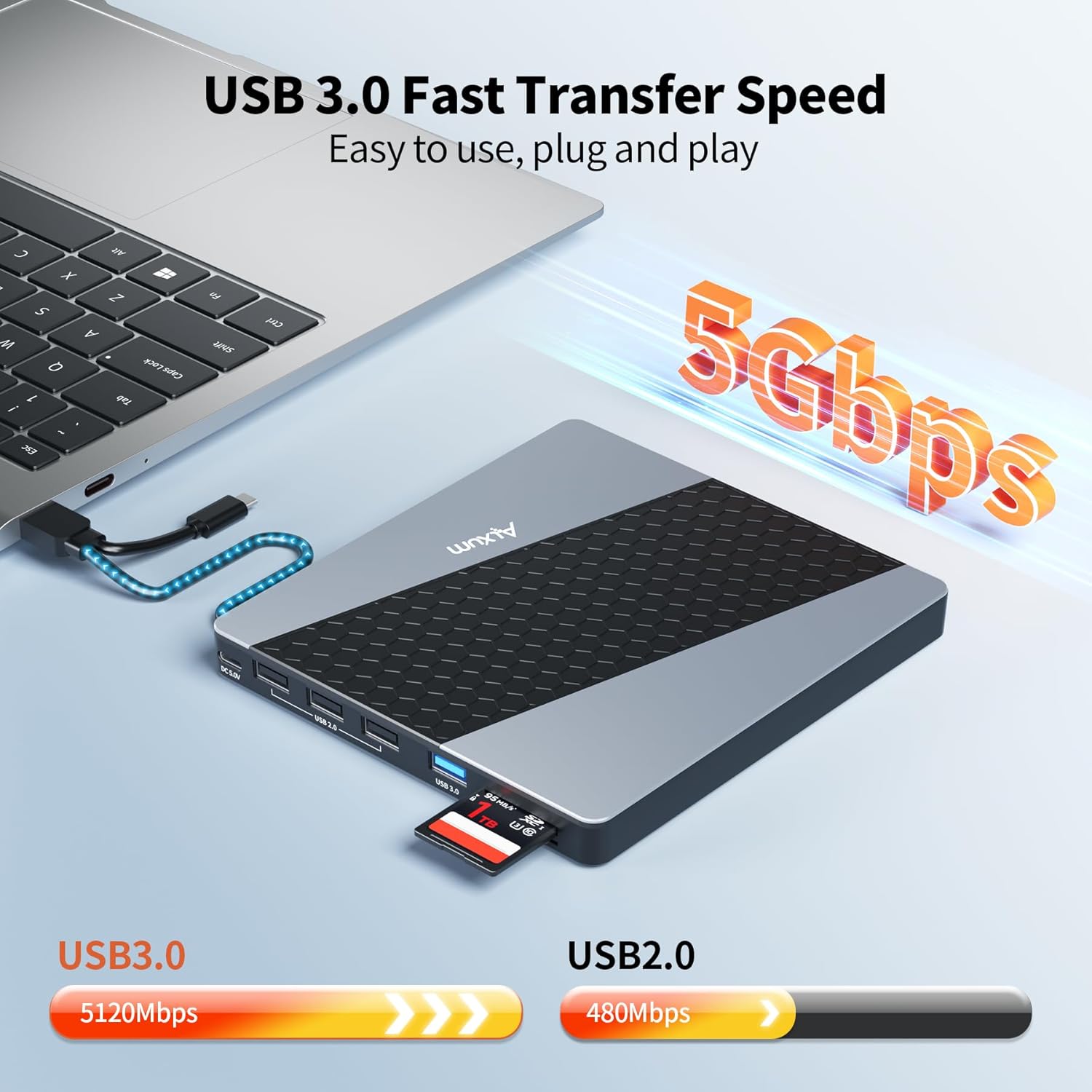
- Integrated Multiple Ports: Alxum external DVD drive for laptop has come with multiple ports which works like a hub as well, such as 3 * USB2.0 Type A ports, 1 * USB3.0 Type A port, 1 * CF card slot, 1 * SD Card slot, conveniently U-disk connecting, transfer files, photos, and media between your devices.
- Fast 5Gbps Data Speeds: With a high-speed USB 3.0 port, this external CD DVD drive for laptop offers a transfer rate of up to 5Gbps. Backward compatible with USB2.0, USB1.1. Enjoy lightning-fast data transfer rates, allowing you to quickly move large files and stream high-quality content.
- Compact, Portable Design: Instantly connects to your laptop with no software installation required; The ultra slim, lightweight form factor makes this drive easy to take anywhere, perfect for travel and on-the-go use.
- Universal Compatibility: Works seamlessly with PC and laptop with Windows, macOS, and Linux system, expanding your optical disc capabilities.
3. What's in the Box
- 1 x Alxum External CD/DVD Drive for Laptop
- 1 x USB A to Micro B Cable
- 1 x SD Card Holder
- 1 x User Manual
4. Setup Guide
The Alxum External CD/DVD Drive is designed for plug-and-play functionality, requiring no additional drivers for most operating systems.
- Connect the Drive: Connect the integrated USB cable from the external drive to an available USB port on your laptop or PC. The drive supports both USB-A and USB-C connections via its versatile cable.
- Ensure Power (if needed): For stable operation, especially when using multiple ports or with older devices, connect the included USB A to Micro B power cable to the DC 5.0V power port on the drive and to a USB power source (e.g., a USB wall adapter or another USB port on your computer).
- System Recognition: Your operating system (Windows, macOS, Linux) should automatically detect and install the necessary drivers. A notification may appear indicating the device is ready for use.


Setup Video Guide
Video 4.1: Official Alxum External CD Drive Setup and Feature Overview. This video demonstrates the physical connections, port functions, and general usage of the drive.
5. Operating Instructions
5.1. CD/DVD Read and Write Operations
- Insert a Disc: Press the eject button on the front of the drive to open the disc tray. Carefully place your CD or DVD onto the tray, ensuring it is centered on the spindle. Gently push the tray back into the drive until it clicks into place.
- Accessing Disc Content: Once the disc is inserted, your computer's operating system will typically prompt you to choose an action (e.g., open folder to view files, play media, burn files). You can also navigate to 'This PC' or 'My Computer' (Windows) or 'Finder' (macOS) and select the optical drive icon to access the disc.
- Burning Discs: To burn files to a blank CD-R/RW or DVD-R/RW, insert a blank disc. Use your operating system's built-in burning utility or third-party software to select files and initiate the burning process. The drive supports 8x CD and 24x DVD write speeds.

5.2. Using Integrated Ports (USB Hub and Card Readers)
The Alxum External CD/DVD Drive also functions as a multi-port hub, expanding your device's connectivity.
- USB Ports: Utilize the 3 x USB 2.0 Type-A ports and 1 x USB 3.0 Type-A port to connect USB devices such as flash drives, external hard drives, keyboards, or mice. The USB 3.0 port offers data transfer speeds up to 5Gbps.
- Card Slots: Insert your SD card into the SD Card slot or your TF (Micro SD) card into the TF Card slot to transfer photos, videos, and other files directly to and from your computer.

6. Maintenance and Care
- Cleaning: Use a soft, dry cloth to clean the exterior of the drive. Do not use liquid cleaners or aerosols. For the optical lens, use a specialized CD/DVD lens cleaning kit.
- Handling Discs: Always handle discs by their edges to avoid fingerprints and scratches. Store discs in their cases when not in use.
- Storage: Store the drive in a cool, dry place away from direct sunlight and extreme temperatures.
- Avoid Impact: The drive contains delicate internal components. Avoid dropping or subjecting it to strong impacts.
7. Troubleshooting
- Drive Not Recognized:
- Ensure the USB cable is securely connected to both the drive and your computer.
- Try connecting to a different USB port on your computer.
- If using a desktop PC, try connecting to a USB port on the back of the computer (directly on the motherboard) rather than front panel ports.
- Ensure sufficient power by connecting the additional power cable if your computer's USB port does not provide enough power.
- Disc Not Reading/Writing:
- Check if the disc is clean and free from scratches or smudges. Clean the disc with a soft, lint-free cloth if necessary.
- Ensure the disc is correctly placed on the tray's spindle.
- Try a different disc to rule out a faulty disc.
- Restart your computer and try again.
- Slow Data Transfer:
- Ensure you are connected to a USB 3.0 port on your computer for optimal speeds.
- Close any unnecessary applications running in the background that might be consuming system resources.
8. Specifications
| Feature | Detail |
|---|---|
| Brand | Alxum |
| Model Number | B34-Y |
| Hardware Platform | Laptop, PC |
| Operating System Compatibility | Windows 11/10/8/7, Linux, MacOS |
| Item Weight | 13.4 ounces |
| Product Dimensions (LxWxH) | 6.06 x 5.67 x 0.63 inches |
| Hardware Interface | USB 3.0 Type A, USB 3.0 Type C |
| Optical Storage Write Speed | CD 8X, DVD 24X |
| Special Features | Backward Compatible, Lightweight, Plug & Play |
9. Warranty and Support
Alxum is committed to providing high-quality products and excellent customer service. Your Alxum External CD/DVD Drive comes with dedicated support to ensure your satisfaction.
- Customer Support: We offer 24-hour friendly and professional support. If you encounter any problems or have questions regarding the product, please do not hesitate to contact us.
- Contacting Support: You can typically find contact information for support by clicking on the seller's name in the 'Sold By' section of the product detail page where you purchased the item. Our professional technical guidance team is always available to assist you.
