
1. Introduction
Thank you for choosing the Devoko Electric Standing Desk. This manual provides detailed instructions to ensure safe assembly, proper operation, and effective maintenance of your new desk. Please read this manual thoroughly before use and retain it for future reference.

Image 1.1: The Devoko Electric Standing Desk (Model 0134) featuring a white frame and a light grey tabletop.
2. Safety Information
- Ensure all components are present and undamaged before assembly.
- Keep children and pets away from the desk during operation, especially during height adjustments.
- Do not overload the desk. The maximum weight capacity is 70 kg.
- Avoid placing liquids directly on the desk surface, especially near electrical components.
- Disconnect power before cleaning or performing any maintenance.
- Do not attempt to modify the desk's electrical or mechanical components. Contact customer support for assistance.
- Ensure sufficient clearance around the desk during height adjustments to prevent obstructions or collisions.
3. Package Contents
Please verify that all parts are included in your package. If any parts are missing or damaged, please contact Devoko customer support.
- Desktop sections (typically 2-3 pieces)
- Desk legs (2)
- Foot pads (2)
- Control panel
- Motor and power adapter
- Cable management tray
- Headphone hooks (2)
- Integrated power strip with USB ports and wireless charger
- Assembly hardware (screws, Allen keys, etc.)
- User Manual
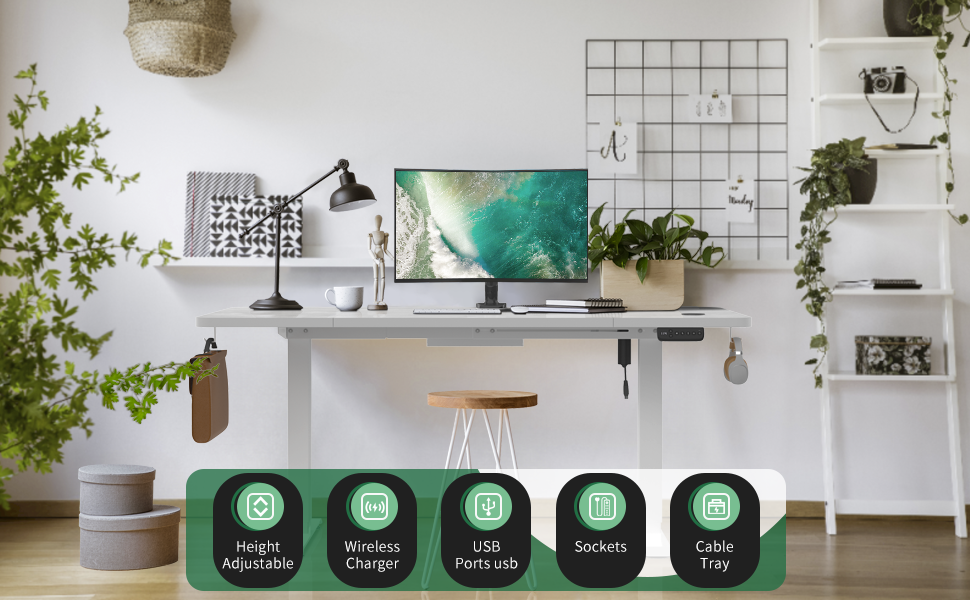
Image 3.1: Overview of desk components for assembly.
4. Setup and Assembly
Assembly typically takes around 30 minutes. Follow these general steps. Refer to the detailed assembly instructions included in your package for specific diagrams and screw types.
- Prepare the Area: Clear a spacious area for assembly. Lay down a soft cloth or cardboard to protect the desktop surface.
- Assemble the Legs: Attach the foot pads to the bottom of each desk leg.
- Attach Legs to Frame: Secure the desk legs to the main crossbar frame using the provided hardware.
- Mount the Desktop: Carefully place the desktop sections onto the assembled frame. Align the pre-drilled holes and secure the desktop to the frame using the appropriate screws.
- Install Control Panel: Mount the control panel to the underside of the desktop, typically on the front edge.
- Connect Wiring: Connect the motor cables, control panel cable, and power adapter to the main control box. Ensure all connections are secure.
- Install Power Strip and Wireless Charger: Integrate the power strip and wireless charger into the designated slots on the desktop. Connect their power cables to the main power source or control box as instructed.
- Attach Accessories: Install the cable management tray and headphone hooks to the underside or sides of the desk.
- Initial Power-Up: Plug the desk into a power outlet. The LED display on the control panel should light up.

Image 4.1: The robust steel frame construction of the desk, showing the motor and support beams.

Image 4.2: Cable management tray and headphone hooks installed on the desk.
5. Operating Instructions
5.1. Height Adjustment
The desk's height can be adjusted between 72 cm and 118 cm using the control panel.
- Raise: Press and hold the "Up" arrow button to raise the desk.
- Lower: Press and hold the "Down" arrow button to lower the desk.
- LED Display: The current height is shown on the LED display.
5.2. Memory Presets
The control panel features three memory buttons (1, 2, 3) to save and recall your preferred sitting and standing heights.
- To Save a Height: Adjust the desk to your desired height. Press the "M" button, then immediately press one of the number buttons (1, 2, or 3) until you hear a beep or see the display flash, indicating the height is saved.
- To Recall a Height: Press the corresponding number button (1, 2, or 3). The desk will automatically move to the saved height.
5.3. Sedentary Reminder
The desk includes a sedentary reminder function to encourage alternating between sitting and standing.
- Activate/Deactivate: Refer to your specific control panel instructions for activating or deactivating this feature. Typically, it involves a long press on a specific button (often labeled "S" or a clock icon).
- Alert: The desk will emit a gentle reminder after a set period of inactivity.

Image 5.1: The intelligent control panel with LED display, memory presets, and sedentary reminder function.
5.4. Integrated Charging Features
The desk is equipped with convenient charging options to keep your devices powered.
- Wireless Charger: Place compatible devices on the designated wireless charging pad on the desktop. Ensure proper alignment for charging.
- USB Charging Ports: Use the two integrated USB ports (5V/2.1A) to charge smartphones, tablets, and other USB-powered devices.
- Power Outlets: The three standard power outlets (220V/13A) provide power for laptops, monitors, and other electronic equipment.

Image 5.2: Integrated power strip with three outlets, two USB ports, and a wireless charging pad.
5.5. Anti-Collision Technology
The desk is equipped with an anti-collision system that detects obstacles during height adjustment. If an obstruction is detected, the desk will stop and slightly reverse direction to prevent damage.

Image 5.3: Illustration of the anti-collision feature.
6. Maintenance
- Cleaning: Wipe the desk surface and frame with a soft, damp cloth. Avoid abrasive cleaners or harsh chemicals.
- Cable Management: Regularly check and organize cables using the provided cable management tray to prevent tangles and damage.
- Inspections: Periodically check all screws and connections to ensure they are tight and secure.
- Power: Always unplug the desk from the power outlet before cleaning or moving it.
7. Troubleshooting
| Problem | Possible Cause | Solution |
|---|---|---|
| Desk does not move. | No power, loose connection, motor error. | Check power cable connection. Ensure outlet is functional. Unplug and replug the desk. Perform a reset (refer to specific control panel instructions for reset procedure, usually holding down 'Down' button for 5-10 seconds). |
| Desk moves unevenly or makes unusual noise. | Uneven load, loose screws, obstruction. | Distribute weight evenly on the desktop. Check all assembly screws for tightness. Ensure no objects are obstructing the legs. |
| Height presets not working. | Presets not saved correctly. | Re-save your desired heights following the "Memory Presets" instructions. |
| Wireless charger or USB ports not working. | Device incompatibility, power issue, incorrect placement. | Ensure your device supports wireless charging. Check if the desk is powered on. For wireless charging, ensure the device is centered on the charging pad. Try a different USB cable/device. |
| Anti-collision system triggers frequently. | Obstruction, sensitive setting. | Ensure no objects are in the path of the desk's movement. Check if the sensitivity setting can be adjusted (refer to control panel instructions). |
8. Specifications
- Brand: Devoko
- Model Number: 0134
- Color: White
- Desktop Dimensions (L x W): 160 cm x 80 cm
- Height Adjustment Range: 72 cm - 118 cm
- Weight Capacity: 70 kg
- Noise Level: ≤55 dB during adjustment
- Integrated Power:
- 1 x Wireless Charger (5W)
- 2 x USB Charging Ports (5V/2.1A)
- 3 x Power Outlets (220V/13A)
- Frame Material: Alloy Steel
- Product Weight: 26.2 kg
9. Warranty and Support
For any questions, concerns, or assistance with your Devoko Electric Standing Desk, please do not hesitate to contact our customer support team.
Please refer to your purchase documentation or the Devoko official website for specific warranty details and contact information.
Contact Information: Visit the Devoko Store on Amazon


