
Tera 9800_WH_US
Tera 9800 Series Omnidirectional Barcode Scanner Instruction Manual
Model: 9800_WH_US
1. Introduction
Thank you for choosing the Tera 9800 Series Omnidirectional Barcode Scanner. This device is designed for fast and accurate scanning of various barcode types, including 1D, 2D, and QR codes, making it ideal for retail, supermarket, and point-of-sale (POS) environments. Its hands-free, omnidirectional design ensures efficient operation and ease of use. Please read this manual thoroughly before operating the scanner to ensure proper setup and optimal performance.
2. Safety Information
- Do not stare directly into the scanning light.
- Keep the device away from water and excessive moisture.
- Avoid dropping or subjecting the scanner to severe impacts.
- Do not attempt to disassemble or repair the scanner yourself. Contact qualified personnel for service.
- Use only the provided USB cable for connection.
3. Package Contents
Please check the box for the following items:
- Tera 9800 Series Omnidirectional Barcode Scanner
- USB Cable (6ft/1.8m)
- User Manual
Video: Unboxing the Tera 9800 Barcode Scanner, showing the scanner, USB cable, and user manual included in the package.
4. Product Overview
The Tera 9800 scanner features a compact, desktop-friendly design with an adjustable scanning head and an intuitive top button for mode switching.

Image: Front view of the Tera 9800 Barcode Scanner in white, showing its omnidirectional scanning window and the attached USB cable.

Image: Side view of the Tera 9800 Barcode Scanner highlighting its 30-degree adjustable angle and the scan mode switch button on top.

Image: Top-down view of the Tera 9800 Barcode Scanner illustrating its 360-degree omnidirectional scanning capability for both 1D and 2D barcodes.
5. Setup
The Tera 9800 scanner is designed for simple plug-and-play operation. No drivers or complex software installations are required.
- Connect the USB Cable: Insert the RJ45 end of the provided USB cable into the port at the bottom of the scanner.
- Plug into Computer: Connect the USB-A end of the cable to an available USB port on your PC or laptop.
- Power On: The scanner will power on automatically and emit a short beep, indicating it is ready for use.

Image: A Tera 9800 Barcode Scanner with its USB cable plugged into a laptop, demonstrating the plug-and-play setup.
Video: A demonstration of the Tera 9800 Barcode Scanner's plug-and-play functionality, showing it being connected and ready for use.
6. Operating Instructions
The Tera 9800 offers versatile scanning modes and supports a wide range of barcode types.
Scanning Modes
The scanner features a top button to switch between two primary scanning modes:
- Continuous Scan Mode: The scanner continuously emits a scanning light, automatically detecting and reading barcodes placed within its field of view. This is ideal for high-volume scanning.
- Key Trigger Mode: The scanning light is activated only when the top button is pressed. This mode is suitable for precise, on-demand scanning.

Image: A person using the Tera 9800 Barcode Scanner at a checkout counter, demonstrating both continuous and key trigger scanning modes.
Supported Barcode Types
The Tera 9800 is capable of reading a comprehensive array of 1D, 2D, and QR barcodes from various surfaces, including labels, paper, plastic cards, and digital displays (mobile phones, computer screens).
- 1D Barcode Capability: Codabar, Code 11, Code 93, MSI, Code 128, UCC/EAN-128, Code 39, EAN-8, EAN-13, UPC-A, ISBN, Industrial 2 of 5, Interleaved 2 of 5, Standard 2 of 5, Matrix 2 of 5.
- 2D Barcode Capability: QR, PDF417, Data Matrix, Aztec, MaxiCode.
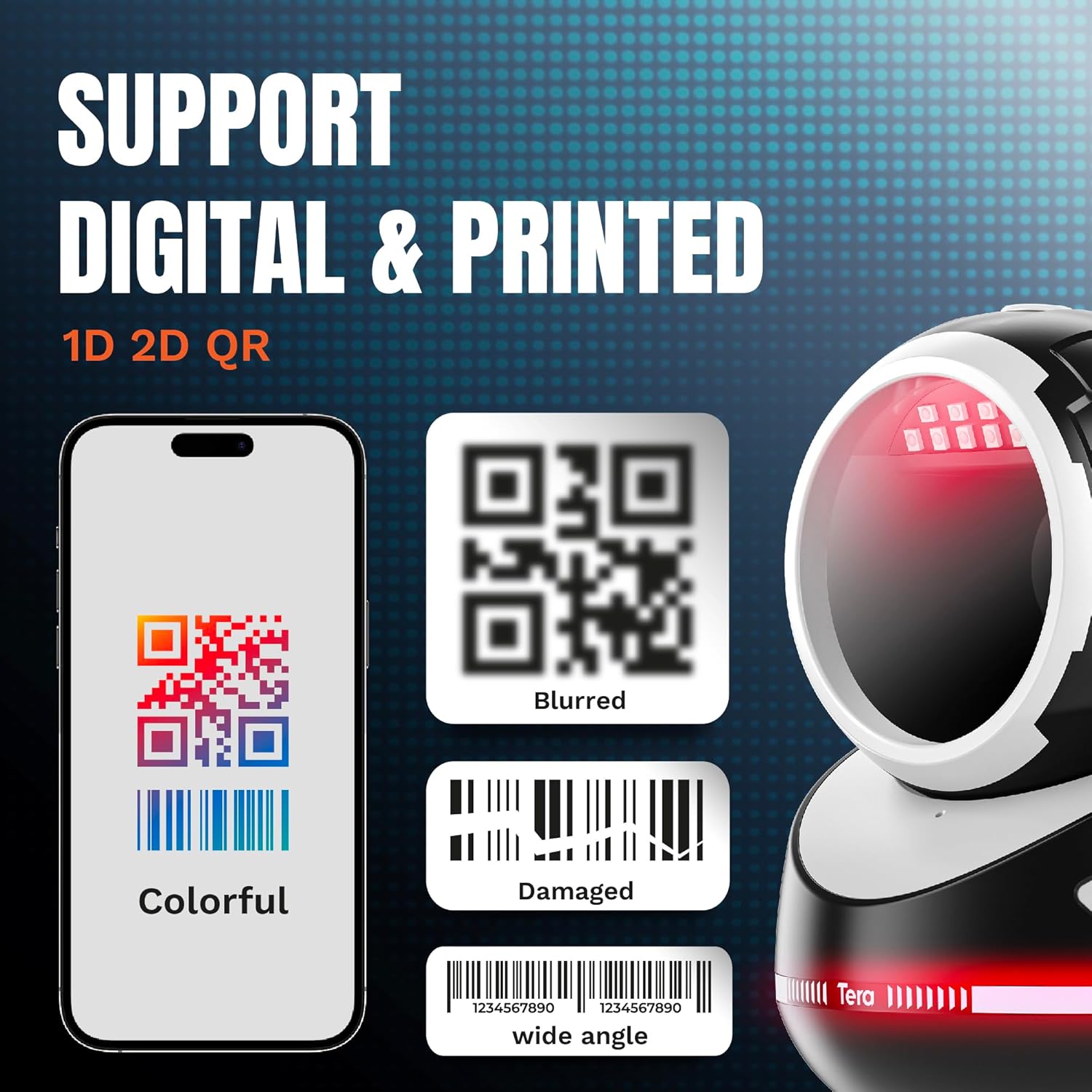
Image: The Tera 9800 Barcode Scanner illustrating its capability to scan various digital and printed barcodes, including colorful, blurred, damaged, and wide-angle formats.
Adjustable Angle
The scanner head can be adjusted by 30 degrees, allowing for optimal positioning to capture barcodes efficiently without needing to reposition the item being scanned.
Data Editing Functions
The scanner supports advanced data editing features, such as adding prefixes/suffixes or dropping leading/trailing characters. Refer to the full user manual for specific programming barcodes to enable these functions.

Image: The Tera 9800 Barcode Scanner illustrating its capability to add or hide digits from scanned barcode data, such as adding prefixes, suffixes, or dropping characters.
Video: A demonstration of the Tera 9800 Barcode Scanner's performance in a supermarket checkout scenario, highlighting its speed and efficiency.
7. Maintenance
To ensure the longevity and optimal performance of your Tera 9800 scanner, follow these maintenance guidelines:
- Cleaning: Use a soft, dry cloth to clean the scanner's exterior. For the scanning window, use a lint-free cloth and a mild glass cleaner if necessary. Avoid abrasive materials or harsh chemicals.
- Storage: Store the scanner in a cool, dry place away from direct sunlight and extreme temperatures.
- Cable Care: Do not bend or crimp the USB cable excessively.
8. Troubleshooting
| Problem | Possible Cause | Solution |
|---|---|---|
| Scanner not powering on. | USB cable not properly connected or faulty USB port. | Ensure the USB cable is securely connected to both the scanner and the computer. Try a different USB port. |
| Scanner not reading barcodes. | Barcode is damaged, blurry, or not supported. Scanner window is dirty. Incorrect scanning mode. | Ensure barcode is clear and within supported types. Clean the scanning window. Press the top button to switch scanning modes. |
| Scanned data is incorrect or incomplete. | Incorrect data editing settings. | Refer to the user manual for programming barcodes to reset or adjust data editing functions. |
9. Specifications
| Feature | Detail |
|---|---|
| Model Number | 9800_WH_US |
| Product Dimensions | 4.7 x 4.3 x 5.9 inches |
| Item Weight | 1.28 pounds |
| Connectivity Technology | USB Cable |
| Power Source | Corded Electric |
| Compatible Devices | Laptop, Desktop |
| Scanning Capability | 1D, 2D, QR Codes (Codabar, Code 11, Code 93, MSI, Code 128, UCC/EAN-128, Code 39, EAN-8, EAN-13, UPC-A, ISBN, Industrial 2 of 5, Interleaved 2 of 5, Standard 2 of 5, Matrix 2 of 5; QR, PDF417, Data Matrix, Aztec, MaxiCode) |
| Angle of View | 360 Degrees Omnidirectional |
| Adjustable Angle | 30 Degrees |
| Manufacturer | Tera |
| Country of Origin | China |
10. Warranty and Support
For warranty information and technical support, please refer to the documentation included with your product or visit the official Tera website. You may also contact ADM TECH LLC, the seller, for assistance.
- Seller: ADM TECH LLC
- Return Policy: 30-day refund/replacement (as per Amazon policy at time of data extraction)
For further inquiries, please reach out to Tera customer service.
Related documents9800_WH_US


Ask a question about this manual
Ask about setup, troubleshooting, compatibility, parts, safety, or missing instructions. Manuals+ will review the question and use this page’s manual context to help answer it.