
1. Introduction
This manual provides essential information for the safe and effective operation of your OWON DGE1060 Waveform Generator. Please read this manual thoroughly before using the device and keep it for future reference. The DGE1060 is a versatile arbitrary waveform generator designed for various applications in laboratories, research, and education, offering a 60MHz bandwidth, 300MSa/s sampling rate, and a wide range of waveform outputs.
2. Safety Information
Always observe the following safety precautions to prevent injury and avoid damage to the instrument or any products connected to it.
- Power Source: Use only the specified power adapter. Ensure the voltage and frequency match the device requirements.
- Grounding: Ensure the instrument is properly grounded to prevent electric shock.
- Environment: Operate the device in a dry, well-ventilated area, away from direct sunlight, high temperatures, humidity, and dust.
- Ventilation: Do not block ventilation openings. Overheating can cause damage.
- Cleaning: Disconnect power before cleaning. Use a soft, dry cloth. Do not use liquid or aerosol cleaners.
- Servicing: Do not attempt to service the instrument yourself. Refer all servicing to qualified service personnel.
3. Package Contents
Verify that all items listed below are included in your package. If any items are missing or damaged, please contact your supplier.
- Host Machine (OWON DGE1060 Waveform Generator)
- BNC to Alligator Clip Cable
- USB Cable
- USB to DC Cord
- Power Adapter
- Quick Guide

Figure 3.1: OWON DGE1060 Waveform Generator and included accessories.
4. Product Overview
4.1 Front Panel

Figure 4.1: Front Panel Layout
The front panel features a 3.6-inch TFT LCD display for clear waveform observation and parameter settings. Key areas include:
- 3.6-inch TFT LCD Display: Shows waveform graphs, parameters, and menu options.
- Function Setting Area: Buttons and rotary knob for adjusting parameters and navigating menus.
- Waveform Switching Area: Dedicated buttons for selecting basic waveforms.
- Channel Output Control Area: BNC connector for waveform output and ON/OFF button for the output.
4.2 Rear Panel

Figure 4.2: Rear Panel Layout
The rear panel provides essential connectivity:
- USB Device Interface: Supports PC remote control via SCPI commands.
- Power Socket: For connecting the external power adapter.
5. Key Features
- Waveform Generation: 60MHz bandwidth, 300MSa/s real-time sampling rate, 8K record depth, 14 bits vertical resolution.
- Comprehensive Waveform Output: Includes 5 standard basic waveforms and 160 built-in arbitrary waveforms (e.g., exponential rise, exponential fall, sin(x)/x, step wave).
- User-Friendly Interface: 3.6-inch TFT LCD display and intuitive function setting area for clear observation and easy operation.
- Multiple Modulation Modes: Supports AM, FM, PM, and FSK modulation modes.
- Advanced Functions: Features Sweep and Burst functions.
- Waveform Storage: Stores 16 digital arbitrary waveforms.
- PC Remote Control: Compatible with PC remote control for enhanced functionality.
- Compact Design: Ultra-thin body for portability and convenient shortcut keys for improved user interaction.
6. Setup
- Power Connection: Connect the provided power adapter to the Power Socket on the rear panel and then to a suitable AC power outlet.
- Output Connection: Connect the BNC to Alligator Clip cable to the OUT1 BNC connector on the front panel. Connect the alligator clips to your test circuit or device.
- Power On: Press the ON/OFF button on the front panel to power on the device.
- PC Connection (Optional): For remote control, connect the USB cable from the USB Device interface on the rear panel to your computer. Install any necessary drivers or software provided by OWON.
7. Operating Instructions
7.1 Basic Waveform Generation
To generate a basic waveform (Sine, Square, Pulse, Ramp, Noise):
- Press the desired waveform button in the Waveform Switching Area (e.g., Sine wave button).
- Use the Function Setting Area buttons and rotary knob to adjust parameters such as Frequency, Amplitude, Offset, and Phase.
- Press the OUT1 ON/OFF button to enable the output.
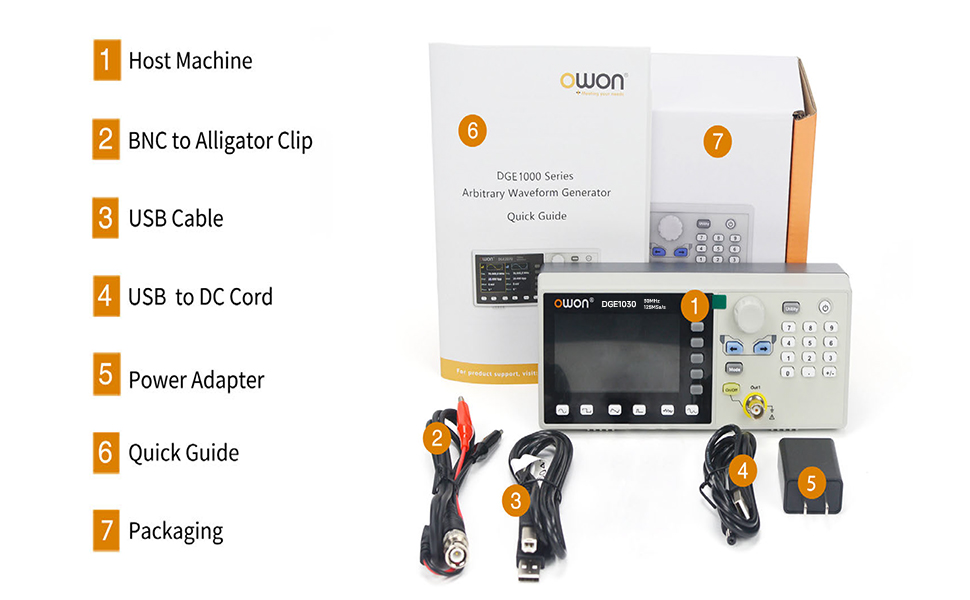
Figure 7.1: High Frequency Stable Output and Arbitrary Waveform Selection
7.2 Arbitrary Waveforms
The DGE1060 includes 160 built-in arbitrary waveforms and supports user-defined waveforms.
- Press the 'Arb' button (if available, or navigate through the menu to 'Arb').
- Select a built-in arbitrary waveform from the list using the navigation buttons and rotary knob.
- Adjust parameters as needed and enable output.
7.3 Modulation Functions (AM, FM, PM, FSK)
To apply modulation to a waveform:
- Select a basic waveform to be modulated.
- Press the 'Mode' button and select the desired modulation type (AM, FM, PM, or FSK).
- Adjust the modulation parameters (e.g., depth, frequency) using the controls.

Figure 7.2: Modulation and Sweep Function Settings
7.4 Sweep Function
The sweep function allows the output frequency to vary over a specified range.
- Press the 'Sweep' button.
- Select the sweep type (Linear or Log).
- Set the Start Frequency, Stop Frequency, and Sweep Time.
7.5 Burst Function
The burst function generates a specific number of waveform cycles.
- Press the 'Burst' button.
- Set the Burst Period and the number of Cycles (N-Cycle, Gated, or Infinite).
- Select the Trigger Source (Internal or Manual).

Figure 7.3: Burst Function and Waveform Storage
7.6 PC Remote Control
The DGE1060 supports remote control via a PC using the USB device interface and SCPI commands. Refer to the OWON website or additional software documentation for detailed instructions on setting up and using PC remote control.
Video 7.1: An official product video demonstrating the OWON DGE1060 Waveform Generator, highlighting its compact size, exterior dimensions, large LCD display, and remote operation capabilities. It also introduces various functions like high frequency stable output, arbitrary waveforms, multi-modulation modes (AM, FM, PM, FSK), sweep function, burst function, and waveform storage.
8. Specifications
| Category | Specification |
|---|---|
| Brand | OWON |
| Model Name | DGE1060 |
| Frequency Output | 60MHz |
| Sampling Rate | 300MSa/s |
| Vertical Resolution | 14 bits |
| Waveform Length | 8K points |
| Standard Waveforms | Sine, Square, Pulse, Ramp, Noise |
| Arbitrary Waveforms | 160 built-in, user-defined |
| Modulation Types | AM, FM, PM, FSK, Sweep, Burst |
| Display | 3.6-inch TFT LCD |
| Communication Interface | USB Device |
| Power Source | AC/DC |
| Voltage | 120 Volts (AC) |
| Output Wattage | 120 Watts |
| Product Dimensions (L x W x H) | 5"L x 3"W x 5"H (approximate) |
| Item Weight | 2.35 pounds |
| Color | Black |
9. Maintenance
- Cleaning: Regularly clean the exterior of the instrument with a soft, dry cloth. Do not use abrasive cleaners or solvents.
- Storage: When not in use for extended periods, store the device in a cool, dry place, protected from dust and extreme temperatures.
- Calibration: Periodic calibration by qualified personnel is recommended to maintain measurement accuracy.
10. Troubleshooting
If you encounter issues with your DGE1060 Waveform Generator, refer to the following common troubleshooting steps:
- No Power: Ensure the power adapter is securely connected to both the device and the power outlet. Verify the power outlet is functional.
- No Output Signal: Check if the OUT1 ON/OFF button is enabled. Verify that the output cable is correctly connected and not damaged. Ensure the amplitude and frequency settings are appropriate for your application.
- Incorrect Waveform: Double-check the selected waveform type and all associated parameters (frequency, amplitude, offset, etc.).
- PC Remote Control Issues: Ensure the USB cable is properly connected. Verify that the correct drivers are installed on your PC and that the remote control software is configured correctly.
If the problem persists after attempting these steps, please contact OWON customer support or your local distributor for assistance.
11. Warranty and Support
For warranty information, technical support, or service inquiries, please refer to the official OWON website or contact your authorized OWON dealer. Keep your purchase receipt as proof of purchase for warranty claims.


