
1. Introduction
The AMHVMU M17 Head-up Display (HUD) is an advanced automotive accessory designed to project essential vehicle information directly onto your windshield, allowing drivers to keep their eyes on the road. This device enhances driving safety by displaying critical data such as speed, RPM, water temperature, voltage, and driving distance, minimizing the need to look down at the dashboard.
The M17 features a versatile dual-system design, supporting both OBD2 and GPS modes. The OBD2 mode is compatible with most vehicles manufactured after 2008, providing comprehensive vehicle data. The GPS mode offers universal compatibility, making it suitable for all cars, regardless of their OBD2 system. This dual functionality ensures broad applicability and adaptability to various vehicle conditions.
2. Key Features
- Dual System (OBD2 + GPS): Seamlessly switch between OBD2 and GPS modes based on vehicle compatibility and data requirements.
- Comprehensive Data Display: Shows speed, RPM, water temperature, voltage, fuel consumption, mileage, driving direction, and more.
- Safety Alarms: Includes speeding alarm, fatigue driving alarm, water temperature alarm, voltage alarm, and over-speed alarm to enhance driving safety.
- Integrated Design: Features a hood design to block excess light, ensuring clear visibility day and night.
- Dimensional Independent Buttons: Easy-to-use buttons for navigation and settings adjustment.

Figure 2.1: The AMHVMU M17 HUD displaying various car data, highlighting its multi-function display capabilities.

Figure 2.2: Detailed view of the M17 HUD's control buttons and the array of information it can display, including speed, RPM, water temperature, and various alarms.
3. Product Accessories
The AMHVMU M17 Head-up Display package includes the following components:
- AMHVMU M17 Head-up Display Unit
- OBD2 Cable
- USB Cable
- Non-slip Pad
- Reflective Film
- Instruction Manual (English)

Figure 3.1: All components included in the AMHVMU M17 Head-up Display package.
4. Setup and Installation
Follow these steps to properly install your AMHVMU M17 Head-up Display:
- Connect Power: Plug the OBD2 cable into your vehicle's OBD socket connector. Alternatively, if using GPS mode or if your vehicle does not have an OBD2 port, use the USB cable and plug it into a cigarette lighter adapter or a suitable USB power source in your car.
- Route Cable: Carefully route the wire into the A-pillar seal to conceal it and prevent interference with driving.
- Position HUD: Connect the other end of the OBD or USB cable to the HUD interface. Place the HUD unit in a suitable position on your dashboard, typically near the windshield, ensuring it does not obstruct your view. Use the provided non-slip pad to secure the device.
- Apply Reflective Film (Optional): If the display is not clear or has a double image due to windshield properties, apply the reflective film to the windshield where the HUD projects. Clean the area thoroughly before application.
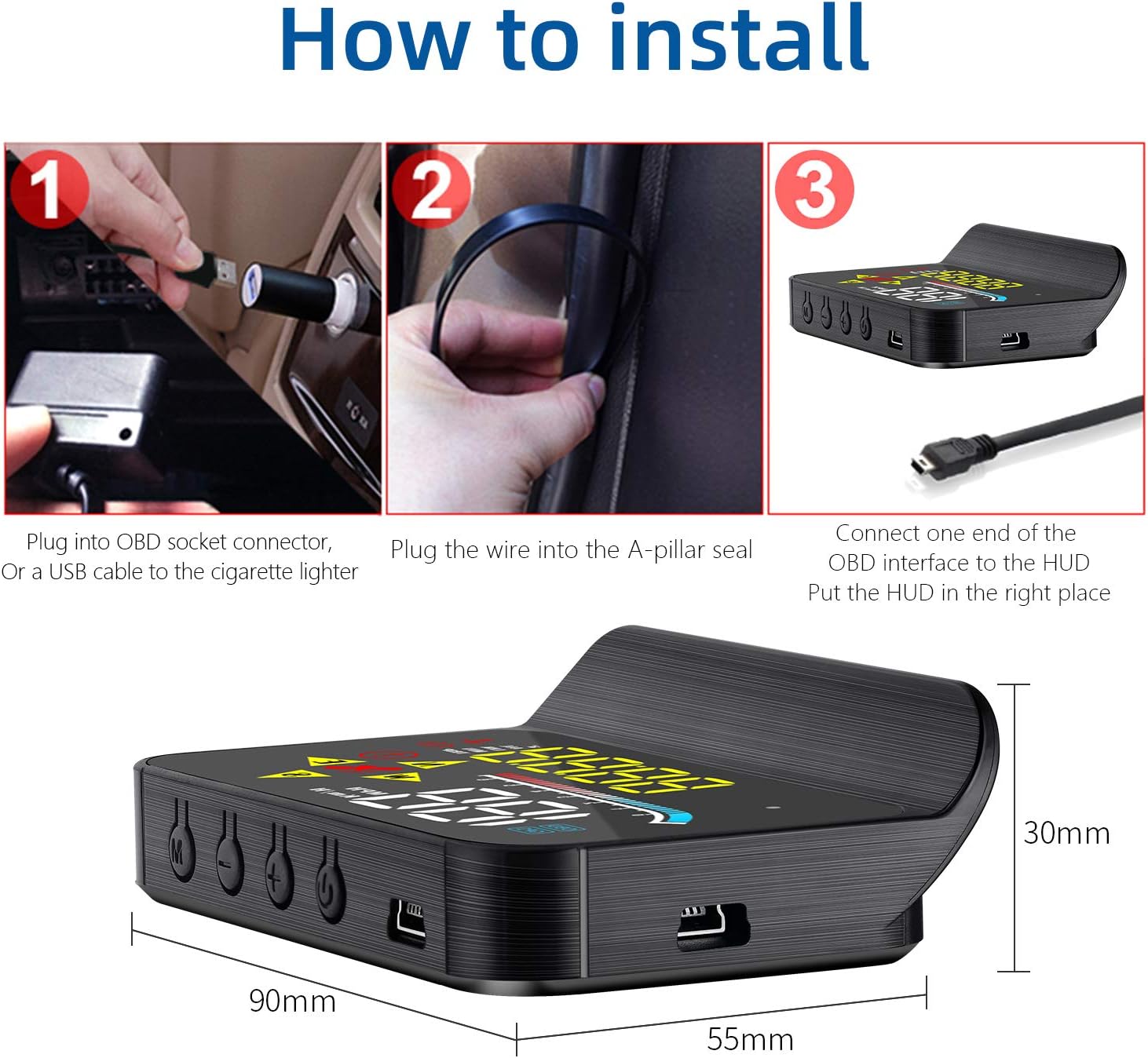
Figure 4.1: Visual guide for the installation process of the M17 HUD.
5. Operating Instructions
5.1. Dual System Mode Switching
The M17 HUD automatically detects the vehicle's system. If an OBD2 connection is established, it will default to OBD2 mode. If no OBD2 signal is detected, or if you prefer, it will operate in GPS mode. You can manually switch between modes using the designated button on the device (refer to the device's physical buttons for specific controls).
5.2. Displayed Information
The HUD can display a variety of information depending on the selected mode:
- Speed: Current vehicle speed (MPH/Km/h).
- RPM: Engine revolutions per minute (OBD2 mode only).
- Water Temperature: Engine coolant temperature (OBD2 mode only).
- Voltage: Vehicle battery voltage.
- Fuel Consumption: Real-time fuel usage (OBD2 mode only).
- Mileage: Trip distance.
- Driving Direction: Compass display (GPS mode).
- Altitude: Current altitude (GPS mode).
- Number of Satellites: Indicates GPS signal strength (GPS mode).
- Clock: Time display.

Figure 5.1: The M17 HUD in operation, projecting information onto the windshield.
6. Alarm Settings
The M17 HUD is equipped with several alarm functions to alert the driver to potential issues and enhance safety. These alarms can be configured to provide visual (icon flashing) and/or audible warnings.
- Over-speed Alarm: Alerts when the vehicle exceeds a preset speed limit.
- Speed Alarm: A general speed warning.
- Voltage Alarm: Warns if the vehicle's battery voltage drops below a safe level.
- Water Temperature Alarm: Notifies if the engine coolant temperature becomes too high.
- Fault Code Clear: Indicates a detected fault code (OBD2 mode) and may offer an option to clear it.
- Tired Driving Reminder: Prompts the driver to take a break after a prolonged period of driving.
Refer to the detailed instruction manual included in the package for specific steps on how to set and adjust these alarm parameters using the device's buttons.

Figure 6.1: Overview of the various safety alarm settings.
7. Troubleshooting
If you encounter issues with your AMHVMU M17 HUD, please refer to the following common troubleshooting tips:
- No Display/Power:
- Ensure the OBD2 or USB cable is securely connected to both the HUD and the vehicle's power source.
- Check the vehicle's OBD2 port for power (if using OBD2 mode).
- Verify the vehicle's ignition is on.
- Inaccurate Speed Reading:
- Ensure the correct speed unit (MPH/Km/h) is selected in the HUD settings.
- If in GPS mode, ensure a clear view of the sky for satellite acquisition.
- Calibrate the speed if necessary (refer to the full instruction manual for calibration steps).
- Double Image/Ghosting:
- Apply the provided reflective film to the windshield where the display is projected.
- Adjust the angle of the HUD unit.
- No OBD2 Data:
- Confirm your vehicle is OBD2 compliant (most cars after 2008).
- Ensure the OBD2 cable is firmly connected.
- Try switching to GPS mode to confirm the device itself is functioning.
8. Specifications
| Attribute | Value |
|---|---|
| Brand | AMHVMU |
| Model Number | M17 |
| Product Dimensions | 5.5 x 3 x 9 cm |
| Item Weight | 170 g |
| Operating Voltage | 5 V |
| Connectivity | OBD2, GPS, USB |
| Display Type | Head-up Display |
9. Safety Precautions
- The operating voltage of the HUD head-up display is 5 V. It is strictly prohibited to use a higher voltage than 5V for the power supply of the product, as this may cause damage to the device or pose a safety risk.
- Ensure the HUD is installed in a position that does not obstruct the driver's view of the road or interfere with the deployment of airbags.
- Do not attempt to disassemble or modify the device. Unauthorized modifications will void the warranty and may lead to malfunction or damage.
- Keep the device away from extreme temperatures, direct sunlight for prolonged periods, and moisture.
10. Warranty and Support
AMHVMU is committed to providing high-quality products and customer satisfaction. If you have any questions about this product, require technical assistance, or encounter any issues, please do not hesitate to contact us.
Our customer support team is available to assist you and will endeavor to reply to your inquiries within 24 hours to help you solve any problems you may experience with your M17 Head-up Display.
Please refer to your purchase documentation or the official AMHVMU website for specific warranty terms and contact information.