
COCOCAM ZY-C3
COCOCAM 2K Wireless Outdoor Security Camera User Manual
Model: ZY-C3
1. Product Overview
The COCOCAM ZY-C3 is an advanced 2K wireless outdoor security camera designed for comprehensive property surveillance. It features dual lenses, intelligent AI detection, and flexible power options, ensuring reliable monitoring and ease of use.

Figure 1.1: COCOCAM ZY-C3 Camera and Solar Panel
Key Features:
- Dual PIR & Smart Motion Detection: Two PIR sensors for simultaneous monitoring of different angles, reducing false alarms with human detection and customizable alarm zones.
- 2K 3MP Dual Lens & Wide Pan-Tilt Coverage: Crystal-clear 2K video quality with 355° horizontal pan and 90° vertical tilt for multi-angle surveillance.
- Intelligent AI Analysis: Effectively detects people, cars, animals, and packages (premium feature).
- 100% Wireless & Two-Way Audio: Easy installation with no wiring, and remote two-way communication.
- Long-lasting Power: Equipped with a 10000mAh rechargeable battery and a 6W solar panel for continuous operation.
- Bluetooth Pairing & Storage Options: Quick Bluetooth setup, supports TF card (up to 128GB, not included) and cloud storage.
- Color Night Vision: Clear night vision up to 25m in white light and 30m in infrared.
2. Setup Guide
2.1 Package Contents
Before installation, ensure all components are present:
- COCOCAM ZY-C3 Camera Unit
- Solar Panel (6W)
- Mounting Bracket and Screws
- USB Charging Cable
- User Manual
2.2 Physical Installation
The camera is designed for outdoor use and is 100% wireless, making installation flexible. Choose a location with good Wi-Fi signal and direct sunlight for the solar panel.
- Mounting the Camera: Secure the camera to a wall or suitable surface using the provided mounting bracket and screws. Ensure the camera has a clear view of the area you wish to monitor.
- Mounting the Solar Panel: Install the solar panel in a location that receives maximum direct sunlight throughout the day. Connect the solar panel cable to the camera's charging port.

Figure 2.1: Camera and Solar Panel Installation Example

Figure 2.2: Solar Panel Connection for Continuous Power
2.3 App Pairing and Configuration
Download the COCOCAM app from your device's app store (compatible with Android/iOS). Follow these steps to pair your camera:
- Download and Install App: Search for "COCOCAM" in the App Store or Google Play Store and install it.
- Create Account: Open the app and register a new account or log in if you already have one.
- Add Device: Tap the "Add Device" or "+" icon in the app. Select "Camera on Battery" or the appropriate camera type.
- Power On Camera: Ensure your camera is powered on.
- Bluetooth Pairing: The camera supports quick Bluetooth pairing. Follow the on-screen prompts in the app to connect via Bluetooth.
- Wi-Fi Configuration: Select your 2.4GHz Wi-Fi network (5GHz is not supported) and enter the password. The camera will connect to your network.
- Completion: Once connected, you can name your camera and begin monitoring.

Figure 2.3: App Pairing Step 1 - Add Device
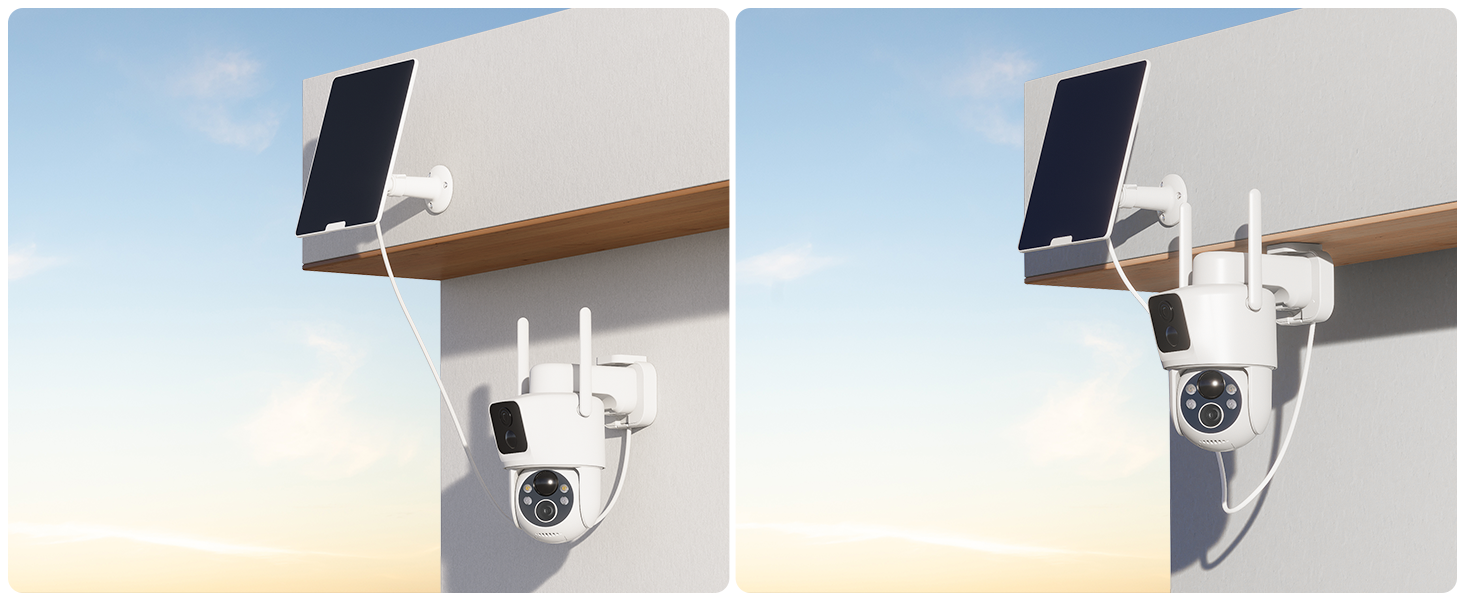
Figure 2.4: App Pairing Step 2 - Select Device Type

Figure 2.5: App Pairing Step 3 - Wi-Fi Configuration
3. Operating Instructions
3.1 Live View and Pan-Tilt Control
Access the live feed from your camera via the COCOCAM app. The dual lenses provide a wide field of view, and the pan-tilt function allows you to adjust the camera's perspective remotely.
- Pan-Tilt Control: Use the directional controls within the app to rotate the camera horizontally (355°) and vertically (90°).
- Dual Lens View: The app displays feeds from both lenses, allowing you to monitor two different areas simultaneously or get a broader perspective.
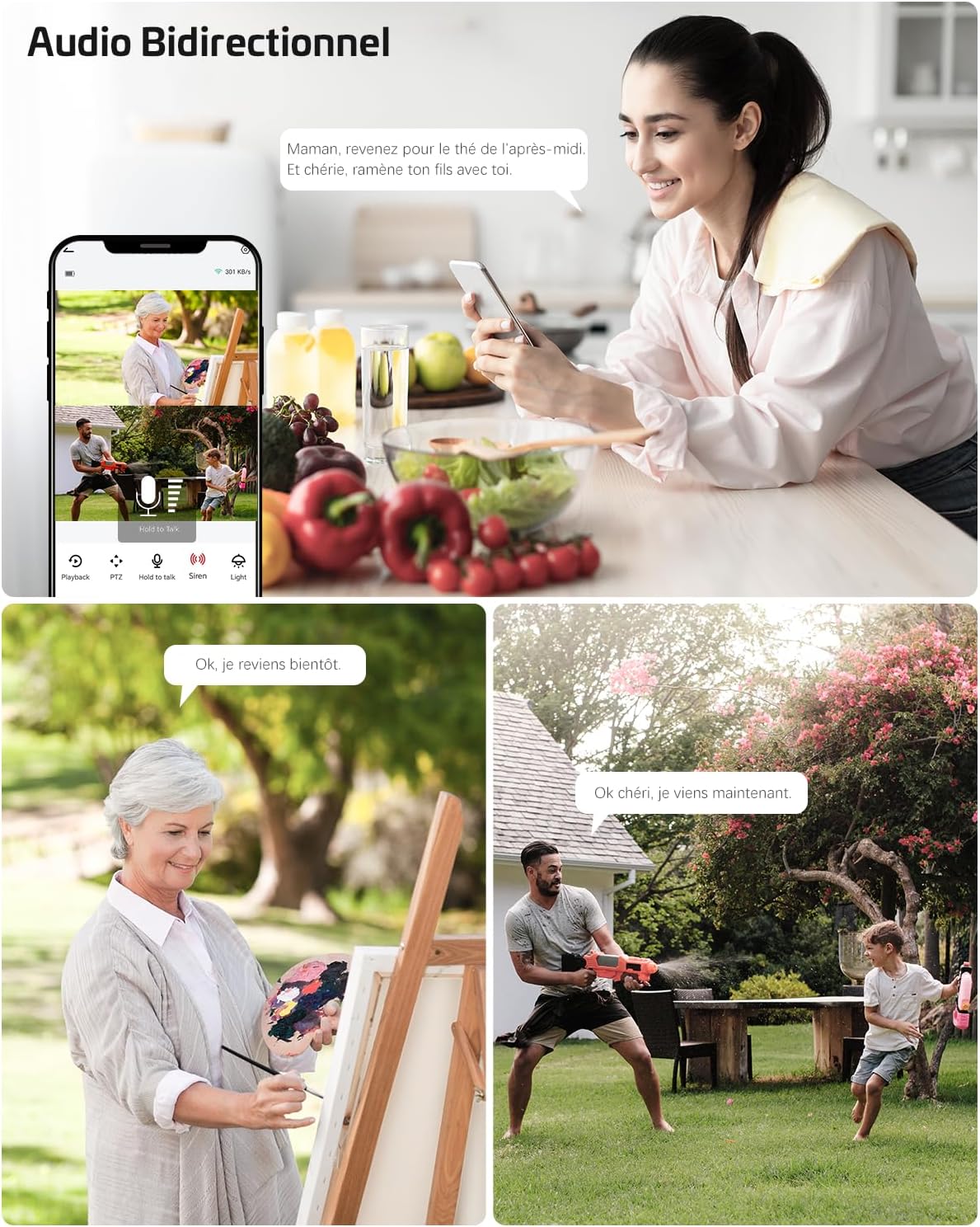
Figure 3.1: Pan-Tilt Functionality
Figure 3.2: Dual Zone Monitoring
3.2 Intelligent Detection and Alerts
The camera utilizes dual PIR sensors and AI analysis to accurately detect motion and identify specific objects, sending instant alerts to your device.
- Dual PIR Detection: Advanced motion detection system that triggers recording and alerts based on heat and movement, reducing false alarms from environmental factors.
- AI Analysis: The camera can differentiate between people, vehicles, animals, and packages, providing more relevant notifications.
- Customizable Alarm Zones: Set specific areas within the camera's view where motion detection should be active.

Figure 3.3: AI-Powered Object Recognition

Figure 3.4: Smart PIR Detection with Alarms
3.3 Two-Way Audio
Communicate with visitors or deter intruders using the built-in microphone and speaker.
- Speak: Tap the microphone icon in the app to speak through the camera.
- Listen: The camera's microphone picks up audio from the monitored area.

Figure 3.5: Two-Way Audio Communication
3.4 Night Vision
The camera provides clear surveillance even in low-light conditions with its advanced night vision capabilities.
- Color Night Vision: Up to 25 meters with white light illumination.
- Infrared Night Vision: Up to 30 meters in complete darkness.

Figure 3.6: 2K Color Night Vision
3.5 Storage Options
Record and store video footage using either a local TF card or cloud storage services.
- TF Card Storage: Supports up to 128GB TF card (not included). Insert the card into the designated slot on the camera.
- Cloud Storage: Offers 6-second event recording and 7-day loop coverage (subscription may be required for extended features).

Figure 3.7: TF Card and Cloud Storage Options
4. Maintenance
4.1 Power Management
The camera is designed for low power consumption and continuous operation with its solar panel.
- Battery Charging: The 10000mAh battery is charged by the 6W solar panel. Ensure the solar panel is clean and receives adequate sunlight.
- Manual Charging: If solar charging is insufficient (e.g., during prolonged cloudy periods), you can manually charge the camera using a 5V 2A power adapter (8-10 hours for full charge).
4.2 Weather Resistance
The camera has an IP66 waterproof rating, making it suitable for various outdoor weather conditions.

Figure 4.1: IP66 Water Resistance
4.3 TF Card Management
For optimal performance, it is recommended to format the TF card before its first use in the camera.
5. Troubleshooting
5.1 Connectivity Issues
- Camera not connecting to Wi-Fi: Ensure your Wi-Fi network is 2.4GHz. The camera does not support 5GHz Wi-Fi. Check Wi-Fi signal strength at the camera's location.
- App not finding camera during pairing: Ensure Bluetooth is enabled on your phone and the camera is powered on and in pairing mode.
5.2 Power and Charging Issues
- Solar panel not charging: Verify the solar panel is clean and positioned to receive direct sunlight. Check the connection cable between the solar panel and the camera.
- Battery draining quickly: Reduce the frequency of motion detection alerts or live view access. Ensure the solar panel is providing sufficient charge.
5.3 Image/Video Quality Issues
- Blurry images: Clean the camera lenses. Ensure there are no obstructions in front of the camera.
- Poor night vision: Ensure the night vision LEDs are not obstructed. Check for strong light sources directly facing the camera at night.
5.4 False Alarms
- Too many alerts: Adjust the motion detection sensitivity in the app. Define specific alarm zones to exclude areas with frequent irrelevant motion (e.g., swaying trees).
- AI detection not working as expected: Ensure the camera's firmware is up to date. Review the AI detection settings in the app.
6. Specifications
| Feature | Specification |
|---|---|
| Brand | COCOCAM |
| Model Number | ZY-C3 |
| Voltage | 5 Volts |
| Power | 6 Watts (Solar Panel) |
| Dimensions (L x W x H) | 11 x 15 x 17.5 centimeters |
| Water Resistance Level | IP66 (Waterproof) |
| Connectivity Technology | Bluetooth, Wi-Fi (2.4GHz) |
| Effective Still Resolution | 3 Megapixels |
| Battery Composition | Lithium |
| Rechargeable Battery | Yes (10000mAh) |
| Video Recording Resolution | 1296p (2K) |
| Number of Channels | 2 (Dual Lens) |
| Material | Acrylonitrile Butadiene Styrene (ABS) |
7. Warranty and Support
COCOCAM offers a Lifetime Warranty for this product, ensuring long-term reliability and customer satisfaction.
For technical support, troubleshooting assistance, or warranty claims, please contact COCOCAM customer service through the official website or your purchase platform. Refer to the contact information provided with your product packaging or on the COCOCAM brand store page.
Note: The provided product data did not include specific video URLs with 'creator_type' or 'm3u8' format, therefore, no videos could be embedded in this manual.
Related documentsZY-C3


Ask a question about this manual
Ask about setup, troubleshooting, compatibility, parts, safety, or missing instructions. Manuals+ will review the question and use this page’s manual context to help answer it.