
1. Introduction
This manual provides detailed instructions for the setup, operation, maintenance, and troubleshooting of your Keychron Q1 Max QMK/VIA Wireless Custom Compact Mechanical Keyboard. Please read this manual thoroughly to ensure proper use and to maximize your experience with the product.
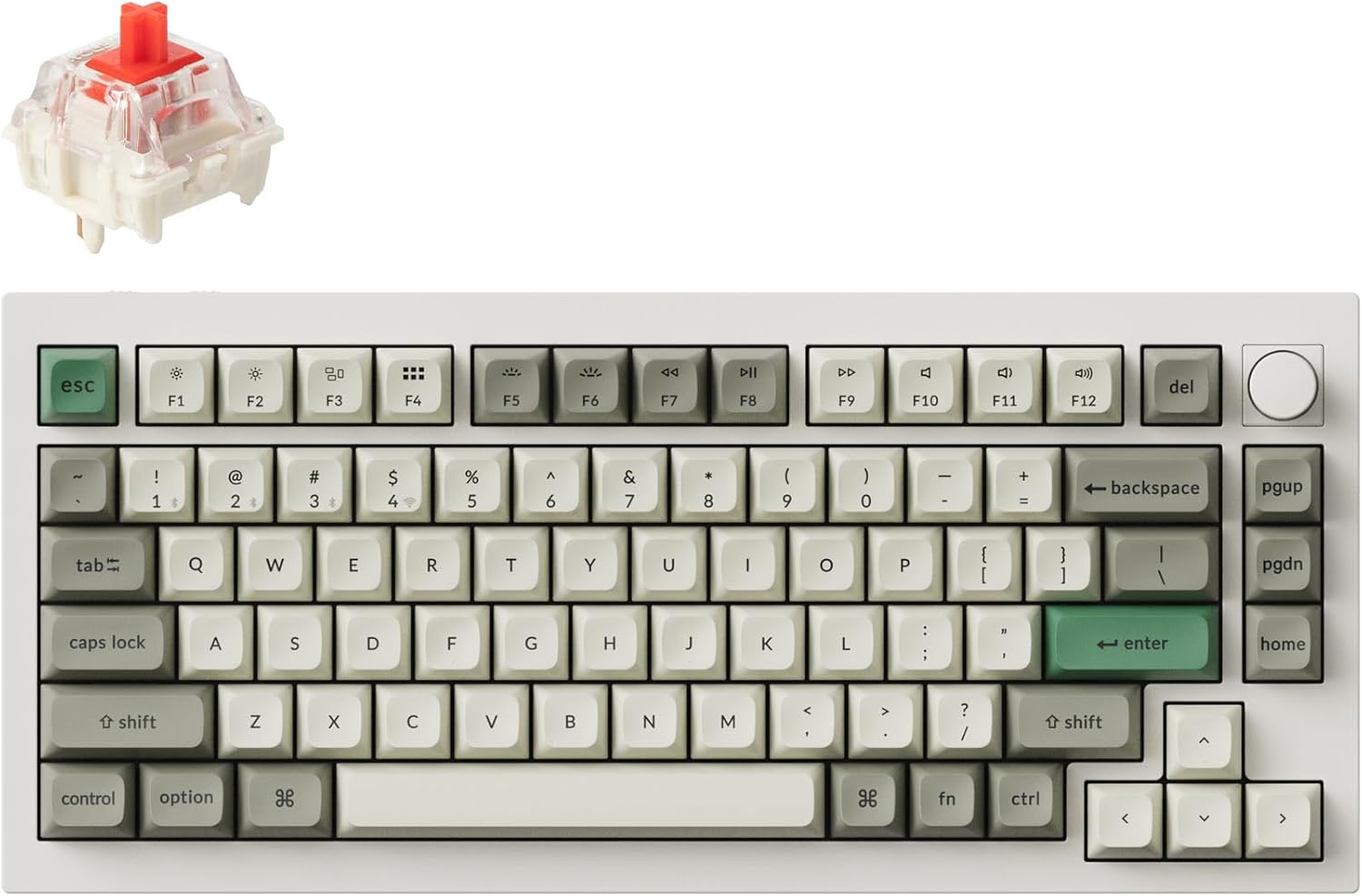
Image: The Keychron Q1 Max keyboard in white and grey, featuring a compact layout and a Gateron Jupiter Red switch detached for illustration.
2. Package Contents
Verify that all items are present in the package:
- Keychron Q1 Max Mechanical Keyboard
- USB Cable (Type-C to Type-C)
- Lid Extractor (for keycaps and switches)
- Additional set of customized keycaps for Windows and macOS systems
- User Manual (this document)
3. Product Overview
The Keychron Q1 Max is a highly customizable mechanical keyboard designed for versatility and performance. It features a full metal body, double-gasket design, hot-swappable switches, and tri-mode connectivity.

Image: An overview graphic highlighting key features of the Keychron Q1 Max, such as its CNC aluminum body, 1000Hz polling rate, double-gasket design, QMK/VIA support, enhanced acoustic foams, tri-mode connectivity, Mac & Windows compatibility, and double-shot PBT keycaps.

Image: The Keychron Q1 Max keyboard positioned on a clean desk alongside a pen and a computer mouse, illustrating its aesthetic and compact form factor in a typical workspace.
3.1 Keyboard Components

Image: An exploded diagram illustrating the internal layers of the Keychron Q1 Max, including keycaps, switches, top case, gaskets, various foam layers, PCB, bottom case, and battery.
- Keycaps: Double-shot PBT for durability and oil resistance.
- Switches: Gateron Jupiter Red (hot-swappable).
- Knob: Programmable rotary encoder for volume or other functions.
- System Toggle: Switch between macOS and Windows layouts.
- Connectivity Switch: Select between 2.4GHz, Bluetooth, or Wired modes.

Image: A close-up view of the Keychron Q1 Max keyboard, highlighting the texture and quality of the double-shot PBT keycaps, with some keycaps and switches removed to show the underlying structure.
4. Setup
4.1 Initial Charging
Before first use, connect the keyboard to a power source using the provided USB-C cable to fully charge the internal battery. The charging indicator light will show the charging status.
4.2 Connecting Your Keyboard
The Keychron Q1 Max supports three connection modes: 2.4GHz wireless, Bluetooth 5.1, and wired USB-C.
4.2.1 2.4GHz Wireless Connection
- Locate the 2.4GHz receiver (dongle) in the keyboard's storage compartment or packaging.
- Plug the 2.4GHz receiver into an available USB port on your computer.
- Slide the mode switch on the back of the keyboard to the "2.4G" position.
- The keyboard should automatically connect. If not, press Fn + 4 to initiate pairing.
4.2.2 Bluetooth 5.1 Connection
- Slide the mode switch on the back of the keyboard to the "BT" position.
- To enter pairing mode, press and hold Fn + 1 (for device 1), Fn + 2 (for device 2), or Fn + 3 (for device 3) for 4 seconds until the indicator light flashes rapidly.
- On your computer, tablet, or smartphone, enable Bluetooth and search for "Keychron Q1 Max".
- Select the keyboard to pair. The indicator light will stop flashing upon successful connection.
- You can switch between paired Bluetooth devices by pressing Fn + 1, Fn + 2, or Fn + 3.
4.2.3 Wired USB-C Connection
- Connect the provided USB-C cable from the keyboard to your computer.
- Slide the mode switch on the back of the keyboard to the "Cable" position.
- The keyboard will function as a wired device and charge simultaneously.
4.3 System Toggle (macOS/Windows)
The Keychron Q1 Max is designed for both macOS and Windows users. Use the system toggle switch located on the back of the keyboard to select the appropriate operating system layout. This ensures correct key mapping for modifier keys like Command/Alt and Option/Windows.
5. Operating Instructions
5.1 Key Functions
The Q1 Max features 84 keys and 13 function keys. Standard alphanumeric keys operate as labeled. The function row (F1-F12) and multimedia keys can be accessed using the Fn key combination.
- Fn + F1-F12: Access multimedia controls or system functions depending on the operating system.
- Fn + Backlight Key: Cycle through RGB lighting effects.
- Fn + Arrow Keys: Adjust backlight brightness and color.
- Rotary Knob: By default, controls system volume (turn left/right) and mute/unmute (press).
5.2 RGB Backlighting Control
The keyboard features south-facing RGB backlighting with various effects and customization options.

Image: A close-up of the Keychron Q1 Max keyboard showcasing its south-facing RGB backlighting with multiple colors visible across the keys.
- Press Fn + Light Bulb Key to cycle through different lighting effects.
- Use Fn + Left/Right Arrow Keys to change the lighting effect direction or color.
- Use Fn + Up/Down Arrow Keys to adjust backlight brightness.
5.3 QMK/VIA Customization
The Keychron Q1 Max is fully compatible with QMK and VIA software, allowing for extensive key remapping, macro creation, and lighting customization. VIA is a graphical user interface for QMK firmware.

Image: A screenshot of the VIA software, demonstrating its interface for programming the Keychron Q1 Max keyboard, including key assignments and media controls.
- Download the VIA software from the official Keychron website (www.keychron.com/pages/qmk-via).
- Connect the keyboard via USB-C cable to your computer.
- Open the VIA software. The keyboard should be automatically detected.
- Follow the on-screen instructions to customize key assignments, create macros, and adjust lighting.
5.4 Hot-Swappable Switches
The Q1 Max features hot-swappable sockets, allowing you to change switches without soldering. This enables customization of typing feel.

Image: A detailed view of the Keychron Q1 Max keyboard with some keycaps and switches removed, illustrating the hot-swappable design.
- Using the provided keycap puller, gently remove the desired keycap.
- Using the provided switch puller, carefully grip the switch and pull it straight up to remove it from the PCB.
- Align the pins of the new switch with the holes on the PCB. Ensure the pins are straight.
- Gently push the new switch into the socket until it clicks into place. Do not force it.
- Replace the keycap.
6. Maintenance
6.1 Cleaning Your Keyboard
- General Cleaning: Use a soft, lint-free cloth to wipe the surface of the keyboard. For stubborn smudges, slightly dampen the cloth with water or a mild, non-abrasive cleaner.
- Keycap Cleaning: Keycaps can be removed for deeper cleaning. Use a keycap puller to remove them. Wash with mild soap and water, rinse thoroughly, and ensure they are completely dry before reattaching.
- Dust Removal: Use compressed air to blow away dust and debris from between the keycaps and switches.
Caution: Do not spray cleaning liquids directly onto the keyboard. Avoid using harsh chemicals or abrasive materials.
6.2 Keycap and Switch Replacement
Refer to Section 5.4 for detailed instructions on how to safely remove and replace keycaps and switches.
7. Troubleshooting
| Issue | Possible Cause | Solution |
|---|---|---|
| Keyboard not responding in wireless mode. | Low battery, incorrect mode selected, pairing issue, receiver not connected. |
|
| Keys not registering or double-typing. | Faulty switch, debris under keycap/switch, software issue. |
|
| RGB backlighting not working or stuck. | Lighting effect frozen, brightness set to minimum, software conflict. |
|
| Rotary knob not functioning. | Software remapping, physical obstruction. |
|
8. Specifications
| Feature | Detail |
|---|---|
| Model | Keychron Q1 Max (Q1M-P1) |
| Layout | 84-key (75%) ANSI/US |
| Body Material | CNC Machined 6063 Aluminum |
| Keycaps | Double-Shot PBT |
| Switches | Gateron Jupiter Red (Hot-Swappable) |
| Connectivity | 2.4 GHz Wireless, Bluetooth 5.1, USB-C Wired |
| Polling Rate | 1000 Hz (2.4 GHz & Wired) |
| Backlighting | South-Facing RGB LED |
| Firmware | QMK/VIA Programmable |
| Battery | 1 Lithium Polymer battery required (capacity not specified) |
| Dimensions | 12.89 x 5.71 x 1.41 inches |
| Weight | 3.8 pounds |
| Compatible OS | macOS, Windows, Linux |

Image: A graphic illustrating the speed advantage of the Keychron Q Max keyboard, showing it is 2.8 times faster in 2.4G mode and 1.7 times faster in Bluetooth mode compared to other mechanical keyboards.
9. Warranty and Support
Keychron products typically come with a manufacturer's warranty. For specific warranty terms and conditions, please refer to the warranty card included with your product or visit the official Keychron website.
For technical support, troubleshooting assistance, or to download the latest firmware and VIA software, please visit the Keychron support page:
www.keychron.com/pages/support
You can also find additional resources and community forums on the Keychron website.


