
LiftMaster JDHC
Liftmaster MAXUM DC Hoist Commercial Door Operator JHDC User Manual
Model: JDHC | Brand: LiftMaster
Introduction
This manual provides essential information for the safe and efficient operation, installation, and maintenance of your Liftmaster MAXUM DC Hoist Commercial Door Operator, model JDHC. This robust operator is engineered for high-demand commercial applications, offering advanced features for enhanced performance and reliability.
Key features include a purpose-built motor and gearbox, a user-friendly 3-button control with a 4-line LCD display for floor-level programming, and integrated Wi-Fi for connectivity with myQ Facility software. The operator is designed for faster door speeds, improving operational efficiency for commercial environments.
Safety Information
Always prioritize safety when installing, operating, or maintaining the commercial door operator. Failure to follow these instructions could result in serious injury or property damage.
- Professional Installation: Installation should only be performed by qualified and experienced personnel in accordance with all local electrical and building codes.
- Electrical Safety: Disconnect all electrical power to the operator before performing any service or maintenance. Ensure proper grounding.
- Moving Parts: Keep hands, feet, and clothing clear of the door and operator's moving parts. Do not attempt to stop a moving door.
- Photo Eyes: Ensure the CPS-U Commercial Photo Eyes are correctly installed and functioning. These are critical safety devices designed to prevent the door from closing on obstructions.
- Emergency Release: Familiarize yourself with the emergency release mechanism and its operation in case of power failure or malfunction.
- Children and Pets: Keep children and pets away from the door area and controls.
Setup and Installation
The Liftmaster MAXUM DC Hoist Commercial Door Operator is designed for versatile installation, accommodating various commercial door configurations.
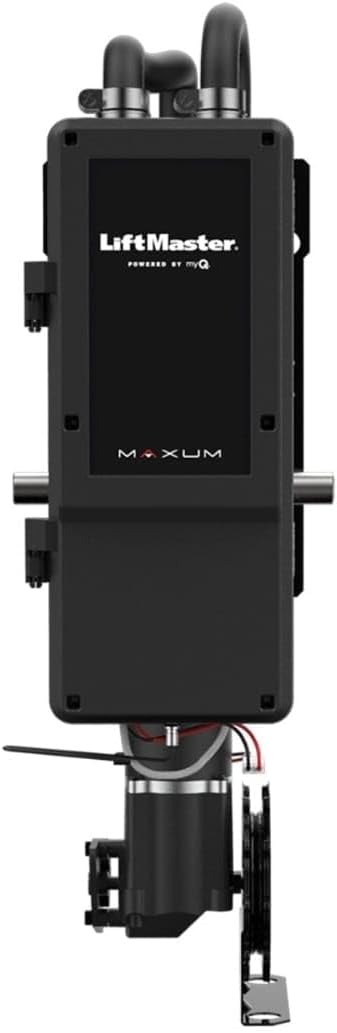
Figure 1: Front view of the Liftmaster MAXUM DC Hoist Commercial Door Operator, showing the main control panel and motor assembly.

Figure 2: Side view of the operator, highlighting the mounting bracket and shaft.
Key Installation Considerations:
- Mounting: This operator is designed for side mounting to the wall, suitable for vertical or high-lift doors. The design eliminates the need for specific right or left-hand ordering, providing installation flexibility.
- Power Requirements: This unit supports various power configurations: 120V/240V (1PH/3PH). For 480V (3PH), 208V, and 600V (3PH) applications, a transformer accessory is required. Ensure the power supply matches the operator's requirements.
- Control Panel: The 3-button control with a 4-line LCD display allows for convenient setup and programming from floor level, simplifying the initial configuration process.
- Photo Eyes: Install the included CPS-U Commercial Photo Eyes according to the detailed installation guide to ensure proper safety reversal functionality.
- myQ Facility Connectivity: Utilize the built-in Wi-Fi to connect the operator to myQ Facility software. This enables remote monitoring, diagnostics, and data insights.
Operating Instructions
The MAXUM DC Hoist operator is designed for intuitive control and efficient door movement.
Standard Operation:
- Local Control: Use the 3-button control panel located on the operator for standard open, close, and stop functions. The LCD display provides status information and programming options.
- Soft Start/Stop: The operator features a soft start and stop mechanism, which reduces wear and tear on the door and operator, contributing to a longer lifespan.
- Speed: Experience faster door speeds, averaging 12 inches per second for sectional doors and 8-9 inches per second for rolling steel doors, optimizing workflow.
Advanced Operation (myQ Facility):
- Remote Monitoring and Control: Once connected to myQ Facility via Wi-Fi, you can monitor the operator's status and control the door remotely using a compatible mobile device.
- Diagnostics: Access diagnostic information at floor level through the myQ Facility app, allowing for proactive maintenance and issue identification.

Figure 3: Angled view of the operator, illustrating its compact design and mounting points.
Optional Battery Backup:
An optional Battery Backup accessory is available to ensure continuous operation during power outages, maintaining safety and accessibility.
Maintenance
Regular maintenance is crucial for the longevity and optimal performance of your Liftmaster MAXUM DC Hoist Commercial Door Operator.
- Routine Inspection: Periodically inspect all moving parts, cables, and mounting hardware for signs of wear, damage, or loosening.
- Lubrication: Consult the detailed installation manual for specific lubrication points and recommended lubricants. Proper lubrication reduces friction and extends component life.
- Photo Eye Cleaning: Keep the lenses of the CPS-U Commercial Photo Eyes clean and free from obstructions to ensure reliable safety reversal.
- Diagnostic Monitoring: Utilize the myQ Facility app to monitor the operator's diagnostics. This feature helps anticipate maintenance cycles and identify potential issues before they become critical.
- Professional Service: For complex repairs or adjustments, contact a certified LiftMaster service technician.
Troubleshooting
This section provides guidance for common issues you might encounter. For more detailed troubleshooting, refer to the comprehensive installation manual or contact support.
| Problem | Possible Cause | Solution |
|---|---|---|
| Operator does not respond to controls. | No power; tripped circuit breaker; remote control battery dead; safety sensors obstructed. | Check power supply and circuit breaker. Replace remote battery. Clear obstructions from photo eyes. Check myQ Facility diagnostics. |
| Door reverses unexpectedly. | Photo eyes obstructed or misaligned; force settings too low. | Clean and align photo eyes. Adjust force settings as per manual (consult professional if unsure). |
| Door operates slowly or erratically. | Mechanical binding; low voltage; motor issue. | Inspect door for binding. Verify power supply. Check myQ Facility diagnostics for motor status. Contact service if problem persists. |
| Wi-Fi connectivity issues. | Weak Wi-Fi signal; incorrect network settings. | Ensure strong Wi-Fi signal at operator location. Reconfigure network settings via LCD display or myQ app. |
For error codes displayed on the LCD or myQ Facility app, refer to the detailed troubleshooting section in the full product manual.
Specifications
| Attribute | Detail |
|---|---|
| Model Number | JDHC |
| Manufacturer | Liftmaster |
| Item Weight | 49.9 pounds |
| Product Dimensions | 26 x 24 x 16 inches |
| Color | Black |
| Included Components | 3-button control with 4-line LCD display, CPS-U Commercial Photo Eyes |
| Power Options | 120V/240V (1PH/3PH); 480V (3PH), 208V & 600V (3PH) with transformer accessory |
| Duty Cycle (Standard) | 20 cycles per hour / 90 per day |
| Duty Cycle (Extended) | 30 cycles per hour / 150 per day |
| Average Speed (Sectional) | 12 inches per second |
| Average Speed (Rolling Steel) | 8-9 inches per second |
| Soft Start/Stop | Yes |
| Integrated Connectivity | Built-in Wi-Fi for myQ Facility |
Warranty Information
The Liftmaster MAXUM DC Hoist Commercial Door Operator (Model JDHC) comes with a 2-Year Warranty from the date of purchase. This warranty covers defects in materials and workmanship under normal use and service.
For specific terms, conditions, and to make a warranty claim, please refer to the warranty documentation included with your product or contact LiftMaster customer support.
Support
Should you require assistance with installation, operation, maintenance, or troubleshooting, please contact LiftMaster customer support. Have your model number (JDHC) and serial number ready when contacting support.
You can also visit the official LiftMaster website for additional resources, FAQs, and detailed product documentation: Visit the LiftMaster Store on Amazon
Important Note on Videos
Based on the provided product data, there are no official product videos from the seller available for embedding in this manual.
Related documentsJDHC


Ask a question about this manual
Ask about setup, troubleshooting, compatibility, parts, safety, or missing instructions. Manuals+ will review the question and use this page’s manual context to help answer it.