
1. Introduction
This manual provides detailed instructions for the setup, operation, and maintenance of your Abovsare F800 Digital LED Alarm Clock. Please read this manual thoroughly before using the product to ensure proper function and longevity.

Image 1.1: The Abovsare F800 Digital LED Alarm Clock, showcasing its large, multi-color display and ambient lighting.
2. Product Overview
2.1 Package Contents
Verify that all items are present in the package:
- Abovsare F800 Digital LED Alarm Clock
- Remote Control
- USB Power Cable
- CR2032 Battery (for memory function)
- Instruction Manual
- Wall Mounting Accessories (guide, screws)

Image 2.1: Included components: clock unit, remote, USB cable, CR2032 battery, and mounting hardware.
2.2 Key Features
- Large LED Display: High-definition, 13-inch LED screen for clear visibility.
- 12 RGB Digit Colors: Customize the display digits with 12 different color options via remote control.
- Ambient Night Light: Features 14 distinct color ambient lights at the base, usable as a night light.
- Adjustable Brightness: Five levels of brightness can be set manually, plus an automatic dimming function.
- Time & Calendar Alternation: Option to cycle between time display (10 seconds) and calendar display (5 seconds).
- Memory Function: Built-in memory retains time data even if power is disconnected (requires CR2032 battery).
- Mounting Options: Can be wall-mounted or placed on a desktop using the folding bracket.
- Alarm Function: Integrated alarm clock feature.
3. Setup Instructions
3.1 Power Connection
The Abovsare F800 Digital LED Alarm Clock is powered by a corded electric connection. It is not battery operated for its primary functions and must be plugged in to work.
- Connect the provided USB power cable to the clock's USB port.
- Connect the other end of the USB cable to a 5V/1A or 5V/2A USB adapter (not included, unless specified as "adapter include" in your purchase) or a compatible USB port.
- Ensure the connection is secure. The clock display should illuminate.
3.2 Memory Battery Installation
A CR2032 battery is required for the memory function, which preserves time settings during power outages or when the clock is unplugged.
- Locate the battery compartment on the back of the clock.
- Insert one CR2032 battery, ensuring correct polarity (+/-).
- Close the battery compartment securely.
3.3 Mounting Options
The clock offers both wall-mounting and desktop placement options.
- Desktop Placement: Extend the folding bracket located on the back of the clock to stand it upright on any flat surface.
- Wall Mounting: Use the integrated wall hanging holes and the provided mounting accessories (screws, guide) to securely attach the clock to a wall.

Image 3.1: Rear view illustrating the wall hanging holes and the folding bracket for versatile placement.
4. Operating Instructions
All primary settings and adjustments are performed using the included remote control.
4.1 Setting Time and Date
- Press the "SET" button on the remote control to enter time setting mode.
- Use the directional arrows (Up/Down) to adjust the hour, and (Left/Right) to move between hour, minute, year, month, and day settings.
- Press "SET" again to confirm each setting and move to the next.
- To switch between 12-hour and 24-hour format, press the "12/24H" button on the remote.

Image 4.1: Example of the clock displaying time in both 12-hour (AM/PM) and 24-hour formats.
4.2 Setting the Alarm
- Press the "ALARM" button on the remote control.
- Use the directional arrows to set the desired alarm time.
- Press "ALARM" again to confirm.
- To activate or deactivate the alarm, press the "ALARM ON/OFF" button. An alarm icon will appear on the display when active.

Image 4.2: The alarm bell icon indicates that the alarm function is currently active.
4.3 Adjusting Display Brightness
The clock offers five levels of manual brightness adjustment and an automatic dimming feature.
- Manual Adjustment: Press the "BRIGHTNESS" button on the remote control repeatedly to cycle through the five brightness levels (100%, 70%, 50%, 20%, Off).
- Automatic Dimming: The clock automatically adjusts its brightness based on the time of day:
- AM 7:00 - PM 6:59: High Brightness
- PM 7:00 - PM 10:59: Medium Brightness
- PM 11:00 - AM 6:59: Low Brightness
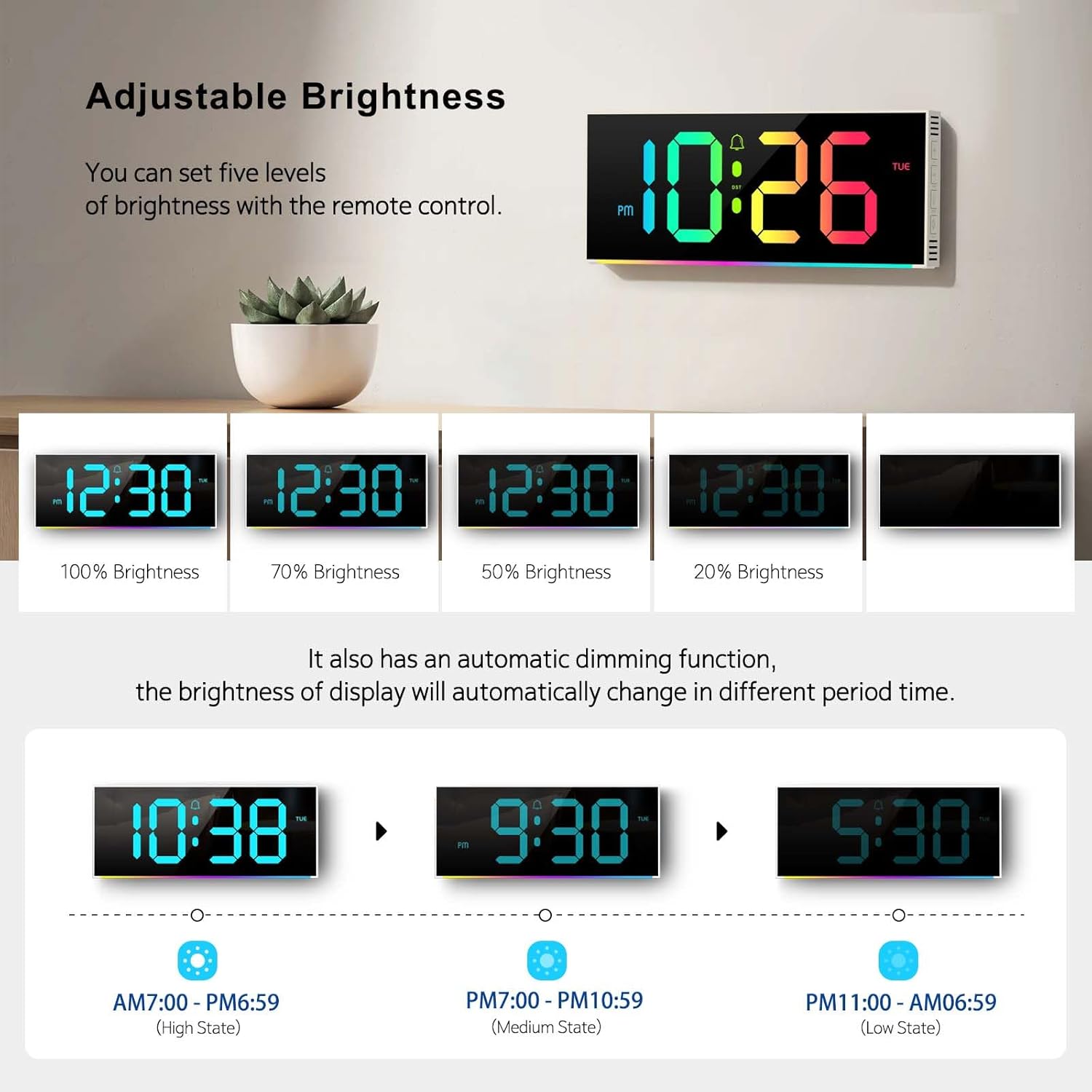
Image 4.3: Visual representation of the five brightness levels and the automatic dimming schedule.

Image 4.4: Detailed diagram of the clock's automatic dimming function based on time periods.
4.4 Changing Digit Colors
The clock digits can be displayed in 12 different RGB colors.
- Press the "COLOR" button on the remote control to cycle through the available digit colors.
- Select your preferred color.

Image 4.5: Examples of the 12 different RGB digit colors that can be selected using the remote control.
4.5 Controlling Ambient Night Light
The clock features 14 different ambient light colors at its base.
- Press the "AMBIENT LIGHT" button on the remote control to turn the ambient light on/off or cycle through the colors.
- Select your desired ambient light color.
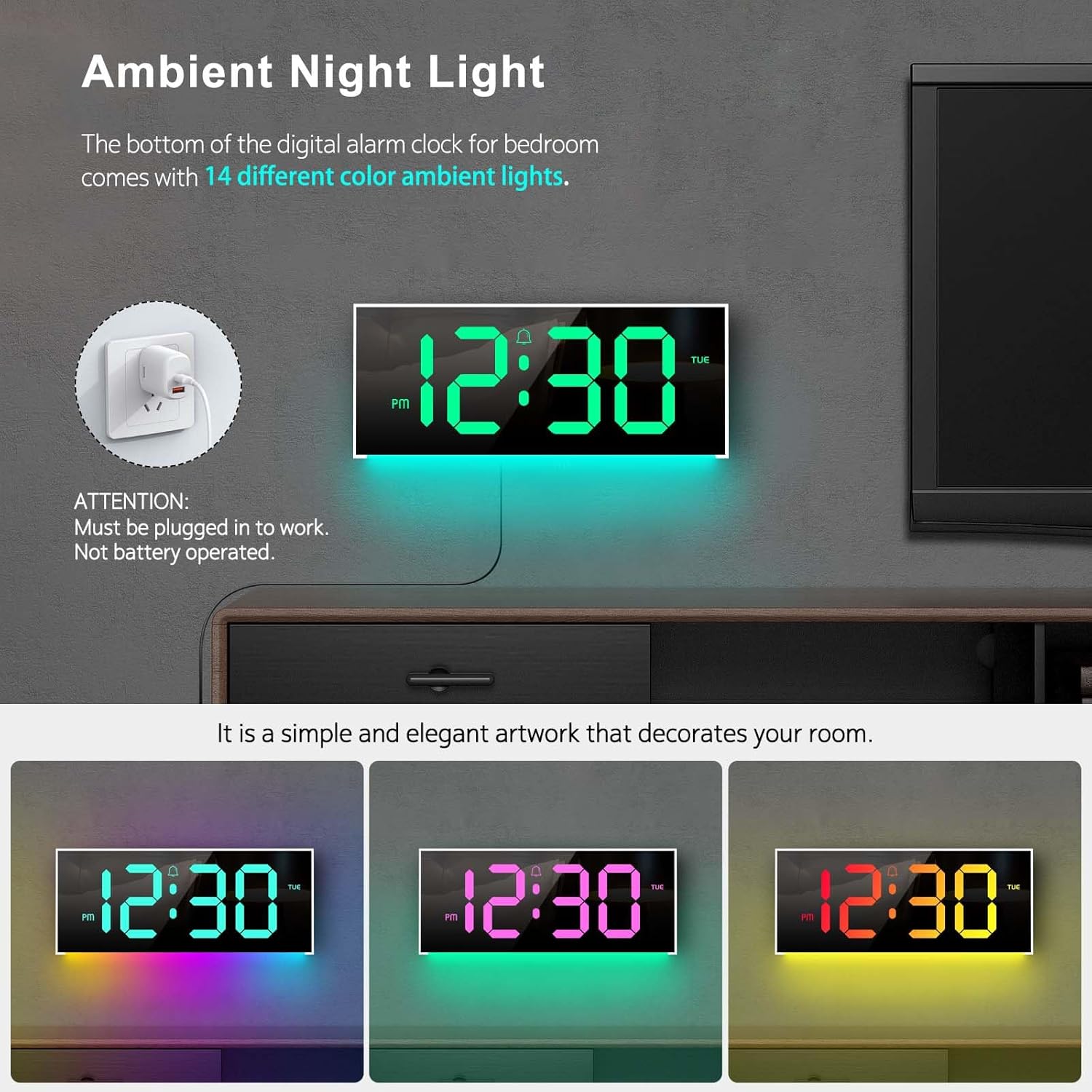
Image 4.6: The clock's ambient night light feature, displaying different color options in a room environment.

Image 4.7: The ambient night light feature providing subtle illumination, with examples of different colors.
4.6 Time and Calendar Alternation
The clock can be set to alternate between displaying the time and the calendar.
- Press the "ALT" button on the remote control to activate or deactivate the alternation mode.
- When active, the display will show the time for 10 seconds, then switch to the calendar for 5 seconds, and continuously cycle.

Image 4.8: The clock demonstrating the alternation between time display and calendar display.
5. Maintenance
To ensure the longevity and optimal performance of your Abovsare F800 Digital LED Alarm Clock, follow these maintenance guidelines:
- Cleaning: Use a soft, dry cloth to gently wipe the display and exterior surfaces. Avoid abrasive cleaners, solvents, or spray directly onto the clock.
- Power: Always use a 5V/1A or 5V/2A adapter. Using an incorrect power source may damage the device.
- Environment: Keep the clock away from direct sunlight, extreme temperatures, and high humidity.
- Battery Replacement: Replace the CR2032 memory battery annually or if you notice the clock losing time settings after a power disconnection.
6. Troubleshooting
| Problem | Possible Cause | Solution |
|---|---|---|
| Clock does not turn on. | No power connection or faulty adapter. | Ensure the USB cable is securely connected and the power adapter (5V/1A or 5V/2A) is functioning. Try a different USB port or adapter. |
| Clock loses time settings after unplugging. | CR2032 memory battery is dead or not installed. | Install or replace the CR2032 battery, ensuring correct polarity. |
| Remote control is not working. | Remote battery is dead or obstructed signal. | Replace the remote control battery. Ensure there are no obstructions between the remote and the clock's sensor. |
| Display brightness is too low/high. | Manual brightness setting or automatic dimming. | Press the "BRIGHTNESS" button on the remote to adjust manually. Note the automatic dimming schedule (Section 4.3). |
| Clock randomly shuts off. | Intermittent power supply or loose connection. | Check the USB cable and adapter for secure connection. Try a different power outlet or adapter. If the issue persists, contact customer support. |
7. Specifications
- Brand: Abovsare
- Model: F800
- Display Type: LED
- Product Dimensions: 11.6"W x 4.8"H
- Power Source: Corded Electric (USB, requires 5V/1A or 5V/2A adapter)
- Memory Battery: 1 x CR2032 (required)
- Frame Material: Plastic
- Mounting Type: Tabletop or Wall Mounted
- Special Features: Adjustable Brightness, Alarm, Ambient Night Light, Large LED display, Remote Control, Time & Calendar Alternation
- Item Weight: 1.23 pounds
8. Warranty and Support
Abovsare provides a 12-month worry-free warranty for this product, ensuring quality and customer satisfaction.
For any questions, concerns, or support needs, please contact our customer service team. We offer 24-hour customer service to assist you.
Contact Method: Please reach out to us via the buyer-seller message system on the platform where you purchased the product.