
1. Introduction
The Bose QuietComfort Ultra Headphones are designed to elevate your listening experience with world-class noise cancellation and breakthrough spatial audio. This manual provides essential information for setting up, operating, maintaining, and troubleshooting your headphones.
Key features include:
- Spatial Audio: Immersive audio experience that makes music feel more real.
- CustomTune Technology: Personalizes sound by analyzing your ear's shape.
- World-Class Noise Cancellation: Features Quiet Mode, Aware Mode, and Immersion Mode.
- Crystal Clear Calls: Revolutionary microphone system focuses on your voice and filters background noise.
- Comfortable Design: Soft ear cushions and evenly distributed pressure for extended wear.
- Long Battery Life: Up to 24 hours of playtime (18 hours with Immersive Audio).
- Advanced Connectivity: Bluetooth 5.3, SimpleSync with Bose smart soundbars, Snapdragon Sound Certification for Android, and Google Fast Pair.
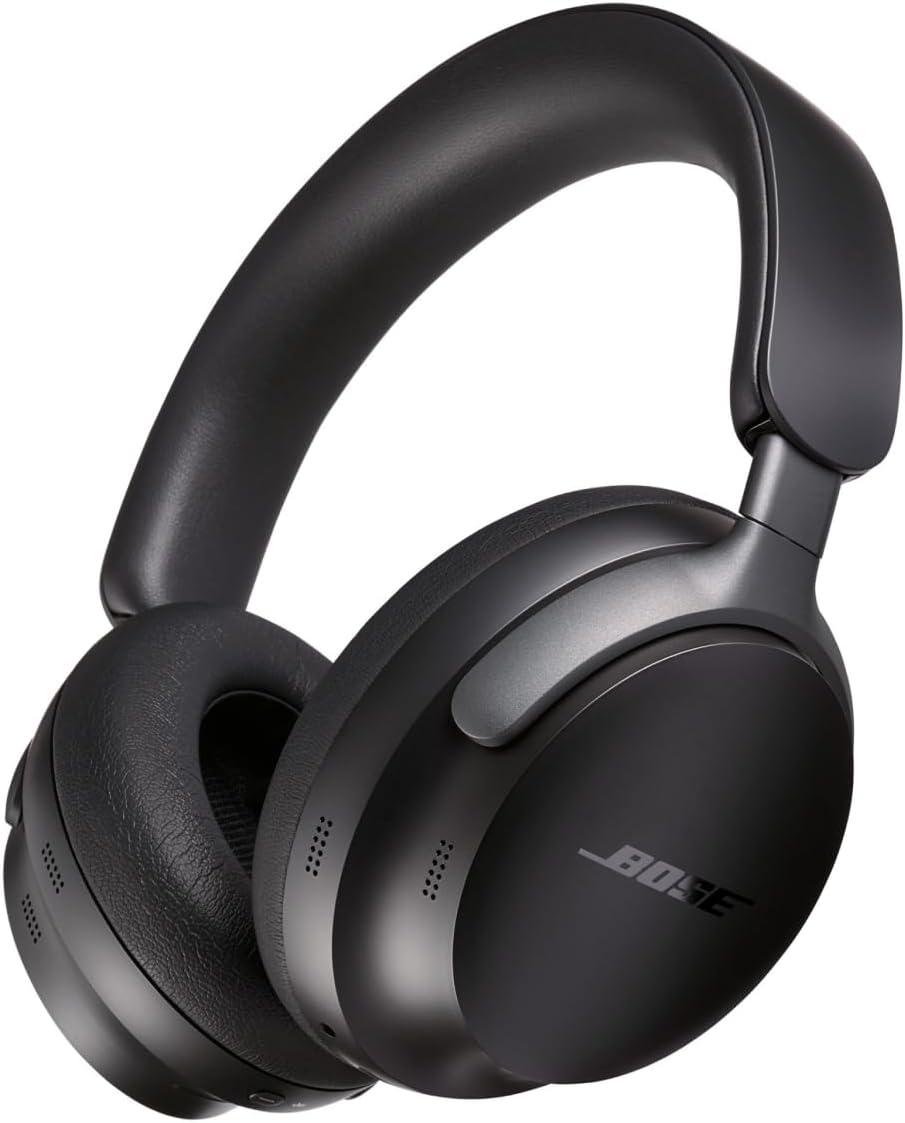
2. What's in the Box
Your Bose QuietComfort Ultra Headphones package includes the following items:
- Bose QuietComfort Ultra Headphones
- Protective Case
- Audio Cable
- USB Charging Cable
- User Manual (this document)

3. Setup
3.1 Charging the Headphones
Before first use, fully charge your headphones. Connect the USB charging cable to the charging port on the headphones and to a USB power source. The charging indicator light will show the charging status. A full charge takes approximately 3 hours and provides up to 24 hours of battery life.
3.2 Powering On/Off
- To Power On: Slide the Power/Bluetooth switch to the 'On' position.
- To Power Off: Slide the Power/Bluetooth switch to the 'Off' position.
3.3 Bluetooth Pairing
To pair your headphones with a device:
- With the headphones powered on, slide and hold the Power/Bluetooth switch to the Bluetooth symbol until the indicator light blinks blue.
- On your device, enable Bluetooth and select 'Bose QC Ultra Headphones' from the list of available devices.
- Once connected, the indicator light will glow solid white.
For Android devices, Google Fast Pair allows for quick and easy pairing.
3.4 Bose Music App
Download the Bose Music app for additional features, settings, and software updates. The app provides access to Adjustable EQ settings and helps manage paired devices.

4. Operating the Headphones
4.1 Noise Control Modes
The headphones offer three primary noise control modes:
- Quiet Mode: Provides world-class noise cancellation for maximum tranquility.
- Aware Mode: Allows you to hear your surroundings while still enjoying your audio.
- Immersion Mode: Combines full noise cancellation with Bose Immersive Audio for a deeply engaging listening experience.
Switch between modes using the control button on the earcup or via the Bose Music app.
4.2 Touch Controls
Each earcup features touch controls for managing your audio and calls:
- Volume Control: Swipe up or down on the right earcup.
- Play/Pause: Single tap on the right earcup.
- Skip Tracks: Double tap (next) or triple tap (previous) on the right earcup.
- Answer/End Calls: Single tap on the right earcup.
- Decline Call: Press and hold on the right earcup.
4.3 Spatial Audio and CustomTune
Bose Immersive Audio places sound in front of you for a natural listening experience. CustomTune technology automatically calibrates the audio performance to your ear's unique shape, ensuring optimal sound quality.
4.4 SimpleSync Technology
Sync your QuietComfort Ultra Headphones with a compatible Bose smart soundbar to listen to TV audio at your preferred volume without disturbing others.

5. Maintenance
5.1 Cleaning
Regular cleaning helps maintain the performance and appearance of your headphones:
- Use a soft, dry cloth to wipe the surfaces of the headphones.
- Do not use abrasive cleaners, solvents, or sprays.
- Gently wipe the ear cushions with a damp cloth if necessary, and allow them to air dry completely before use.
5.2 Storage
When not in use, store your headphones in their protective case to prevent damage from dust, scratches, and impacts. Avoid storing them in extreme temperatures or high humidity.

6. Troubleshooting
If you encounter issues with your Bose QuietComfort Ultra Headphones, refer to the following common troubleshooting steps. For more detailed solutions, please consult the official Troubleshooting Guide (PDF).
6.1 No Power
- Ensure the headphones are charged. Connect them to a power source and check the charging indicator.
- Verify the power switch is in the 'On' position.
6.2 No Sound or Poor Sound Quality
- Check the volume level on both the headphones and your connected device.
- Ensure the headphones are properly paired and connected to your device via Bluetooth. Try re-pairing if necessary.
- Move closer to your device to ensure you are within the Bluetooth range (up to 30 feet).
- Test with a different audio source or device to rule out device-specific issues.
- If using the audio cable, ensure it is securely connected to both the headphones and the audio source.
6.3 Bluetooth Connectivity Issues
- Turn off Bluetooth on your device, wait a few seconds, then turn it back on.
- Clear the Bluetooth device list on your headphones (refer to the full user manual for specific steps) and re-pair.
- Restart both your headphones and the connected device.
- Ensure there are no other strong wireless signals interfering with the Bluetooth connection.
6.4 Microphone Not Working
- Ensure the headphones are properly connected and selected as the audio input device on your computer or smartphone.
- Check for any mute functions activated on the headphones or the connected device.
- Clean any debris from the microphone ports.
7. Specifications
| Feature | Specification |
|---|---|
| Model Name | Bose QuietComfort Ultra Wireless Noise Cancelling Headphones |
| Model Number | 880066-0100 |
| Connectivity Technology | Wired, Wireless (Bluetooth 5.3) |
| Bluetooth Range | 30 Feet |
| Noise Control | Active Noise Cancellation |
| Battery Life | Up to 24 Hours (18 hours with Immersive Audio) |
| Charging Time | Approximately 3 Hours |
| Headphones Jack | 3.5 mm Jack |
| Item Weight | 252 Grams (8.9 ounces) |
| Product Dimensions | 2 x 5.5 x 7.7 inches |
| Frequency Range | 20 Hz - 20,000 Hz |
| Impedance | 32 Ohm |
| Included Components | Cable, Protective Case, User Manual |
| Material | Plastic (Hard) |
| Color | Black |
8. Warranty and Support
For detailed warranty information, please refer to the official Bose website or the warranty card included with your product. Bose provides customer support for product inquiries, technical assistance, and warranty claims.
Additional resources:
- Official User Manual: A comprehensive user manual is available as a PDF document: User Manual (PDF).
- Bose Music App: Download the Bose Music app for the latest software updates, personalized settings, and access to additional features.
- Bose Support Website: Visit the official Bose support website for FAQs, product registration, and contact information.


