
1. Introduction
Thank you for choosing the Core Innovations Wireless Bluetooth Karaoke Microphone. This manual provides essential information for the safe and effective use of your device. Please read it thoroughly before operation and retain it for future reference.

Image 1.1: Core Innovations Wireless Bluetooth Karaoke Microphone.
What's in the Box:
- Wireless Bluetooth Karaoke Microphone
- Micro USB to 3.5mm AUX cable
- Micro USB charging cable
2. Product Overview
Familiarize yourself with the microphone's components and controls for optimal use.

Image 2.1: Front and bottom view of the microphone showing controls and ports.
Controls and Ports:
- Power Button: Press and hold to turn on/off. Short press to switch modes.
- Volume Knobs: Adjust microphone volume, echo effect, and music volume.
- Playback Controls: Previous track, Play/Pause, Next track.
- Micro USB Port: For charging the microphone and AUX connection.
- Card Slot: For inserting a memory card (e.g., MicroSD) for MP3 playback.
- USB Port: For connecting USB storage devices for MP3 playback.
3. Setup
3.1 Charging the Microphone
Before first use, fully charge the microphone. Connect the micro USB charging cable to the microphone's micro USB port and the other end to a USB power adapter (not included) or a computer's USB port.
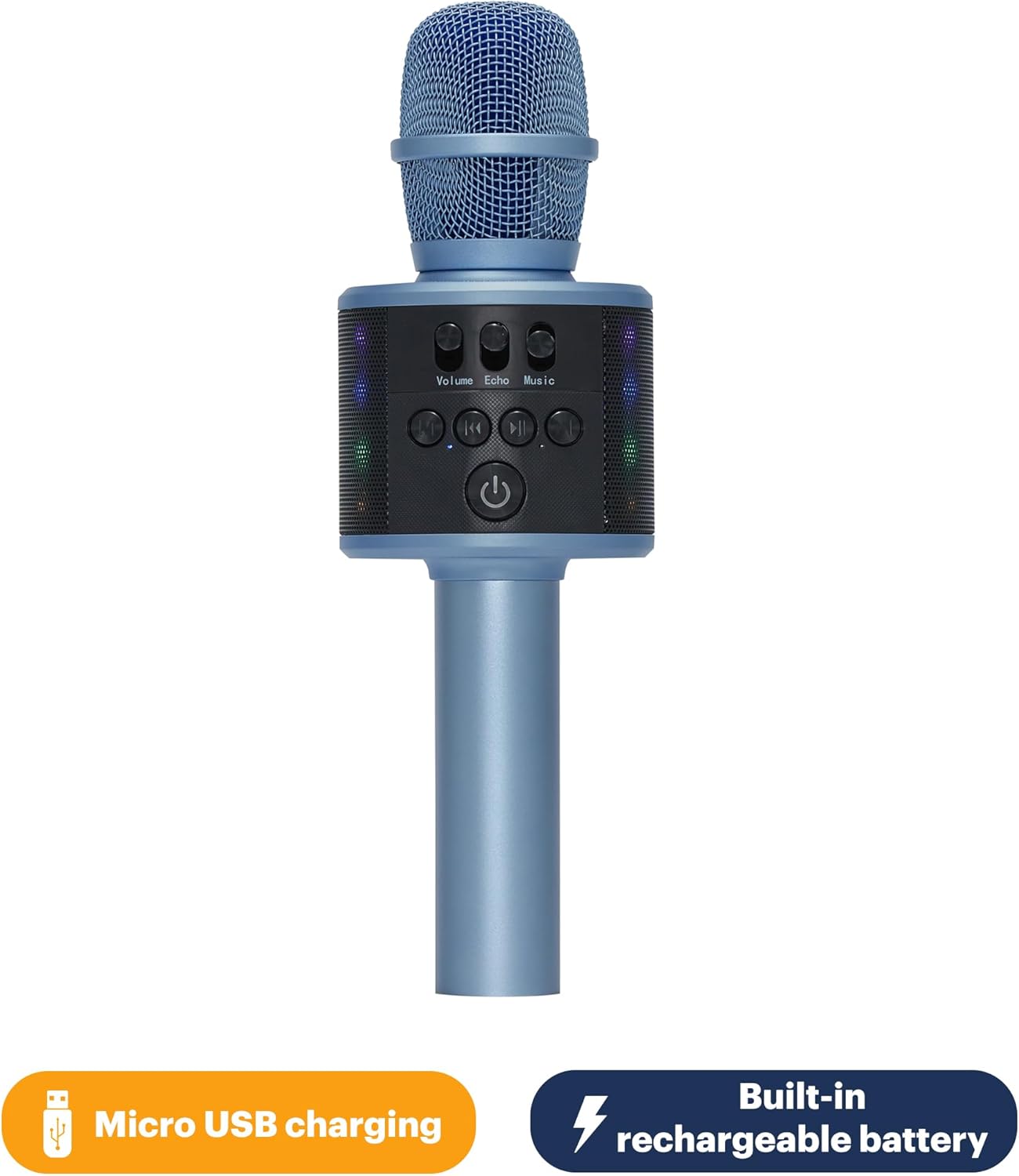
Image 3.1: Microphone connected for Micro USB charging.
3.2 Powering On/Off
Press and hold the Power button (⑂) for approximately 3 seconds to turn the microphone on or off. An indicator light will confirm the power status.
3.3 Bluetooth Pairing
- Ensure the microphone is powered on and in Bluetooth pairing mode (indicated by a flashing blue light).
- On your smartphone or tablet, navigate to the Bluetooth settings.
- Search for available devices and select "Core Innovations Mic" (or similar name).
- Once paired, the indicator light will become solid blue, and a confirmation tone may sound.
4. Operating Instructions
4.1 Basic Microphone Use
Once powered on, the microphone is ready for use. Speak or sing into the microphone grille. Adjust the 'Volume' knob to control your voice output level.
4.2 Adjusting Sound Effects
- Echo: Use the 'Echo' knob to add a reverberation effect to your voice.
- Music Volume: Use the 'Music' knob to adjust the volume of background music playing from a connected device or internal storage.
4.3 HD Recording
The microphone supports HD recording, primarily for Android devices. Connect the micro USB to 3.5mm AUX cable from the microphone's micro USB port to your phone's 3.5mm audio jack. Use a recording application on your phone to capture audio.

Image 4.1: Connecting the microphone to a smartphone for HD recording. Note: Recording function is primarily for Android devices.
4.4 MP3 Music Player
Insert a MicroSD card or USB drive with MP3 files into the respective port. The microphone will automatically detect and play the music. Use the playback controls (Previous, Play/Pause, Next) to manage your music.
4.5 LED Lights
The microphone features built-in LED lights that illuminate during use, enhancing the karaoke experience.

Image 4.2: Microphone with active LED lights during use.
5. Maintenance
5.1 Cleaning
Wipe the microphone with a soft, dry cloth. Do not use abrasive cleaners or allow water to enter the device.
5.2 Storage
Store the microphone in a cool, dry place away from direct sunlight and extreme temperatures when not in use.
5.3 Battery Care
To prolong battery life, charge the microphone regularly, even if not in frequent use. Avoid fully discharging the battery for extended periods.
6. Troubleshooting
- Microphone does not power on: Ensure the battery is charged. Connect the charging cable and try again.
- Cannot connect via Bluetooth: Ensure Bluetooth is enabled on your device and the microphone is in pairing mode. Try restarting both devices.
- No sound from microphone: Check the microphone volume knob. Ensure the microphone is not muted on a connected device.
- Poor sound quality: Ensure the microphone is held correctly and not too far from your mouth. Check for obstructions on the microphone grille.
- Recording not working: For HD recording, ensure the AUX cable is correctly connected and you are using a compatible Android device with a recording app.
7. Specifications

Image 7.1: Microphone dimensions.
| Feature | Detail |
|---|---|
| Model Number | KRMC120SB |
| Microphone Form Factor | Handheld |
| Connectivity Technology | Bluetooth, USB |
| Connector Type | Micro USB |
| Power Source | Corded Electric (Rechargeable Lithium Ion Battery) |
| Number of Batteries | 1 Lithium Ion (included) |
| Item Dimensions (L x W x H) | 3.54 x 3.54 x 10.24 inches |
| Item Weight | 15.6 ounces |
| Hardware Platform | Karaoke Machine, Smartphone |
| Special Feature | Volume Control, Built-in Speakers, LED Lights, HD Recording |
| Included Components | Microphone; Micro USB to 3.5mm AUX cable; Micro USB charging cable |
8. Warranty Information
This product is covered by a limited manufacturer's warranty. Please refer to the warranty card included with your purchase or visit the Core Innovations website for detailed terms and conditions. Keep your proof of purchase for warranty claims.
9. Support
For technical assistance, troubleshooting, or product inquiries, please contact Core Innovations customer support. Contact information can typically be found on the product packaging or the official Core Innovations website.
Please note: Product specifications and features are subject to change without prior notice.