
Introduction
This manual provides instructions for the assembly, operation, and maintenance of your UNICOO Kids Study Desk and Chair Set, Model SC-X7. Please read this manual thoroughly before use to ensure proper function and safety. Keep this manual for future reference.

Figure 1: Overview of the UNICOO Kids Study Desk and Chair Set, highlighting key features such as the LED lamp, book stand, cup holder, storage drawer, pencil case, school bag hook, and chair levelers.
Safety Information
- Ensure all parts are securely fastened before use.
- Do not allow children to climb on the desk or chair.
- Supervise children during initial use and adjustments.
- Keep small parts away from young children to prevent choking hazards.
- Place the desk and chair on a flat, stable surface.
Setup
1. Assembly
Detailed assembly instructions and all necessary hardware are included in the product packaging. Please refer to the separate assembly guide for step-by-step instructions to construct the desk and chair.
2. Adjusting Height of Desk and Chair
The desk and chair are designed with adjustable heights to accommodate growing children. Locate the adjustment knobs or levers on the legs of both the desk and chair. Loosen the knobs, adjust to the desired height, and then securely tighten the knobs to lock the position.

Figure 2: Guide for adjusting the height of the desk and chair to suit children of various ages and heights.
3. Leveling the Chair
The chair features non-slip feet with levelers to ensure stability on uneven surfaces. Adjust the levelers at the bottom of the chair legs until the chair is stable and does not wobble.

Figure 3: Detail of the adjustable leveler on the chair's foot for stability.
Operating Instructions
1. Tilting Desktop Function
The desktop can be tilted to various angles for different activities. To adjust, lift the desktop slightly and use the adjustment mechanism (typically a knob or lever) located underneath the desktop to set the desired angle. Ensure it clicks into place securely.
- 0-7° for Writing: A slight incline for comfortable writing posture.
- 0-25° for Reading: An ergonomic angle to reduce neck strain while reading.
- 25-40° for Drawing: A steeper incline suitable for art and drawing activities.
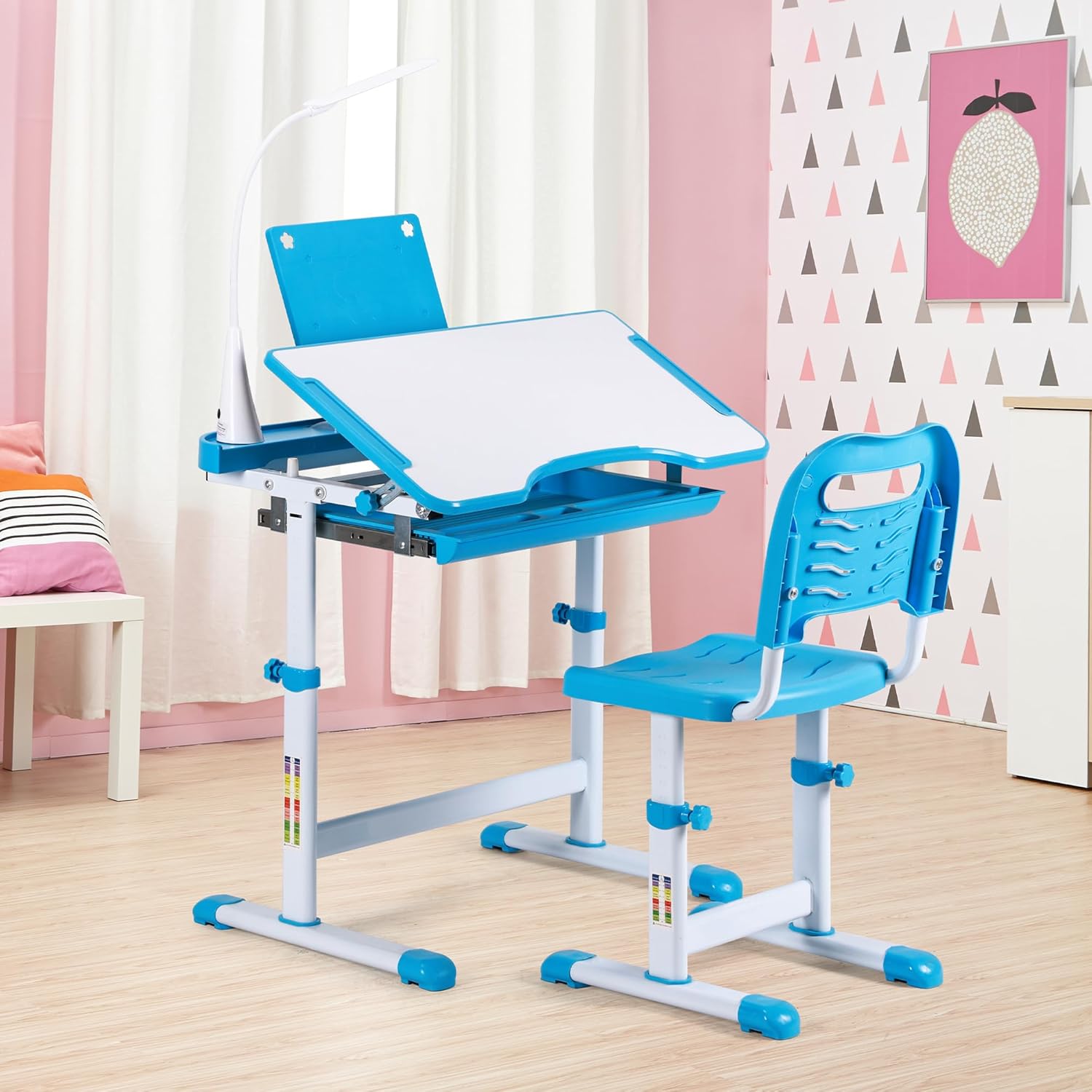
Figure 4: The desktop can be adjusted to different angles for writing, reading, and drawing.

Figure 5: The integrated book stand provides a convenient place to hold books or tablets.
2. LED Lamp Operation
The integrated LED lamp provides adjustable lighting. It features a touch switch for power and brightness control. The lamp is designed to be anti-stroboscopic, providing soft, eye-protective light.
- Power On/Off: Touch the power symbol on the lamp base.
- Adjust Brightness: Touch the 'M' symbol to cycle through different brightness levels (soft to strong light).
- Adjust Angle: The lamp arm is flexible and can be rotated 360 degrees to direct light as needed.

Figure 6: The LED lamp features a touch switch for power and brightness adjustment, and a flexible arm.

Figure 7: The LED lamp provides focused lighting for study sessions.
3. Storage Drawer
A pull-out drawer is located beneath the desktop for organizing school supplies. Pull the handle to open and push to close.

Figure 8: The pull-out drawer offers convenient storage for various items.
4. Additional Features
- Cup Holder: Use the integrated cup holder to keep beverages secure and prevent spills.
- Pencil Case: A dedicated slot or case for pencils and pens helps keep the desktop tidy.
- School Bag Hook: Use the hook on the side of the desk to hang a school bag or backpack.

Figure 9: The cup holder keeps drinks stable and within reach.

Figure 10: The pencil case provides a designated spot for writing instruments.

Figure 11: The school bag hook offers a convenient place to hang a backpack.
Maintenance
Cleaning Instructions
To clean the desk and chair, wipe surfaces with a damp cloth. Avoid using harsh chemicals or abrasive cleaners, as these may damage the finish. Ensure the desk and chair are dry after cleaning.
Troubleshooting
- Desk/Chair Wobbles: Check that all assembly screws are tightened. Adjust the levelers on the chair feet. Ensure the desk is on a flat surface.
- Height Adjustment Difficulty: Loosen the adjustment knobs completely before attempting to slide the legs. Ensure no debris is obstructing the adjustment mechanism.
- Desktop Not Tilting Smoothly: Check for any obstructions in the tilting mechanism. Ensure the adjustment knob/lever is fully disengaged before tilting.
- LED Lamp Not Working: Ensure the lamp is properly connected to its power source. Check the touch switch for responsiveness.
Specifications
| Feature | Detail |
|---|---|
| Model Number | SC-X7 |
| Brand | UNICOO |
| Color | Blue |
| Material Type | Engineered Wood |
| Item Dimensions (L x W x H) | 27.56 x 19.29 x 30.3 inches |
| Item Weight | 35.2 pounds |
| Number of Drawers | 1 |
| Additional Features | Adjustable Height, LED Lamp, Tilting Desktop |

Figure 12: Dimensional overview of the desk and chair set.
Customer Support
For any questions, concerns, or assistance with your UNICOO Kids Study Desk and Chair Set, please contact UNICOO customer support. Refer to your product packaging or the retailer's website for specific contact details.