
AutoSky WCPAA-DUAL
AutoSky Wireless CarPlay & Android Auto AI Box Lite Plus 2.0 Instruction Manual
Model: WCPAA-DUAL | Brand: AutoSky
1. Introduction
The AutoSky Wireless CarPlay and Android Auto AI Box Lite Plus 2.0 is designed to enhance your in-car infotainment experience. This device allows you to seamlessly switch between wireless Apple CarPlay or Android Auto and popular streaming services like Netflix and YouTube directly on your vehicle's factory-wired CarPlay screen. It offers a plug-and-play solution without requiring modifications to your car's stereo system.
2. Key Features
- Dual WiFi Module: Seamlessly switch between Wireless CarPlay/Android Auto and streaming services (Netflix, YouTube) without reconnecting.
- Wireless Android Auto: Enjoy all wired Android Auto functionalities wirelessly, eliminating cable clutter.
- Wireless CarPlay: Access all wired CarPlay features wirelessly for a convenient and cable-free experience.
- Streaming Capabilities: Stream Netflix and YouTube using a mobile hotspot. Supports local video and music playback via SD card slot.
- Plug & Play Installation: Designed for vehicles with built-in factory wired CarPlay. Simply plug into the USB port; no original car stereo dismantling required.
3. Setup Guide
- Vehicle Compatibility: Ensure your vehicle has a factory-installed wired CarPlay system. The AutoSky AI Box Lite Plus 2.0 is designed to work with existing wired CarPlay ports.
- Connect the Device: Plug the AutoSky AI Box Lite Plus 2.0 into your car's wired CarPlay USB port. Use the provided USB-C to USB-A cable or USB-C to USB-C cable depending on your car's port type. The device will power on automatically.
- Initial Boot-up: The device will boot up and display its interface on your car's screen. You may see a caution message regarding video playback while driving; agree to proceed.
- Bluetooth Pairing (for Wireless CarPlay/Android Auto):
- On your car's screen, select either 'Apple CarPlay' or 'Android Auto'.
- On your smartphone, go to Bluetooth settings and search for the AutoSky device (e.g., 'AutoSky-XXXX').
- Pair your phone with the AutoSky device. Confirm any pairing codes if prompted.
- Once paired, your phone will automatically connect wirelessly to CarPlay or Android Auto every time you start your car.
- Wi-Fi Connection (for Streaming Services):
- To use streaming apps like Netflix or YouTube, the AutoSky device requires an internet connection.
- Go to the 'Settings' menu on the AutoSky device interface.
- Select 'Network & Internet' or 'Wi-Fi'.
- Turn on Wi-Fi and connect to your mobile phone's personal hotspot or another available Wi-Fi source.
- Ensure your mobile hotspot is active on your phone.
4. Operating Instructions
4.1. Using Wireless CarPlay / Android Auto
- After successful Bluetooth pairing, your smartphone's CarPlay or Android Auto interface will appear on your car's screen.
- Navigate through apps, make calls, send messages, and use navigation (e.g., Apple Maps, Google Maps, Waze) directly from your car's touchscreen or steering wheel controls.
- The device supports voice commands (Siri for CarPlay, Google Assistant for Android Auto) for hands-free operation.
4.2. Accessing Streaming Services (Netflix, YouTube)
- Ensure the AutoSky device is connected to a Wi-Fi source (e.g., mobile hotspot).
- From the main interface, tap on the Netflix or YouTube app icon.
- Log in with your existing account credentials.
- You can now browse and stream content. Remember that video playback while driving may be restricted by local laws and is not recommended for safety.
4.3. Playing Local Media
- Insert an SD card containing video or music files into the designated slot on the AutoSky device.
- Navigate to the 'Files' or 'Video' app on the device's interface to access and play your local media.
5. Media Integration

Image: The AutoSky AI Box Lite Plus 2.0 connected to a car's USB port, ready for use.

Image: Car infotainment screen demonstrating the dual Wi-Fi module's capability to switch between Apple CarPlay/Android Auto and streaming apps like Netflix or YouTube.

Image: Car screen showing seamless access to various applications, including Netflix, Spotify, YouTube, and other communication apps.

Image: Car infotainment screen showing Netflix streaming, highlighting the device's entertainment capabilities.

Image: Car infotainment screen showing YouTube streaming, demonstrating the device's video playback features.
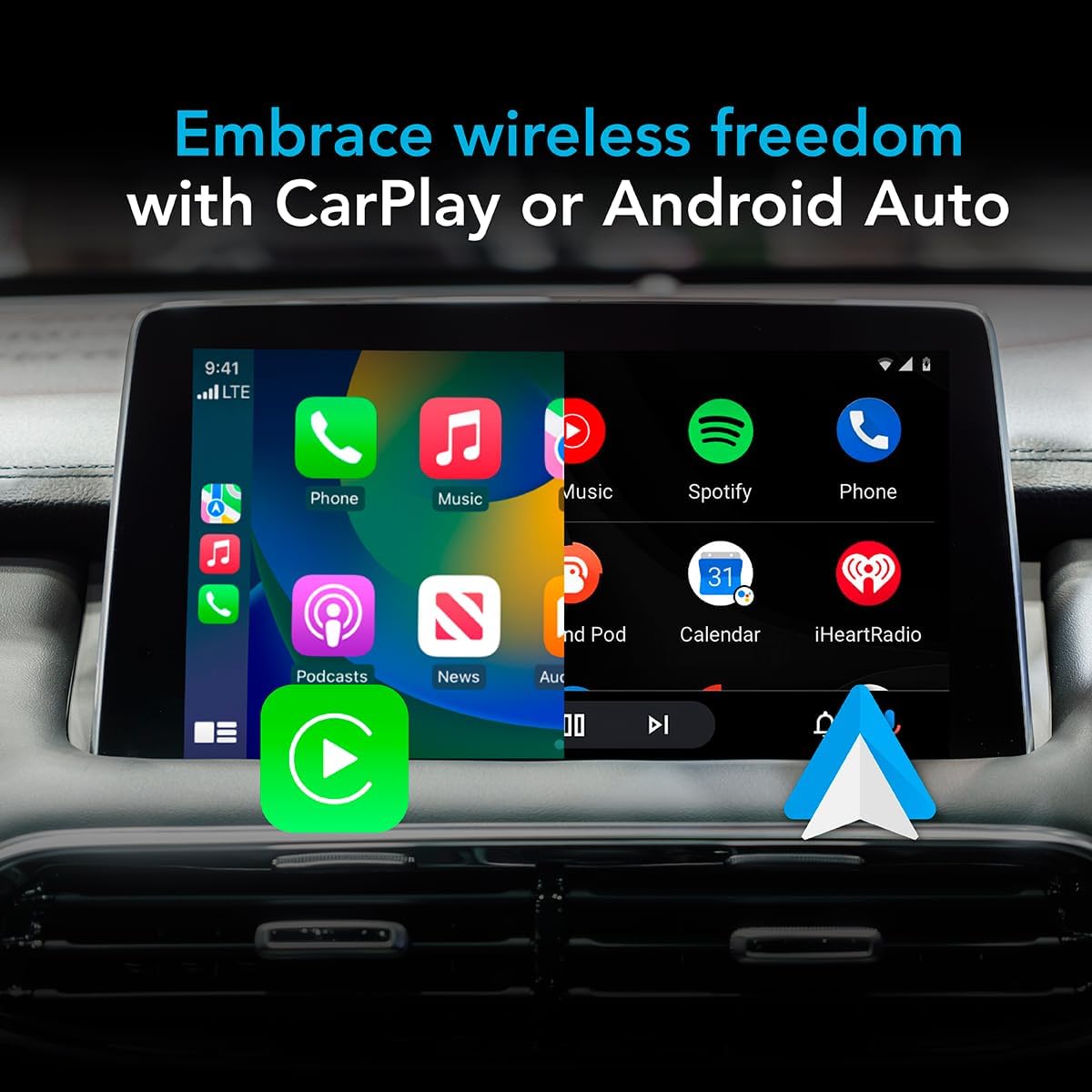
Image: Car infotainment screen displaying the Apple CarPlay interface, showcasing the wireless connectivity for navigation, music, and communication.
Official Product Videos
Video: This video demonstrates the installation process of a TV adapter in a vehicle, providing a step-by-step guide for users.
Video: This video showcases the AutoSky adapter playing YouTube and Netflix on the car's screen, highlighting its entertainment features.
Video: This video provides instructions on how to set up screen mirroring with the device.
6. Maintenance
- Cleaning: Use a soft, dry cloth to clean the device. Avoid liquid cleaners or abrasive materials.
- Software Updates: Periodically check the device's settings for available software updates to ensure optimal performance and compatibility. Follow on-screen instructions for any updates.
- Storage: When not in use for extended periods, store the device in a cool, dry place away from direct sunlight and extreme temperatures.
7. Troubleshooting
- Device Not Powering On: Ensure the device is securely plugged into a functional USB port that supports wired CarPlay. Check your car's ignition status.
- No CarPlay/Android Auto Connection:
- Verify your phone's Bluetooth is on and paired with the AutoSky device.
- Ensure your car's factory wired CarPlay is active and recognized by the vehicle.
- Restart both your phone and the AutoSky device (by unplugging and replugging).
- Streaming Apps Not Working (Netflix/YouTube):
- Confirm the AutoSky device is connected to a stable Wi-Fi network (e.g., your mobile hotspot).
- Check your mobile hotspot's data plan and signal strength.
- Ensure you are logged into your streaming service accounts.
- Screen Freezing or Lag:
- Restart the AutoSky device.
- Check for any available software updates for the device.
- Ensure your phone's operating system is up to date.
8. Specifications
| Item Weight | 1.34 ounces (38 Grams) |
| Product Dimensions | 0.4 x 2 x 3.3 inches |
| Item Model Number | WCPAA-DUAL |
| Display Size | 20 Inches (projected) |
| Voice Command | Touchscreen |
| Brand | AutoSky |
| Model Name | Lite Plus 2.0 |
| Vehicle Service Type | Car |
| Connectivity Technology | Bluetooth, Wi-Fi |
| Operating System | Android |
| Memory Storage Capacity | 16 GB |
9. Warranty and Support
For warranty information and technical support, please refer to the documentation included with your product or visit the official AutoSky website. Keep your purchase receipt for warranty claims.
Related documentsWCPAA-DUAL


Ask a question about this manual
Ask about setup, troubleshooting, compatibility, parts, safety, or missing instructions. Manuals+ will review the question and use this page’s manual context to help answer it.