
SERPHIX CT-105
SERPHIX 15.2-inch Large Digital Wall Clock (Model CT-105) User Manual
Model: CT-105 | Brand: SERPHIX
1. Introduction
This manual provides detailed instructions for the setup, operation, and maintenance of your SERPHIX 15.2-inch Large Digital Wall Clock, Model CT-105. Please read this manual thoroughly before using the product to ensure proper function and longevity.
1.1 Package Contents
Verify that all items are present in the package:
- SERPHIX 15.2-inch Digital Wall Clock (CT-105)
- Remote Control
- USB Power Cable (approx. 96 inches)
- Power Adapter
- Wall Mounting Screws (M4 * 2)
- Fixed Brackets (2x)
- Instruction Manual (this document)

Image: Package contents of the SERPHIX CT-105 Digital Wall Clock, showing the clock unit, remote control, USB cable, power adapter, mounting screws, and brackets.
2. Safety Information
- This device requires a continuous power supply via the included USB cable and power adapter. It is not battery operated for primary function.
- Ensure the power adapter is connected to a suitable power outlet.
- Do not expose the clock to extreme temperatures, direct sunlight for prolonged periods, or high humidity.
- Keep the device away from water or other liquids.
- Do not attempt to disassemble or repair the device yourself. Contact customer support for assistance.
- The remote control requires 2x AAA batteries (not included). Ensure correct polarity when inserting batteries.
3. Setup
3.1 Power Connection
- Connect the USB power cable to the clock's power input port.
- Connect the other end of the USB cable to the provided power adapter.
- Plug the power adapter into a standard electrical outlet. The clock display will illuminate.
Note: The clock must remain plugged in to function. It does not have an internal battery for operation.
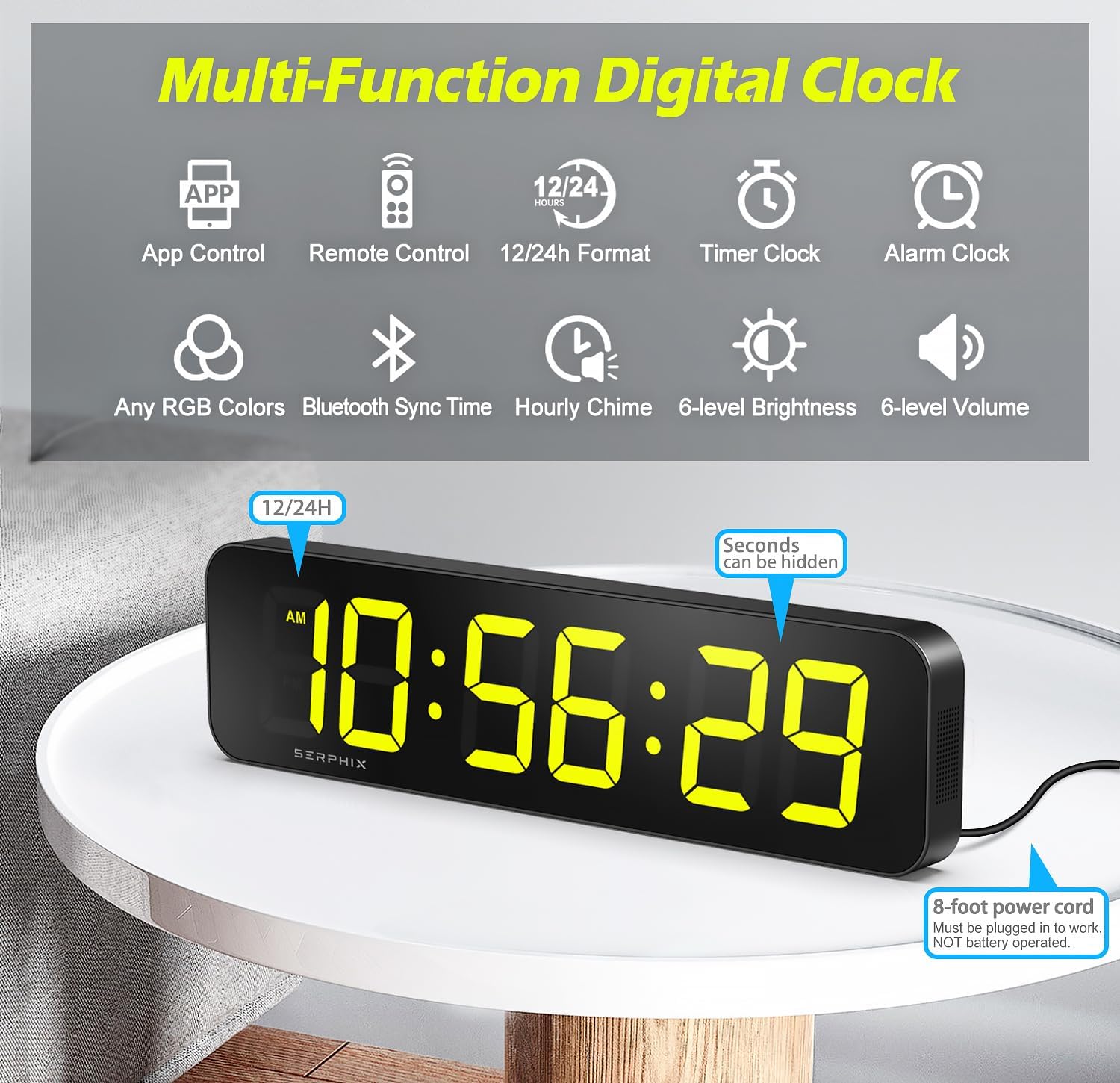
Image: The SERPHIX Digital Wall Clock connected to power, showing the time display and indicating the 8-foot power cord.
3.2 Mounting Options
The SERPHIX CT-105 clock can be placed on a desktop or mounted on a wall.
- Desktop Placement: Simply place the clock on any flat, stable surface.
- Wall Mounting:
- Determine the desired location for the clock on the wall.
- Use the provided fixed brackets and M4 screws to secure the clock to the wall. Ensure the brackets are level and spaced correctly to support the clock securely.

Image: The SERPHIX Digital Wall Clock displayed on a desktop and mounted on a wall, illustrating its versatile placement options.
3.3 Initial Time Synchronization
The clock automatically syncs time via Bluetooth when connected to the mobile application. This ensures accurate timekeeping to the second.
4. Operating Instructions
The SERPHIX CT-105 clock offers multiple control methods: a dedicated remote control and a mobile application.

Image: The SERPHIX Digital Wall Clock, its remote control, and a smartphone showing the companion app, highlighting the multiple control options.

Image: The SERPHIX Digital Wall Clock, remote control, and mobile app interface, demonstrating the integrated control ecosystem.
4.1 Mobile App Control
The mobile app provides comprehensive control and customization options for the clock. It automatically syncs time via Bluetooth for precise accuracy.
- Download the App: Scan the QR code in the packaging or search for the "SERPHIX Clock" app on your smartphone's app store.
- Connect via Bluetooth: Ensure Bluetooth is enabled on your smartphone. Open the app, and it will automatically detect and connect to your clock.
- Time Synchronization: Upon connection, the clock's time will automatically synchronize with your phone's time, ensuring accuracy.
- App Features: The app allows you to adjust brightness, select RGB colors, set alarms, configure hourly chimes, and manage all timer functions.

Image: A smartphone displaying the SERPHIX app's settings interface, with the digital clock visible in the background, illustrating app-based control.
4.2 Remote Control Operation
The included remote control provides convenient access to essential clock functions from a distance of up to 39 feet.
- Insert Batteries: Open the battery compartment on the back of the remote and insert 2x AAA batteries (not included), observing correct polarity.
- Basic Functions: Use the remote to adjust brightness, switch between 12/24-hour format, activate/deactivate alarms, and control timer functions.
Image: A visual representation of the three control methods: remote control, mobile app, and Bluetooth synchronization, emphasizing ease of use.
4.3 Time Display and Customization
- 12/24-Hour Format: Switch between 12-hour (with AM/PM indicator) and 24-hour formats using the remote or app.
- Seconds Display: The clock displays seconds. This can be hidden via the app settings if desired.
- Brightness Adjustment: The display features 6 levels of brightness adjustment, controllable via the app or remote.
- Customizable RGB Colors:
The clock supports customizable RGB colors for the LED digits. You can select any color via the mobile app. The display can be divided into color zones for independent control, allowing for personalized visual effects.

Image: The SERPHIX Digital Wall Clock demonstrating color zone control, where different segments of the display can show distinct RGB colors, enhancing customization.

Image: The SERPHIX Digital Wall Clock displaying different modes (24H, 12H, Count Up, Count Down, Stopwatch, Interval Timer) alongside a smartphone screen showing color selection options in the app.
4.4 Alarm Clock Function
The clock can store up to 10 alarms, configurable through the mobile app.
- Setting Alarms: Use the app to set specific alarm times, including long-term alarms for particular dates (e.g., anniversaries) and repeat alarms for daily or weekly schedules.
- Ringtone Options: Choose from 3 ringtone options.
- Volume Levels: Select from 6 volume levels for the alarm sound.

Image: A smartphone screen displaying the alarm setup interface within the SERPHIX app, showing options for time, repeat days, sound, and reminders.
4.5 Custom Hourly Chime
The clock can announce the time with a voice chime at selected hours.
- Configuration: Adjust the hourly chime times via the mobile app to avoid interruptions during specific periods.
- Volume Control: The chime volume can be adjusted through the app or remote control.

Image: A smartphone screen displaying the hourly chime settings within the SERPHIX app, allowing users to select specific hours for the voice announcement.
4.6 Timer Functions
The SERPHIX CT-105 includes professional and easy-to-use timer features, accessible via the app or remote.
- Stopwatch: Measures elapsed time with precision.
- Countdown Timer: Sets a specific duration and counts down to zero.
- Count Up Timer: Counts upwards from a set starting point.
- Programmable Interval Timer: Ideal for fitness routines (e.g., EMOM, AMRAP, TABATA, Custom Intervals P1-P9). This feature includes voice countdown prompts.

Image: The SERPHIX Digital Wall Clock showcasing multiple timer modes including Stopwatch, Custom Interval, Tabata, EMOM/AMRAP, Count Up, and Count Down.

Image: The SERPHIX Digital Wall Clock displaying a gym timer countdown, with a person performing an exercise, illustrating its use in fitness settings.
5. Maintenance
- Cleaning: Use a soft, dry cloth to clean the clock's display and casing. Do not use abrasive cleaners or solvents.
- Power: Ensure the clock remains connected to a stable power source.
- Remote Control Batteries: Replace AAA batteries in the remote control when its range or responsiveness decreases.
6. Troubleshooting
| Problem | Possible Cause | Solution |
|---|---|---|
| Clock does not power on. | No power supply; loose connection. | Ensure the USB cable is securely connected to the clock and the power adapter. Verify the power adapter is plugged into a working electrical outlet. |
| Remote control is unresponsive. | Dead batteries; remote out of range; obstruction. | Replace AAA batteries in the remote. Ensure you are within the 39-foot operating range and there are no obstructions between the remote and the clock. |
| App cannot connect to the clock. | Bluetooth off; app not open; clock not powered. | Ensure Bluetooth is enabled on your smartphone. Open the SERPHIX app. Verify the clock is powered on. Restart the app or your phone if necessary. |
| Time is inaccurate. | Bluetooth sync issue; temporary glitch. | Connect the clock to the mobile app via Bluetooth. The app will automatically synchronize the time to the exact second. If issues persist, restart the clock by unplugging and replugging the power. |
| Clock display blanks out or reboots unexpectedly. | Unstable power supply; internal issue. | Ensure the power source is stable and the power cable is not damaged. Try a different power outlet. If the problem continues, contact customer support. |
| Hourly chime sounds even when volume is set to zero (after reboot). | System default behavior. | This is a known behavior. Adjust the hourly chime settings via the app to disable specific chime times if you do not wish for it to sound. |
7. Specifications
| Brand | SERPHIX |
| Model Number | CT-105 |
| Display Type | Digital LED |
| Product Dimensions | 15.2"W x 4"H x 1.5"D |
| Digit Size | 2.7 inches (approx.) |
| Power Source | Corded Electric (USB power cable and adapter) |
| Battery Operated | No (requires continuous power) |
| Material | Aluminum |
| Special Features | Adjustable Brightness (6 levels), Adjustable Volume (6 levels), Alarm (up to 10), Hourly Chime, Stopwatch, Countdown Timer, Interval Timer, Customizable RGB Colors, App Control, Remote Control, Bluetooth Time Sync |
| Mounting Type | Wall Mount, Desktop |
| Item Weight | 1.7 pounds |

Image: The SERPHIX Digital Wall Clock with its dimensions clearly marked as 15.2 inches in width and 4 inches in height, illustrating its large display size.
8. Warranty and Support
For warranty information or technical support, please refer to the contact details provided with your purchase or visit the official SERPHIX website. Keep your purchase receipt as proof of purchase for warranty claims.
Online Support: Visit the SERPHIX Store on Amazon
Related documentsCT-105


Ask a question about this manual
Ask about setup, troubleshooting, compatibility, parts, safety, or missing instructions. Manuals+ will review the question and use this page’s manual context to help answer it.