
Introduction
Thank you for choosing the JOMAA TK5 Mini Ergonomic 2.4G Wireless Keyboard with Trackball Mouse Combo. This device integrates a full-function keyboard with a precise trackball mouse, offering a compact and versatile solution for various computing environments. This manual provides detailed instructions for setup, operation, and maintenance to ensure optimal performance and user experience.
Product Features
- 2.4G Wireless USB Connection: Enjoy reliable wireless connectivity with a plug-and-play USB receiver, ideal for computers, smart TVs, HTPCs, and other compatible devices.
- Integrated Trackball and Mouse Buttons: Control cursor movement with the built-in trackball and utilize dedicated physical buttons for left-click, right-click, and scroll wheel functions, combining keyboard and mouse functionality seamlessly.
- Multi-function and Shortcut Keys: Access a wide range of multimedia controls and shortcut functions conveniently located on the keyboard for enhanced productivity and entertainment.
- Silent Keys: Experience quiet typing with soft, silent keys, minimizing noise during use.
- Wide Application: Compatible with Android, Windows, and Linux operating systems. Suitable for devices such as XBOX 360, PS3, HTPC/IPTV, Android TV Boxes, Laptops, and projectors.
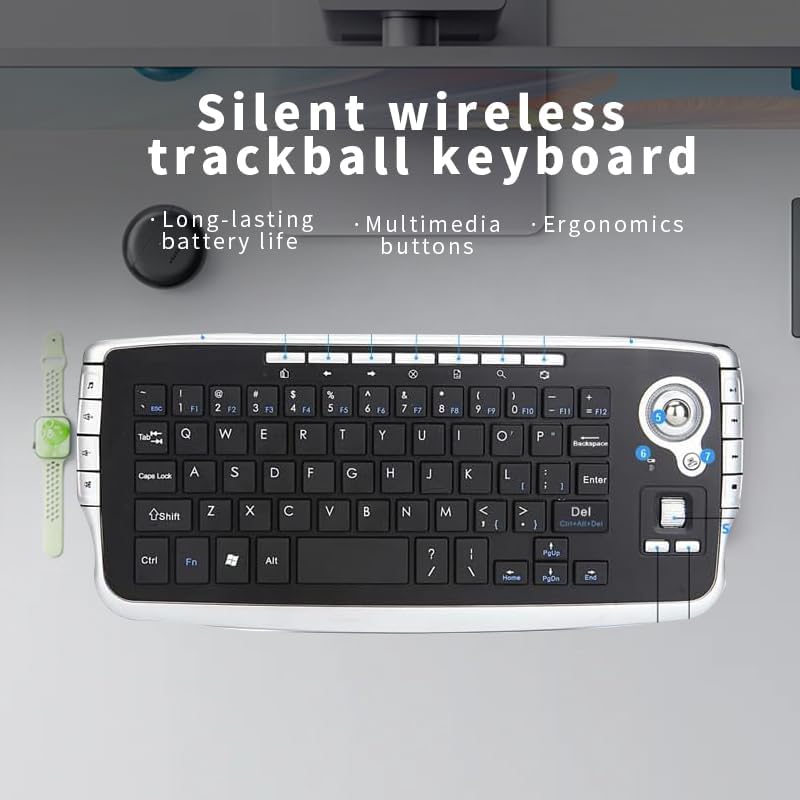
Image: The JOMAA TK5 keyboard emphasizing its silent operation, multimedia controls, and ergonomic design.
Package Contents
Please ensure all items are present in the package:
- 1 x JOMAA TK5 Wireless Keyboard
- 1 x USB Receiver
- 1 x User Manual (this document)
Setup Instructions
- Insert Batteries:
Locate the battery compartment on the underside of the keyboard. Insert two AA batteries, ensuring correct polarity (+/-). Close the battery compartment securely.
- Connect USB Receiver:
Remove the 2.4G wireless USB receiver from its storage port at the bottom of the keyboard. Plug the USB receiver into an available USB port on your computer, smart TV, HTPC, or other compatible device. The system should automatically detect and install the necessary drivers.

Image: The JOMAA TK5 keyboard being used with a desktop computer, illustrating the USB receiver connection.
- Power On:
Locate the power switch on the keyboard (usually on the side or bottom) and slide it to the "ON" position. The keyboard is now ready for use.
Video: This video demonstrates the appearance and basic usage of the JOMAA TK5 Trackball Keyboard, including battery insertion and connection.
Operating Instructions
Keyboard Functionality
The keyboard functions like a standard QWERTY keyboard. Simply type as you normally would. The keys are designed for silent operation.
Trackball and Mouse Buttons
The integrated trackball allows for precise cursor control. Use your thumb or finger to roll the trackball to move the cursor on the screen.
- Left Mouse Key: Located below the trackball, this button performs the standard left-click action.
- Right Mouse Key: Located below the trackball, this button performs the standard right-click action.
- Scroll Wheel: Positioned between the left and right mouse keys, rotate the scroll wheel to navigate through documents or web pages vertically.

Image: A comprehensive diagram labeling the various keys, the trackball, and multimedia controls on the JOMAA TK5 keyboard.
Multimedia and Shortcut Keys
The keyboard features dedicated multimedia keys and function key shortcuts to enhance your control over media playback and system functions.
Side Multimedia Keys (Left Side):
- Music/Media Player: Opens your default media player.
- Volume Up: Increases audio volume.
- Volume Down: Decreases audio volume.
- Mute: Mutes or unmutes audio.
Function (Fn) Key Combinations:
Press and hold the Fn key, then press the desired key with a blue symbol to activate its secondary function.
- Fn + Home: Navigates to the beginning of a document or page.
- Fn + End: Navigates to the end of a document or page.
- Fn + F1-F12: Access various system functions (e.g., brightness, playback controls, depending on your operating system and device).
- Fn + Symbol Keys: Activates blue-printed symbols on certain keys.

Image: The keyboard illustrating the use of the Fn key with Home and End functions, indicated by blue text.
Troubleshooting
- Keyboard or Trackball Not Responding:
Ensure the keyboard is powered on and the USB receiver is securely plugged into a working USB port. Check the battery level and replace batteries if necessary. If the trackball is not tracking properly, try refreshing the batteries.
- Connection Issues:
Move the keyboard closer to the USB receiver to ensure a strong 2.4G wireless signal. Avoid placing the receiver near other wireless devices or large metal objects that might cause interference.
- Cursor Movement is Erratic or Slow:
Clean the trackball and its housing to remove any dust or debris that might be obstructing its movement. Ensure the trackball is seated correctly.
- Keys Not Functioning:
If specific keys are not working, ensure no debris is lodged beneath them. If the issue persists, try reconnecting the USB receiver or replacing the batteries.
Specifications
| Model Number | TK5 |
| Brand | JOMAA |
| Connectivity Technology | 2.4G Wireless USB |
| Compatible Devices | Laptop, Personal Computer, Television (Android, Windows, Linux OS) |
| Product Dimensions | 10.24 x 4.72 x 0.98 inches (260 x 120 x 25 mm) |
| Item Weight | 10 ounces (approx. 283g) |
| Power Source | 2 x AA Batteries (not included) |
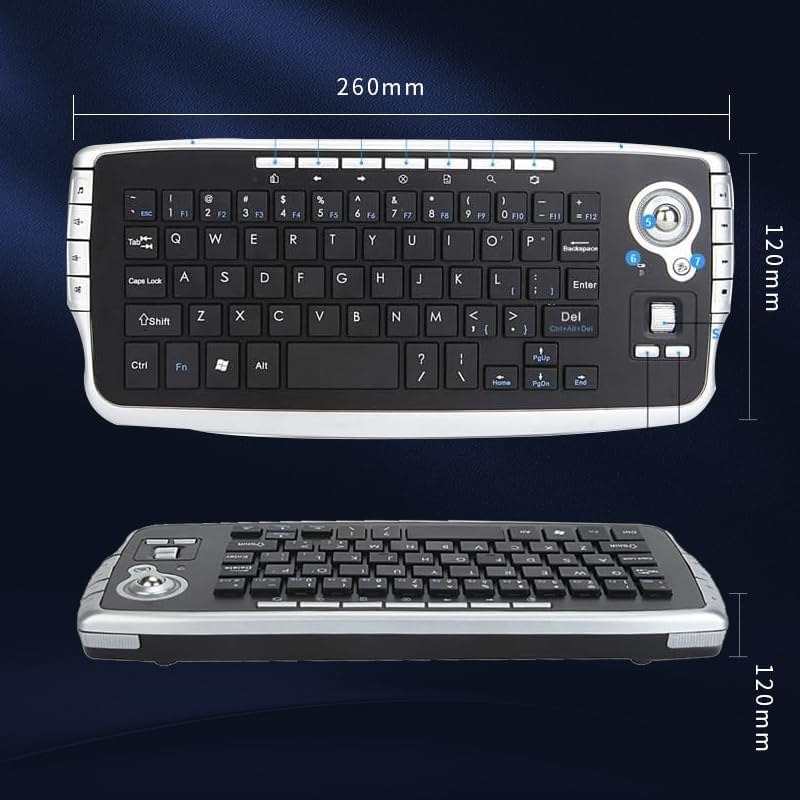
Image: Technical drawing illustrating the length and width dimensions of the JOMAA TK5 keyboard.
Maintenance
- Cleaning: Use a soft, dry cloth to clean the surface of the keyboard. For stubborn dirt, a slightly damp cloth can be used, but ensure no moisture enters the device. Avoid harsh chemicals or abrasive cleaners.
- Trackball Cleaning: Periodically remove the trackball (if designed for removal) and clean the ball and its internal sensors with a lint-free cloth to maintain smooth operation.
- Battery Replacement: Replace batteries when the low battery indicator illuminates or when performance degrades. Always use fresh AA batteries.
- Storage: When not in use for extended periods, turn off the keyboard and store it in a dry, cool place.
Warranty and Support
JOMAA products are designed for reliability and performance. For warranty information, technical support, or service inquiries, please refer to the contact information provided with your purchase or visit the official JOMAA website. Please retain your proof of purchase for warranty claims.


