
YETOR H222
YETOR H222 USB Bluetooth Audio Adapter Instruction Manual
Model: H222
Introduction
The YETOR H222 USB Bluetooth Audio Adapter is designed to transform non-Bluetooth audio systems into wireless Bluetooth-enabled devices. This adapter allows you to stream audio from your Bluetooth-enabled smartphone, tablet, or other devices to your home stereo, car speakers, or portable speakers. It provides a convenient solution for enjoying wireless audio with crystal clear, high-fidelity sound.
Safety Information
Please read and follow these safety guidelines to ensure proper use and prevent damage to the device or injury.
- Ensure proper placement to avoid interference with other wireless devices.
- Avoid exposing the device to extreme temperatures or humidity.
- This device is an AUX Bluetooth receiver and cannot be paired with Bluetooth headphones or speakers. It receives audio from a Bluetooth source and outputs it via AUX.
Package Contents
Please verify that all items are present in your package:
- YETOR H222 USB Bluetooth Audio Adapter
- 3.5mm AUX Audio Cable
- User Manual (this document)
Product Overview
The YETOR H222 is a compact and versatile Bluetooth audio receiver. It features a standard USB-A connector for power and a 3.5mm audio output for connecting to your audio system's AUX input.

Figure 1: YETOR H222 USB Bluetooth Audio Adapter. This image shows the compact design of the adapter, ready for connection.

Figure 2: Dimensions of the YETOR H222 USB Bluetooth Audio Adapter. The adapter measures approximately 55.7mm in length, 21mm in width, and 10mm in thickness.
Setup Instructions
Follow these steps to set up your YETOR H222 USB Bluetooth Audio Adapter:
- Power the Adapter: Insert the USB end of the YETOR H222 adapter into a USB power source. This can be a USB port on your home stereo, car stereo, a USB wall adapter, or a portable power bank. The adapter requires power to function.
- Connect to Audio System: Connect one end of the included 3.5mm AUX audio cable to the 3.5mm audio output port on the YETOR H222 adapter. Connect the other end of the 3.5mm AUX audio cable to the AUX input port on your home stereo, car stereo, or portable speaker system.
- Power On Audio System: Turn on your audio system and select the AUX input source.
- Pair with Bluetooth Device:
- On your smartphone, tablet, or other Bluetooth-enabled device, go to the Bluetooth settings.
- Ensure Bluetooth is enabled.
- Look for available devices and select "H222" (or a similar name like "YETOR H222") to pair.
- Once paired, the adapter's indicator light may change or stabilize, indicating a successful connection.
- Start Streaming: Play audio on your Bluetooth-enabled device. The sound should now be transmitted wirelessly to your connected audio system.
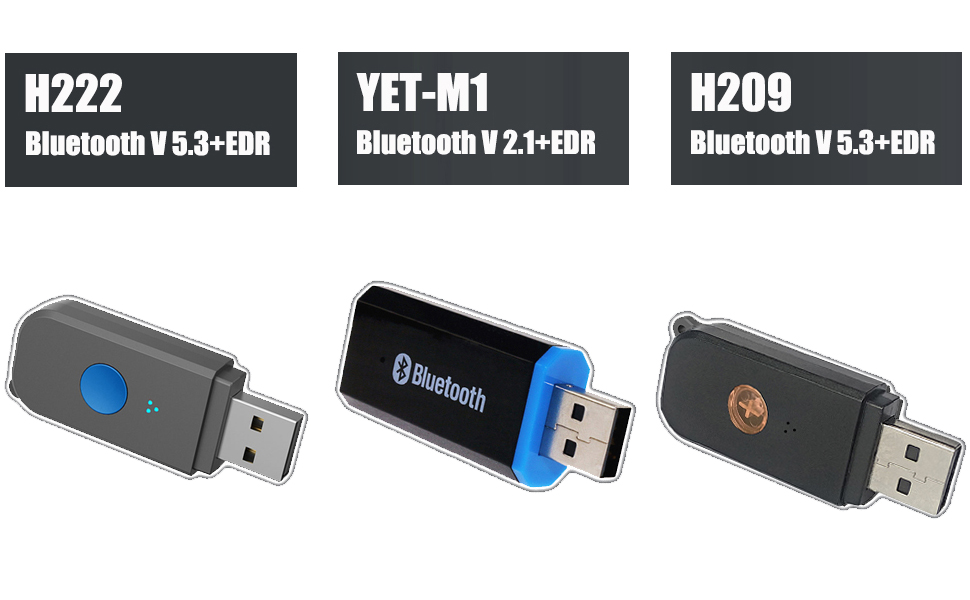
Figure 3: Setup diagram for connecting the H222 adapter to a home stereo system. The adapter plugs into a USB port for power and connects to the stereo's AUX input via a 3.5mm cable.
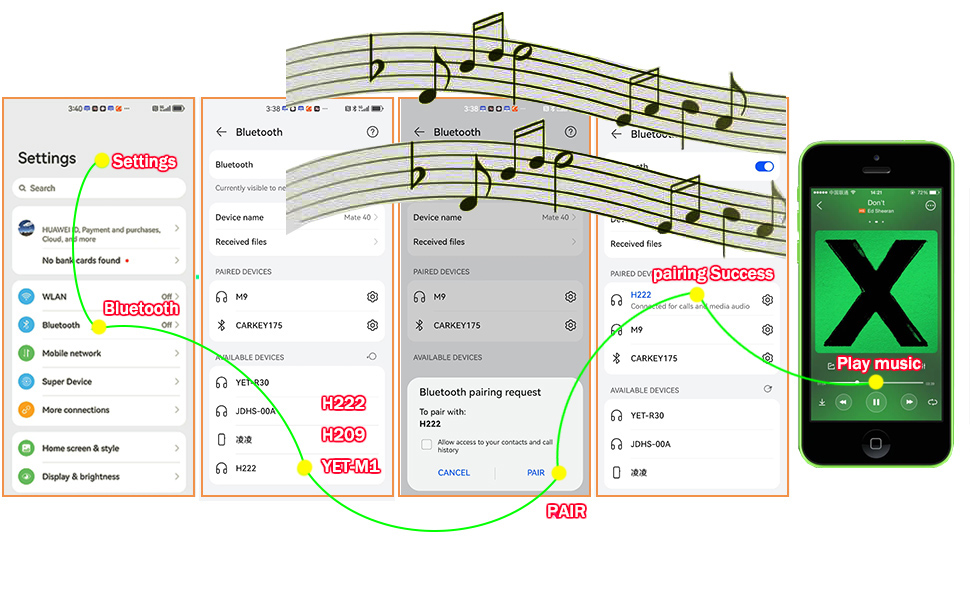
Figure 4: Setup diagram for connecting the H222 adapter to a portable speaker. The adapter receives power from a USB source and connects to the speaker's AUX input.

Figure 5: Setup diagram for connecting the H222 adapter in a car. The adapter plugs into a car's USB port for power and connects to the car stereo's AUX input.

Figure 6: Important note regarding car USB compatibility. Some car USB ports may not support direct USB Bluetooth music reception. In such cases, it is recommended to use the audio cable to connect to the car's AUX input.

Figure 7: Visual guide for Bluetooth pairing. This image illustrates the steps to navigate your phone's settings, find the H222 device, and complete the pairing process to stream music.
Operating Instructions
Once the YETOR H222 adapter is successfully set up and paired, operating it is straightforward:
- Automatic Reconnection: After initial pairing, the adapter will attempt to automatically reconnect to the last paired device when powered on and within range.
- Wireless Range: Maintain your Bluetooth audio source within 10 meters (approximately 33 feet) of the adapter for optimal signal quality and uninterrupted streaming.
- Audio Playback: Control music playback (play, pause, skip tracks, volume) directly from your paired Bluetooth device. The audio will be transmitted to your connected sound system.
- Power Management: The adapter is powered via USB. It will turn on when connected to a powered USB port and turn off when the USB power is removed.
Troubleshooting
| Problem | Possible Cause | Solution |
|---|---|---|
| No sound or poor audio quality. |
|
|
| Cannot find "H222" in Bluetooth settings. |
|
|
| Adapter disconnects frequently. |
|
|
Specifications
| Feature | Detail |
|---|---|
| Model Number | H222 (also known as ut-q) |
| Brand | YETOR |
| Connectivity Technology | Bluetooth |
| Power Source | USB |
| Product Dimensions | 2.2 x 0.8 x 0.4 inches (55.7 x 21 x 10 mm) |
| Item Weight | 1.13 ounces |
| Material | Plastic |
| Special Feature | USB to Bluetooth Audio Receiver |
| Wireless Range | Up to 10 meters (33 feet) |
Maintenance
To ensure the longevity and optimal performance of your YETOR H222 USB Bluetooth Audio Adapter, follow these simple maintenance guidelines:
- Cleaning: Use a soft, dry cloth to clean the adapter. Do not use liquid cleaners or aerosols, as they may damage the device.
- Storage: When not in use, store the adapter in a cool, dry place away from direct sunlight and extreme temperatures.
- Handling: Avoid dropping the adapter or subjecting it to strong impacts, which could damage internal components.
- Cable Care: Handle the 3.5mm AUX audio cable gently. Avoid sharp bends or pulling forcefully, which can damage the cable or connectors.
Warranty and Support
For warranty information or technical support, please refer to the documentation included with your purchase or contact YETOR customer service through the retailer where the product was purchased. Please have your model number (H222) and purchase date available when contacting support.
Ask a question about this manual
Ask about setup, troubleshooting, compatibility, parts, safety, or missing instructions. Manuals+ will review the question and use this page’s manual context to help answer it.