
1. Introduction
This manual provides detailed instructions for the installation, operation, and maintenance of your Jansite AHD 1080P Backup Camera. Please read this manual thoroughly before using the product to ensure correct usage and optimal performance. This camera is designed to enhance driving safety by providing clear rear, front, or side views of your vehicle's surroundings.
2. Safety Information
- Always ensure the vehicle is turned off before attempting any installation or wiring.
- Incorrect installation may lead to electrical issues or damage to the vehicle's systems. If unsure, consult a professional.
- Do not obstruct the camera's view with dirt, snow, or ice. Regularly clean the lens for clear images.
- The backup camera is an aid and should not replace careful driving and direct observation of surroundings.
- Keep wiring away from hot or moving parts of the vehicle.
3. Package Contents
Please verify that all items are present in the package:
- 1x Backup Camera
- 1x Metal Back Cover
- 1x Camera Cable (6m/19.7ft)
- 2x Screws
- 1x Screwdriver
- 1x User Manual
4. Product Features
- AHD 1080P and CVBS Modes: Supports both AHD 1080P and CVBS-NTSC video signals. For no signal or image, cut the orange loop. Features integrated step-down modules and double-layer shielded cable for stable video transmission.
- Super Night Vision & 170° Wide Angle: Equipped with a large F2.0 aperture, 6 glass lens, and WDR technology for high sensitivity and light transmission, ensuring clear images in low light. The 170° wide-angle lens with fisheye correction covers most blind spots.
- 360° Rotatable Camera: The camera body features a 360°+45° rotatable design, allowing for easy adjustment of the viewing angle without needing to re-mount.
- Multiple Mounting Options: Includes two types of back covers (bolt and metal adhesive) for installation without drilling. Can be installed on license plates, under trunk lids, reversing lights, tailgate handles, or front bumpers.
- IP69K Waterproof: Designed to withstand rain, snow, and car washes, offering professional resistance to shock and extreme temperatures.
- Wide Compatibility: Compatible with all displays that support RCA video input, suitable for various vehicle lengths including cars, pickups, SUVs, campers, trucks, and vans.
5. Setup and Installation
5.1 Mounting the Camera
The camera offers flexible mounting options due to its 360° rotatable body and two types of back covers. You can choose between a bolt-on cover or a metal adhesive cover for drilling-free installation.

Image: Two mounting options for the backup camera, demonstrating both bolt-on and adhesive methods. The image also illustrates various potential installation locations on a vehicle, including front, rear, side, and different orientations like upside down, below the grille, horizontal, and vertical.

Image: This diagram illustrates the 360-degree adjustable camera body and two distinct mounting options, labeled A and B, providing visual guidance for installation flexibility.

Image: Illustrations demonstrating both vertical and horizontal mounting positions for the camera. The image highlights the camera's 360-degree rotation capability, indicating that the installation direction is not critical as the lens can be adjusted post-mounting.
5.2 Wiring Diagram
Follow the wiring instructions carefully to ensure proper functionality.
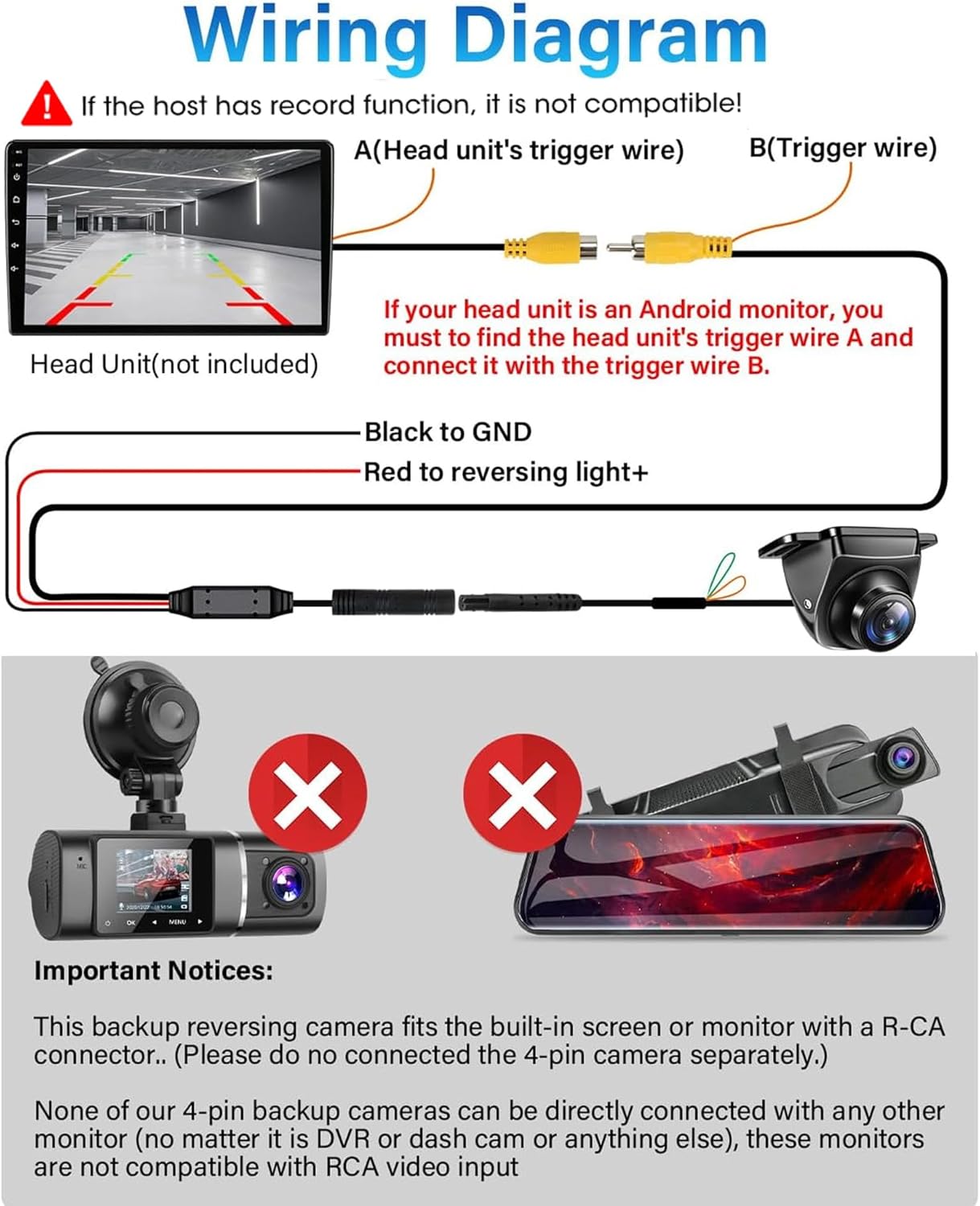
Image: A detailed wiring diagram for the backup camera. It illustrates how to connect the camera to a head unit (trigger wire A to trigger wire B for Android monitors), the black wire to GND (ground), and the red wire to the reversing light's positive terminal. Important notices regarding compatibility with various display types are also included.
5.3 Important Compatibility Notices
This backup camera is compatible with built-in screens or monitors with an RCA connection. It is not compatible with sucked-type dash cams or mirror dash cams, as these devices have different connectors and PIN definitions.

Image: This image displays important notices regarding the compatibility of the reverse camera. It explicitly states that the camera is only compatible with stereo/head units, factory OEM navigation, stereo displays, DVD players, and rear-view mirror monitors. It also shows examples of incompatible devices, such as sucked-type dash cams and mirror dash cams, due to their differing connectors and PIN definitions.
6. Operating Instructions
6.1 Camera Configuration
The camera offers several configurable options by cutting specific cables. Always reconnect the power supply after cutting any cable.

Image: This diagram illustrates three control modes for the backup camera. It shows how to switch between AHD 1080P (default) and CVBS video signals by cutting the orange cable, how to switch between Mirror Image (default) and Original Image (non-mirror) by cutting the white cable, and how to turn the guide line ON (default) or OFF by cutting the green cable.
- AHD 1080P / CVBS Signal Switching: Cut the orange cable to switch between AHD 1080P (default) and CVBS video signals.
- Mirror Image / Non-Mirror Image: Cut the white cable to switch from mirror image (rear view, default) to non-mirror image (front view).
- Guide Line ON / OFF: Cut the green cable to turn off the parking guide lines.
6.2 Setting the Rear Lens on Your Monitor
For optimal display, ensure your monitor settings are correctly configured for the camera's signal type.

Image: This image provides instructions on how to set the rear lens display settings on a compatible monitor. It shows a three-step process: Step 1 involves selecting the reversing system, Step 2 shows the reversing system selection menu where AHD 720p 25fps is highlighted, and Step 3 displays the final camera view with guide lines, indicating that AHD 1080p 25fps is an available option. It notes that CVBS video signals are available for all monitors, but AHD lenses are only for AHD monitors.
- Access your monitor's settings menu.
- Navigate to the 'Reverse' or 'Reversing system selection' option.
- Select the appropriate video signal (e.g., AHD 1080P 25fps) that matches your camera's output. If your setup is not working, try connecting the camera and re-checking these settings.
7. Maintenance
- Cleaning the Lens: Regularly clean the camera lens with a soft, damp cloth to remove dirt, dust, or water spots. Avoid abrasive cleaners that could scratch the lens.
- Cable Inspection: Periodically check all cables and connections for any signs of wear, damage, or loose connections. Secure any loose wiring.
- Weather Protection: While the camera is IP69K waterproof, extreme weather conditions (e.g., heavy ice buildup) can temporarily impair performance. Ensure the lens is clear before driving.
8. Troubleshooting
- No Signal or Black Screen:
- Ensure all connections are secure and correctly wired (power, ground, video signal).
- Verify that the orange cable is cut correctly if you need to switch between AHD and CVBS modes.
- Check your monitor's input settings to ensure it's configured for the correct video signal (AHD or CVBS).
- If the screen turns black when reversing, a rectifier might be needed to stabilize the power supply. Contact customer support for assistance.
- Image is Not Clear/Distorted:
- Clean the camera lens.
- Ensure the camera is securely mounted and not vibrating.
- Verify that the monitor's resolution settings match the camera's output (1080P AHD or standard CVBS).
- No Guide Lines:
- Check if the green cable has been cut. If you want guide lines, the green cable should remain intact.
- Some monitors have their own guide line settings; ensure they are enabled if you prefer the monitor's lines.
- Image is Mirrored (Front View):
- If the image is mirrored when you intend a front view, ensure the white cable is cut. If it's a rear view and mirrored, the white cable should be intact.
- Connection Issues with RCA:
- Ensure your head unit or monitor explicitly supports RCA video input.
- This camera is not compatible with 4-pin camera inputs or non-standard video inputs found on some dash cams or mirror dash cams.
9. Specifications
| Feature | Detail |
|---|---|
| Product Dimensions | 6.1 x 2.2 x 3.8 inches (15.5 x 5.6 x 9.7 cm) |
| Item Weight | 8.8 ounces (249 grams) |
| Item Model Number | AHD 1080P Backup Camera-0402 |
| Display Technology | LCD (referring to compatible display units) |
| Other Display Features | Wireless (referring to compatible display units) |
| Compatible Devices | Car head units/monitors with RCA input |
| Installation Type | Surface Mount |
| Voltage | 12 Volts |
| Optical Sensor Technology | CMOS |
| Lens Type | Wide Angle |
| Real Angle of View | 170 Degrees |
| Connector Type | RCA |
| Waterproof Rating | IP69K |
10. Warranty and Support
Jansite is committed to customer satisfaction. While specific warranty details are not provided in this manual, please refer to the product packaging or the retailer's website for warranty information.
For any technical assistance, troubleshooting, or after-sales service, please contact Jansite customer support through the contact information provided in the product packaging or on the official Jansite website. When contacting support, please have your product model number (AHD 1080P Backup Camera-0402) and purchase details ready.