1. Introduction
The WAVLINK UMD23M-10GB is a versatile 12-in-1 USB-C docking station designed to expand the connectivity and functionality of your laptop or compatible device. It integrates a built-in M.2 SSD enclosure, multiple display outputs, high-speed USB ports, network connectivity, and memory card readers, all while providing power delivery to your host device.

Image: Overview of the WAVLINK 12-in-1 USB-C Docking Station, highlighting its various ports and the M.2 SSD enclosure. The device is shown in a sleek black and silver design.
2. Setup
Follow these steps to set up your WAVLINK UMD23M-10GB docking station:
- Power Connection: Connect the provided power adapter to the 20V DC In port on the docking station. Ensure the adapter is plugged into a power outlet.
- Host Connection: Use the included USB-C to USB-C cable to connect the docking station's "Host USB-C" port to your laptop's full-function USB-C port (which supports video output and power delivery).
- Driver Installation: This docking station requires the DisplayLink driver for full functionality.
- Visit the official WAVLINK website or Synaptics DisplayLink download page.
- Locate and download the latest DisplayLink USB Graphics Software for your operating system (Windows or macOS).
- Follow the on-screen instructions to install the driver. A system restart may be required.
- Connect Peripherals: Once the driver is installed and the docking station is connected to your host device, you can connect your monitors, USB devices, Ethernet cable, and memory cards to the respective ports.
Video: Official WAVLINK video demonstrating the setup process of the 13-in-1 USB-C Hub with M.2 PCIe/SATA SSD Enclosure, including driver installation and connecting peripherals.
3. Operating
Display Modes
The docking station supports various display configurations for both Windows and macOS. Ensure your host device's Type-C port supports video output (DP Alt Mode) for display functionality.
Windows Display Modes

Image: Visual representation of Windows display modes, showing dual 4K@60Hz and triple 1080P@60Hz configurations depending on DP version and DSC support.
| Monitors | DP1.4 with DSC | DP1.4 without DSC | DP1.2 |
|---|---|---|---|
| 1 Monitor | HDMI 1/HDMI 2/DP: 4K@60Hz | HDMI 1/2: 4K@60Hz; DP: 4K@30Hz | HDMI 1/HDMI 2/DP: 4K@30Hz |
| 2 Monitors | Dual 4K@60Hz | Dual 2560x1440@60Hz | Dual 1080P@60Hz |
| 3 Monitors | Dual 4K@60Hz + One 4K@30Hz | Triple 1080P@60Hz | 2x1080P@60Hz + 1x Lower than 1080P |
Note: Some Windows laptops may only support 3 monitors (including the host screen) due to graphic card limitations.
macOS Display Modes

Image: Visual representation of macOS display modes, showing triple 4K@60Hz and triple 4K@30Hz configurations. A note indicates macOS does not support MST for extended displays.
| Monitors | DP1.4 | DP1.2 |
|---|---|---|
| 1 Monitor | HDMI 1/HDMI 2/DP: 4K@60Hz | HDMI 1/HDMI 2/DP: 4K@30Hz |
| 2 Monitors | Dual 4K@60Hz (A/B/B/B) | Dual 4K@30Hz (A/B/B/B) |
| 3 Monitors | Triple 4K@60Hz (A/B/B/B) | Triple 4K@30Hz (A/B/B/B) |
Note: macOS laptops can only extend to one external display with different content (Non-Mirror Mode). MST (Multi-Stream Transport) is not supported by macOS.
Power Delivery (PD 100W)
The USB-C PD port supports up to 100W laptop charging. Connect your own PD charger (not included) to this port for continuous power to your laptop. The host's Type-C port must support charging.

Image: Diagram showing a laptop connected to the docking station, which is receiving 100W power input and delivering 100W output to the laptop via the USB-C PD port.
High-Speed Data Transfer
The docking station offers various high-speed data transfer options:
- USB 3.2 Gen2 Ports: One USB-A and one USB-C port provide up to 10Gbps for fast file transfers, ideal for external hard drives and SSDs.
- USB 3.0 Ports: Two additional USB-A ports offer 5Gbps for peripherals like keyboards, mice, or printers.
- SD/TF Card Slots: Simultaneous reading at up to 104MB/s for quick access to photos and videos.
- Gigabit Ethernet: Provides a fast and reliable wired internet connection at 1000Mbps.

Image: Illustration of 10Gbps USB 3.2 Gen2 transfer speeds, showing a laptop connected to the docking station with data flowing through USB-A and USB-C ports.
4. M.2 SSD Enclosure Installation
The docking station features a built-in M.2 SSD enclosure for expanding your storage. It supports both M.2 PCIe NVMe and M.2 SATA (B&M-Key) SSDs (sizes 2230/2242/2260/2280).
- Locate the M.2 SSD enclosure cover on the docking station.
- Gently open the cover to reveal the M.2 slot.
- Insert your M.2 SSD into the slot, ensuring it is properly aligned with the key.
- Secure the SSD with the provided screw or locking mechanism.
- Close the enclosure cover firmly.
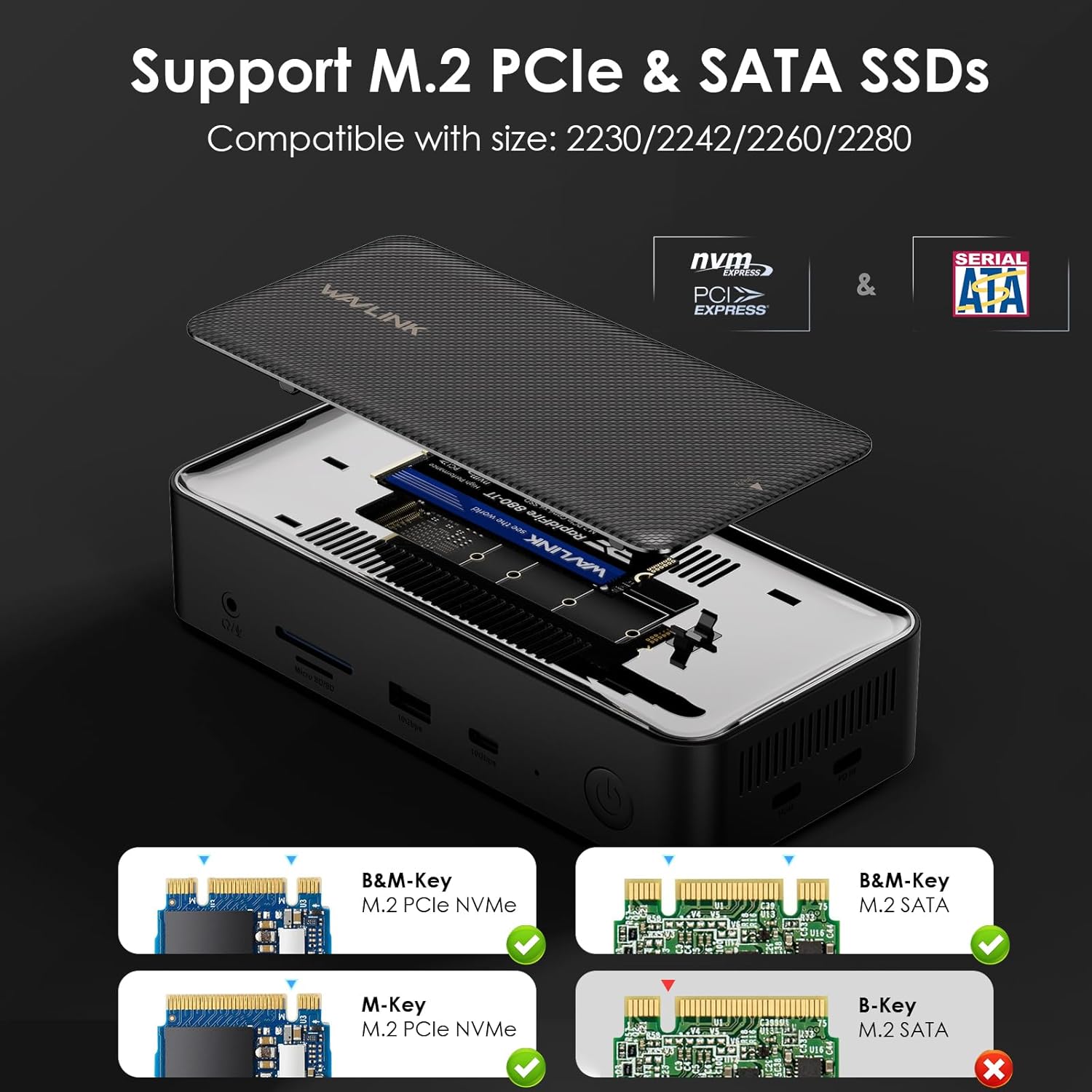
Image: Detailed view of the M.2 SSD enclosure, showing an M.2 NVMe SSD being inserted into the slot. Compatible SSD types (M-Key, B&M-Key) are illustrated.
5. Connectivity and Ports
The WAVLINK UMD23M-10GB offers a comprehensive array of ports:
- Display Outputs:
- 1 x DisplayPort (4K@60Hz)
- 2 x HDMI ports (4K@60Hz)
- USB Data Ports:
- 1 x USB 3.2 Gen2 USB-A port (10Gbps)
- 1 x USB 3.2 Gen2 USB-C port (10Gbps)
- 2 x USB 3.0 USB-A ports (5Gbps)
- Power Delivery:
- 1 x USB-C PD port (100W for host charging)
- 1 x 20V DC In port (for docking station power)
- Network:
- 1 x Gigabit RJ45 Ethernet port (1000Mbps)
- Audio:
- 1 x 3.5mm Audio/Mic jack
- Memory Card Readers:
- 1 x SD card slot (104MB/s)
- 1 x TF card slot (104MB/s)
- Host Connection:
- 1 x Host USB-C port (connects to your laptop)

Image: Detailed diagram showing the front and rear port layout of the WAVLINK 12-in-1 USB-C Docking Station, with labels for each port.
6. Compatibility
The docking station is broadly compatible with various operating systems and devices:
- Operating Systems: Windows (11/10/8.1/8/7), Mac OS (10.14-14, M1/M2/M3/M4), Chrome OS, Linux, iPad OS, Android, iOS, Harmony OS.
- Host Devices: Compatible with Thunderbolt 3/4 laptops and devices with full-function USB-C ports that support video output. Supports USB-C desktop PCs, laptops, and OTG-enabled tablets/phones.
- M.2 SSDs: Supports M.2 PCIe NVMe and M.2 SATA (B&M-Key) SSDs of sizes 2230/2242/2260/2280.

Image: Infographic detailing the wide range of compatible operating systems (Windows, macOS, Chrome OS, Linux, iPad OS, Android, iOS, Harmony OS) and host devices (iMac, MacBook, ThinkPad, Tablet, Smartphone) for the WAVLINK docking station.
Note: The Type-C port of your host device must support video output (DP Alt Mode) for the adapter to function correctly with displays.
7. Maintenance
- Cleaning: Use a soft, dry cloth to clean the exterior of the docking station. Avoid liquid cleaners or solvents.
- Storage: Store the device in a cool, dry place away from direct sunlight and extreme temperatures.
- Handling: Handle the docking station with care to prevent physical damage. Avoid dropping or subjecting it to strong impacts.
- Cable Management: Ensure cables are not excessively bent or tangled to prevent damage to the ports or cables themselves.
8. Troubleshooting
- No Display Output:
- Ensure the DisplayLink driver is correctly installed and updated.
- Verify your laptop's USB-C port supports DP Alt Mode.
- Check all cable connections (USB-C host, HDMI/DP to monitors).
- Try restarting your laptop and reconnecting the docking station.
- For Windows, check display settings to ensure monitors are detected and configured (Extend/Mirror).
- For macOS, remember that MST is not supported; only one external display can be extended with different content.
- Intermittent Display/Flickering:
- Ensure all cables are securely connected.
- Try using different HDMI/DP cables.
- Reduce display resolution or refresh rate to see if stability improves.
- Update your graphics drivers on your laptop.
- No Power Delivery to Laptop:
- Ensure your own PD charger is connected to the USB-C PD port on the docking station.
- Verify your laptop's USB-C port supports power input.
- Check the wattage of your PD charger; it should be sufficient for your laptop's requirements.
- M.2 SSD Not Detected or Disconnecting:
- Ensure the M.2 SSD is correctly installed and secured within the enclosure.
- Verify the SSD type (NVMe or SATA) is supported by the enclosure.
- Check the SSD for proper formatting in your operating system's disk management utility.
- Ensure the docking station has stable power.
- USB Devices Not Working:
- Ensure the docking station is powered and connected to the host.
- Try connecting the USB device to a different port on the docking station.
- Test the USB device directly on your laptop to rule out device issues.
Video: Official WAVLINK video demonstrating the triple monitor setup and functionality of the docking station, which can help in troubleshooting display issues.
9. Specifications
- Model Number: UMD23M-10GB
- Product Dimensions: 6.9 x 3.1 x 1.6 inches
- Item Weight: 1.76 pounds (800 Grams)
- Color: Black
- Total USB Ports: 13 (including host and PD)
- Total HDMI Ports: 2
- Wattage (PD): 100.00W
- Hardware Interface: 3.5mm Audio, DisplayPort, HDMI, Secure Digital Card, USB 3.1 Type A, USB 3.2 Gen 1
10. Warranty and Support
WAVLINK offers high-quality products backed by dedicated service and support. For warranty information, technical assistance, or customer service, please refer to the contact details below:
- Phone: +1 8889730883 (UTC-5) Mon - Fri 9AM - 6PM
- Email: Contact@wavlink.com
- Website: Visit the official WAVLINK website for product registration, FAQs, and additional support resources.


