1. Introduction
The Yindiao X85 is a versatile 75% ANSI layout mechanical keyboard designed for both work and gaming. It features an 81-key layout with a dedicated control knob, offering a compact yet fully functional experience. With its multi-mode connectivity, hot-swappable switches, and customizable RGB lighting, the X85 provides a premium and adaptable typing experience.
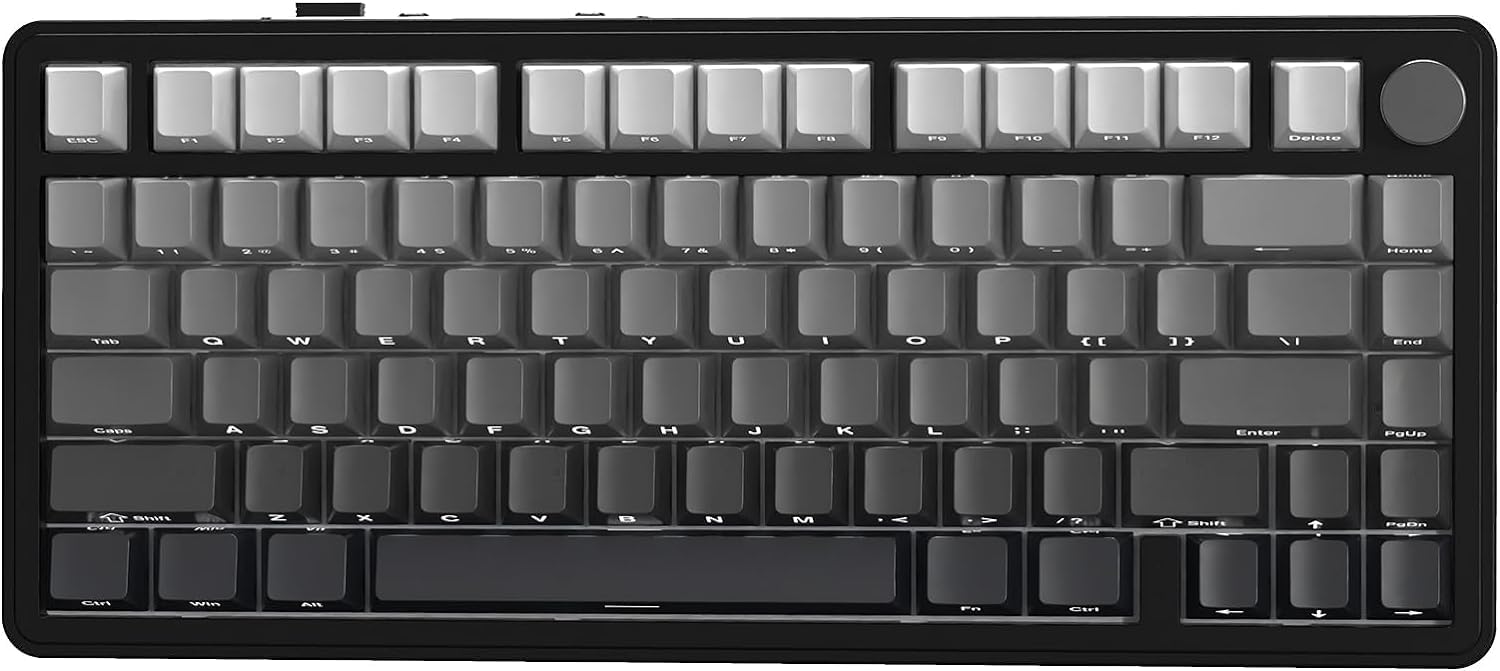
Figure 1.1: Top-down view of the Yindiao X85 Wireless Mechanical Keyboard.
2. Package Contents
Please verify that all items are present in your package:
- Yindiao X85 Keyboard x 1
- USB-C Cable x 1
- White Jade Switch x 2 (spare)
- 2-in-1 Key Puller x 1 (for keycaps and switches)
- User Manual x 1
- 2.4GHz Wireless USB Receiver (may be stored in the keyboard)

Figure 2.1: All components included in the Yindiao X85 package.
3. Key Features
- 75% ANSI Layout & Knob Design: Compact 81-key layout with a high-grade CNC aluminum control knob for volume and lighting.
- Tri-Mode Wireless Connectivity: Supports Bluetooth 5.0 (3 channels), 2.4GHz wireless via USB receiver, and USB-C wired connection for versatile use across multiple devices.
- PBT Side-Printed Keycaps & South-facing RGB: Durable Cherry profile PBT keycaps with clear side-printed legends and 16.8 million color customizable RGB backlight. South-facing LEDs prevent interference with switches.
- Hot-Swappable Mechanical Keyboard: Features single key slotted PCB design, supporting 3-pin hot-swappable switches for easy customization. Equipped with pre-lubed linear White Jade switches for a smooth typing experience.
- Gasket-Mount Structure & 5-Layer Sound Dampening: Utilizes a gasket structure with an extended integrated silicone pad and PCB single key slotting. Five layers of sound-absorbing materials (PORON Sandwich Cotton, IXPE Switch Pad, PET Sound Absorbing Foam, PORON Sponge Case Foam, Upgraded Silicone Base Pad) are placed between components to reduce noise and vibrations, providing a soft and pure typing sound.
- 5000mAh Large-Capacity Battery: Ensures extended usage in wireless modes.

Figure 3.1: Overview of the Yindiao X85's main features.
4. Setup and Connectivity
4.1 Initial Charging
Before first use, it is recommended to fully charge the keyboard using the provided USB-C cable. Connect the USB-C end to the keyboard's port and the USB-A end to a power source (e.g., computer USB port, wall adapter).
4.2 Connecting Your Keyboard
The X85 keyboard supports three connection modes: 2.4GHz wireless, Bluetooth, and USB-C wired. A switch on the back of the keyboard allows you to select between Windows (Win) and Mac operating systems, ensuring full compatibility.
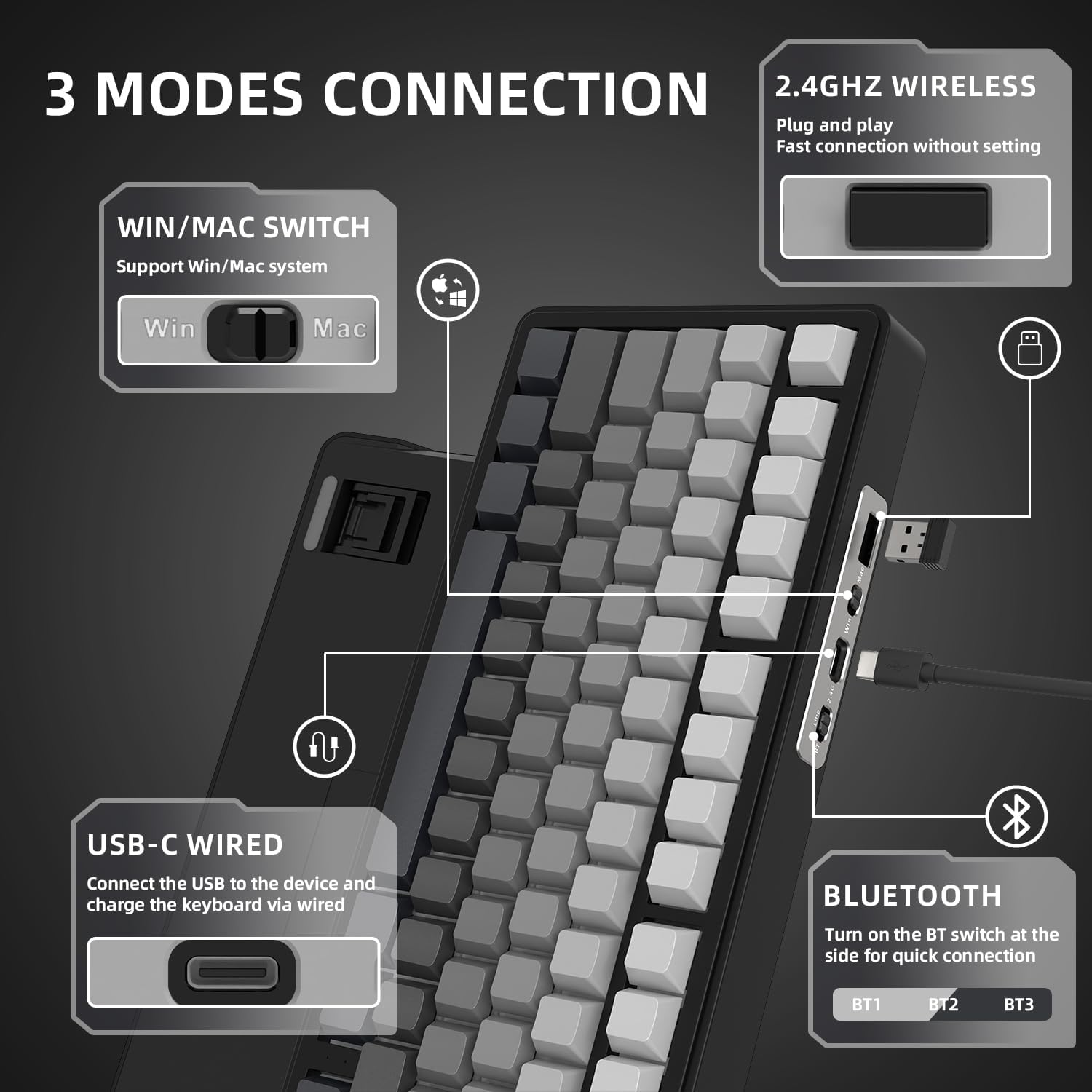
Figure 4.1: The three connectivity options and OS switch located on the keyboard.
4.2.1 2.4GHz Wireless Connection
- Locate the 2.4GHz USB receiver, typically stored in a slot on the back of the keyboard.
- Plug the USB receiver into an available USB port on your computer or device.
- Slide the mode switch on the keyboard to the '2.4G' position.
- The keyboard should automatically connect.
4.2.2 Bluetooth Connection
The X85 supports up to three Bluetooth devices.
- Slide the mode switch on the keyboard to the 'BT' position.
- To enter pairing mode for a specific Bluetooth channel (BT1, BT2, or BT3), press and hold Fn + Q (for BT1), Fn + W (for BT2), or Fn + E (for BT3) for 3 seconds until the corresponding key (Q, W, or E) flashes rapidly.
- On your device (PC, Mac, tablet, etc.), go to Bluetooth settings and search for new devices.
- Select 'X85 Keyboard' from the list of available devices to complete pairing.
- To switch between paired Bluetooth devices, simply press Fn + Q, Fn + W, or Fn + E.
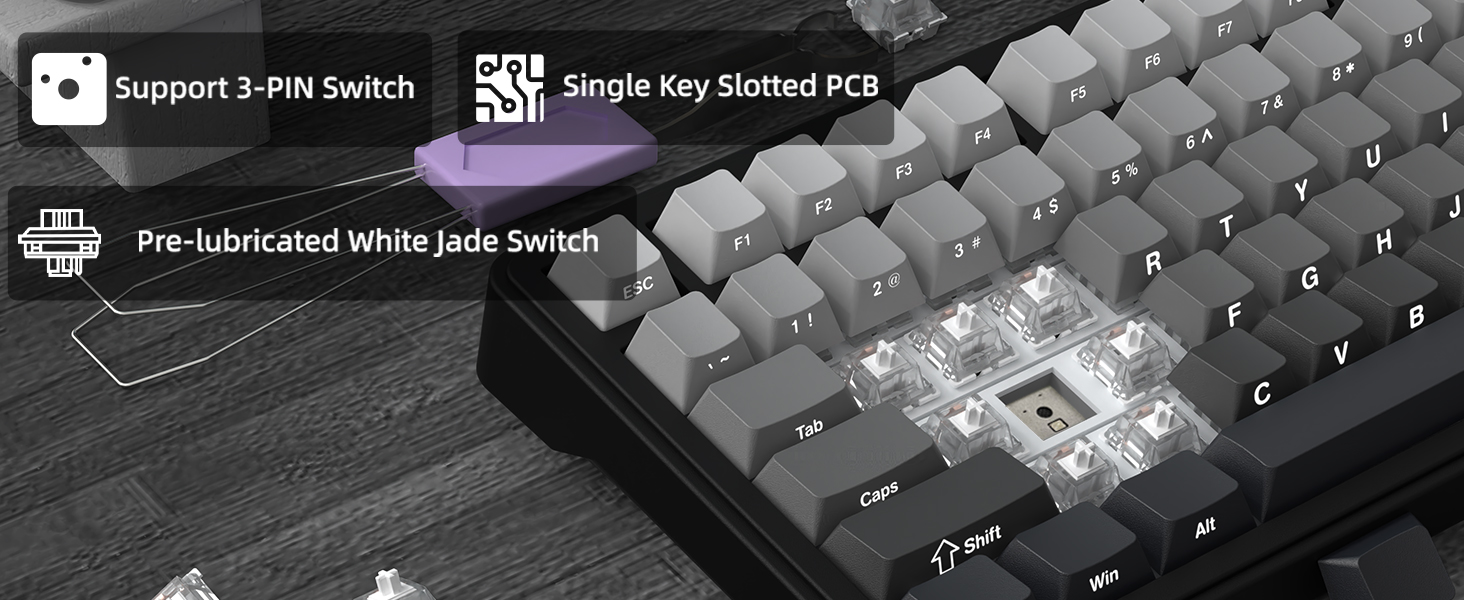
Figure 4.2: Switching between multiple Bluetooth devices.
4.2.3 USB-C Wired Connection
- Connect the provided USB-C cable to the keyboard's USB-C port.
- Connect the other end of the cable to a USB port on your computer.
- The keyboard will automatically switch to wired mode and begin charging.
4.3 Operating System Compatibility
The X85 keyboard is compatible with both Windows and Mac operating systems. Use the dedicated switch on the back of the keyboard to select the appropriate OS mode for optimal key mapping and functionality.
5. Knob Functionality
The multi-function knob located in the upper right corner of the keyboard provides convenient control over multimedia and lighting settings.
- Volume Control: Rotate the knob clockwise to increase volume, counter-clockwise to decrease volume. Press the knob to mute/unmute audio.
- Lighting Mode Switch: Press and hold the knob for 3 seconds to switch between lighting modes. Rotate the knob to adjust lighting brightness or speed, depending on the active lighting effect.

Figure 5.1: Functions of the multi-function control knob.
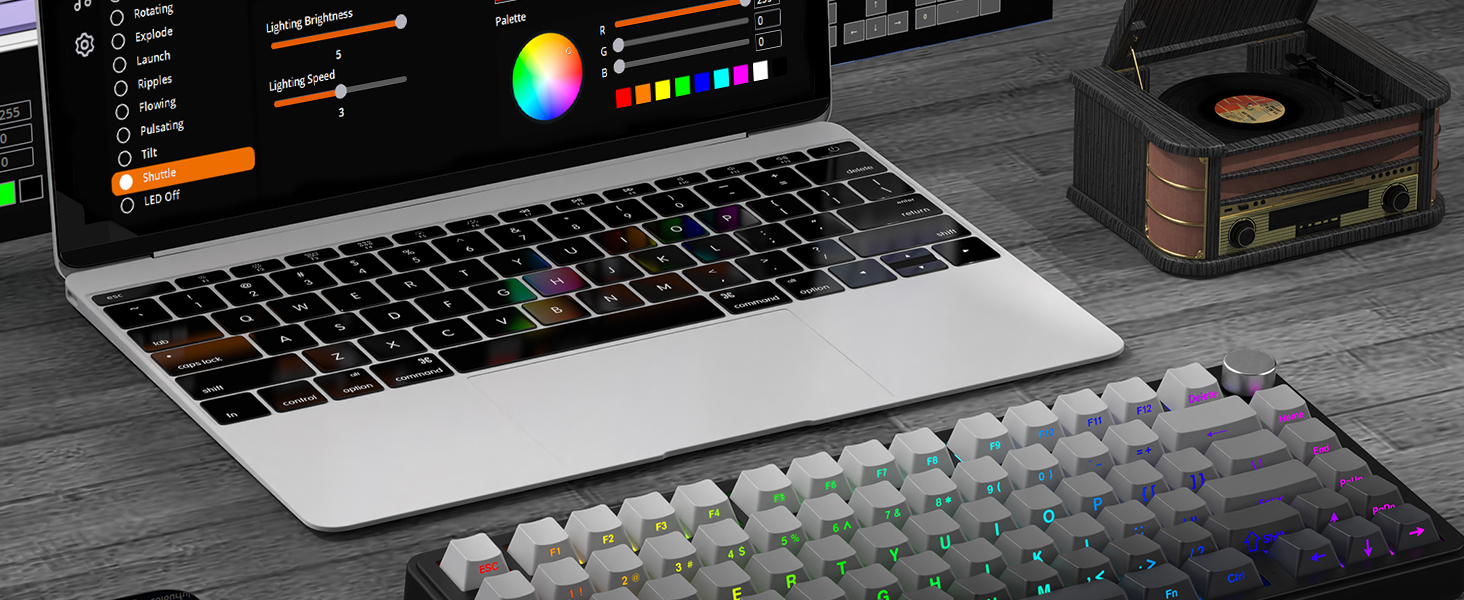
Figure 5.2: Visual representation of the knob's dual functionality.
6. RGB Lighting Customization
The X85 keyboard features vibrant RGB backlighting with multiple effects and customization options. The south-facing RGB design ensures optimal illumination.
- Switch Colors: Press Fn + Del to cycle through different backlight colors.
- Switch Light Effect: Press Fn + \| to cycle through various lighting effects (e.g., static, breathing, wave, ripple).
- Brightness/Speed Adjustment: Use the control knob (after holding it for 3 seconds to enter lighting mode) to adjust the brightness or speed of the active lighting effect.
- Custom Software: For advanced customization, including macro settings and per-key lighting, download the dedicated software from the official Yindiao website.

Figure 6.1: Basic RGB lighting controls using function keys.
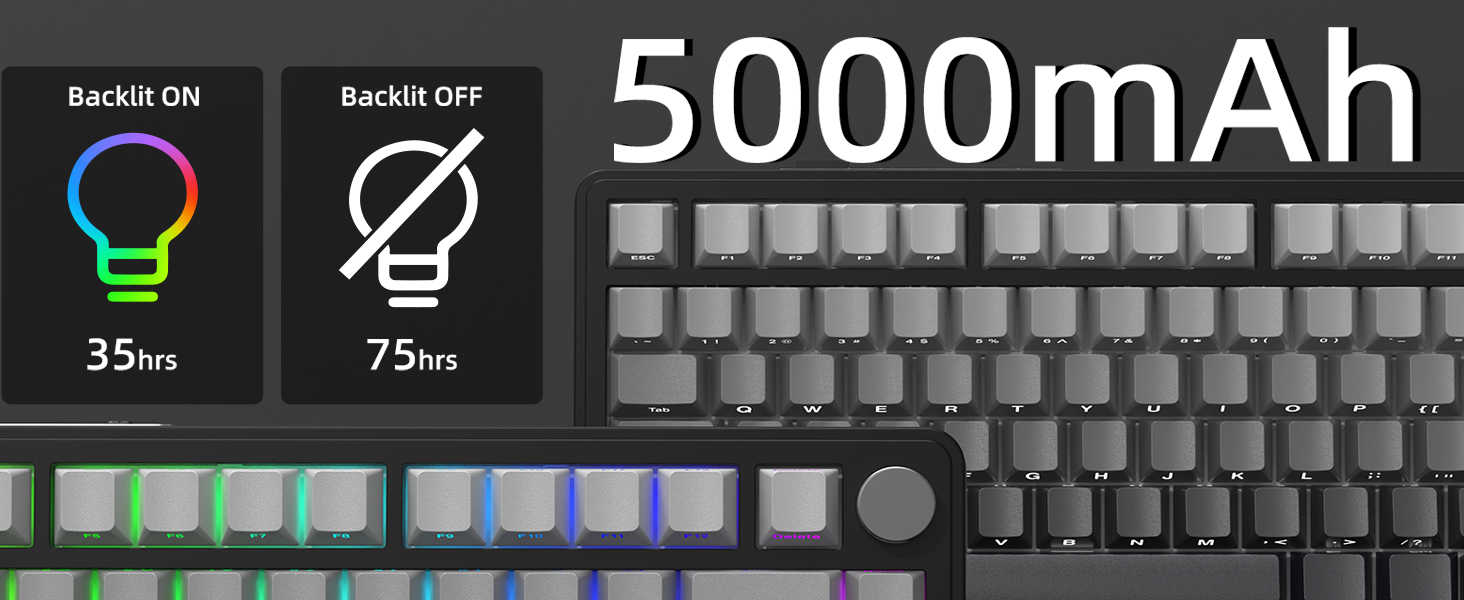
Figure 6.2: Advanced RGB customization via software.
7. Hot-Swappable Switches
The Yindiao X85 features a hot-swappable PCB, allowing you to easily change mechanical switches without soldering. This enables customization of typing feel and sound.
- Switch Compatibility: Supports 3-pin mechanical switches.
- Included Switches: The keyboard comes equipped with pre-lubed linear White Jade switches, known for their smooth operation and pleasant sound profile.
- Replacing Switches: Use the included switch puller to carefully remove existing switches. Align the pins of the new switch with the holes on the PCB and gently press down until it clicks into place. Ensure pins are straight to avoid bending.
- Replacing Keycaps: Use the keycap puller to remove keycaps. Press new keycaps firmly onto the switch stems.

Figure 7.1: The hot-swappable feature allows for easy switch replacement.

Figure 7.2: Detail of the hot-swappable PCB and White Jade switches.
8. Gasket Structure and Sound Dampening
The X85 keyboard incorporates a gasket-mount design and a 5-layer sound-absorbing system to deliver a soft, pure, and solid typing experience with minimal noise.
- The PCB and positioning plate are not in direct contact with the keyboard case, reducing vibrations.
- Multiple layers of dampening materials (PORON Sandwich Cotton, IXPE Switch Pad, PET Sound Absorbing Foam, PORON Sponge Case Foam, Upgraded Silicone Base Pad) are strategically placed to absorb sound and eliminate collision noise.

Figure 8.1: The 5-layer sound-absorbing design for enhanced typing acoustics.
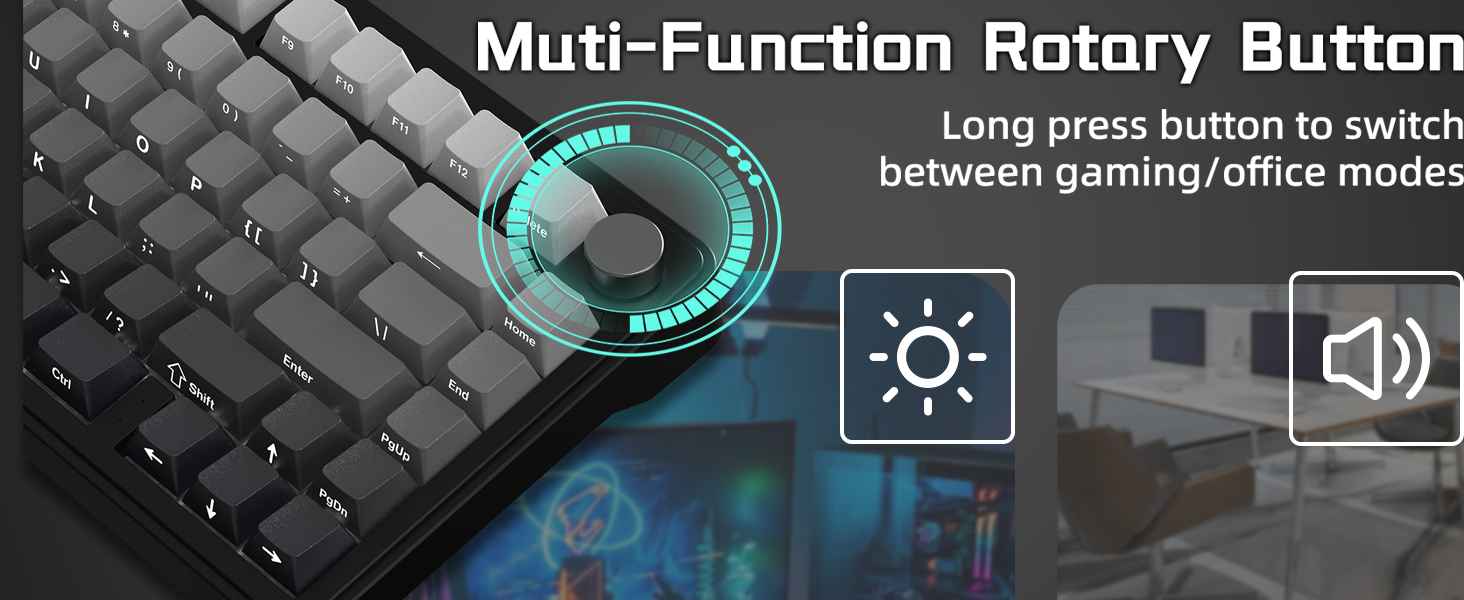
Figure 8.2: Cross-section view detailing the internal sound dampening layers.
9. Maintenance
- Cleaning: Regularly wipe the keyboard with a soft, dry cloth. For deeper cleaning, remove keycaps and use compressed air to clear debris.
- Battery Care: To prolong battery life, avoid fully discharging the keyboard frequently. If storing for an extended period, charge it to about 50% and turn it off.
- Switch/Keycap Replacement: Refer to Section 7 for instructions on safely replacing switches and keycaps.
10. Troubleshooting
10.1 Connectivity Issues
- Keyboard not connecting: Ensure the mode switch (2.4G/BT/Wired) is in the correct position. For Bluetooth, ensure the specific channel (Fn+Q/W/E) is in pairing mode.
- 2.4GHz connection unstable: Try plugging the USB receiver into a different USB port. Ensure there are no major obstructions or strong interference sources between the keyboard and receiver.
- Bluetooth connection dropping: Ensure the keyboard is within range of your device. Check for other Bluetooth devices causing interference. Re-pair the keyboard if necessary.
10.2 Lighting Issues
- RGB lights not working: Ensure the keyboard is powered on. Try cycling through lighting modes using Fn + \| or adjusting brightness with the knob.
- Lights are dim: The battery might be low. Connect the keyboard via USB-C cable to charge.
10.3 Typing Issues
- Keys not responding: Check if the keyboard is properly connected. If a specific key is not working, the switch might be faulty or improperly seated. Try reseating or replacing the switch (refer to Section 7).
- Unexpected characters: Ensure the OS switch (Win/Mac) on the back of the keyboard is set correctly for your operating system.
11. Specifications
| Feature | Specification |
|---|---|
| Model Number | X85 |
| Layout | 75% ANSI (81 Keys + 1 Knob) |
| Connectivity | Bluetooth 5.0 (3 channels), 2.4GHz Wireless, USB-C Wired |
| Switches | Linear White Jade (Pre-lubed), Hot-swappable (3-pin) |
| Keycaps | PBT Side-Printed, Cherry Profile |
| Backlight | RGB (South-facing), 16.8 million colors, customizable effects |
| Battery Capacity | 5000mAh |
| Gasket Structure | Yes, with 5-layer sound dampening |
| Compatible OS | Windows, macOS |
| Dimensions | 13.78 x 7.28 x 1.97 inches |
| Item Weight | 2.18 pounds |
12. Official Product Video
Video 12.1: An official product video from YINDIAO showcasing the features and design of the X85 Wireless Mechanical Gaming Keyboard, including its side-printed keycaps, compact layout, sound profile, and connectivity options.
13. Warranty and Support
For warranty information, technical support, or any inquiries regarding your Yindiao X85 Wireless Mechanical Keyboard, please refer to the contact information provided on the product packaging or visit the official Yindiao website. Keep your purchase receipt for warranty claims.


