
Black Shark MagCooler 4 Pro Magnetic Phone Cooling Fan
Instruction Manual
Introduction
The Black Shark MagCooler 4 Pro is a high-performance magnetic cooling fan designed to prevent overheating in mobile devices such as phones, tablets, and iPads. Featuring 27W cooling power, a customized 4040 TEC cooling chip, and a 4210 fan, it rapidly dissipates heat to maintain optimal device performance during intensive use like gaming, video streaming, or navigation. This manual provides essential information for the proper setup, operation, and maintenance of your MagCooler 4 Pro.
Package Contents
Please verify that all items are present in your package:
- 1 x Black Shark MagCooler 4 Pro Cooler
- 2 x Removable Grips
- 1 x Type-C Cable
- 1 x User Manual (this document)
Note: The included Type-C cable is for powering the cooler only and does not support fast charging for mobile phones.
Setup
1. Initial Preparation
- Before use, remove the protective film from the bottom of the cooler.
- Connect the provided Type-C cable to the cooler and a suitable power source (e.g., a USB wall adapter, not included). The cooler requires 27W power for optimal performance.
2. Attaching the Cooler to Your Device
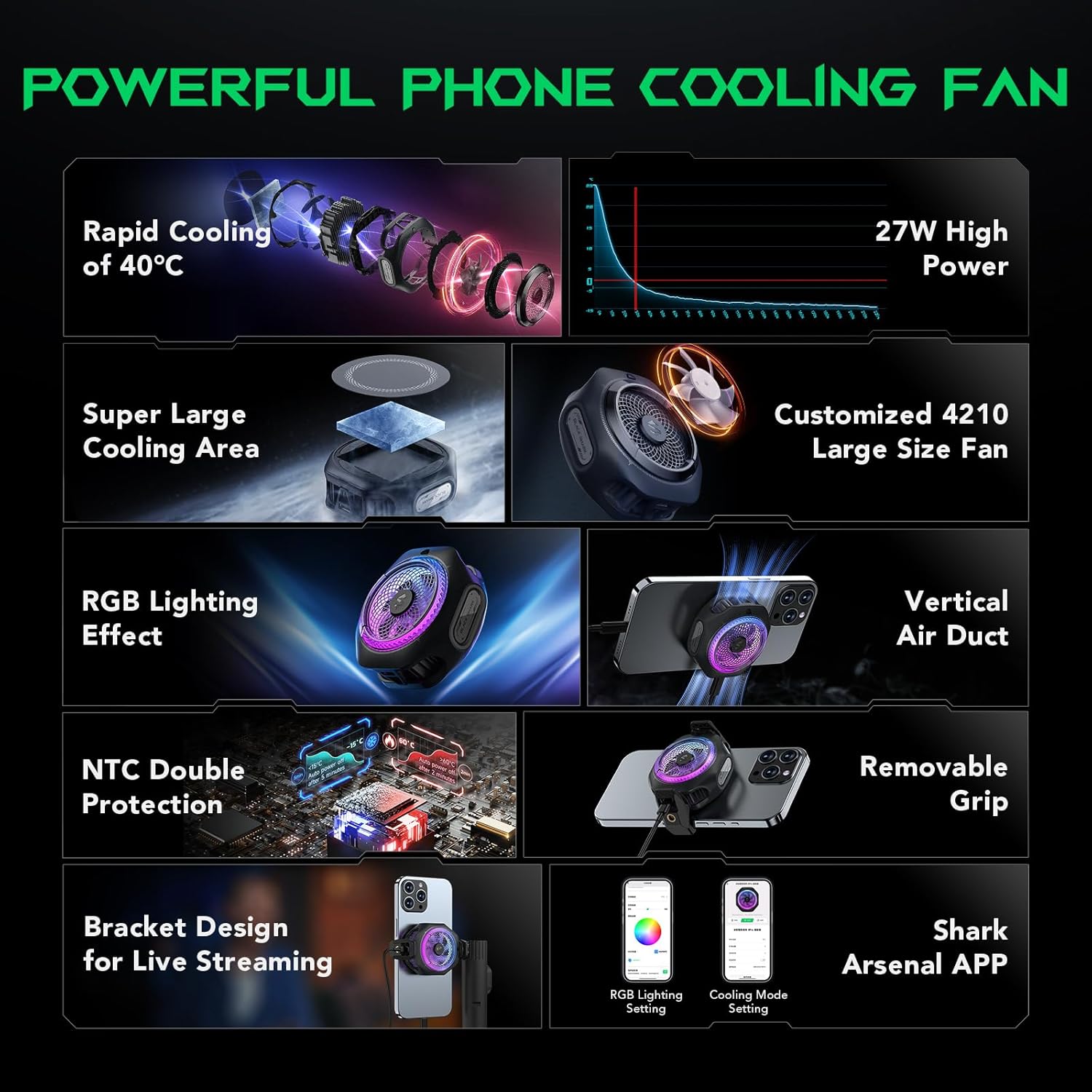
Image: The Black Shark MagCooler 4 Pro shown with its removable grips, attached to a smartphone.
For Magnetic Devices:
Simply attach the cooler magnetically to the back of your magnetic-compatible device. The 12N high magnetic attraction force ensures a secure fit.
For Non-Magnetic Devices (using Removable Grips):
If your device is not magnetic, use the two included detachable grips.

Image: A four-panel guide illustrating the installation process for the removable grips on the MagCooler 4 Pro.
- Take out the grips from the package.
- Pick up the MagCooler 4 Pro with the magnetic side facing down.
- Aim at the middle of the air outlets on both sides, and align the fixing ribs of the grip with the openings of the cooler.
- After seamless alignment, press the grip down in the vertical direction. You will hear a "click" when the installation is complete.
Once the grips are installed, attach the cooler to your phone by clipping it securely.
3. Bracket Design for Live Streaming

Image: The MagCooler 4 Pro with its detachable grip, highlighting its 1/4 inch fixed bolt design for attachment to gimbals or camera brackets.
The detachable grips feature an upgraded copper nut design, allowing the cooler to be fixed onto standard gimbal and camera brackets. Use a standard bracket connector and connect it to the copper nut of the cooler in a clockwise direction. Tighten it to avoid falling off.
Operating Instructions
1. Powering On and Cooling Performance

Image: An exploded diagram of the MagCooler 4 Pro, detailing its cooling components and rapid cooling capability.
- Once connected to power, the cooler will automatically begin operation.
- The MagCooler 4 Pro can cool your phone to 0°C within 30 seconds in a 25°C room, achieving a maximum temperature drop of up to 40°C and a lowest temperature of -15°C.
- The vertical air duct design ensures that hot air is directed away from your hands, enhancing comfort during use.
2. Smart Cooling Control via App

Image: The MagCooler 4 Pro in operation, with the Shark Arsenal App on a smartphone demonstrating smart cooling control.

Image: The MagCooler 4 Pro showcasing its RGB lighting, alongside screenshots of the Shark Arsenal App for customization.
- Download the Shark Arsenal App on your smartphone.
- Turn on Bluetooth on your phone and connect to the MagCooler 4 Pro within the app.
- Through the app, you can customize RGB lighting effects, select different cooling modes, and monitor the cooler's temperature data.
- The app also allows for firmware updates to ensure optimal performance and access to new features.
3. Over-temperature Protection
The MagCooler 4 Pro is equipped with Dual-NTC sensors that monitor the internal temperature. If an over-temperature condition is detected, the cooler will automatically shut down to prevent damage to itself and your device.
4. Usage Scenarios

Image: Examples of how the MagCooler 4 Pro can be used in different situations, including driving, media consumption, live streaming, and gaming.
The MagCooler 4 Pro is suitable for various scenarios where device overheating is a concern:
- Gaming: Maintain high frame rates and prevent performance drops during extended gaming sessions.
- Live Streaming: Keep your phone cool to avoid freezing or shutdowns during broadcasts.
- Driving/Navigation: Dissipate heat effectively, especially when using GPS or during prolonged exposure to sunlight.
- Video Playback: Ensure stable performance when watching movies or TV shows on your device.
Maintenance
- Cleaning: Regularly wipe the exterior of the cooler with a soft, dry cloth. Ensure the air vents are free from dust and debris to maintain optimal airflow. Do not use liquid cleaners directly on the device.
- Storage: When not in use, store the cooler in a cool, dry place away from direct sunlight and extreme temperatures.
- Cable Care: Handle the Type-C cable gently. Avoid bending or twisting it excessively to prevent damage.
Troubleshooting
Common Issues and Solutions:
- Cooler not powering on:
- Ensure the Type-C cable is securely connected to both the cooler and a functional power source.
- Verify that the power source provides sufficient wattage (27W recommended).
- Cooler not cooling effectively:
- Check that the cooler is properly attached to your device, ensuring good contact with the cooling plate.
- Clear any obstructions from the air intake and exhaust vents.
- Ensure the protective film has been removed from the cooling surface.
- Condensation formation:
- Due to the powerful cooling capabilities, condensation may form on the device's back, especially in humid environments. This is normal.
- To mitigate this, consider using a phone case between the cooler and your device, or periodically wipe away any moisture. Avoid direct contact with cracked phone backs.
- App connectivity issues:
- Ensure Bluetooth is enabled on your phone.
- Restart the Shark Arsenal App and try reconnecting.
- If issues persist, try restarting your phone and the cooler.
Specifications
| Feature | Specification |
|---|---|
| Model | Black Shark-MagCooler 4 Pro |
| Dimensions (L x W x H) | 12 x 7 x 7 cm |
| Weight | 300 Grams |
| Cooling Power | 27 Watts |
| Cooling Method | Air (TEC cooling chip, 4210 fan) |
| Connector Type | USB Type-C |
| Compatible Devices | Mobile Phones, Tablets, iPads (magnetic or with grips) |
| Material | Plastic |
| Magnetic Attraction Force | 12N |
| Special Features | RGB Lighting, App Control, Dual-NTC Over-temperature Protection, Vertical Air Duct Design, Detachable Grips with 1/4 inch fixed bolt design |
Warranty and Support
The Black Shark MagCooler 4 Pro comes with a manufacturer's warranty. Please refer to the warranty card included in your package or visit the official Black Shark website for detailed warranty terms and conditions.
For technical support, troubleshooting assistance, or inquiries regarding your product, please contact Black Shark customer service through their official support channels. Keep your purchase receipt and product model number handy when seeking support.


