
Introduction
This manual provides detailed instructions for the installation, operation, and maintenance of your Adapter-Universe 7-inch Double Din Car Stereo. Please read this manual thoroughly before using the product to ensure proper function and safety. Keep this manual for future reference.
Package Contents
Before installation, verify that all components are present:
- Double Din Car Stereo Unit
- Reverse Camera
- Microphone
- Camera Cable
- Removal Tool
- Mounting Brackets
- Screws
- Power Cord/Harness
- Instruction Manual (this document)
Setup and Installation
Proper installation is crucial for optimal performance. If you are unsure about the installation process, it is recommended to seek professional assistance.
Pre-Installation Checks
- Ensure your vehicle supports a double DIN head unit (approximately 7 inches wide).
- Disconnect the vehicle's battery before starting any electrical work.
- Confirm the car stereo operates on a 12V power supply. For trucks or vehicles with higher voltage, a voltage adapter may be required.
Wiring Diagram
Refer to the following diagram for correct wiring connections. Incorrect wiring can damage the unit or your vehicle's electrical system.

Key Wiring Connections:
- Yellow (B+): Connect to constant 12V power.
- Red (ACC): Connect to ignition switched 12V power.
- Black (GND): Connect to vehicle chassis ground.
- Orange (ILLUM): Connect to headlight control line for illumination dimming.
- Blue (ANT): Connect to auto antenna power (if applicable).
- Brown (SWC Key1/Key2): Connect to steering wheel control wires.
- Pink (Back-up Camera): Connect to reverse light trigger.
- Speaker Wires: Connect to corresponding vehicle speaker wires (e.g., White/White-Black for Front Left, Gray/Gray-Black for Front Right, Green/Green-Black for Rear Left, Purple/Purple-Black for Rear Right).
Note: The SWC (Steering Wheel Control) and CLOCK wires may require specific configuration in the unit's settings after installation. Ensure the yellow reverse wire is connected to the reverse light for automatic camera display.
Operating Instructions
Power On/Off and Basic Controls
Press the power button (usually a knob or dedicated button) to turn the unit on or off. Adjust volume using the rotary knob or volume buttons. The 7-inch HD touchscreen provides intuitive control over all functions.

Apple CarPlay & Android Auto
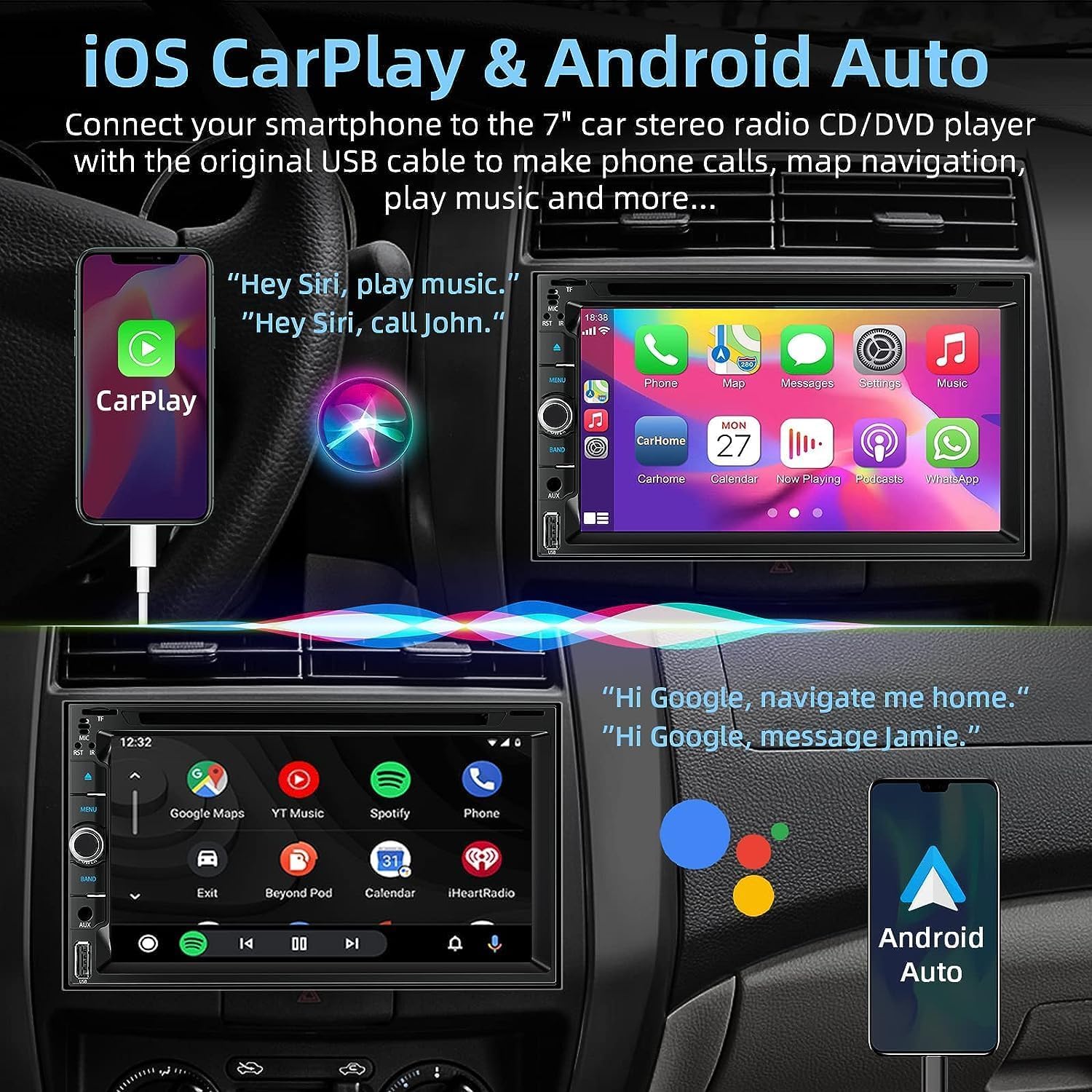
Connect your smartphone via a USB cable to enable Apple CarPlay or Android Auto. This allows you to access navigation, make calls, send messages, and play music directly from your phone's interface displayed on the stereo screen.
Mirror Link Function
The Mirror Link function allows you to project your smartphone's screen onto the car stereo display via a USB cable. This is useful for viewing apps not natively supported by CarPlay or Android Auto, such as video streaming services or specific navigation apps. Note that app operation is typically controlled from the phone, not the stereo screen, when using Mirror Link.

CD/DVD Player
Insert a CD or DVD into the disc slot. The unit supports 1080p video playback for a clear visual experience. You can also play audio CDs. The player supports various media formats.

Bluetooth Connectivity
Pair your smartphone with the car stereo via Bluetooth for hands-free calling and wireless audio streaming. The unit includes a built-in noise-canceling microphone and supports an external microphone for clear communication.

Backup Camera Function
When the vehicle is shifted into reverse, the stereo automatically displays the feed from the included HD waterproof rear camera. This camera features night vision and a 170° ultra-wide viewing angle to assist with safe parking.

Steering Wheel Control (SWC)
If your vehicle supports it, connect the SWC wires to integrate your steering wheel buttons with the car stereo. This allows you to control functions like volume, track skipping, and mode switching without taking your hands off the wheel.

AM/FM Radio
Access and tune into your favorite AM and FM radio stations. The unit features a digital tuner for clear reception.

Sound Customization (EQ Settings)
Adjust the audio output to your preference using the Equalizer (EQ) settings. Available presets include CUSTOM, DBB, CLASS, ROCK, JAZZ, and POP. Bass and Treble effects are also adjustable.

Multiple Input Modes
The stereo supports various input sources for media playback:
- CD/DVD: For disc media.
- USB: Connect USB flash drives for music and video files.
- TF Card: Insert a TF (microSD) card for media playback.
- AUX Input: Connect external audio devices via a 3.5mm auxiliary cable.

Maintenance
To ensure the longevity and optimal performance of your car stereo, follow these maintenance guidelines:
- Cleaning: Use a soft, dry cloth to clean the screen and exterior. For stubborn smudges, a slightly damp cloth with mild cleaner can be used, but avoid harsh chemicals or abrasive materials.
- Disc Care: Handle CDs and DVDs by their edges. Keep them clean and free of scratches to prevent playback issues.
- Software Updates: Periodically check the manufacturer's website for any available firmware updates. Updates can improve performance, add features, or fix bugs.
- Environmental Conditions: Avoid exposing the unit to extreme temperatures, direct sunlight for prolonged periods, or excessive moisture.
Troubleshooting
If you encounter issues with your car stereo, refer to the following common problems and solutions:
| Problem | Possible Cause / Solution |
|---|---|
| Unit does not power on. | Check power connections (Yellow B+, Red ACC, Black GND). Ensure the vehicle's fuse is not blown. |
| No sound output. | Check speaker wiring. Ensure volume is not muted or set too low. Verify audio source selection. |
| Bluetooth disconnects frequently. | Ensure your phone is within range. Try re-pairing the device. Check for interference from other Bluetooth devices. |
| Cannot play certain MP3 files from USB/TF card. | Verify the file format is supported. Some MP3 files may have incompatible encoding or bitrates. Try different files. |
| Radio stations not saving memory. | Ensure the Yellow (B+) wire is connected to a constant 12V power source to maintain memory when the ignition is off. |
| Unit switches sources randomly. | Check for loose wiring connections. Ensure no buttons are stuck or malfunctioning. Perform a factory reset if necessary (refer to settings menu). |
| Backup camera not displaying. | Check the camera's power and video connections. Ensure the Pink (Reverse-in) trigger wire is correctly connected to the reverse light. |
| Steering Wheel Controls not working. | Verify SWC wire connections. Access the unit's settings menu to program or calibrate the steering wheel controls. |
Specifications
| Feature | Detail |
|---|---|
| Display | 7-inch HD Touchscreen (1024*600P resolution) |
| Connectivity | Bluetooth 5.1, USB, TF Card, AUX Input, RCA |
| Smartphone Integration | Wired Apple CarPlay, Wired Android Auto, Mirror Link (Android/iOS) |
| Media Playback | CD/DVD Player (1080p video), USB, TF Card |
| Audio Features | EQ Settings (CUSTOM/DBB/CLASS/ROCK/JAZZ/POP), Bass/Treble adjustable, Stereo Audio Output, 4.0 Surround Sound Channel Configuration |
| Radio Tuner | AM/FM Radio |
| Camera Support | Backup Camera Input (HD, Night Vision, 170° Wide Angle included), Front Camera Support (camera not included) |
| Voice Control | Siri, Google Assistant compatible |
| Special Features | Steering Wheel Controls (SWC), Hands-free calling, Parking assistant |
| Video Encoding | AVI, MP4, MKV, etc. |
| Power Supply | 12V DC (Standard Car Battery) |
| Dimensions (Unit) | Approximately 7.0 x 3.9 x 6.61 inches (178 x 99 x 168 mm) |
| Weight | 4.31 pounds |
Warranty and Support
Your Adapter-Universe car stereo comes with the following:
- 30-Day Money-Back Guarantee: For any reason, within 30 days of purchase.
- 12-Month Warranty: Covers quality-related and feature issues for 12 months from the date of purchase.
For technical support, warranty claims, or any questions regarding your product, please contact Adapter-Universe customer service directly. You can typically find contact information on the seller's page or through the email provided:
Email: salishengus@163.com
When contacting support, please provide your car model and, if applicable, a picture of your car's center console to help with specific inquiries.
