
PWAYTEK DT257W-H-EU-1
PWAYTEK Wireless HDMI Transmitter and Receiver User Manual
Model: DT257W-H-EU-1
1. Product Overview
The PWAYTEK Wireless HDMI Transmitter and Receiver kit provides a seamless solution for extending HDMI signals wirelessly. This plug-and-play system eliminates the need for long cables, allowing for flexible setup in various environments. It supports 4K output and 1080P HD input, utilizing 2.4G/5G dual-band auto-adaptation for stable transmission of both audio and video.

Image: The PWAYTEK Wireless HDMI Transmitter and Receiver kit, showing both the transmitter and receiver units along with various adapters.
2. Package Contents
Verify that all items are present in the package:
- 1 x Wireless HDMI Transmitter (TX)
- 1 x Wireless HDMI Receiver (RX)
- 2 x USB-A to USB-C Power Cables
- 1 x USB-C to HDMI Adapter
- 1 x Mini HDMI Adapter
- 1 x Micro HDMI Adapter
- User Manual (this document)
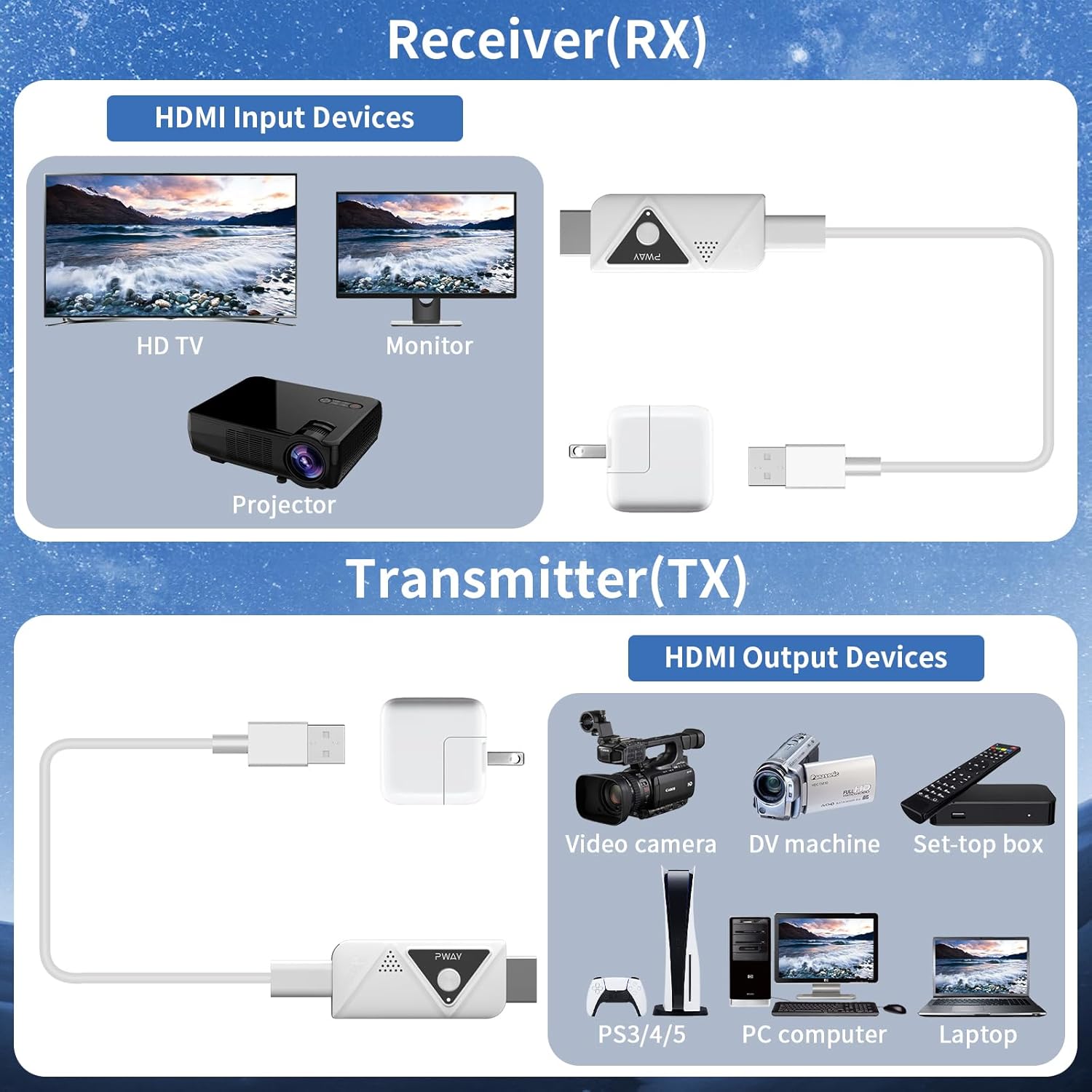
Image: All components included in the PWAYTEK Wireless HDMI Transmitter and Receiver kit, laid out on a surface.
3. Setup Instructions
The PWAYTEK Wireless HDMI kit is designed for plug-and-play operation. Follow these steps for initial setup:
Connect the Receiver (RX): Plug the Receiver (RX) unit into an available HDMI input port on your display device (e.g., TV, monitor, projector). Connect the provided USB-A to USB-C power cable to the RX unit and a 5V/1A power source (e.g., USB port on TV, USB wall adapter). The RX unit requires external power for operation.

Image: Diagram showing the connection of the Receiver (RX) unit to an HD TV and a power source.
Connect the Transmitter (TX): Plug the Transmitter (TX) unit into the HDMI output port of your source device (e.g., laptop, PC, TV box, game console). If your source device's HDMI port does not provide sufficient power, connect the second provided USB-A to USB-C power cable to the TX unit and a 5V/1A power source (e.g., USB port on laptop, USB wall adapter). For devices with USB-C output, use the included USB-C to HDMI adapter.
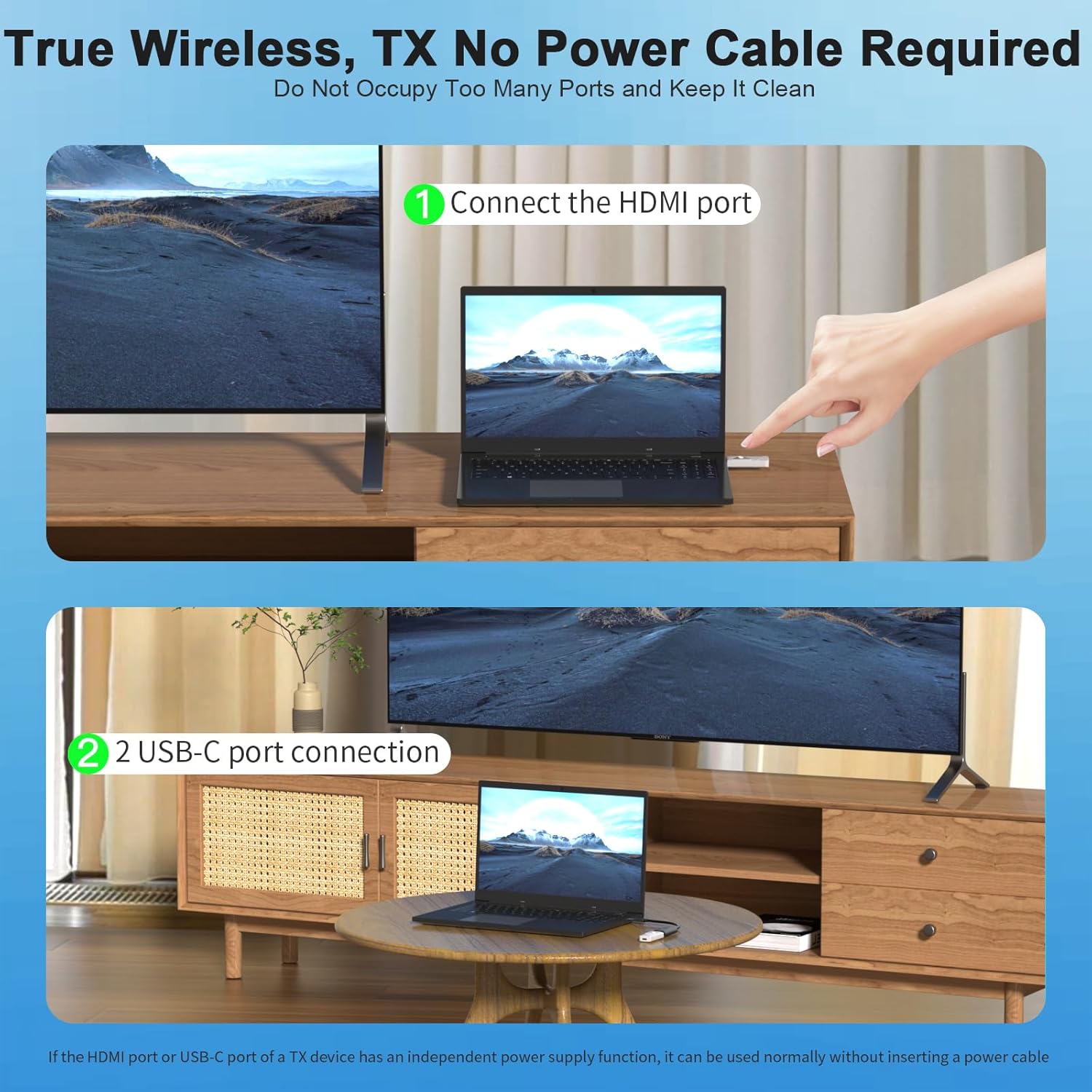
Image: Diagram illustrating the connection of the Transmitter (TX) unit to a laptop via HDMI and an optional USB-C power connection.
Automatic Pairing: The Transmitter and Receiver units are pre-paired from the factory. Once both units are powered on and connected, they should automatically establish a wireless connection. The indicator light on both units will turn solid blue when a connection is established.
Using Adapters: The kit includes various adapters (USB-C to HDMI, Mini HDMI, Micro HDMI) to ensure compatibility with a wide range of devices. Use the appropriate adapter for your source device's output port.

Image: Illustration of the USB-C to HDMI adapter connecting a smartphone to the wireless HDMI system.

Image: Close-up of the Mini HDMI and Micro HDMI adapters, suitable for cameras and camcorders.
Setup Demonstration Video
Video: A demonstration of connecting the wireless HDMI transmitter and receiver to a laptop and TV, showcasing the plug-and-play functionality.
4. Operating Instructions
4.1. Plug and Play Functionality
Once connected and powered, the system automatically detects and mirrors your source device's display to the connected screen. No drivers or software installation are required.

Image: A laptop screen mirroring its content wirelessly to a larger display, illustrating the plug-and-play feature.
4.2. Switching Display Modes (Extended/Copy)
The transmitter unit features a button for quick switching between Extended Mode and Copy (Mirror) Mode. Press the button on the TX unit to toggle between these display configurations.

Image: Diagram showing a finger pressing the button on the transmitter unit to switch between Extended Mode and Copy Mode on a laptop and external display.
4.3. Multi-Transmitter Support
The system supports connecting up to four transmitters to a single receiver, allowing multiple users to share content on one display. Simply press the button on the desired TX unit to switch the active screen.

Image: Four laptops connected wirelessly to a single large display, demonstrating the multi-transmitter capability.
4.4. Transmission Range
The device offers a long-range transmission capability of up to 164 feet (50 meters) in an open environment. Note that signal transmission can be affected by obstacles such as walls and other electronic interference.

Image: A diagram comparing a short wired connection to a 50-meter wireless connection, highlighting the extended range of the device.
5. Maintenance
Cleaning: Use a soft, dry cloth to clean the units. Avoid using liquid cleaners or aerosols.
Storage: Store the device in a cool, dry place away from direct sunlight and extreme temperatures when not in use.
Heat Dissipation: The units are designed with a hole heat dissipation system for engineering stability. Ensure proper ventilation around the units during operation to prevent overheating.
6. Troubleshooting
| Problem | Possible Cause | Solution |
|---|---|---|
| No signal on display. | Units not powered, not connected correctly, or not paired. | Ensure both TX and RX units are properly connected to power (5V/1A) and HDMI ports. Verify indicator lights are solid blue. If not, press the button on the TX unit to re-pair. |
| Unstable connection or flickering screen. | Interference, distance too great, or insufficient power. | Reduce distance between TX and RX. Minimize obstacles. Ensure both units receive stable 5V/1A power. Try a different USB power source or cable. |
| No audio. | Audio settings on source device or display. | Check audio output settings on your source device and input settings on your display. Ensure volume is not muted. |
| Units get hot during use. | Normal operation, or insufficient ventilation. | Some warmth is normal. Ensure units have adequate airflow and are not covered. If excessively hot, disconnect and allow to cool. |
| Adapters do not fit or connect properly. | Incorrect adapter type or faulty cable. | Ensure you are using the correct adapter for your device's port (e.g., USB-C, Mini HDMI, Micro HDMI). Try a different USB-C cable if power connection is loose. |
7. Specifications
- Model: DT257W-H-EU-1
- Product Dimensions: 2.4 x 0.5 x 0.9 inches
- Item Weight: 5.3 ounces (0.15 Kilograms)
- Connector Type: HDMI
- Wireless Frequency: 2.4G/5G Dual-Band Auto-Adaptation
- Max Transmission Range: Up to 164 feet (50 meters)
- Supported Output Resolution: Up to 4K
- Supported Input Resolution: Up to 1080P HD
- Compatible Devices: Laptop, Personal Computer, Smartphone (with appropriate adapter), TV Box, Game Consoles (PS3/4/5)
- Manufacturer: PWAYTEK
- Country of Origin: China
8. Warranty and Support
PWAYTEK products are designed for reliability and performance. For warranty information and technical support, please refer to the warranty card included in your package or visit the official PWAYTEK website. If you encounter any issues not covered in this manual, please contact customer support for assistance.
Manufacturer: PWAYTEK
Brand Store: Visit PWAYTEK Store on Amazon
Related documentsDT257W-H-EU-1

Ask a question about this manual
Ask about setup, troubleshooting, compatibility, parts, safety, or missing instructions. Manuals+ will review the question and use this page’s manual context to help answer it.