
1. Introduction
This manual provides comprehensive instructions for the installation, operation, and maintenance of your ZTUZAUTO Wireless CarPlay Android Auto Retrofit Kit. This kit is designed to integrate advanced smartphone connectivity into your Audi vehicle, enhancing your driving experience with features like wireless CarPlay, Android Auto, Mirrorlink, and support for reverse cameras.
Please read this manual thoroughly before installation and use to ensure proper function and to avoid any damage to the product or your vehicle.
1.1. Compatibility
This retrofit kit is specifically designed for Audi vehicles equipped with the 2G MMI System:
- Audi A4 (2008-2016)
- Audi A5 (2008-2016)
- Audi Q5 (2010-2018)
Ensure your vehicle's MMI system and model year match these specifications before proceeding with installation.
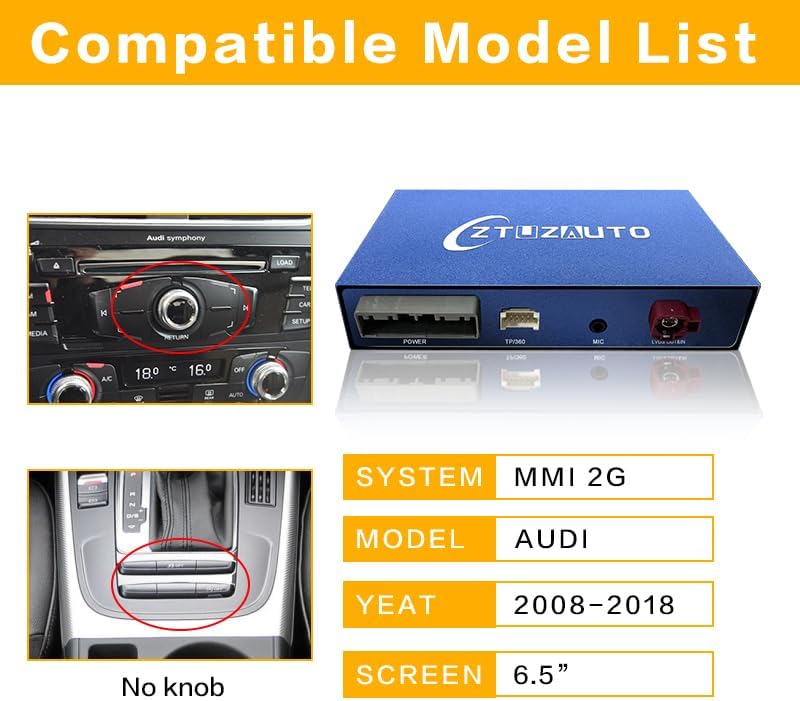
Image: A diagram illustrating the compatible Audi models (A4, A5, Q5) and MMI 2G system, along with the supported year range (2008-2018) and screen size (6.5 inches).
2. Safety Information
Observe the following safety precautions during installation and operation:
- Professional Installation Recommended: If you are not experienced with car electronics, seek professional installation to prevent damage to your vehicle or the product.
- Disconnect Power: Always disconnect the vehicle's battery before beginning any electrical installation.
- Secure Wiring: Ensure all cables are securely connected and routed away from moving parts, heat sources, and sharp edges.
- Avoid Distractions: Do not operate the system or adjust settings while driving. Always prioritize safe driving.
- Ventilation: Ensure the module is installed in a location with adequate ventilation to prevent overheating.
3. Package Contents
Verify that all items are present in the package:
- ZTUZAUTO CarPlay/Android Auto Module
- Power Cable Harness
- LVDS Cable
- Microphone
- WiFi Antenna
- DB Cable
- Installation Manual & Tools (if included)

Image: An illustration showing the ZTUZAUTO module and its included accessories: Power Cable, WiFi Antenna, LVDS Cable, Microphone, DB Cable, and an Installation Manual & Tools.
4. Installation Guide
The ZTUZAUTO retrofit kit is designed for a plug-and-play installation, requiring no cutting or breaking of original car wires. The factory screen remains in place.
4.1. Pre-Installation Precautions
- Confirm your car's model and year are compatible (Audi A4/A5/Q5 with 2G MMI).
- Refer to the wiring diagram provided with your kit to match the model of your car.
- Disconnect the vehicle's battery before starting the installation.
4.2. General Installation Steps
- Carefully remove the necessary trim panels to access the original MMI unit behind the dashboard.
- Disconnect the original wiring harness from the MMI unit.
- Connect the provided power cable harness between the original MMI unit and the ZTUZAUTO module.
- Connect the LVDS cable from the original MMI unit to the ZTUZAUTO module, and then connect the new LVDS cable from the module back to the MMI unit.
- Connect the microphone to the ZTUZAUTO module and route it to a suitable location for clear voice input.
- Attach the WiFi antenna to the ZTUZAUTO module.
- If installing a reverse camera, connect its wiring to the ZTUZAUTO module as per the specific instructions below.
- Secure the ZTUZAUTO module in a safe, well-ventilated location behind the dashboard.
- Carefully reassemble all trim panels.

Image: A visual representation of the plug-and-play installation process, highlighting the connection points for the retrofit module within the car's dashboard, showing the MMI unit, wiring harness, and the module itself.
4.3. Reverse Camera Wiring
- For Original Backup Camera: No additional connection is needed. You can select the "Factory Camera" option in the system settings.
- For Aftermarket Reverse Camera: Connect the reverse camera wiring to the designated input on the ZTUZAUTO module. For automatic transmission vehicles, connect the reversing detection line to the car's tail light 12V power supply.
4.4. Post-Installation Check
After installation, reconnect the vehicle's battery. Before fully reassembling the dashboard, confirm that all functions of the module (CarPlay, Android Auto, camera, sound) operate normally to avoid inconvenience caused by re-disassembly.
5. Operating Instructions
This section details how to use the various features of your ZTUZAUTO retrofit kit.
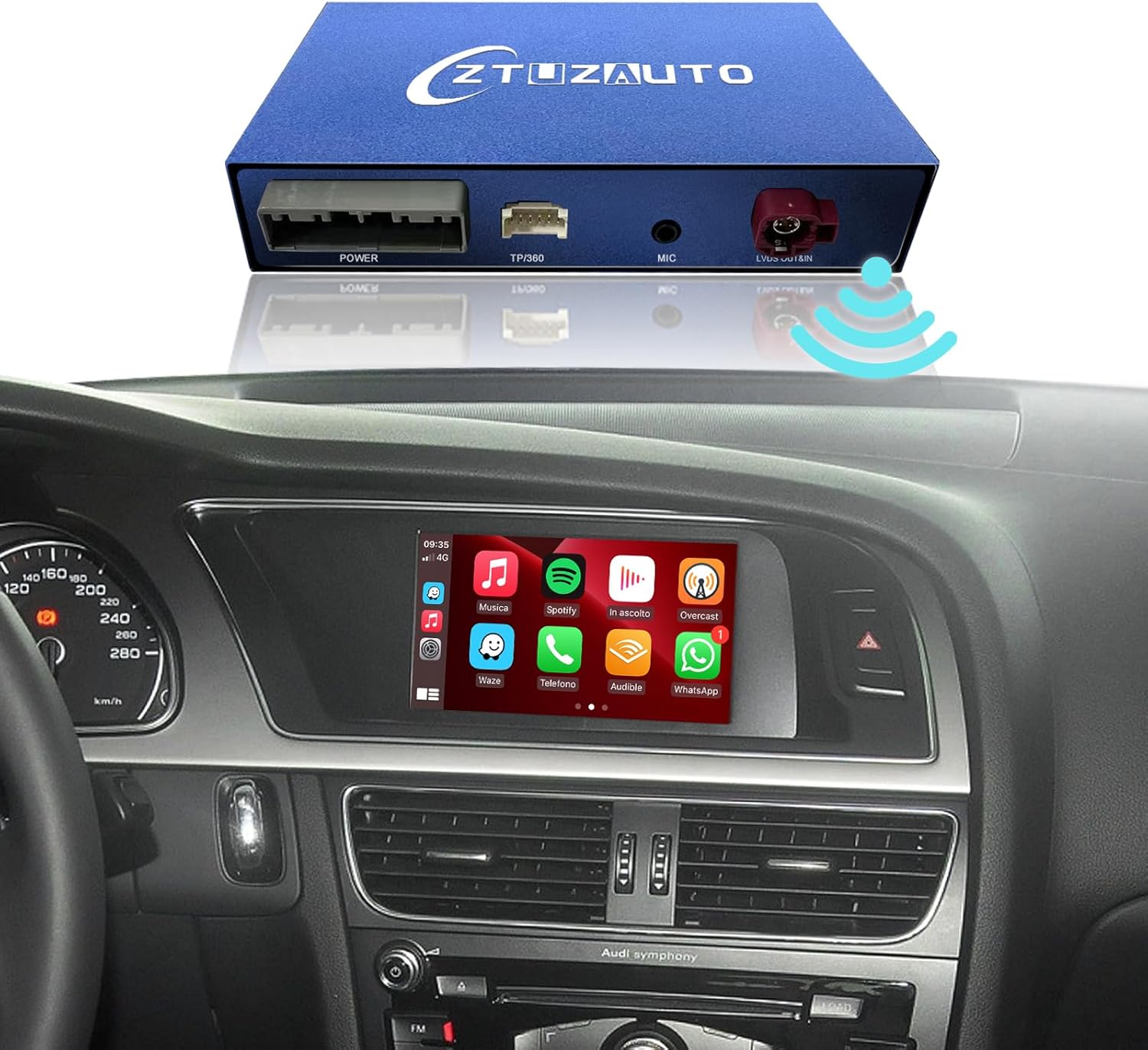
Image: An overhead view of the ZTUZAUTO module and an in-car dashboard display showing the CarPlay interface with various app icons.
5.1. Switching Between Original MMI and CarPlay/Android Auto
To switch from the original MMI system to the CarPlay or Android Auto interface, press and hold the "MEDIA" or "CAR" button on your central control panel for approximately 2 seconds.

Image: A comparison showing the car's display before and after installation, demonstrating the seamless switch from the original MMI interface to the CarPlay interface by pressing and holding a button.
5.2. Wireless CarPlay & Android Auto Connection
The kit supports both wireless Apple CarPlay and wireless Android Auto.
- Bluetooth Pairing: On your smartphone, enable Bluetooth and search for the device named "ZTUZAUTO" (or similar). Pair your phone with the module.
- Wi-Fi Connection: After Bluetooth pairing, your phone will automatically connect to the module's Wi-Fi network for data transfer, enabling wireless CarPlay or Android Auto.
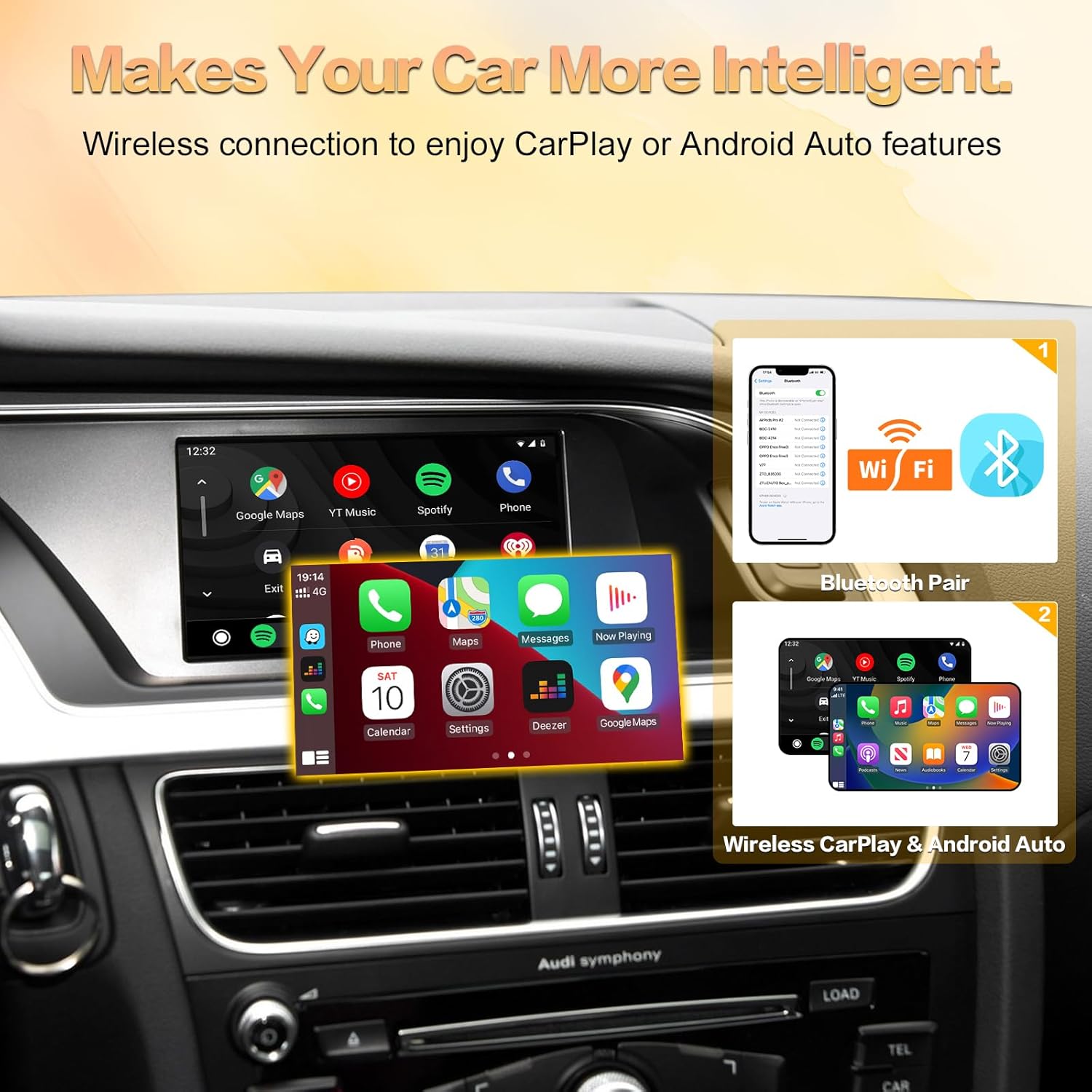
Image: An illustration showing the steps for wireless connection, including Bluetooth pairing and Wi-Fi connection for CarPlay and Android Auto functionality.

Image: A graphic displaying the main features: Wireless/Wired Apple CarPlay, Wireless/Wired Android Auto, and Wireless Mirror Link, with example screenshots of each interface.
5.3. Key Features and Applications
Once connected, you can access various smartphone functions directly on your car's display:
- Navigation: Use your preferred navigation apps (e.g., Google Maps, Waze) for real-time directions.
- Music & Media: Stream music, podcasts, and audiobooks from apps like Spotify, Apple Music, or YouTube.
- Phone Calls: Make and receive calls hands-free. Access your phone contacts and call history.
- Messages: Send and receive messages using voice commands.
- Mirror Link: Mirror your smartphone screen to the car's display for content like YouTube videos or photos.
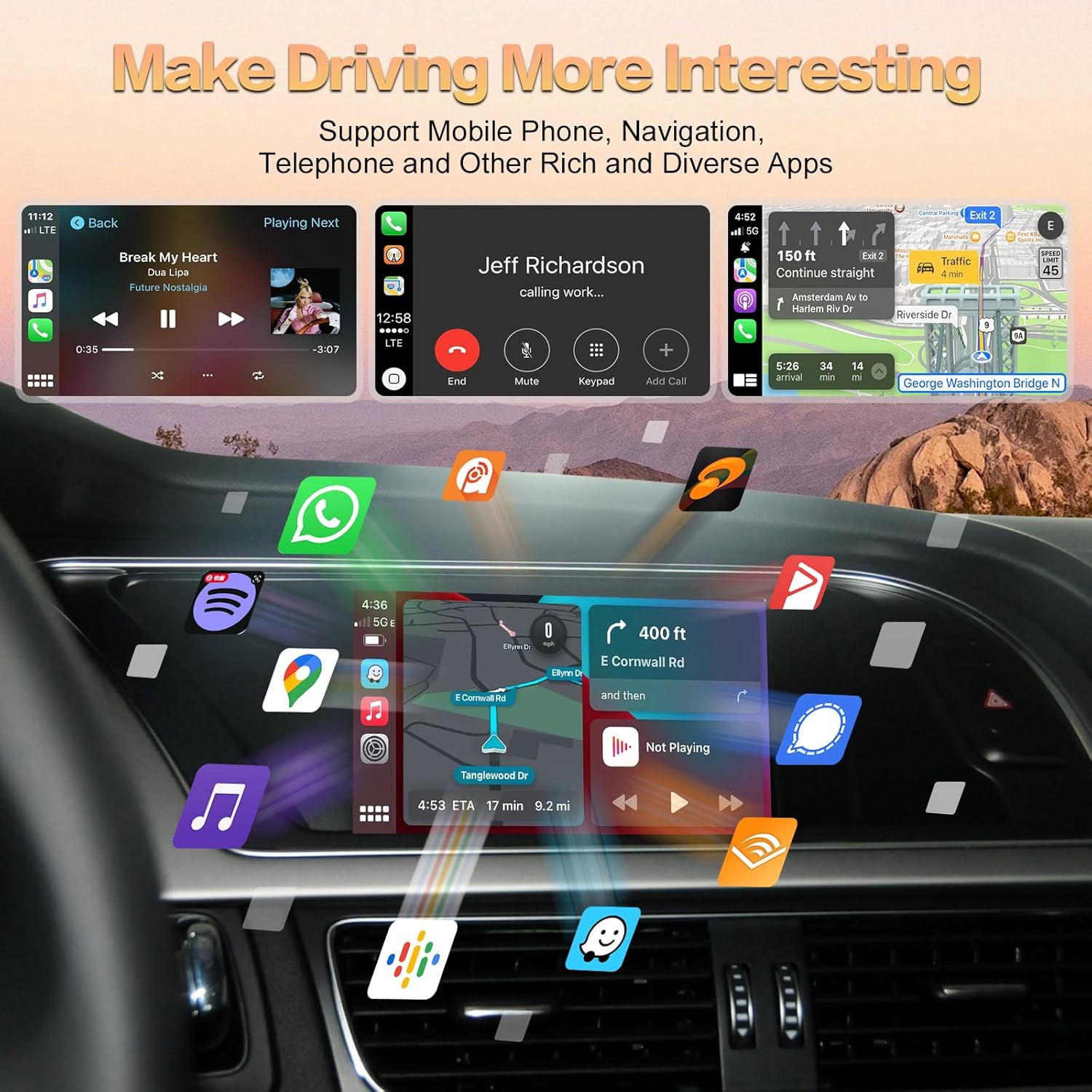
Image: A dynamic display of various applications such as music players, phone calls, and navigation maps, appearing on the car's infotainment screen, illustrating the rich app support.

Image: A collage showing screenshots of the CarPlay/Android Auto interface for Music, Messages, Maps, and Phone functions, demonstrating how these core features are integrated into the car's display.

Image: A graphic illustrating a wide array of popular smartphone applications, such as Spotify, Google Maps, and messaging apps, appearing to float into the car's display, signifying broad app compatibility.
5.4. Intelligent Voice System
Utilize voice commands for a safer and more convenient driving experience:
- Siri (for CarPlay): Activate Siri by saying "Hey Siri" or pressing the voice control button. Use commands like "Call David," "Play music," or "What can I help you with?"
- Google Assistant (for Android Auto): Activate Google Assistant by saying "Hey Google" or pressing the voice control button. Use commands like "Open the video," or "Go Home."

Image: A split image demonstrating the voice control features for both CarPlay (Siri) and Android Auto (Google Assistant), showing example commands and responses on the car's screen.
5.5. Retaining Original Car Functions
The retrofit kit allows you to continue using your original car controls for various functions:
- Steering Wheel Buttons: Control volume, track skipping, and voice awakening directly from your steering wheel.
- Central Control Panel: Use the original MMI knob and buttons to navigate the CarPlay/Android Auto interface. Long press "MEDIA" or "CAR" to switch systems.

Image: A detailed view of the car's steering wheel buttons and central control panel, indicating how they can be used to control the new CarPlay/Android Auto system, such as volume, voice awakening, and app functions.
6. Initial Setup & Configuration
6.1. Audio Output Setup (If using AUX)
If your car's audio output relies on the AUX input, you must configure it correctly for sound to function.
- Disconnect Bluetooth between your phone and your car's original system.
- Set your car's audio source to "AUX".
- Enter the "Media" interface on your car's MMI system and select "External audio input".
6.2. Sound Function Setup (Via Bluetooth)
To enable sound via Bluetooth, adjust the settings as follows:
- Access the Settings interface in the CarPlay/Android Auto system.
- Navigate to "Factory Mode" > "Phone Link setting".
- Enable the option "Disable phone link audio" and then reboot the system.
- Pair your smartphone with the original vehicle's Bluetooth.
- Select the original car Bluetooth for both the phone and music sound sources in the original car media settings.
6.3. Camera Settings
The system supports various camera types:
- Support for factory reverse/front/360 cameras and parking radar.
- Support for aftermarket reverse/front/360 cameras (AHD 720P / 1080P).
- Support for front view camera DVR (Dynamic guidance lines are supported).
In the system settings, you can choose between "Factory Camera" or "Aftermarket Camera" depending on your setup.

Image: A detailed guide on configuring camera settings for original and aftermarket cameras, including wiring connections for reverse cameras. It also provides two methods for setting up audio output: via AUX input and via Bluetooth settings.
7. Troubleshooting
If you encounter issues, refer to the following common problems and solutions:
- No Sound:
a. Ensure your car's audio source is set to "AUX" if you are using the AUX method (refer to Section 6.1).
b. If using Bluetooth for sound, verify that "Disable phone link audio" is enabled in the system settings and your phone is paired to the original car Bluetooth (refer to Section 6.2).
c. Check all audio cable connections to the module and MMI unit. - CarPlay/Android Auto Not Connecting Wirelessly:
a. Ensure Bluetooth is enabled on your phone and paired with the ZTUZAUTO module.
b. Verify that Wi-Fi is enabled on your phone, as the system uses Wi-Fi for data transfer after Bluetooth pairing.
c. Try restarting both your phone and the car's MMI system. - Reverse Camera Not Displaying:
a. Check all camera wiring connections, especially the reverse detection line for aftermarket cameras.
b. Verify the camera settings in the system are correctly configured for "Factory Camera" or "Aftermarket Camera" (refer to Section 6.3). - System Freezes or Malfunctions:
a. Perform a soft reset by turning off the car's ignition and restarting.
b. If the issue persists, temporarily disconnect the module's power cable for a few minutes and then reconnect.
For persistent issues not covered here, please contact ZTUZAUTO customer support.
8. Maintenance
To ensure the longevity and optimal performance of your ZTUZAUTO retrofit kit, follow these general maintenance guidelines:
- Keep Clean: Periodically clean the car's display screen with a soft, lint-free cloth. Avoid harsh chemicals.
- Software Updates: Check the ZTUZAUTO official website or contact support for any available firmware updates to ensure compatibility and performance improvements.
- Environmental Conditions: Avoid exposing the module to extreme temperatures or excessive moisture.
- Cable Integrity: Periodically inspect visible cables for any signs of wear or damage.
9. Specifications
| Feature | Specification |
|---|---|
| Product Dimensions | 3.34 x 5.59 x 0.94 inches |
| Item Weight | 2.31 pounds |
| ASIN | B0CZKWWB96 |
| Item Model Number | ZTUZAUTO-WCPA45Q5 |
| Date First Available | April 1, 2024 |
| Manufacturer | ZTUZAUTO |
| Brand | ZTUZAUTO |
| Connectivity Technology | Bluetooth, Wi-Fi |
| Special Feature | Voice Control |
| Compatible Devices | Audi A4 (2008-2016), Audi A5 (2008-2016), Audi Q5 (2010-2018), iOS devices, Android devices |
| Total HDMI Ports | 1 |
| Connector Type | 3.5mm Jack |
| Audio Output Mode | Surround |
| Surround Sound Channel Configuration | 4.0 |
| Video Encoding | H.264, H.265/HEVC |
| Color | Blue |
10. Warranty and Support
10.1. Product Warranty
The ZTUZAUTO Wireless CarPlay Android Auto Retrofit Kit comes with a 1-Year Warranty from the date of purchase. This warranty covers manufacturing defects and ensures the product functions as intended under normal use.
Please retain your proof of purchase for warranty claims.
10.2. Technical Support
If you have any questions regarding installation, operation, or troubleshooting that are not covered in this manual, please do not hesitate to contact ZTUZAUTO customer support. We are committed to providing after-sales technical support within 24 hours.
For support, please visit the ZTUZAUTO store on Amazon or refer to the contact information provided with your purchase.