1. Introduction
Thank you for choosing the Podofo 8-Core Android 13 Car Stereo. This manual provides detailed instructions for the installation, operation, and maintenance of your new car stereo system. Please read this manual thoroughly before using the product to ensure proper functionality and safety.

Image: Podofo 8-Core Android 13 Car Stereo and its main components.
2. Package Contents
Please verify that all items listed below are included in your package. If any items are missing or damaged, please contact customer support.
- 1 x 7-inch Car Stereo Unit
- 1 x Power Cable
- 1 x GPS Antenna
- 1 x Rear Camera Input Cable
- 1 x RCA Cable
- 2 x USB Cable
- 2 x Mounting Bracket
- 4 x Screw
- 1 x User Manual
- 1 x Microphone
- 1 x AHD Rear Camera
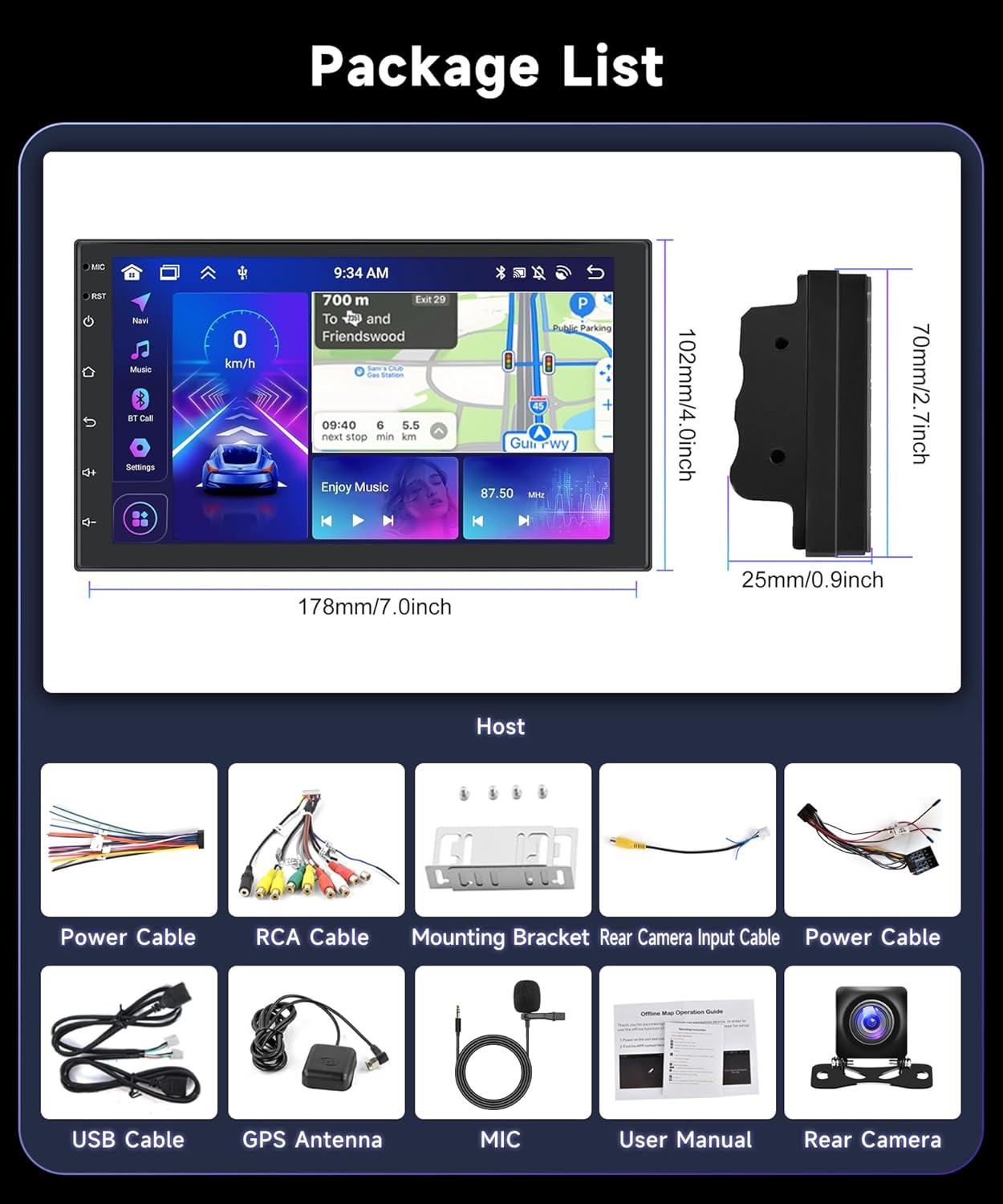
Image: Detailed view of all items included in the product package.
3. Specifications
Below are the technical specifications for the Podofo 8-Core Android 13 Car Stereo.
| Feature | Specification |
|---|---|
| Model | 4+64G |
| Operating System | Android 13 |
| Processor | 8-Core |
| RAM | 2GB DDR4 (Note: Product title indicates 2GB, model number indicates 4GB. Please refer to your specific product variant.) |
| Internal Storage (ROM) | 64GB |
| Screen Size | 7 Inches |
| Screen Resolution | 1024*600 IPS HD (2.5D Anti-scratch Glass) |
| Bluetooth Version | 5.0 |
| Connectivity | Bluetooth, WiFi, USB |
| Special Features | Wireless CarPlay, Wireless Android Auto, DSP Sound Tuning (36-band EQ), GPS Navigation, FM/RDS Radio, AHD Rear Camera Support, Steering Wheel Control |
| Installation Dimensions | 178 x 70 x 25 mm (7.0 x 2.7 x 0.9 inches) |
| Weight | 1.1 kg |

Image: Key specifications and features of the car stereo.
4. Setup and Installation
Professional installation is recommended for this car stereo. Ensure the vehicle's battery is disconnected before beginning installation.
4.1 Installation Dimensions
The car stereo unit has installation dimensions of approximately 178 x 70 x 25 mm (7.0 x 2.7 x 0.9 inches). Please ensure your vehicle's dashboard opening is compatible with these dimensions for a 2-DIN installation.
Image: Car stereo dimensions and mounting accessories.
4.2 Wiring Connections
Refer to the included wiring diagram for specific connections. Key connections typically include:
- Power Cable: Connect to vehicle's constant 12V, accessory 12V, and ground.
- Speaker Wires: Connect to vehicle's speaker outputs (front left, front right, rear left, rear right).
- GPS Antenna: Connect to the dedicated GPS port on the unit and mount in a location with clear sky view.
- Rear Camera Input: Connect the AHD rear camera cable to the unit's video input and power the camera from the vehicle's reverse light circuit.
- USB Cables: For connecting USB devices or wired CarPlay/Android Auto.
- RCA Cables: For external amplifiers or video outputs.
- Microphone: Connect the external microphone for clearer hands-free calls.
- Steering Wheel Control (SWC): Connect to your vehicle's SWC wires (if supported) and configure in the unit's settings.

Image: Example of car stereo installation in a vehicle dashboard.
5. Operating Instructions
5.1 Basic Operation
- Power On/Off: Press and hold the power button on the front panel.
- Touchscreen: Navigate the Android interface by tapping, swiping, and pinching.
- Volume Control: Use the physical buttons or on-screen controls.
- Home Screen: Customize with widgets and app shortcuts. The unit supports 59 different UI themes.
Image: Customizable user interface themes.
5.2 Wireless CarPlay & Android Auto
The unit supports both wireless and wired connections for Apple CarPlay and Android Auto.
- Ensure Bluetooth and Wi-Fi are enabled on your smartphone.
- On the car stereo, open the "CarbitLink" or "Zlink" application (or similar, depending on firmware).
- Follow the on-screen instructions to pair your phone via Bluetooth.
- Once paired, CarPlay or Android Auto will automatically launch.
- You can use navigation apps (e.g., Google Maps, Waze), make calls, send messages, and play music directly from your phone's interface on the car stereo screen.
The "Mirror Link" function allows you to project your mobile phone's screen onto the car stereo display, providing access to your phone's full functionality.
Image: Wireless CarPlay, Android Auto, and Screen Mirroring capabilities.
5.3 Bluetooth Connectivity (5.0)
Connect your smartphone via Bluetooth 5.0 for hands-free calling and audio streaming.
- Go to the Bluetooth settings on the car stereo.
- Enable Bluetooth on your phone and search for available devices.
- Select the car stereo's Bluetooth name (e.g., "Podofo Car Stereo") from your phone's list and pair.
- Once connected, you can make/receive calls and play music through the car's speakers.

Image: Bluetooth 5.0 interface for calls and music.
5.4 GPS Navigation
The unit comes with a GPS antenna for accurate navigation. You can download and use various navigation apps from the Google Play Store.
- Ensure the GPS antenna is properly installed and has a clear view of the sky.
- Download your preferred navigation app (e.g., Google Maps, Waze) from the Play Store.
- Use the app to search for destinations and receive turn-by-turn directions.
5.5 FM/RDS Radio
Access your favorite radio stations with the built-in FM tuner and RDS (Radio Data System) functionality.
- Open the "Radio" application.
- Use the scan function to find available stations.
- RDS displays station names and other broadcast information.
- Save your favorite stations as presets.

Image: FM/RDS Radio interface.
5.6 DSP Sound Tuning
The integrated DSP (Digital Signal Processor) allows for advanced audio customization.
- Access the "DSP" or "Equalizer" app from the main menu.
- Adjust the 36-band equalizer to fine-tune audio frequencies.
- Utilize features like AE (Auto Equalization) and sound type selection for optimal sound quality.
- Adjust time alignment (delay) for each speaker to create a perfect sound stage.

Image: DSP sound tuning interface with equalizer and time alignment.
5.7 Rear Camera Input
The unit supports AHD rear cameras, providing a clear view when reversing.
- When the vehicle is shifted into reverse, the screen will automatically display the rear camera feed.
- The included AHD camera is waterproof and features night vision for improved visibility in low light.

Image: Rear camera input features.
5.8 WiFi / Hotspot
Connect the car stereo to a Wi-Fi network or your phone's hotspot to access online features, download apps, and browse the internet.
- Go to "Settings" > "Network & Internet" > "Wi-Fi".
- Select your desired Wi-Fi network and enter the password.
- Once connected, you can use online navigation, stream music/videos, and download apps from the Google Play Store.

Image: WiFi/Hotspot connectivity for online applications.
6. Maintenance
6.1 Cleaning the Unit
- Use a soft, dry cloth to wipe the screen and exterior of the unit.
- For stubborn smudges, slightly dampen the cloth with water or a screen-safe cleaner.
- Do not use abrasive cleaners, solvents, or alcohol, as they may damage the surface.
6.2 Software Updates
Periodically check for software updates to ensure optimal performance and access to new features. Updates can typically be found on the manufacturer's website or through the unit's system settings if an over-the-air (OTA) update feature is available.
7. Troubleshooting
If you encounter issues with your Podofo car stereo, refer to the following common problems and solutions.
| Problem | Possible Cause / Solution |
|---|---|
| No power / Unit does not turn on |
|
| No sound |
|
| Bluetooth connection issues |
|
| GPS signal weak or inaccurate |
|
| Rear camera not displaying |
|
| CarPlay/Android Auto not connecting |
|
8. Warranty and Customer Support
Podofo offers comprehensive customer service and technical support for this product.
- Refund Policy: 30-day money-back guarantee.
- Replacement Policy: 12-month replacement warranty.
- Technical Support: Lifetime technical support is provided.
If you have any questions, require assistance, or encounter issues not covered in this manual, please do not hesitate to contact Podofo customer service. They aim to respond within 18 hours.
For further information and support, please visit the official Podofo store or contact their support channels.

Image: Podofo brand logo.