
KEINONE GQ-ZD-75H-01
KEINONE 75-inch Interactive Smart Board User Manual
Model: GQ-ZD-75H-01
1. Introduction
This manual provides essential instructions for the setup, operation, and maintenance of your KEINONE 75-inch Interactive Smart Board. This device integrates a 4K UHD touchscreen display with an Android operating system, designed for various environments including classrooms, offices, and home studios. It functions as a versatile multimedia center, combining features of a TV, projector, and high-resolution monitor.
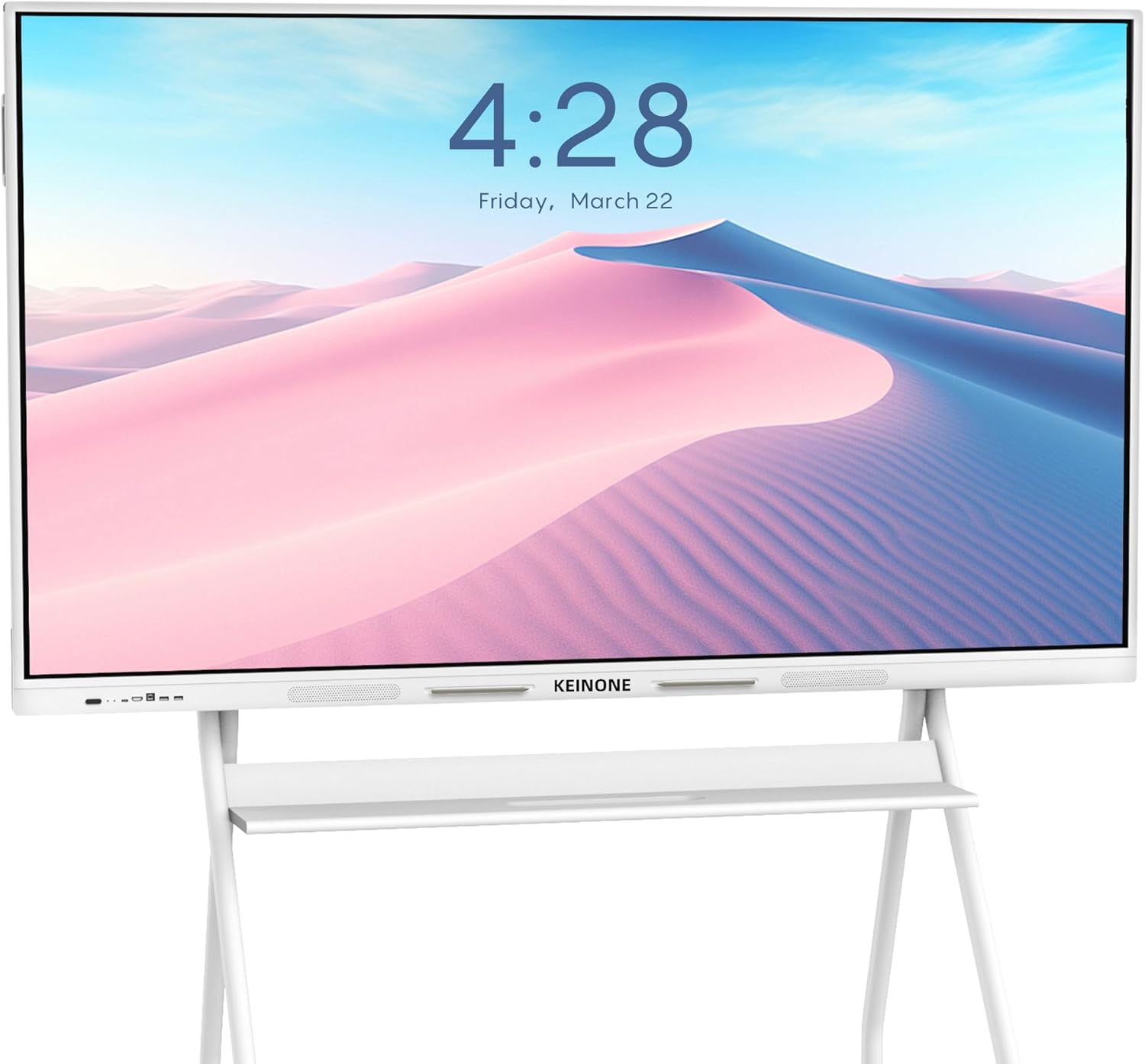
Image 1.1: KEINONE 75-inch Interactive Smart Board.
2. What's Included
Please verify that all items listed below are present in your package:
- KEINONE 75-inch Interactive Smart Board
- Wall Mount Bracket
- 3m Power Strip
- 3m Power Cord
- 2m HDMI Cable
- Remote Control
- Touch Pen (x2)
- User Manual (this document)

Image 2.1: Contents included with the KEINONE Smart Board.
3. Setup
3.1 Unpacking and Inspection
Carefully remove the smart board and all accessories from the packaging. Inspect all components for any signs of damage. Retain the packaging for future transport or service needs.
3.2 Mounting Options
The smart board can be installed using the included wall mount bracket or an optional mobile stand (sold separately). Follow the instructions provided with the wall mount or stand for secure installation.
3.3 Connecting Power
- Connect the power cord to the smart board's power input.
- Plug the other end of the power cord into a grounded electrical outlet.
3.4 Initial Power On
Press the power button located on the smart board or the remote control. The device will boot up, displaying the Android operating system interface.
3.5 Network Connection
To access online features and applications, connect the smart board to a Wi-Fi network:
- Navigate to the 'Settings' menu on the smart board.
- Select 'Network & Internet' or 'Wi-Fi'.
- Choose your desired Wi-Fi network and enter the password if prompted.
3.6 External Device Connections
The smart board features various ports for connecting external devices:
- HDMI: Connect laptops, media players, or other video sources.
- Type-C: For compatible devices, offering video, audio, and touch data transfer.
- USB: Connect USB drives, keyboards, mice, or other peripherals.
- PC Audio, VGA IN, RS232, RJ45 IN/OUT, Audio Out, Coaxial, MIC IN: For specialized connections.

Image 3.1: Front and Rear Interface Ports.
4. Operating Instructions
4.1 User Interface Overview
The smart board operates on an Android OS, providing a familiar and intuitive interface. Navigate using touch gestures or the remote control. Applications can be launched from the home screen or app drawer.
4.2 Touchscreen Interaction
The 75-inch 4K touchscreen supports 20-point multi-touch, allowing multiple users to interact simultaneously. The ultra-responsive 6ms latency ensures smooth and precise input with fingers or the included touch pens.
4.3 Whiteboard Functionality
The built-in whiteboard application offers a range of tools for interactive sessions:
- Drawing Tools: Select various brush types, colors, and thicknesses.
- Text Recognition: Automatically convert handwritten text and numbers to standard fonts.
- Media Insertion: Insert images, PDFs, web pages, and other elements directly into your whiteboard session.
- QR Code Sharing: Easily share notes and content by generating a QR code for participants to scan.

Image 4.1: Whiteboard Features.
4.4 Screencasting
Seamlessly display content from various devices onto the smart board:
- Wireless Casting: Utilize AirPlay or other built-in wireless casting features to mirror screens from compatible smartphones, tablets, and computers.
- Wired Connections: Use HDMI or Type-C ports for direct screen projection.

Image 4.2: Effortless Projection from Multiple Devices.
4.5 Multimedia Center
The smart board functions as a versatile multimedia display:
- TV: Access streaming services and view content in 4K UHD.
- Projector: Display presentations or media from connected devices.
- Monitor: Use as a large, high-resolution display for computers.

Image 4.3: All-in-One System Capabilities.
4.6 Remote Collaboration
Facilitate remote meetings and presentations with integrated teleconferencing capabilities. Share your screen and interact with remote teams seamlessly.

Image 4.4: Seamless Remote Meetings.
4.7 Split-Screen Functionality
The smart board supports split-screen functionality, allowing up to 6 different screens to be displayed simultaneously, enhancing multitasking and comparative analysis.
4.8 Placement Options
The smart board is suitable for various environments, including huddle rooms, large meeting rooms, educational institutions, open offices, and social spaces, offering flexible placement whether wall-mounted or on a mobile stand.

Image 4.5: Versatile Placement Options.
5. Maintenance
5.1 Cleaning the Screen
To clean the screen, power off the device and gently wipe the surface with a soft, lint-free cloth. For stubborn marks, use a screen-cleaning solution specifically designed for electronic displays. Avoid abrasive cleaners, alcohol, or ammonia-based products.
5.2 General Care
- Keep the smart board away from direct sunlight and heat sources.
- Ensure proper ventilation around the device.
- Avoid placing heavy objects on the smart board.
- Protect the screen from sharp objects to prevent scratches.
6. Troubleshooting
If you encounter issues with your KEINONE Smart Board, refer to the following common problems and solutions:
| Problem | Possible Cause | Solution |
|---|---|---|
| No Power | Power cord disconnected; Power outlet faulty; Device off. | Check power cord connection; Test outlet with another device; Press power button. |
| No Display | Incorrect input source; External device not connected properly; Display settings issue. | Select correct input source (HDMI, Type-C); Reconnect external device; Adjust display settings. |
| Touchscreen Unresponsive | Software glitch; Screen dirty; Calibration needed. | Restart the device; Clean the screen; Perform touchscreen calibration (if available in settings). |
| Network Connection Issues | Incorrect Wi-Fi password; Router issue; Signal interference. | Verify Wi-Fi password; Restart router; Move device closer to router or reduce interference. |
| Audio Problems | Volume too low/muted; External speakers not connected; Audio output settings. | Adjust volume; Check mute status; Ensure external speakers are connected and selected as output. |
If the problem persists after attempting these solutions, please contact KEINONE customer support.
7. Specifications
| Feature | Detail |
|---|---|
| Brand | KEINONE |
| Model Number | GQ-ZD-75H-01 |
| Screen Size | 75 Inches |
| Resolution | 4K UHD (3840 x 2160 Pixels) |
| Aspect Ratio | 16:9 |
| RAM | 8GB |
| Storage | 128GB SSD |
| Operating System | Android OS |
| Touch Points | 20 |
| Latency | 6ms |
| Connectivity | Wi-Fi, AirPlay, Type-C, HDMI, USB (4 ports) |
| Item Weight | 139.7 pounds |
| Product Dimensions | 3.35 x 66.93 x 40.16 inches |
| Color | White |
8. Warranty and Support
8.1 Warranty Information
For detailed information regarding the product warranty, including coverage period and terms, please refer to the warranty card included with your product or contact KEINONE customer support directly.
8.2 Customer Support
KEINONE provides 24-hour customer service to assist with any inquiries, technical support, or troubleshooting needs. Please visit the official KEINONE website or refer to the contact information provided in your product packaging for assistance.
Ask a question about this manual
Ask about setup, troubleshooting, compatibility, parts, safety, or missing instructions. Manuals+ will review the question and use this page’s manual context to help answer it.