
1. Introduction
The KEINONE 55-inch Interactive Smart Board is a versatile display solution designed for various environments, including classrooms, offices, and studios. This device integrates the functionalities of a traditional whiteboard, television, projector, and high-resolution monitor into a single unit. Featuring a 4K UHD touchscreen, built-in Android operating system, and robust connectivity options, it facilitates interactive presentations, collaborative work, and multimedia consumption. This manual provides essential information for setting up, operating, maintaining, and troubleshooting your Smart Board.

Description: This diagram visually represents the KEINONE Smart Board as a comprehensive all-in-one solution, consolidating the functions of a computer, TV, display, traditional whiteboard, monitor, and projector into a single device.
2. What's in the Box
Carefully unpack your KEINONE Smart Board and verify that all items listed below are present and in good condition. If any items are missing or damaged, please contact customer support.
- Smart Board Body (55-inch)
- Mounting Hardware
- Instructions Manual
- Remote Control
- Touch Pen
- 3m Power Strip
- 1.8m Power Line
- 2m HDMI Cable

Description: This visual guide lists the components included in the KEINONE Smart Board package: the Smart Whiteboard itself, a wall-mounted bracket, instructions, a remote control, a touch pen, a 3m power strip, a power line, and an HDMI cable.
3. Setup
3.1 Physical Installation
- Mounting: The Smart Board can be installed using the included wall-mounted bracket or an optional mobile stand (sold separately). Ensure the mounting surface is sturdy enough to support the board's weight (approximately 69.9 pounds). Follow the specific instructions provided with the mounting hardware for secure installation.
- Placement: Position the Smart Board in a location with adequate space for viewing and interaction. Consider ambient lighting to minimize glare on the screen.
3.2 Power Connection
- Connect the 1.8m power line to the Smart Board's power input port.
- Plug the other end of the power line into the 3m power strip.
- Plug the power strip into a grounded electrical outlet.
3.3 Initial Power On
- Press the power button located on the side or bottom of the Smart Board, or use the remote control.
- The board will boot up, displaying the KEINONE logo and then the Android operating system interface.
- Follow any on-screen prompts for initial setup, such as language selection and network configuration.
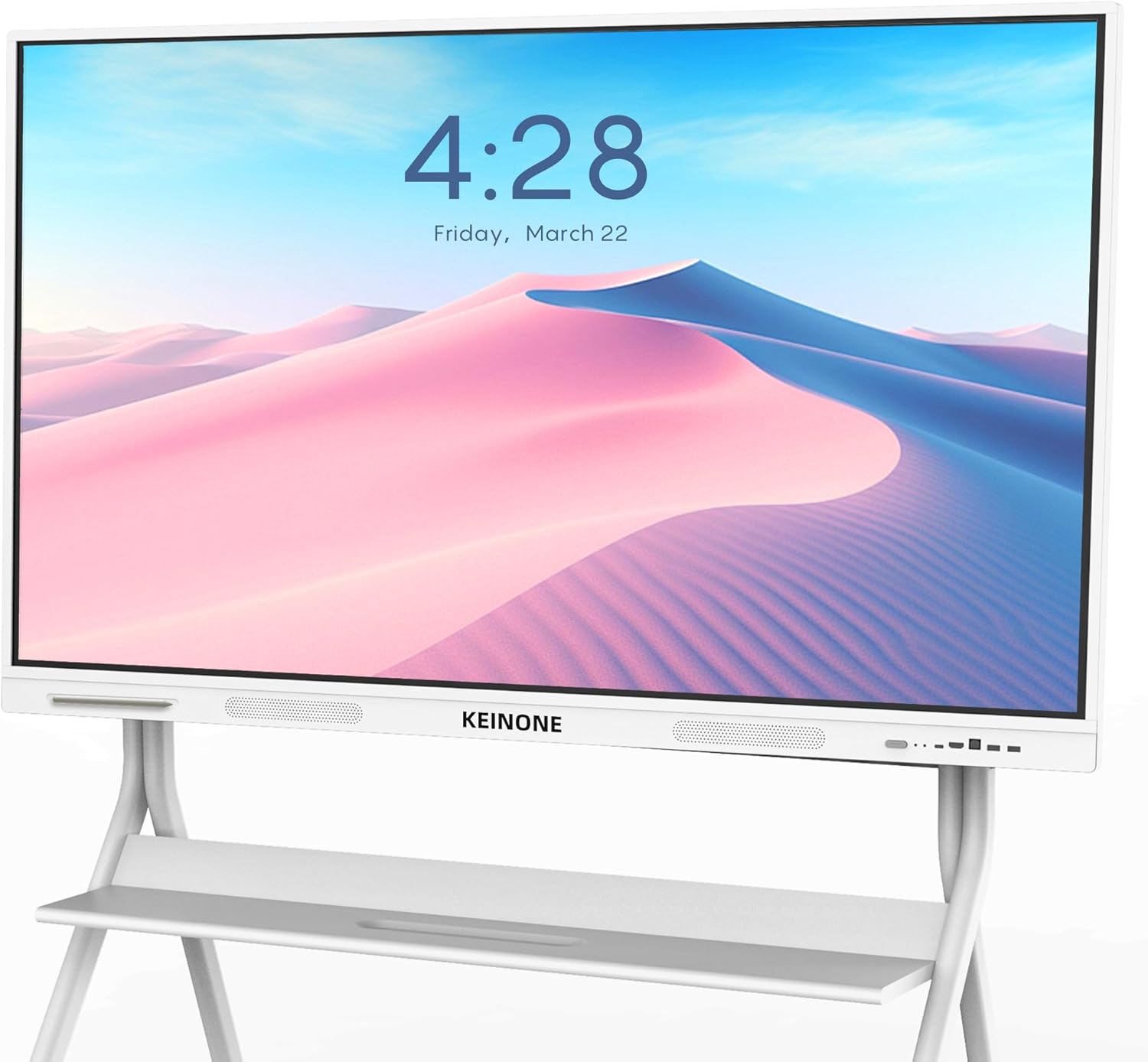
Description: This image shows the KEINONE 55-inch Interactive Smart Board mounted on its optional mobile stand, displaying a clear digital clock and calendar over a vibrant desert scene.
4. Operating Instructions
4.1 Power On/Off
- To Power On: Press the power button on the board or the remote control.
- To Power Off: Press and hold the power button on the board or remote control until a power-off menu appears, then select 'Power Off'. A short press will typically put the board into standby mode.
4.2 Navigating the Android OS
The Smart Board operates on a built-in Android OS, providing a familiar interface for app management and system settings.
- Touch Interface: Use your fingers or the provided touch pen to interact with the screen. The board supports 20-point multi-touch for simultaneous input.
- Home Screen: Access installed applications, widgets, and system shortcuts from the customizable home screen.
- Settings: Adjust network settings (Wi-Fi, Ethernet), display options, sound, and other system preferences through the 'Settings' application.
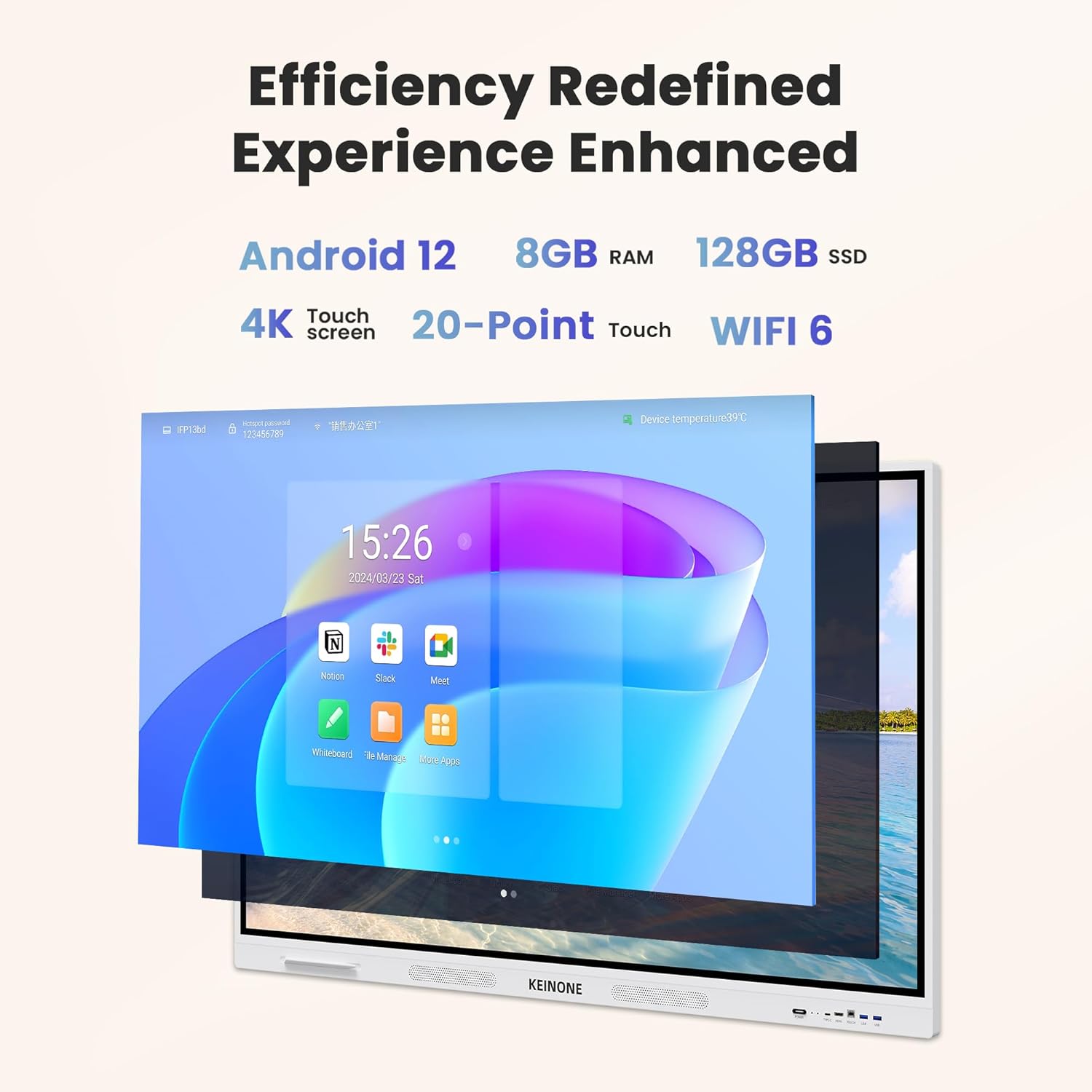
Description: The image illustrates the KEINONE Smart Board's user interface, featuring the Android 12 operating system. It shows a home screen with icons for applications like Notion, Slack, Meet, Whiteboard, and other apps, highlighting its integrated software environment.
4.3 Using the Interactive Whiteboard
The integrated whiteboard application offers a range of tools for dynamic presentations and collaborative brainstorming.
- Drawing Tools: Select various pen types, colors, and thicknesses to write or draw on the digital canvas.
- Text Recognition: Convert handwritten notes into standard digital text for improved readability and sharing.
- Insert Media: Embed images, PDFs, and other documents directly into your whiteboard session.
- Sharing: Easily share your whiteboard content via QR code or other integrated sharing options.

Description: This infographic details the KEINONE Whiteboard's capabilities. It illustrates options for adjusting pen color, thickness, and type; a text identification feature for converting handwriting to standard fonts; and various insert functions for pictures, tables, mind maps, and web pages.

Description: A teacher is shown interacting with the KEINONE Smart Board in a classroom. The board displays an educational game, and the teacher uses a stylus to point, demonstrating its use as an engaging tool for student learning.
4.4 Connectivity and Screen Sharing
The Smart Board offers multiple ways to connect external devices and share content.
- Wireless Connectivity: Connect to Wi-Fi networks for internet access and use AirPlay for wireless screen mirroring from compatible devices.
- Wired Connections: Utilize the various ports for direct connections:
- HDMI: Connect laptops, media players, or other devices for video and audio input.
- Type-C: A versatile port for video, audio, data, and touch input.
- USB: Connect USB drives for media playback or peripherals like keyboards and mice.
- VGA IN: For older computer connections.
- RJ45 IN/OUT: For wired network connectivity.
- Multi-Device Casting: The board supports simultaneous screen casting from up to four devices, enabling dynamic group presentations.
- Split-Screen Function: Divide the screen into multiple sections (up to 6) to display content from different sources concurrently.

Description: The image demonstrates the "Effortless Projection" feature, showing how content from various devices like laptops, tablets, and smartphones can be seamlessly displayed on the KEINONE Smart Board for meetings or presentations.

Description: This image provides a detailed diagram of the KEINONE Smart Board's connectivity options. It shows the front interfaces (Type-C, HDMI, Touch, USB 3.0 x 2) and rear interfaces (Type-C, PC Audio, VGA IN, HDMI IN, HDMI OUT, Touch, USB 3.0, USB 2.0, RS232, MIC IN, RJ45 IN, RJ45 OUT, Audio Out, Coaxial).
4.5 Multimedia and Collaboration
The Smart Board enhances multimedia experiences and supports remote collaboration.
- Video Conferencing: Utilize built-in or installed applications for teleconferencing, facilitating communication with remote teams.
- Presentations: Display presentations, documents, and media with clarity on the 4K UHD screen.

Description: This image depicts a business meeting where participants are collaborating via video conference displayed on the KEINONE Smart Board. Laptops are also visible, indicating multi-device integration for seamless communication.

Description: In a professional meeting, a presenter is interacting with the KEINONE Smart Board, which displays various data charts and graphs. This highlights its utility for business presentations and data visualization.
5. Maintenance
Proper maintenance ensures the longevity and optimal performance of your Smart Board.
- Screen Cleaning: Use a soft, lint-free cloth slightly dampened with a non-abrasive, screen-safe cleaner. Avoid harsh chemicals, alcohol, or ammonia-based cleaners, as these can damage the screen coating. Do not spray cleaner directly onto the screen.
- Frame Cleaning: Wipe the frame and other non-screen surfaces with a soft, dry cloth.
- Software Updates: Periodically check for and install system software updates to ensure you have the latest features, security patches, and performance improvements. This can usually be done through the 'Settings' menu under 'About Device' or 'System Update'.
- Ventilation: Ensure that the ventilation openings on the back of the board are not obstructed to prevent overheating.
6. Troubleshooting
This section addresses common issues you might encounter with your KEINONE Smart Board.
| Problem | Possible Cause | Solution |
|---|---|---|
| Board does not power on | No power supply; Loose power cable | Check power cable connection; Ensure outlet is functional; Try a different power outlet. |
| No display/blank screen | Board in standby mode; Incorrect input source; Faulty cable | Press power button to wake; Select correct input source (HDMI, Type-C); Check/replace video cables. |
| Touch function not responding | Software glitch; Calibration issue; Obstruction on screen | Restart the board; Perform screen calibration (if available in settings); Clean the screen surface. |
| Cannot connect to Wi-Fi | Incorrect password; Router issue; Out of range | Verify Wi-Fi password; Restart router; Move board closer to router or use wired Ethernet. |
| External device not recognized | Incorrect port; Cable issue; Device compatibility | Ensure correct port is used; Try a different cable; Check device's output settings. |
If the issue persists after attempting these solutions, please contact KEINONE customer support for further assistance.
7. Specifications
Detailed technical specifications for the KEINONE 55-inch Interactive Smart Board.
- Model Number: GQ-ZD-55H-01
- Screen Size: 55 Inches
- Display Resolution: 3840 x 2160 Pixels (4K UHD)
- Aspect Ratio: 16:9
- Touch Technology: 20-Point Multi-Touch
- Touch Latency: 6ms
- Operating System: Built-in Android OS (Android 12/14)
- RAM: 8GB
- Storage: 128GB SSD
- Connectivity:
- Wi-Fi 6
- AirPlay support
- HDMI (Input/Output)
- Type-C
- USB (4 total: USB 3.0 x 2, USB 2.0 x 1, Touch USB x 1)
- VGA IN
- PC Audio IN
- RS232
- RJ45 IN/OUT (Ethernet)
- Audio Out
- Coaxial
- MIC IN
- Product Dimensions: 3.15 x 49.61 x 30.31 inches
- Item Weight: 69.9 pounds
- Color: White

Description: This infographic provides a summary of the KEINONE Smart Board 55-inch key features. It highlights the 4K touchscreen, 8GB RAM, 128GB SSD, Android 14 operating system, WiFi 6 connectivity, 20-point touch functionality, screencasting options (WiFi, Airplay, Type-C, HDMI), and annotation tools for images, PDFs, and videos.
8. Warranty and Support
KEINONE is committed to providing reliable products and customer satisfaction.
- Customer Service: KEINONE offers 24-hour customer service to assist with any inquiries or technical support needs. Please refer to the contact information provided with your product or on the official KEINONE website.
- Returns: The product is eligible for 30-day easy returns. Please consult the retailer's return policy for specific terms and conditions.