
Tapo Tapo P105(4-Pack)
Contents
TP-Link Tapo P105 Smart Plug Mini User Manual
Model: Tapo P105 (4-Pack)
1. Introduction
The Tapo P105 Smart Plug Mini is a compact, Wi-Fi enabled device designed to make your home smarter and more convenient. It allows you to control connected appliances remotely via the Tapo app, set schedules, timers, and even use voice commands with Amazon Alexa or Google Assistant. This manual provides detailed instructions for setting up, operating, and maintaining your Tapo P105 Smart Plugs.

Image: The Tapo P105 Smart Plug Mini 4-Pack, showcasing the compact design and packaging.
2. Safety Information
Please read and follow all safety instructions to prevent damage to the device or injury to yourself. The Tapo P105 is UL Certified and features a flame-retardant PC material for enhanced safety.
- Do not use in wet locations or near water.
- Do not exceed the maximum load of 15 Amps (1800W at 120V).
- Ensure the plug is fully inserted into the outlet.
- Do not disassemble or modify the device.
- Keep out of reach of children.
- Operate within the specified temperature range (32°F to 104°F).

Image: Visual representation of the Tapo Smart Plug's safety features, including UL certification, 15A maximum load, and fire resistance.
3. Package Contents
The Tapo P105 (4-Pack) includes the following items:
- 4 x Tapo P105 Mini Smart Wi-Fi Plugs
- 1 x Quick Start Guide
4. Product Overview
The Tapo P105 features a compact design that avoids blocking adjacent outlets. It includes a power button/LED indicator on the side for manual control and status indication.

Image: A Tapo P105 Smart Plug plugged into a wall outlet, demonstrating its small footprint that leaves the second outlet free.
5. Setup
Setting up your Tapo P105 Smart Plug is quick and easy with Bluetooth Onboarding.
Download the Tapo App: Search for 'Tapo' in the Apple App Store or Google Play Store, or scan the QR code provided in the Quick Start Guide. You can also visit tapo.com/app/download-app/.
Plug in the Smart Plug: Insert your Tapo P105 into an available electrical outlet.
Follow In-App Instructions: Open the Tapo app, tap the '+' icon to add a new device, and select your Tapo P105. The app will guide you through the remaining steps, including connecting to your 2.4GHz Wi-Fi network and naming your plug.
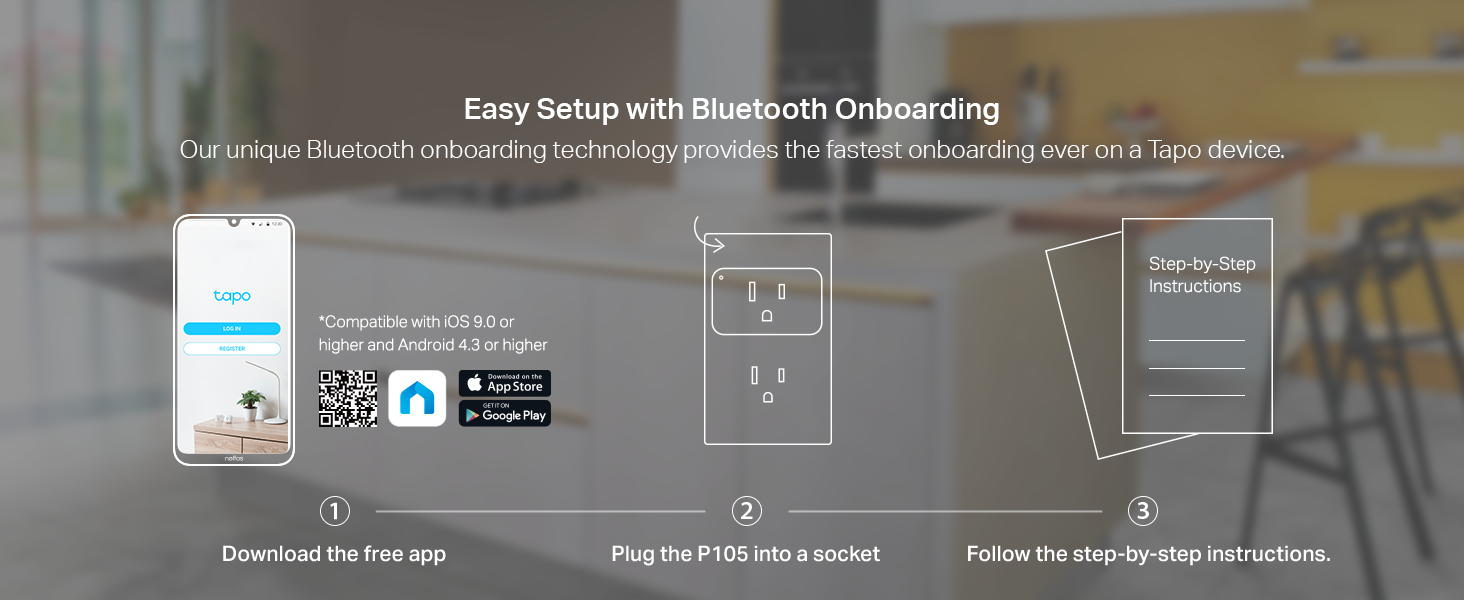
Image: A visual guide to the easy setup process, showing the Tapo app, the smart plug, and a prompt for step-by-step instructions.
6. Operating the Smart Plug
6.1 Manual Control
You can manually turn the smart plug on or off by pressing the physical power button located on the side of the device.
6.2 App Control
The Tapo app provides comprehensive control over your smart plugs from anywhere with an internet connection.
- Remote ON/OFF: Tap the power icon in the app to instantly turn connected devices on or off.
- Scheduling: Set daily or weekly schedules for your devices to automatically turn on or off at specific times. This is ideal for lights, fans, or holiday decorations.
- Timer: Use the timer function to automatically turn off a device after a set duration.
- Away Mode: Activate Away Mode to randomly turn your lights on and off, making it appear as if someone is home, even when you're away.
- Runtime Statistics: Monitor the runtime of connected devices to track usage.

Image: A user controlling multiple smart plugs from the Tapo app on their smartphone, illustrating remote control capabilities.

Image: An example of scheduling smart plugs for daily routines, such as turning on a toaster or coffee maker.
6.3 Voice Control
The Tapo P105 is compatible with Amazon Alexa and Google Assistant, allowing for hands-free control.
Link Accounts: In the Tapo app, navigate to the settings for your smart plug and link your TP-Link account to your Amazon Alexa or Google Home account.
Discover Devices: Use the voice assistant app to discover new devices, or simply say, "Alexa, discover my devices" or "Hey Google, sync my devices."
Voice Commands: Once linked, you can use commands like:
- "Alexa, turn on the kitchen light."
- "Hey Google, turn off the fan."
- "Alexa, turn the closet light on."

Image: A user demonstrating voice control in a kitchen, with speech bubbles showing example commands like "Alexa, Turn on the Kitchen Light."
Video: An introductory video from TP-Link Tapo showcasing the smart plug's features, including app and voice control for various home appliances.
7. Specifications
| Feature | Detail |
|---|---|
| Model | Tapo P105 (4-Pack) |
| Current Rating | 15 Amps |
| Operating Voltage | 120 Volts (AC) |
| Max Load | 1800W |
| Connectivity | 2.4GHz Wi-Fi, Bluetooth |
| Control Method | App (iOS/Android), Voice (Alexa, Google Assistant) |
| Dimensions (L x W x H) | 2.36 x 1.5 x 2.11 inches |
| Weight | 9.9 ounces (total for 4-pack) |
| Operating Temperature | 32°F - 104°F (0°C - 40°C) |
| Certifications | UL Certified |
| UPC | 840030701597 |
8. Maintenance
The Tapo P105 Smart Plug requires minimal maintenance. Keep the device clean and dry. Do not use harsh chemicals or abrasive cleaners. Ensure proper ventilation around the plug when in use.
9. Troubleshooting
- Plug not connecting to Wi-Fi:
- Ensure your Wi-Fi network is 2.4GHz. Tapo plugs do not support 5GHz networks.
- Check if the Wi-Fi signal strength is adequate at the plug's location.
- Restart your Wi-Fi router.
- Reset the smart plug by pressing and holding the power button for approximately 5 seconds until the LED blinks.
- Voice control not working:
- Verify that your Tapo account is correctly linked to your Amazon Alexa or Google Home account.
- Ensure the smart plug is named clearly and uniquely in the Tapo app.
- Check your internet connection.
- Plug is unresponsive:
- Unplug the device from the wall outlet, wait a few seconds, and plug it back in.
- If the issue persists, perform a factory reset (refer to the Quick Start Guide for specific instructions, usually a longer press of the power button).
10. Warranty and Support
The Tapo P105 Smart Plug Mini comes with a 2-year manufacturer warranty. For technical support, warranty claims, or further assistance, please contact TP-Link customer support:
- Phone: (866) 225-8139
- Website: tp-link.com/us/support/
- Email: support.USA@tp-link.com

Image: TP-Link Tapo customer support details for assistance.
Ask a question about this manual
Ask about setup, troubleshooting, compatibility, parts, safety, or missing instructions. Manuals+ will review the question and use this page’s manual context to help answer it.