
1. Product Overview
This manual provides detailed instructions for the installation, operation, and maintenance of your Fuluku 2+64GB 9-inch Android Car Radio. This unit is specifically designed for Hyundai Elantra models from 2007 to 2010, offering an upgraded multimedia experience while retaining essential OEM vehicle features.
Key features include a 9-inch capacitive touchscreen, Android operating system, wired and wireless CarPlay/Android Auto, GPS navigation, Wi-Fi connectivity, Bluetooth, EQ audio customization, and support for a reverse camera.

Image 1.1: Fuluku Android Car Radio highlighting its main features and compatibility.
2. What's in the Box
Please verify that all components listed below are included in your package:
- Android Car Stereo for Hyundai Elantra 2007-2010
- Dedicated Frame
- Backup Camera
- Microphone
- GPS Antenna
- Rear Camera Input Cable
- Power Cable
- RCA Cable
- USB Cable
- Instruction Manual
- Screws

Image 2.1: Package contents and dimensions of the Fuluku car radio unit.
3. Setup and Installation
Before beginning installation, ensure your vehicle is turned off and the battery is disconnected. Professional installation is recommended.
3.1 Pre-Installation Check
- Verify the model and year of your Hyundai Elantra (2007-2010).
- Confirm the shape and size of your vehicle's center console matches the provided frame.
3.2 Installation Steps
- Remove the Original Radio: Carefully remove the trim around your existing car radio to access the mounting screws. Once screws are removed, gently pull out the old radio unit. Caution: Refer to your vehicle's specific service manual for exact trim removal procedures to avoid damage.
- Connect Wiring Harness: Connect the provided power cable, RCA cable, and USB cables to the corresponding ports on the new Fuluku unit and your vehicle's wiring harness. Ensure all connections are secure.
- Install GPS Antenna: Mount the GPS antenna in a location with a clear view of the sky, such as on the dashboard or under the windshield, ensuring it is securely attached.
- Install Microphone: Connect the external microphone and position it for optimal voice pickup, typically near the driver's sun visor.
- Connect Backup Camera (Optional): If installing the included backup camera, route the camera cable from the rear of the vehicle to the head unit. Connect the video input to the 'Rear Camera Input' port and the power wire to the vehicle's reverse light circuit.
- Mount the New Unit: Secure the Fuluku Android Car Radio into the dashboard using the dedicated frame and screws. Reinstall the trim panels.
- Reconnect Battery: Reconnect your vehicle's battery and power on the unit to test functionality.

Image 3.1: Visual representation of the Fuluku car radio installed in a Hyundai Elantra dashboard.

Image 3.2: Detailed view of the rear port connections for the Fuluku car radio.

Image 3.3: Wiring diagram for the AHD reversing camera.
4. Operating Instructions
4.1 Basic Interface and Android System
The unit runs on an Android operating system, providing a familiar smartphone-like interface. Navigate using the 9-inch capacitive touchscreen. You can install or delete Android applications from the Application Store via Wi-Fi.

Image 4.1: Android System with 2GB RAM + 64GB ROM.

Image 4.2: High-definition IPS touchscreen display.
4.2 Wired & Wireless CarPlay & Android Auto
Connect your smartphone via Bluetooth or USB cable to access CarPlay or Android Auto. This allows for seamless integration of your phone's features, including making calls, playing music, accessing navigation apps, and using voice assistants like Siri or Google Assistant for hands-free control.
4.3 GPS Navigation
The unit features a built-in GPS navigation system supporting both offline and online maps. Ensure the GPS antenna is properly installed for optimal signal reception.

Image 4.3: GPS Navigation interface.
4.4 Wi-Fi Connectivity
Connect the head unit to Wi-Fi or a mobile hotspot to access online features, download apps, browse the internet, and stream content.
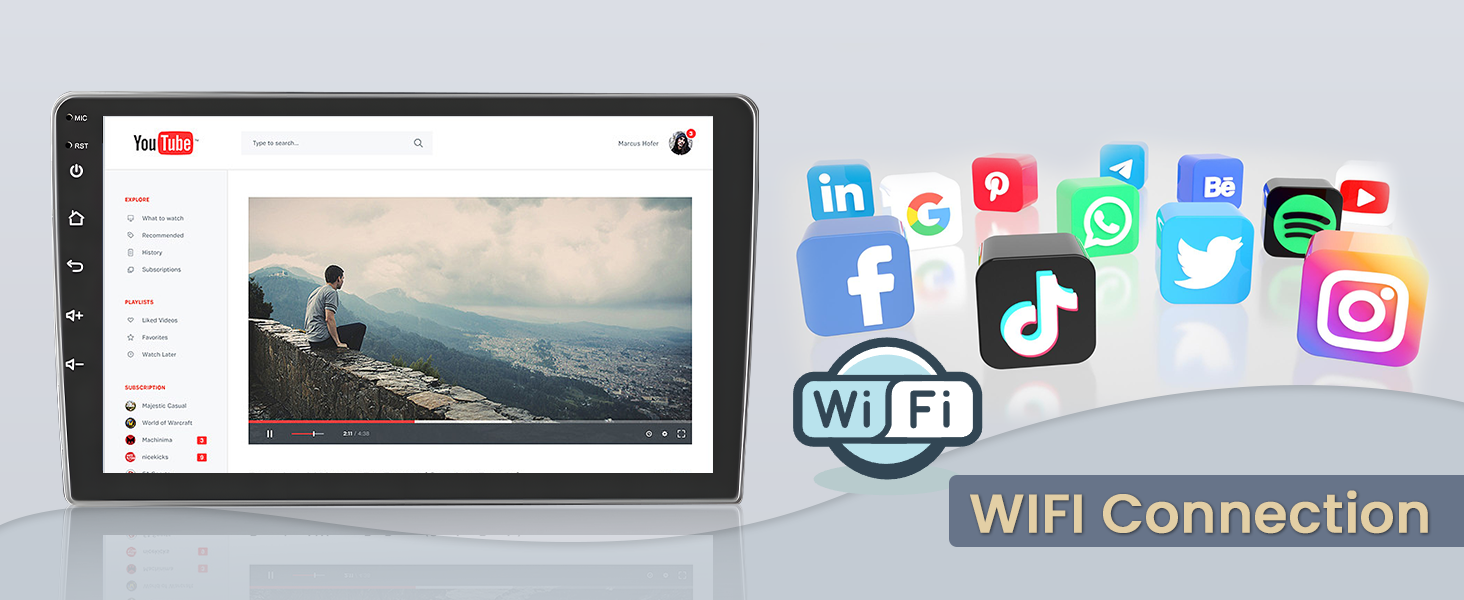
Image 4.4: Wi-Fi connection for online content and apps.
4.5 Bluetooth Functionality
Pair your smartphone via Bluetooth for hands-free calling, phonebook access, and audio streaming.
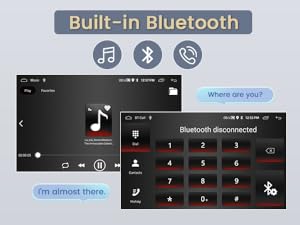
Image 4.5: Built-in Bluetooth for calls and music.
4.6 EQ Audio Settings
Customize your audio experience with the built-in Equalizer (EQ). Adjust various frequency bands to suit your preferences for different music genres.
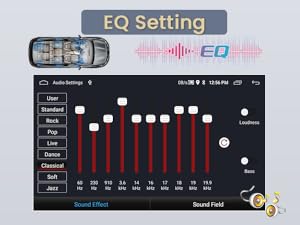
Image 4.6: EQ settings for audio customization.
4.7 FM/RDS Radio
Tune into your favorite FM radio stations. The RDS (Radio Data System) feature displays station information where available.
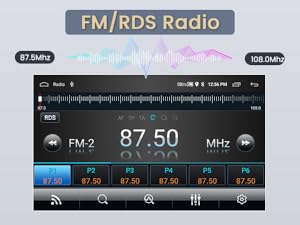
Image 4.7: FM/RDS Radio interface.
4.8 Split Screen Functionality
Utilize the split-screen feature to run two applications simultaneously, such as navigation and music playback.

Image 4.8: Split screen mode for multitasking.
4.9 Steering Wheel Control (SWC)
The unit supports your vehicle's original steering wheel controls. You can program or retain existing functions for safe and convenient operation.

Image 4.9: Steering Wheel Control setup.
4.10 Mirror Link
Mirror Link allows you to display your Android or iOS smartphone screen directly onto the car radio's display via USB or Wi-Fi.

Image 4.10: Mirror Link functionality.
4.11 Voice Control
Wake up the voice assistant to control various functions without distraction, enhancing driving safety.
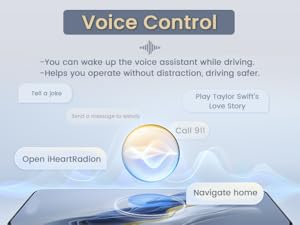
Image 4.11: Voice Control features.
4.12 Product Video
Video 4.1: An official product video demonstrating the features and user interface of the Fuluku 2+64G Android Car Stereo with Carplay and Android Auto.
5. Maintenance
Proper maintenance ensures the longevity and optimal performance of your car radio.
- Screen Cleaning: Use a soft, lint-free cloth slightly dampened with water or a screen cleaner specifically designed for electronics. Avoid harsh chemicals or abrasive materials.
- General Cleaning: Keep the unit free from dust and debris. Use a soft brush or compressed air to clean vents and buttons.
- Software Updates: Periodically check for software updates through the unit's settings menu (if available) to ensure you have the latest features and bug fixes.
- Avoid Extreme Temperatures: Do not expose the unit to extreme heat or cold for extended periods, as this can affect performance and lifespan.
6. Troubleshooting
If you encounter issues with your Fuluku car radio, refer to the following common troubleshooting steps:
| Problem | Possible Cause / Solution |
|---|---|
| Unit does not power on | Check power cable connections. Ensure the vehicle's ignition is on. Check vehicle's fuse box for blown fuses. |
| No sound | Check speaker connections. Verify volume level is not muted or too low. Check audio settings (EQ, balance, fader). Ensure the correct audio source is selected. |
| GPS signal loss or inaccuracy | Ensure GPS antenna is properly connected and has a clear view of the sky. Update map data if necessary. |
| Bluetooth connection issues | Ensure Bluetooth is enabled on both the car radio and your smartphone. Delete previous pairings and re-pair the devices. Restart both devices. |
| Touch screen unresponsive | Restart the unit. If the problem persists, a factory reset may be required (note: this will erase all user data). |
| Installation difficulties (e.g., trim damage) | Always refer to your vehicle's specific service manual for trim removal. If unsure, consult a professional installer to avoid damage. |
If these steps do not resolve the issue, please contact customer support.
7. Specifications
Detailed technical specifications for the Fuluku 2+64GB 9" Android Car Radio:
- Brand: Fuluku
- Model Name: 2+64G 5G WiFi
- Model Number: A7142A3195A4MI2US62-C38
- Vehicle Service Type: Car, SUV (Hyundai Elantra 2007-2010)
- Screen Size: 9 inches
- Resolution: 1024 x 600, 720 x 1280
- Operating System: Android
- Memory Storage Capacity: 64 GB
- RAM: 2GB
- Touch Screen Type: Capacitive
- Display Type: LCD
- Special Features: Carplay, Android Auto, GPS Navigation, WiFi, Bluetooth, EQ, Touchscreen, FM RDS
- Connectivity Technology: Bluetooth, USB, Wi-Fi
- Map Type: North America, Worldwide
- Audio Output Mode: Stereo
- Mounting Type: Dashboard Mount
- Human-Interface Input: Buttons, Microphone, Touchscreen
- Control Method: Push Button, Remote, Touch, Voice
- Supported Satellite Navigation System: GPS
8. Warranty
This Fuluku car radio comes with a 2-Year Manufacturer Warranty. Please retain your proof of purchase for warranty claims. The warranty covers defects in materials and workmanship under normal use.
9. Support
For technical assistance, troubleshooting, or any inquiries regarding your Fuluku product, please contact our customer support team.
- Email: fulukusupports@126.com
- Availability: 24-hour quick reply
- Technical Support: Lifetime technical support is provided.

Image 9.1: Fuluku Customer Support information.