
1. Introduction
This manual provides comprehensive instructions for the installation, operation, and maintenance of your Inefala Android 13 Car Radio. Please read this manual thoroughly before installation and use to ensure proper functionality and to maximize your experience with the device. This unit is specifically designed for Peugeot 3008 models manufactured between 2009 and 2015.
2. Product Features
- Operating System: Android 13 with a Quad-Core processor for improved responsiveness.
- Memory & Storage: 2GB RAM and 64GB ROM for efficient operation and app storage.
- Display: 9-inch HD Capacitive Touchscreen with 1024x600 resolution, supporting 1080P video playback. Features 2.5D curved glass for enhanced visual clarity, better color accuracy, brightness, and contrast.
- Smartphone Integration: Supports Wireless/Wired Apple CarPlay and Android Auto for seamless smartphone connectivity.
- Mirror Link: Allows mirroring of your smartphone screen to the car radio display.
- Navigation: Built-in GPS with support for offline maps and online navigation applications such as Waze and Sygic.
- Connectivity: Integrated WiFi for connecting to mobile hotspots and browsing the internet.
- Bluetooth: Built-in Bluetooth for hands-free calling and wireless music streaming.
- Radio: FM/RDS radio tuner for weather forecasts, real-time traffic updates, and channel broadcasting.
- Rear View Camera Input: Supports HD rearview cameras with night vision, waterproof design, and a 170° viewing angle for safer reversing.
- Steering Wheel Control (SWC): Compatible with original steering wheel controls via Canbus connection.
- Multimedia: Supports split-screen display for simultaneous navigation and media playback.
- Video Output: RCA cable connection for external headrest monitors, allowing passengers to watch videos.
3. Package Contents
Upon purchase, you will receive the following items:

Description: An image displaying the complete set of accessories included with the Inefala Android 13 Car Radio. This includes the main unit, AHD rear camera, microphone, Canbus box, power cable, radio cable, USB adapter cables, GPS antenna, RCA cables, additional USB cables, a user manual, and an installation tool.
- Inefala Android 13 Car Radio Unit (9-inch screen)
- AHD Rear Camera
- External Microphone
- Canbus Decoder
- Power Cable Harness
- Radio Antenna Cable
- USB Adapter Cables (multiple)
- GPS Antenna
- RCA Cables
- User Manual
- Installation Tool
4. Installation
4.1 Important Installation Notes
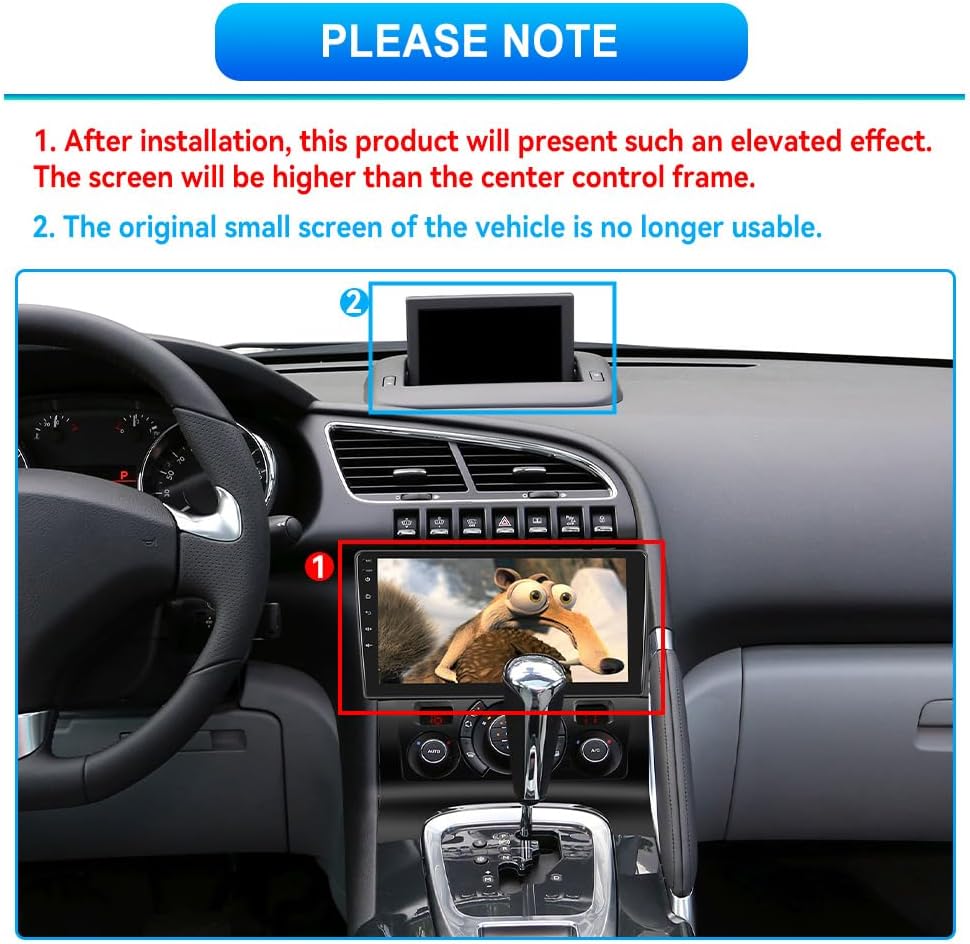
Description: A visual representation of the car radio installed in a Peugeot 3008 dashboard. Note 1 indicates that after installation, the screen will have an elevated effect, appearing higher than the original center control frame. Note 2 states that the original small screen of the vehicle will no longer be usable.
- After installation, the product screen will present an elevated effect, positioned higher than the original center control frame.
- The vehicle's original small display screen will no longer be functional.
4.2 Reversing Camera Wiring
Proper connection of the reversing camera is crucial for its functionality. The reversing input must be connected even if the camera is not immediately installed.

Description: A detailed wiring diagram illustrating the connections for the reversing camera. It shows connecting the camera's power to the car's reversing light (positive and negative poles) and the video signal to the main unit. It also highlights that the reversing trigger is controlled by the stereo, and a specific white plug must be connected to the main device for Bluetooth and WiFi signals.
- Connect the camera's positive power wire to the positive pole of the car's reversing light.
- Connect the camera's negative power wire to the negative pole of the car's reversing light.
- The reversing trigger is controlled by the stereo unit; therefore, separate connections for points 3 and 4 in the diagram are not required for the trigger itself.
- Ensure the white plug is connected to the main device. Failure to do so may result in no Bluetooth or WiFi signals.
4.3 Steering Wheel Control (SWC) Setup
After connecting the Canbus, it is essential to configure the steering wheel control settings to enable functionality.

Description: An image showing the in-car display with the steering wheel control learning interface. The screen displays various functions like Mode, Volume, Search, and their corresponding buttons, with an arrow pointing to the 'Steering Learning' section.
Follow these steps:
- Go to Settings.
- Navigate to Factory Setup and enter the password 1234.
- Select Hiworld + your car's year and model under Car settings.
- Proceed to Steering Learning under Factory Setting to finalize the steering wheel button learning process.
5. Operating Instructions
5.1 Wireless/Wired CarPlay & Android Auto

Description: The car radio display showing the Apple CarPlay interface, with a smartphone displaying CarPlay and icons for Google, Play Music, and Siri voice commands. This illustrates the seamless integration of smartphone features.
Connect your iPhone or Android smartphone to access navigation, music, calls, and messages directly from the car radio screen. This can be done wirelessly or via a USB connection, depending on your device and preference.
5.2 Mirror Link

Description: An image illustrating the Mirror Link feature, where content from a smartphone (both iOS and Android shown) is duplicated onto the car radio's 9-inch display.
Use Mirror Link to display your phone's screen content directly on the car radio. This feature is compatible with both iOS and Android devices.
5.3 GPS Navigation

Description: The top-left panel shows the GPS navigation interface with a map displaying routes and points of interest. Icons for various navigation apps are also visible.
The unit comes with built-in offline map capabilities. You can also download and use online navigation apps like Waze or Sygic via the WiFi connection to ensure you always have the most up-to-date routing information.
5.4 WiFi Connection
Connect the car radio to your mobile hotspot or home WiFi network to access online features, stream content, and download applications.

Description: The car radio display showing various internet applications like YouTube, Instagram, Spotify, and Facebook, demonstrating the WiFi connectivity feature.
5.5 Bluetooth
Pair your smartphone via Bluetooth for hands-free calling and to stream audio directly to the car's speakers.

Description: A split image showing a driver making a hands-free call and the car radio display showing the phone call interface (dial pad, contacts) and music playback interface.
5.6 FM/RDS Radio
Tune into your favorite FM radio stations. The RDS (Radio Data System) feature provides additional information such as station name, song title, and traffic announcements.

Description: The car radio display showing the FM radio interface with frequency display (e.g., 87.50 MHz), preset buttons, and RDS information. Another panel shows equalizer settings for audio customization.
5.7 Split Screen Display
Utilize the split-screen function to run two applications simultaneously, such as navigation on one side and music playback on the other.

Description: The car radio display showing a split-screen view, with a navigation map on one side and a music player interface on the other, demonstrating simultaneous application usage.
5.8 Rear View Camera
When the vehicle is shifted into reverse gear, the car radio automatically switches to the rearview camera display, providing a clear and wide-angle view of the area behind your car.

Description: A visual representation of the rearview camera in action, showing a car parking with a 170-degree wide-angle view. Icons highlight features like HD quality, waterproof design, night vision, and wide viewing angle.
5.9 Video Output for Rear Monitors

Description: An image demonstrating the video output capability, where the car radio's content is displayed on rear headrest monitors, allowing passengers to watch videos during travel.
Use an RCA cable to connect the car radio to external headrest monitors. This allows passengers, especially children, to watch videos and stay entertained during long journeys.
6. Maintenance
To ensure the longevity and optimal performance of your Inefala car radio, follow these general maintenance guidelines:
- Cleaning: Use a soft, dry cloth to clean the screen and exterior. Avoid abrasive cleaners or solvents that could damage the surface.
- Software Updates: Periodically check for available software updates to ensure you have the latest features and bug fixes. Refer to the device settings for update options.
- Temperature: Avoid exposing the unit to extreme temperatures, both hot and cold, for extended periods.
- Connections: Ensure all cables and connections are secure to prevent intermittent issues.
7. Troubleshooting
If you encounter any issues with your car radio, consider the following basic troubleshooting steps:
- No Power: Check all power connections and fuses. Ensure the car's ignition is on.
- No Sound: Verify volume settings, check speaker connections, and ensure the correct audio source is selected.
- Touchscreen Unresponsive: Try restarting the unit. If the issue persists, a factory reset might be necessary (note: this will erase all user data).
- Bluetooth/WiFi Issues: Ensure the features are enabled in settings. Try restarting the unit and your connected device. For WiFi, check hotspot settings.
- GPS Not Working: Ensure the GPS antenna is properly installed and has a clear view of the sky. Check GPS settings in the unit.
- Steering Wheel Controls Not Working: Re-perform the steering wheel control learning process as described in Section 4.3.
For more complex issues or if troubleshooting steps do not resolve the problem, please contact Inefala customer support.
8. Specifications
| Feature | Specification |
|---|---|
| Brand | Inefala |
| Model Number | Inefala-A7506A3195A4MI2-EU60 |
| ASIN | B0CZF15HMX |
| Operating System | Android 13 |
| RAM | 2GB |
| ROM | 64GB |
| Screen Size | 9 inches |
| Screen Resolution | 1024x600 |
| Connectivity Technology | Bluetooth, USB, Wi-Fi |
| Controller Type | Android/iOS/Touchscreen |
| Special Features | Android Auto, Apple CarPlay, Touchscreen, Rear View Camera Input, Built-in Bluetooth, GPS |
| Compatible Devices | Smartphone, for Peugeot 3008 (2009-2015) |
| Audio Output Mode | Stereo |
| Surround Sound Channels | 5.1 |
| Video Encoding | AVC |
| Color | Black |
| Output Power | 11 Watts |
| Power (Watts) | 45 Watts (Rated), 50 Watts (Max) |
| Number of Channels | 4 |
| Internet Applications | YouTube, TikTok, Spotify |
| Control Method | Touch |
| Item Dimensions (DxWxH) | 23.5 x 38 x 9.5 centimeters |
| Item Weight | 2.45 Milligrams (Note: This seems to be an error in the source data, likely intended as Kilograms or Grams) |
| Country of Origin | China |
9. Warranty and Support
Inefala provides a comprehensive warranty and dedicated customer support for your product.
9.1 Warranty Information
Your Inefala car radio comes with a 24-month warranty from the date of purchase. This warranty covers manufacturing defects and ensures product quality.
9.2 Customer Support
For any questions, technical assistance, or warranty claims, please contact our customer support team. We offer online consultation and aim to respond to all inquiries within 24 hours.

Description: An image showing a customer service representative wearing a headset, smiling, with other colleagues in the background, representing Inefala's support team.
Contact Email: inefalatech@163.com
Please provide your model number (Inefala-A7506A3195A4MI2-EU60) and a detailed description of your issue when contacting support to facilitate a quicker resolution.


