Introduction
The HIFIMAN EF499 is a versatile desktop balanced headphone DAC and amplifier, designed to deliver high-fidelity audio with support for various streaming media options. Featuring R2R architecture, it provides a naturally warm and full-range sound, closely resembling HIFIMAN's reference Hymalaya DACs. This manual provides essential information for setting up, operating, and maintaining your EF499 unit.

The HIFIMAN EF499 Desktop Balanced Headphone DAC & Amplifier, showcasing its sleek vertical design and front panel controls.
Setup
Before connecting your HIFIMAN EF499, ensure all components are present and the unit is placed on a stable surface. The EF499 operates on 110V power.
Package Contents:
- HIFIMAN EF499 Unit
- Power Cable
- User Manual (this document)
Connecting for Streaming (Spotify/Tidal Example):
The EF499 supports streaming directly from your favorite apps via its network connection. Follow these steps to set up streaming:
- Connect the EF499 to your network router using an Ethernet cable via the Network Connector for Multimedia Streaming on the rear panel.
- Connect the EF499 to a power source using the provided power cable.
- Turn on the EF499 using the Power Switch on the rear panel.
- On your computer or mobile device, open your preferred streaming application (e.g., Spotify, Tidal).
- Ensure your computer or mobile device is connected to the same network as the EF499.
- Within the streaming app, locate the device selection or "Connect" icon (often looks like a speaker or cast icon).
- Select "HIFIMAN EF499" (or EF500 if applicable) from the list of available devices.
- Once selected, audio playback from your streaming app will be routed through the EF499.
Official video demonstrating how to connect the HIFIMAN EF499/EF500 for streaming via Spotify and Tidal from a computer or mobile device.
Physical Connections:

Rear panel of the HIFIMAN EF499, showing various input and output ports.
The EF499 offers a variety of input and output options:
- Front Panel Outputs:
- 6.35mm Single-ended Headphone Output
- XLR 4-Pin Balanced Headphone Output
- Rear Panel Outputs:
- XLR Balanced Output (R)
- XLR Balanced Output (L)
- RCA Single-ended Output (R)
- RCA Single-ended Output (L)
- Rear Panel Inputs:
- Network Connector for Multimedia Streaming
- Type-C Input
- Coaxial Input
- USB-B Input
- Switches:
- Coaxial/NET+USB Function Switch (on rear panel)
- Power Switch (on rear panel)
Connect your audio sources (e.g., computer via USB-B or Type-C, digital audio player via Coaxial) to the appropriate input ports. Connect your headphones to the front panel outputs or external speakers/amplifiers to the rear panel outputs.
Operating Instructions
The HIFIMAN EF499 is designed for intuitive operation. Familiarize yourself with the front panel controls:
- 4-level Function Switch: This knob allows you to select between different gain and oversampling modes:
- High Gain NOS (Non-OverSampling)
- High Gain OS (OverSampling)
- Low Gain OS (OverSampling)
- Low Gain NOS (Non-OverSampling)
Experiment with these settings to find the optimal sound profile for your headphones and music. NOS mode typically offers a more natural, unfiltered sound, while OS mode can provide a cleaner, more detailed presentation.
- Volume Control: Adjust the output volume for your connected headphones. Note that this volume knob may not control the volume for the XLR output on the back, requiring adjustment on your physical monitors if connected.
The EF499 features R2R Architecture, which contributes to its naturally warm and full-range sound. Its vertical design also allows it to function as a headphone stand, optimizing desktop space.
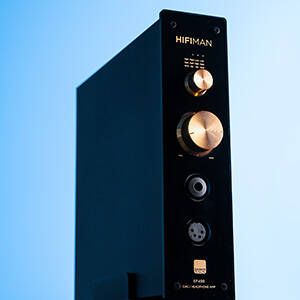
The EF499's vertical design allows it to serve as a convenient headphone stand.
Maintenance
To ensure the longevity and optimal performance of your HIFIMAN EF499, follow these maintenance guidelines:
- Keep the unit clean by wiping it with a soft, dry cloth. Avoid using abrasive cleaners or solvents.
- Ensure proper ventilation around the unit. Do not block the ventilation openings.
- Avoid exposing the unit to excessive moisture, dust, or extreme temperatures.
- When not in use for extended periods, disconnect the power cable.
- Handle all cables and connectors with care to prevent damage.
Troubleshooting
If you encounter issues with your HIFIMAN EF499, refer to the following common troubleshooting steps:
| Problem | Possible Cause | Solution |
|---|---|---|
| No power/Unit not turning on. | Power cable not properly connected; Power switch off; Power outlet issue. | Ensure power cable is securely connected. Check if the power switch on the rear panel is in the 'ON' position. Test the power outlet with another device. |
| No sound from headphones/speakers. | Incorrect input selected; Volume too low; Cables not connected properly; Device not selected in streaming app. | Verify the correct input is selected using the Coaxial/NET+USB switch. Increase the volume. Check all audio cables for secure connections. Ensure "HIFIMAN EF499" is selected as the output device in your streaming application. |
| Streaming issues (e.g., device not found). | Network connection problem; App settings. | Ensure the EF499 is properly connected to your router via Ethernet. Restart your router and the EF499. Check your streaming app's settings for device visibility or connection options. |
| Volume knob does not control XLR output. | This is expected behavior for some units. | Adjust the volume directly on your connected external monitors or amplifier. |
| Compatibility with Linux. | Driver recognition. | The EF499 has been reported to work with Linux kernels without additional drivers. Ensure your Linux distribution is up-to-date. |
If the problem persists, please contact HIFIMAN customer support for further assistance.
Specifications
- Model: EF499
- Type: Desktop Balanced Headphone DAC & Amplifier
- DAC Architecture: R2R
- Balanced Output Power: 4.35 W
- Power Input: 110V
- Package Dimensions: 12.32 x 11.85 x 6.46 inches
- Item Weight: 7.26 pounds
- Manufacturer: HiFiMAN
- Date First Available: April 19, 2024
Warranty and Support
For warranty information and technical support, please refer to the official HIFIMAN website or contact their customer service directly. Keep your proof of purchase for warranty claims.
You can find more information and contact details by visiting the HIFIMAN Store on Amazon or their official company website.

Product label with manufacturer information and model number.


