
BOXPUT Q96
BOXPUT Q96 Android TV Stick User Manual
Model: Q96
Introduction
This manual provides comprehensive instructions for setting up, operating, and maintaining your BOXPUT Q96 Android TV Stick. The Q96 is a compact streaming device designed to transform your television into a smart TV, offering access to a wide range of applications and media content in up to 4K resolution.

Image: The BOXPUT Q96 Android TV Stick, a compact device for streaming media.
What's in the Box
Please verify that all items are present in your package:
- 1x Q96 TV Stick
- 1x IR Remote Control
- 1x IR Receiver
- 1x USB Charging Cable
- 1x HD Extension Cable
- 1x User Manual (this document)
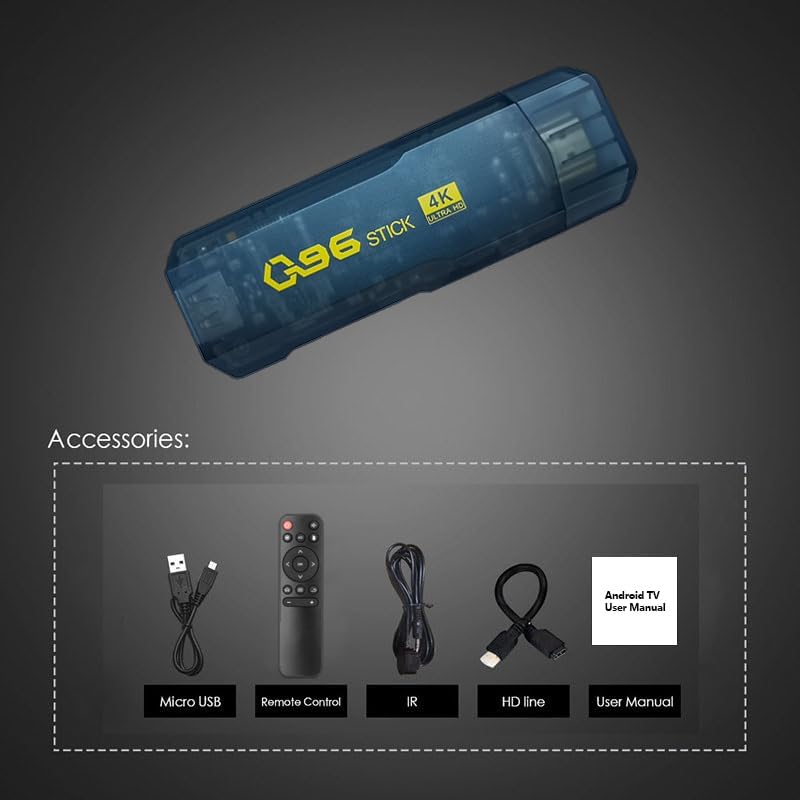
Image: All components included in the BOXPUT Q96 package: the TV stick, remote control, IR receiver, USB cable, HD extension cable, and user manual.
Product Overview
The BOXPUT Q96 TV Stick is powered by Android 10.0, offering a stable and responsive user experience. Its compact design allows for discreet placement behind your television.
Key Features:
- Operating System: Android 10.0
- Processor: Quad-core Allwinner H313 CPU
- Video Output: Supports 4K Ultra HD (4K*2K UHD) and 3D video playback
- Decoding: H.265 up to 4K@60fps and VP9 decoding technology
- Memory: 1GB RAM, 8GB ROM
- Connectivity: 2.4G Wi-Fi, HDMI, IR
- Supported Services: Google TV, Netflix, Prime Video, Skype, Vudu, YouTube, and more.
- Special Features: Wireless mouse/keyboard compatibility, DLNA/Mirocast Function.

Image: Overview of the BOXPUT Q96 TV Stick highlighting its key features including H.265, Android 10, 2.4G WiFi, 4K Ultra HD, and Allwinner H313 processor.
Device Ports and Interfaces:

Image: Diagram illustrating the various ports on the BOXPUT Q96 TV Stick, including USB, HD (HDMI), IR Cable port, Android interface, and SD card slot.
Setup Guide
Connect the TV Stick: Insert the BOXPUT Q96 TV Stick directly into an available HDMI port on your television. If space is limited, use the provided HD Extension Cable.

Image: The BOXPUT Q96 TV Stick being connected to an HDMI port on the back of a television.
Connect the IR Receiver: Plug the IR Receiver cable into the designated IR port on the TV Stick. Position the IR receiver in a location where it has a clear line of sight to your remote control.
Power the Device: Connect the Micro USB Charging Cable to the TV Stick's power input and then to a USB power source (e.g., a TV USB port or a USB power adapter, not included). The device will power on automatically.
Select HDMI Input: Use your TV's remote control to select the correct HDMI input source to which the Q96 TV Stick is connected.
Initial Setup: Follow the on-screen instructions to complete the initial setup, including language selection, Wi-Fi network connection, and Google account login.
Operating Instructions
Navigating the Interface:
The BOXPUT Q96 runs on Android 10.0, providing a user-friendly interface. Use the included IR Remote Control to navigate through menus, select applications, and control playback.

Image: The main home screen of the Android TV Stick interface, displaying various application icons.
Installing Applications:
Access the Google Play Store from the home screen to download and install your favorite streaming apps, games, and utilities. The 8GB ROM provides ample space for essential applications.

Image: A selection of popular applications supported by the BOXPUT Q96, including YouTube, Netflix, Google Play, Hulu, and Skype.
4K and 3D Playback:
The Q96 supports 4K Ultra HD and 3D video output. Ensure your television and content are 4K/3D compatible for the best viewing experience. The device utilizes H.265 and VP9 decoding for clear image processing.
Wi-Fi Connectivity:
The device features built-in 2.4G Wi-Fi for internet access. Connect to your home network during the initial setup or via the settings menu. A stable Wi-Fi connection is crucial for smooth streaming.
Maintenance
- Cleaning: Use a soft, dry cloth to clean the device. Avoid liquid cleaners or abrasive materials.
- Ventilation: Ensure the TV Stick is not covered or placed in an enclosed space to allow for proper ventilation and prevent overheating.
- Software Updates: Periodically check for system updates in the settings menu to ensure optimal performance and access to the latest features.
- Storage: When not in use for extended periods, disconnect the device from power and store it in a cool, dry place.
Troubleshooting
| Problem | Possible Cause | Solution |
|---|---|---|
| No Power/Device Not Turning On | Power cable not connected properly; insufficient power supply. | Ensure the Micro USB cable is securely connected. Use a reliable USB power adapter (5V/2A recommended, not included). Try a different USB port or power adapter. |
| No Signal on TV Screen | Incorrect HDMI input selected; loose HDMI connection. | Verify your TV is set to the correct HDMI input. Re-seat the TV Stick in the HDMI port or try a different HDMI port. Ensure the HD Extension Cable (if used) is securely connected. |
| Remote Control Not Responding | IR receiver blocked; low battery in remote; remote not paired. | Ensure the IR receiver has a clear line of sight to the remote. Replace remote batteries. If it's a new remote or after battery change, follow pairing instructions (refer to remote's specific manual if provided separately). |
| Slow Performance/App Freezing | Too many apps running; low storage; poor Wi-Fi signal. | Close unused applications. Clear cache for problematic apps (Settings > Apps). Uninstall unnecessary apps to free up storage. Ensure a strong Wi-Fi signal. Restart the device. |
| Wi-Fi Connection Issues | Incorrect password; router issues; device too far from router. | Double-check Wi-Fi password. Restart your Wi-Fi router. Move the TV Stick closer to the router or consider a Wi-Fi extender. |
Specifications
| Feature | Detail |
|---|---|
| Brand | BOXPUT |
| Model Name | Q96 |
| Operating System | Android 10.0 |
| Processor | Quad-core Allwinner H313 CPU (Cortex™-A53) |
| GPU | G31 (0 OpenGL ES3.2/2.0/1.0, Vulkan 1.1, OpenCL 2.0) |
| Video Decoding | H.265 decoder up to 4K@60fps, VP9 |
| Display Output | HDMI 2.1 up to 4K@60fps |
| Memory (RAM) | 1GB LPDDR3 |
| Storage (ROM) | 8GB EMMC |
| Connectivity | Wi-Fi (2.4G), HDMI, IR |
| Supported Internet Services | Google TV, Netflix, Prime Video, Skype, Vudu, YouTube |
| Special Features | Android 10.0, 4K support, Quad-core processor, Wireless mouse/keyboard compatibility, DLNA/Mirocast Function |
| Product Dimensions | 5.66 x 4.1 x 1.83 inches |
| Item Weight | 7.4 ounces |
Warranty and Support
For warranty information and technical support, please refer to the official BOXPUT website or contact their customer service directly. Details may be provided on the product packaging or a separate warranty card.
You can visit the BOXPUT store on Amazon for additional product information and support: BOXPUT Amazon Store
Ask a question about this manual
Ask about setup, troubleshooting, compatibility, parts, safety, or missing instructions. Manuals+ will review the question and use this page’s manual context to help answer it.