
DIATONE Mamba MK4 F722
Contents
Diatone Mamba MK4 F722 Flight Controller User Manual
Model: Mamba MK4 F722
1. Introduction
The Diatone Mamba MK4 F722 APP Flight Controller is an advanced control unit designed for remote-controlled vehicles, particularly FPV drones. It integrates a powerful STM32F722 MCU, operating at 216MHz, ensuring high-speed processing and responsive control. This flight controller offers versatile compatibility with various receiver types and includes essential safety features for reliable operation.
Key features include:
- Advanced MCU Technology: Powered by an STM32F722 MCU operating at 216MHz for optimal performance.
- Versatile Compatibility: Supports TBS, SBUS, IBUS, and DSM receivers, along with I2C and F.Port.
- Enhanced Safety Features: Built-in BEC, receiver, and TVS protection.
- Convenient WiFi Configuration: Wireless setup and customization via the SpeedyBee App.
2. Product Overview
Familiarize yourself with the physical components of the Diatone Mamba MK4 F722 Flight Controller.
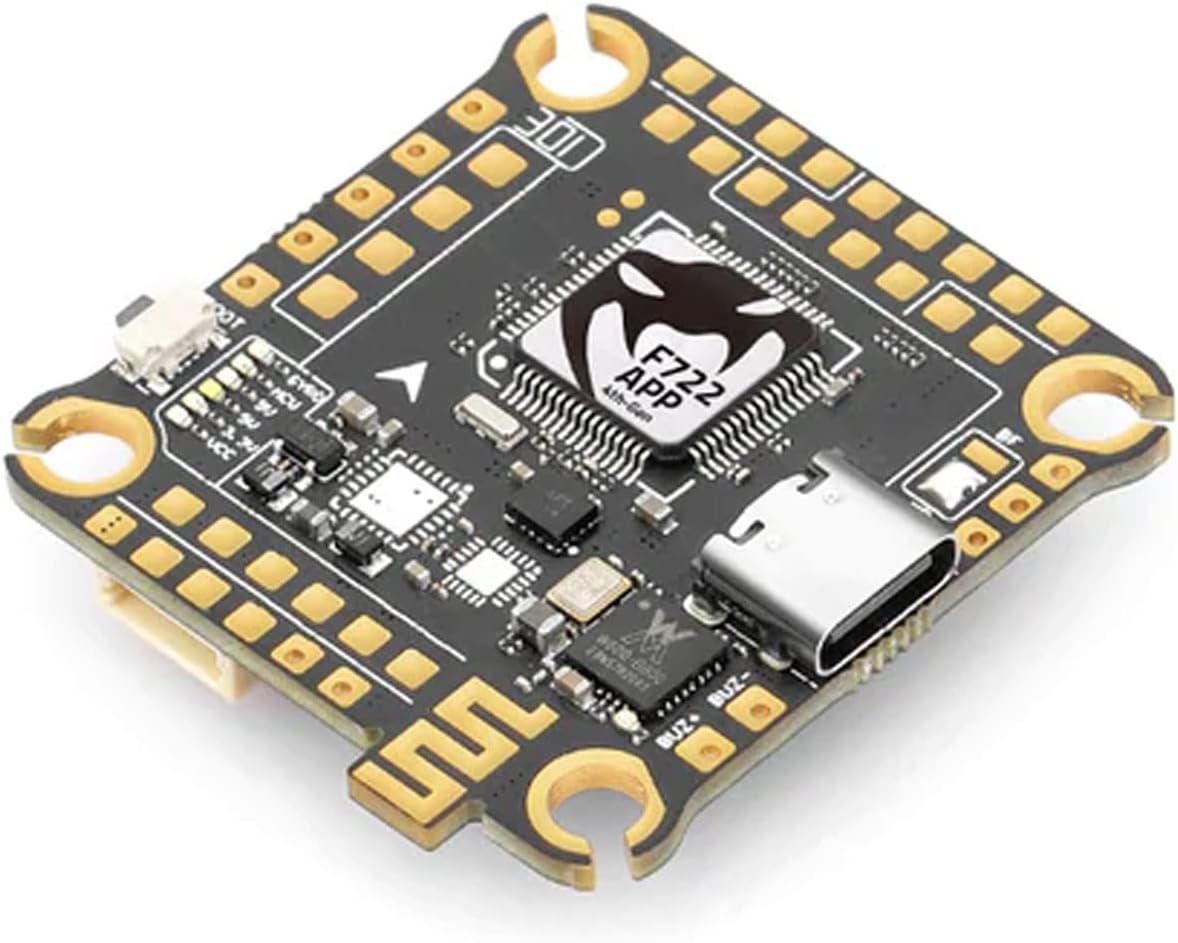
Figure 2.1: Top view of the Diatone Mamba MK4 F722 Flight Controller, showing the main F722 APP chip, USB-C port, and various solder pads for connections.
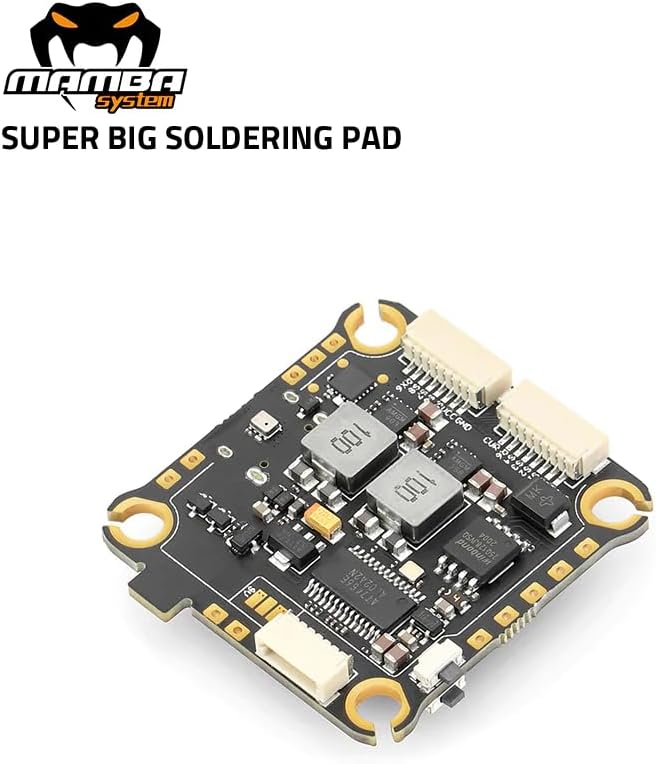
Figure 2.2: Bottom view of the Diatone Mamba MK4 F722 Flight Controller, highlighting the large soldering pads for easy connection of ESCs and other components.
3. Specifications
Detailed technical specifications for the Diatone Mamba MK4 F722 APP Flight Controller:
| Component | Specification |
|---|---|
| MCU | STM32F722 |
| Frequency | 216MHz |
| Gyro | BMI270/ICM42688P |
| OSD | AT7456E |
| Blackbox | Supported (16M Memory) |
| Barometer | SPL06 |
| UARTs | 6 Sets |
| Receiver Support | TBS/SBUS/IBUS/DSM |
| I2C Support | Yes |
| F.Port Support | Yes |
| Buzzer Support | Yes |
| Current Sensor | Yes |
| ESC Signal Outputs | 8 |
| BEC 3.3V Output | 0.5A |
| BEC 5V Output | 3A |
| BEC 9V Output | 3A |
| MB LED | Yes |
| BF LED | Yes |
| Air Unit Port | Yes |
| WiFi Configuration | SpeedyBee App |
| VTX Switch | Yes |
| BEC Protection | Yes |
| Receiver Protection | Yes |
| TVS Protection | Yes |
| Flash Target | MAMBA F722_2022A |
| Max Voltage | 6S LiPo |
| Software | Betaflight |
| Mounting | 30.5 x 30.5mm |
| Size | 38x40.5x8mm |
| Weight | 10g |
4. Setup
4.1. Mounting
The Diatone Mamba MK4 F722 Flight Controller features a standard 30.5 x 30.5mm mounting pattern. Ensure proper isolation from vibrations using appropriate standoffs and grommets when installing it into your drone frame.
4.2. Wiring Diagram
Refer to the following diagram for correct wiring connections to your Electronic Speed Controllers (ESCs), receiver, VTX, camera, GPS, and other peripherals. Pay close attention to power and signal lines.

Figure 4.1: Comprehensive wiring diagram for the Diatone Mamba MK4 F722 Flight Controller, illustrating connections for ESCs, receiver, VTX, camera, and other accessories. Note the VTX power control instructions at the bottom.
Important: Please check the voltage before wiring! (Default is 9V for VTX power). VTX power switch channel USER1 is controlled by default. Configure the power on or off after setting the channel in Betaflight.
4.3. Software Configuration (Betaflight & SpeedyBee App)
The flight controller runs on Betaflight firmware. You can configure it using the Betaflight Configurator software on a computer or wirelessly via the SpeedyBee App.
- Betaflight Configurator: Connect the flight controller to your computer via the USB-C port. Download and install the latest Betaflight Configurator from the official Betaflight website. Ensure you flash the correct target: MAMBA F722_2022A.
- SpeedyBee App: For convenient wireless configuration, download the SpeedyBee App on your smartphone or tablet. The flight controller supports WiFi configuration, allowing you to adjust settings without a physical USB connection.
5. Operating the Flight Controller
Once the flight controller is correctly wired and configured, it acts as the central processing unit for your drone. It interprets commands from your radio receiver, processes sensor data (gyro, accelerometer, barometer), and sends signals to the ESCs to control motor speed.
- Pre-Flight Checks: Always perform thorough pre-flight checks, including propeller direction, motor spin direction, control surface response, and battery voltage.
- Arming/Disarming: Configure an arming switch on your radio transmitter in Betaflight. Ensure the drone is on a stable, level surface before arming.
- Flight Modes: Utilize Betaflight to set up various flight modes (e.g., Angle, Acro, Horizon) to suit your flying style and skill level.
- OSD (On-Screen Display): The integrated OSD allows you to view critical flight data (voltage, current, flight mode, RSSI) directly on your FPV video feed.
6. Maintenance
Proper maintenance ensures the longevity and reliable performance of your flight controller.
- Regular Inspection: Periodically inspect the flight controller for any visible damage, loose connections, or signs of corrosion.
- Cleaning: Keep the board clean from dust, dirt, and debris. Use a soft brush or compressed air. Avoid using liquids directly on the board.
- Firmware Updates: Regularly check for new Betaflight firmware releases. Updating firmware can provide performance improvements, bug fixes, and new features. Always back up your configuration before updating.
- Environmental Protection: If operating in humid or dusty environments, consider conformal coating the flight controller for added protection.
7. Troubleshooting
This section provides solutions to common issues you might encounter.
- No Power/No Lights:
- Check all power connections from the battery to the ESCs and from the ESCs to the flight controller.
- Verify battery voltage is within the supported range (up to 6S LiPo).
- Inspect for any short circuits on the board or connected components.
- No Connection to Betaflight Configurator:
- Ensure correct USB drivers are installed (Zadig for DFU mode, STM32 Virtual COM Port Driver).
- Try a different USB cable and USB port on your computer.
- Check if the flight controller is in DFU mode (bootloader mode) if attempting to flash firmware.
- Motors Not Spinning/Incorrectly Spinning:
- Verify ESC calibration in Betaflight.
- Check motor direction and propeller orientation.
- Ensure ESC signal wires are correctly connected to the flight controller.
- Confirm that the flight controller is armed.
- No FPV Video/OSD Issues:
- Check VTX and camera connections to the flight controller.
- Verify VTX power supply.
- Ensure OSD is enabled and configured correctly in Betaflight.
8. Warranty and Support
8.1. Warranty Information
For specific warranty terms and conditions, please refer to the documentation provided with your purchase or contact the manufacturer, DIATONE, directly. Warranty coverage typically applies to manufacturing defects and does not cover damage caused by improper installation, misuse, or accidents.
8.2. Technical Support
If you encounter issues not covered in this manual or require further assistance, please contact your retailer or the official DIATONE support channels. Provide your product model (Mamba MK4 F722) and a detailed description of the problem to facilitate quicker resolution.
Additional resources may be available on the DIATONE official website or community forums dedicated to FPV flight controllers and Betaflight.
Documents and downloads
Ask a question about this manual
Ask about setup, troubleshooting, compatibility, parts, safety, or missing instructions. Manuals+ will review the question and use this page’s manual context to help answer it.