
1. Introduction
The Eureka E10s Robot Vacuum and Mop Combo is designed to provide efficient and comprehensive floor cleaning. Featuring a bagless self-emptying station, powerful suction, LiDAR navigation, and integrated mopping capabilities, this device offers automated cleaning for various floor types. This manual provides detailed instructions for setup, operation, maintenance, and troubleshooting to ensure optimal performance of your E10s robot vacuum.
2. Product Components
Before beginning, ensure all components are present in the packaging:
- Eureka E10s Robot Vacuum
- Bagless Self-Emptying Station
- Power Cord
- Main Brush
- Side Brushes (multiple pairs)
- HEPA Filters (multiple)
- Mop Pads (multiple)
- Cleaning Tool
- User Manual (this document)

Figure 2.1: Overview of the Eureka E10s Robot Vacuum, its self-emptying station, and a representation of the mobile application interface. The image displays the robot vacuum in white, the white and purple self-emptying station, and a smartphone screen showing a floor plan map.

Figure 2.2: Included replacement parts and accessories for the Eureka E10s. This includes multiple side brushes, a main roller brush, several HEPA filters, and multiple mop pads, essential for ongoing maintenance.
3. Setup Guide
3.1 Unpacking and Placement
- Carefully remove all components from the packaging.
- Remove all protective films and packing materials from the robot and the self-emptying station.
- Place the self-emptying station on a hard, level surface against a wall, ensuring there is at least 0.5 meters (1.6 feet) of clear space on both sides and 1.5 meters (4.9 feet) in front of the station. Avoid placing it near stairs or obstacles.
- Connect the power cord to the self-emptying station and plug it into a power outlet.
3.2 Initial Charging
Place the robot vacuum onto the charging contacts of the self-emptying station. Ensure the charging indicators illuminate. For first-time use, fully charge the robot, which may take several hours.
3.3 App Connection
- Download the "Eureka Robot" app from your mobile device's app store (iOS or Android).
- Open the app and create an account or log in.
- Follow the in-app instructions to add your Eureka E10s device. This typically involves connecting to the robot's Wi-Fi hotspot temporarily and then connecting the robot to your home Wi-Fi network.
- Once connected, you can access advanced features, mapping, and scheduling.

Figure 3.1: Illustration of the Eureka E10s's full control capabilities via the mobile app, including multi-level mapping, cleaning schedules, and integration with voice assistants like Alexa and Google Assistant. The image shows floor plans, a schedule, and a user interacting with a smart speaker.
4. Operating Instructions
4.1 Cleaning Modes
The Eureka E10s offers various cleaning modes accessible via the mobile app or the robot's physical buttons:
- Auto Clean: The robot intelligently navigates and cleans the entire accessible area.
- Spot Clean: Cleans a specific concentrated area. Place the robot in the center of the desired area and activate.
- Zone Clean: In the app, define specific zones on the map for the robot to clean.
- Scheduled Clean: Set specific times for the robot to automatically begin cleaning.

Figure 4.1: Depiction of the Eureka E10s's dual vacuum and mop functionality. The image illustrates the robot's internal components for both vacuuming dust and mopping surfaces, highlighting its versatility in cleaning various types of messes.
4.2 LiDAR Navigation and Mapping
The E10s uses advanced LiDAR navigation to create accurate maps of your home. This allows for efficient cleaning paths, obstacle avoidance, and the ability to set virtual boundaries (no-go zones) and specific cleaning areas within the app.
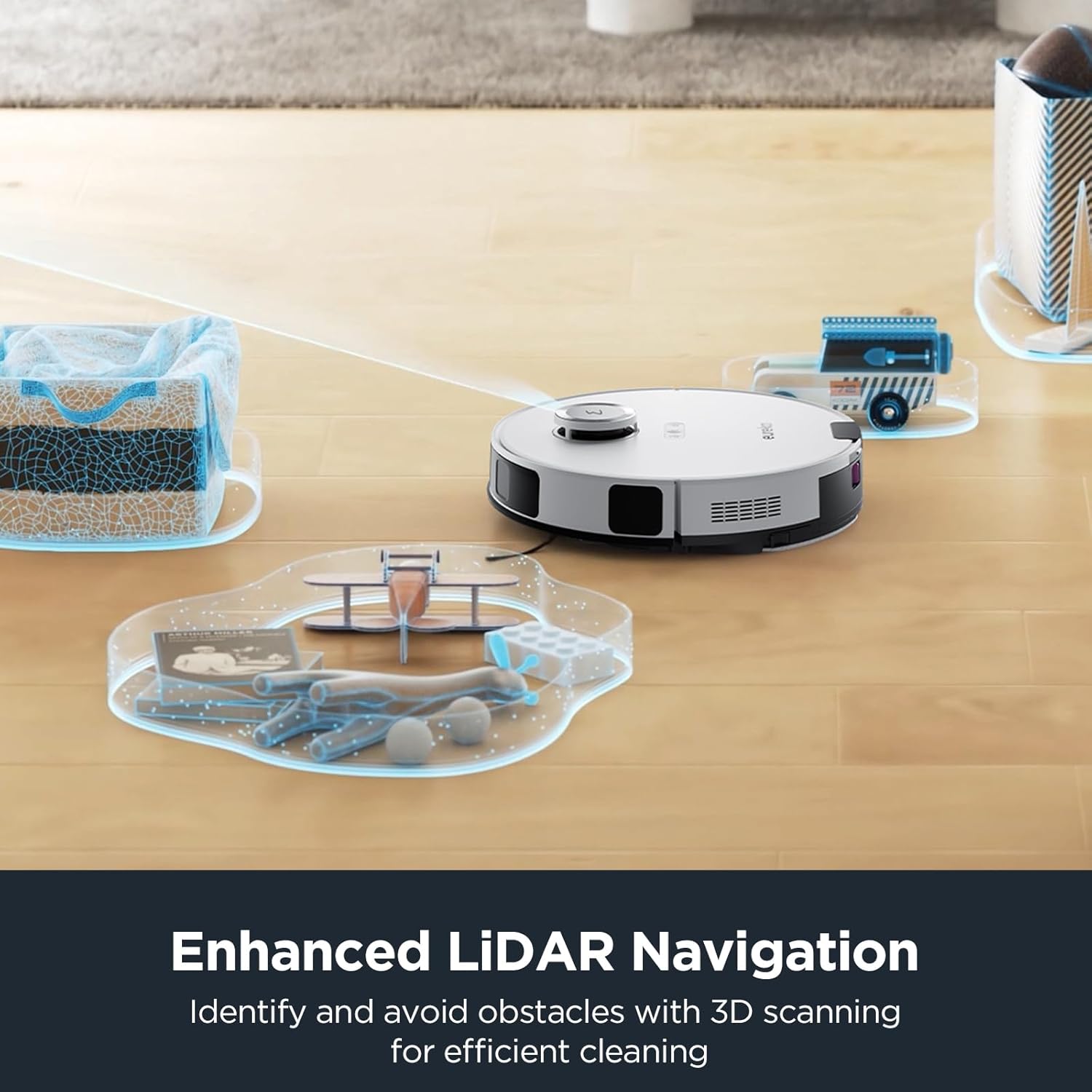
Figure 4.2: Visual representation of the Eureka E10s's enhanced LiDAR navigation system. The robot is shown navigating a room, with blue outlines indicating its ability to identify and avoid obstacles through 3D scanning, ensuring efficient and safe cleaning.
4.3 Auto-Recharge and Resume
When the battery level is low, the robot will automatically return to the self-emptying station to recharge. Once fully charged, it will resume cleaning from where it left off, ensuring complete coverage of large areas.

Figure 4.3: Diagram illustrating the Eureka E10s's auto-recharge function and extended runtime. The robot is shown returning to its charging station, with a path indicating its ability to clean for up to 180 minutes and automatically return to charge before resuming cleaning.
5. Maintenance
Regular maintenance is crucial for the optimal performance and longevity of your Eureka E10s robot vacuum. Perform these tasks as recommended:
5.1 Self-Emptying Station Maintenance
The bagless self-emptying station collects dust for up to 45 days. Periodically check the dustbin level and empty it as needed. Clean the filter within the station to maintain suction efficiency.

Figure 5.1: Visual demonstrating the 45-day self-emptying capability of the Eureka E10s. The image shows the robot vacuum next to its self-emptying station, with an arrow indicating dust transfer and a large "45 Days" text, signifying the extended period before manual emptying is required.

Figure 5.2: Comparison highlighting the bagless design of the Eureka E10s self-emptying station against a traditional bagged station. The image emphasizes the cost savings and environmental benefits of not requiring disposable dust bags.
5.2 Robot Vacuum Component Cleaning
- Dustbin: Empty the robot's internal dustbin after each cleaning cycle, or as needed.
- Filters: Tap out or brush clean the HEPA filter regularly. Replace every 3-6 months depending on usage.
- Main Brush: Remove hair and debris tangled around the main brush using the provided cleaning tool. Check weekly.
- Side Brushes: Remove any tangled hair or debris. Replace if bristles are worn or damaged.
- Mop Pads: Remove and wash mop pads after each mopping session. Replace when worn.
- Sensors and Charging Contacts: Wipe all sensors (LiDAR, cliff, wall) and charging contacts on both the robot and station with a clean, dry cloth to ensure proper function.

Figure 5.3: Close-up view of the Eureka E10s's high-efficiency filtration system, showcasing the multi-cyclone technology. This system is designed to capture dust particles as small as 0.3 micrometers, extending the lifespan of the filter cartridge and maintaining air quality.
6. Troubleshooting
If you encounter issues with your Eureka E10s, refer to the following common problems and solutions:
| Problem | Possible Cause | Solution |
|---|---|---|
| Robot does not turn on. | Low battery; Power switch off. | Place robot on charging station; Ensure power switch is on. |
| Robot cannot find charging station. | Station obstructed; Station not powered. | Clear obstacles around station; Ensure station is plugged in. |
| Poor cleaning performance. | Full dustbin; Clogged filter; Tangled brushes. | Empty dustbin; Clean/replace filter; Clean main/side brushes. |
| Robot gets stuck frequently. | Too many obstacles; Dirty sensors. | Clear floor area; Clean all sensors. |
| App connection issues. | Incorrect Wi-Fi password; Router issues. | Verify Wi-Fi password; Restart router and robot; Re-pair device. |
For issues not listed here, please refer to the support section or contact customer service.
7. Specifications
| Feature | Detail |
|---|---|
| Model | E10s |
| Brand | Eureka |
| Suction Power | 4000Pa |
| Self-Emptying Capacity | Up to 45 days |
| Navigation Type | LiDAR |
| Functions | Vacuum, Mop, Self-Empty |
| Battery Voltage | 14.4 Volts |
| Filter Type | Cartridge (High Efficiency Filtration) |
| Color | White |
| First Available Date | March 28, 2024 |
8. Warranty and Support
The Eureka E10s Robot Vacuum and Mop Combo comes with a manufacturer's warranty. Please refer to the warranty card included in your product packaging for specific terms and conditions, including warranty period and coverage details. For technical support, troubleshooting assistance, or to inquire about replacement parts, please visit the official Eureka website or contact their customer service department. Contact information can typically be found on the product packaging or the Eureka brand's official online presence.
For further assistance, you may also refer to the Eureka Store on Amazon.