Introduction
The Eureka J12 Ultra is an advanced robot vacuum and mop designed for comprehensive home cleaning. It features an all-in-one automatic station for emptying dust, washing mop pads, and hot air drying, significantly reducing manual intervention. Equipped with powerful 5000Pa suction, 3D DuoDetect AI obstacle avoidance, and precise LDS LiDAR navigation, the J12 Ultra ensures efficient and thorough cleaning across various floor types, including hard floors, parquet, tile, and carpets. Its long-lasting 5200mAh battery provides up to 150 minutes of continuous cleaning, covering areas up to 300m². Control and customization are easily managed through a user-friendly mobile application.
Safety Information
Before operating the Eureka J12 Ultra, please read and understand all safety instructions to prevent injury or damage. Keep the robot and its charging station away from water and moisture. Do not use the robot in areas with open flames or flammable materials. Ensure all cables, curtains, and small objects are cleared from the cleaning path to prevent entanglement. Supervise children and pets when the robot is in operation. Only use the original power adapter and charging station provided with the device. Do not attempt to repair or modify the robot yourself; contact qualified service personnel for assistance.
Setup
- Unpacking: Carefully remove all components from the packaging. Ensure all parts are present according to the packing list.
- Base Station Placement: Place the all-in-one base station on a hard, level surface against a wall, ensuring there is at least 0.5 meters of clear space on both sides and 1.5 meters in front. Ensure it is within range of a 2.4GHz Wi-Fi network for optimal app connectivity.
- Filling Water Tanks: Fill the clean water tank with clean tap water. You may add a compatible cleaning solution if desired. Ensure the dirty water tank is empty before starting.
- Initial Charging: Place the robot onto the base station. The robot will automatically align and begin charging. Allow for a full charge before first use (approximately 6 hours).
- App Download and Connection: Download the Eureka companion app from your smartphone's app store. Follow the in-app instructions to connect your J12 Ultra to your home's 2.4GHz Wi-Fi network. This enables remote control, scheduling, and advanced features.
- Initial Mapping: Once connected, initiate an initial mapping run through the app. The robot will navigate your home to create a detailed map, which is essential for efficient cleaning and zone management.
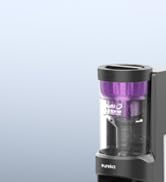
The Eureka J12 Ultra's Auto-Dock™ base station manages automatic mop washing, dust emptying, and hot air drying, simplifying post-cleaning tasks.
Operating Instructions
The Eureka J12 Ultra offers versatile cleaning modes and smart navigation for optimal performance.
Cleaning Modes
- Vacuum & Mop Simultaneously: The robot vacuums and mops in a single pass for combined cleaning.
- Vacuum Only: Ideal for carpets or when only dry debris removal is needed. The robot will avoid mopping carpets using ultrasonic detection.
- Mop Only: Focuses solely on wet cleaning hard floors. The robot will avoid carpets in this mode.
- Vacuum then Mop: The robot first completes a full vacuuming cycle, then proceeds with a separate mopping cycle.
Smart Navigation and Obstacle Avoidance
The J12 Ultra utilizes advanced LDS LiDAR for precise mapping and navigation, creating optimized cleaning paths. Its 3D DuoDetect AI technology intelligently identifies and avoids obstacles, even in low-light conditions or around pets, ensuring a smooth cleaning process.
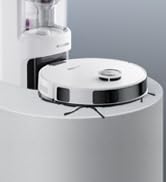
The 3D DuoDetect AI™ obstacle detection system allows the J12 Ultra to navigate complex environments and avoid furniture or other objects.

Efficient and precise LiDAR navigation enables the J12 Ultra to quickly map your home and plan effective cleaning routes.
App Control
The Eureka app provides full control over your robot vacuum. You can:
- Monitor the robot's cleaning path in real-time.
- Schedule cleaning times and frequencies.
- Adjust suction levels and water flow for mopping.
- Define no-go zones and virtual walls to restrict access to certain areas.
- Select specific rooms or zones for cleaning.

The user-friendly application allows for personalized cleaning experiences, including map management and setting specific cleaning parameters.
Maintenance
Regular maintenance ensures the longevity and optimal performance of your Eureka J12 Ultra.
Base Station Maintenance
- Dust Bag: The base station automatically empties the robot's dustbin into a sealed dust bag, which can last up to 75 days. Replace the dust bag when indicated by the app or indicator light.
- Water Tanks: Regularly empty the dirty water tank and refill the clean water tank. Clean both tanks periodically to prevent mold or odor buildup.
- Mop Washing Tray: Clean the mop washing tray within the base station to remove any residue or debris.
- Hot Air Drying: The 55°C hot air drying function helps keep mop pads fresh and ready for use. Ensure the base station area is well-ventilated.
Robot Maintenance
- Main Brush: Remove and clean the main brush regularly, especially if hair or debris is tangled around it. Use the cleaning tool provided.
- Side Brushes: Check side brushes for wear and tear. Replace if damaged. Clean any tangled hair.
- Dustbin and Filter: Although the base station auto-empties, manually clean the robot's internal dustbin and cartridge filter periodically to ensure maximum suction. Tap out dust and rinse the filter if it's washable (check manual for specific filter type). Allow to air dry completely before reinserting.
- Sensors: Wipe all sensors (cliff sensors, wall sensors, charging contacts) with a clean, dry cloth to ensure proper function.
- Mop Pads: The base station washes the mop pads, but it is recommended to occasionally remove and hand-wash or machine-wash them for deeper cleaning.
Troubleshooting
If you encounter issues with your Eureka J12 Ultra, refer to the following common solutions:
- Robot Not Charging: Ensure the robot is correctly docked on the base station and the charging contacts on both the robot and base station are clean. Verify the base station is powered on.
- Robot Stuck or Entangled: Clear the cleaning area of loose cables, small toys, and thick rugs that might obstruct the robot. If stuck, manually move the robot and restart.
- Poor Suction Performance: Check if the dustbin is full or the dust bag in the base station needs replacement. Clean the main brush, side brushes, and filter. Ensure there are no blockages in the suction inlet.
- Poor Mopping Performance: Ensure the clean water tank is filled and the mop pads are properly attached and clean. Check water flow settings in the app.
- Connectivity Issues (App): Confirm your Wi-Fi network is 2.4GHz. Restart your router, the robot, and your smartphone. Re-attempt the connection process in the app.
- Navigation Errors: Clean all sensors on the robot. Ensure there are no new obstacles or changes in the environment that might confuse the robot's mapping.
- Unusual Noises: Check for any foreign objects caught in the main brush, side brushes, or wheels. Clean these components thoroughly.
For persistent issues not resolved by these steps, please consult the Eureka app for further diagnostics or contact customer support.
Specifications
| Brand | Eureka |
| Model Number | J12 Ultra-EU-VD |
| Color | Black |
| Robot Dimensions (L x W x H) | 35 x 35 x 10.75 cm |
| Item Weight | 16.5 Kilograms |
| Capacity (Water/Dust) | 3 Liters (Base Station) |
| Voltage | 14.4 Volts (DC) |
| Number of Speeds | 4 |
| Noise Level | 56 Decibels |
| Runtime | 150 minutes (2 hours 30 minutes) |
| Battery Type | 1 Lithium-ion (included) |
| Compatibility | Amazon Echo, Google Home, Smartphones (2.4GHz Wi-Fi only) |
| Special Features | Auto-emptying, LiDAR Navigation, Automatic mop cleaning, Obstacle prevention, Obstacle avoidance |
| Surface Recommendation | Hard floors, parquet, tile, carpet, composite floor |
| Controller Type | App control, Button control |
| Filter Type | Cartridge |
| Spare Parts Availability | Information unavailable |
Warranty and Support
For warranty information, please refer to the documentation included with your purchase or visit the official Eureka website. If you require technical support, have questions about operation, or need assistance with troubleshooting, please contact Eureka customer service. Please note that according to product specifications, information regarding the availability of spare parts is currently unavailable. It is recommended to retain your proof of purchase for warranty claims.