
1. Introduction
This manual provides comprehensive instructions for the installation, operation, and maintenance of your ZTUZAUTO Wireless Carplay Android Auto Adapter. This retrofit kit is designed to integrate wireless Apple CarPlay and Android Auto functionalities into compatible Mercedes Benz NTG4.0 systems. It supports various Mercedes Benz models including GLK (2008-2011), W207 E COUPE (2009-2010), W212 E CLASS (2009-2010), W204 C CLASS (2007-2010), SLS (2011-2014), and W218 CLS CLASS (2010-2012). The system operates as a plug-and-play solution, preserving your original car screen and wiring.
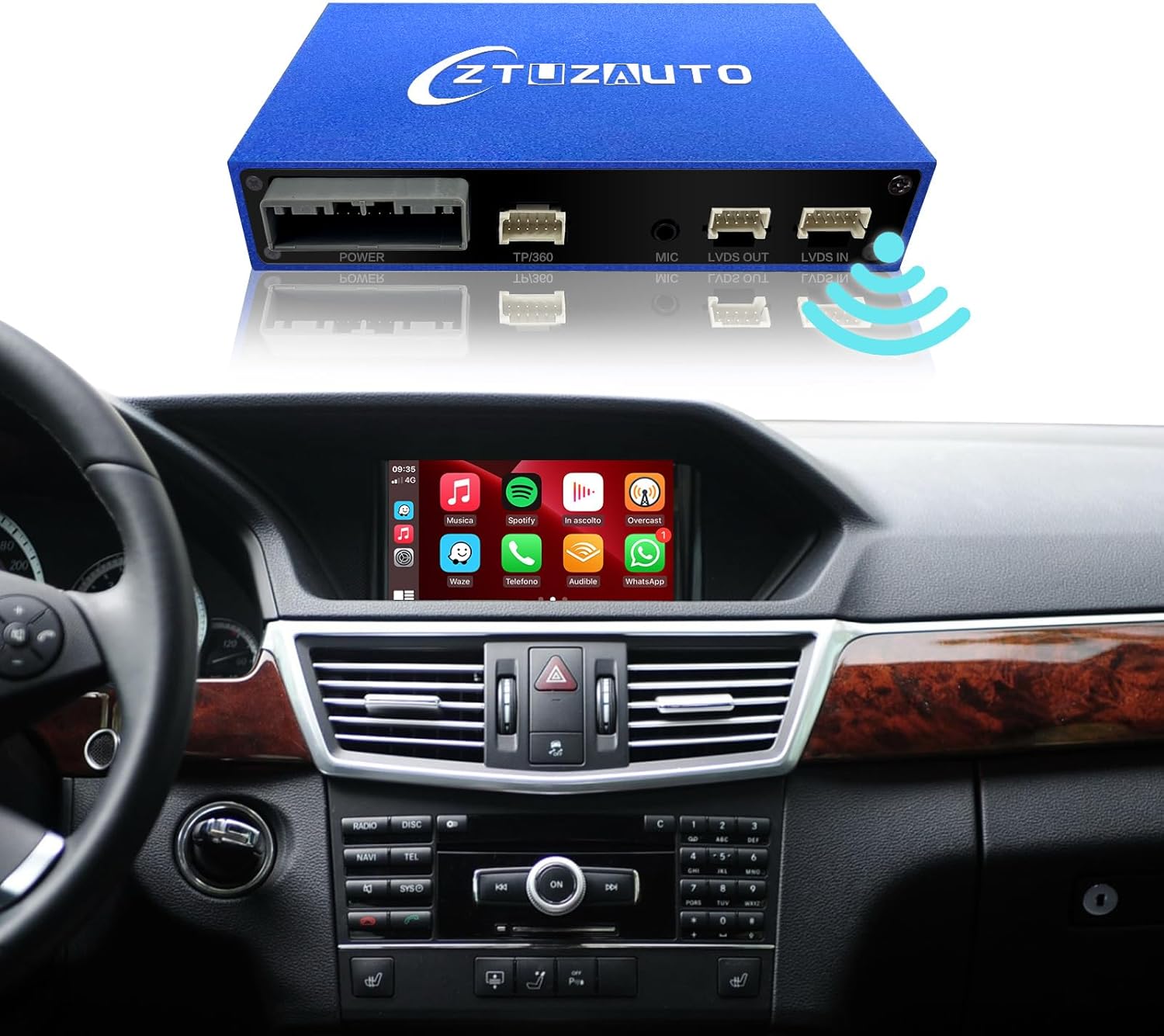
The ZTUZAUTO Wireless Carplay Android Auto Adapter installed in a Mercedes Benz dashboard, displaying the Carplay interface.
2. Package Contents
Verify that all items are present in your package:
- CarPlay Decoder Box
- Power Cable Harness
- AMI Audio Cable
- LVDS Cable
- WiFi Antenna
- USB-AV Cable
Video demonstrating the unboxing and package contents of a similar Wireless Carplay Retrofit Kit for Mercedes Benz NTG4.5. Note: This video is for a NTG4.5 system, but the components and general unboxing process are similar.
3. Setup and Installation
Safety Precaution: Before beginning installation, ensure the vehicle's main battery ground line is disconnected to prevent electrical damage.
3.1 Dashboard and Head Unit Removal
Carefully remove the dashboard trim and the original head unit. Use appropriate tools to avoid damaging interior components. Refer to the video below for a detailed guide on removing the dashboard and head unit for Mercedes Benz vehicles.
Video demonstrating the installation process of a Mercedes Wireless Carplay system, including dashboard and head unit removal.
3.2 Cable Connections
Connect the provided cables to the original head unit and the Carplay decoder box. Ensure all connections are secure. The installation is designed to be plug-and-play without cutting or breaking original wires.
- Disconnect the original LVDS cable from the head unit and connect it to the provided LVDS cable.
- Connect the new LVDS cable from the decoder box to the head unit.
- Connect the power cable harness to the original car's power connector and then to the decoder box.
- Connect the WiFi antenna to the decoder box.
- If using a wired Android Auto connection, connect the USB-AV cable to the decoder box and route it to an accessible location.
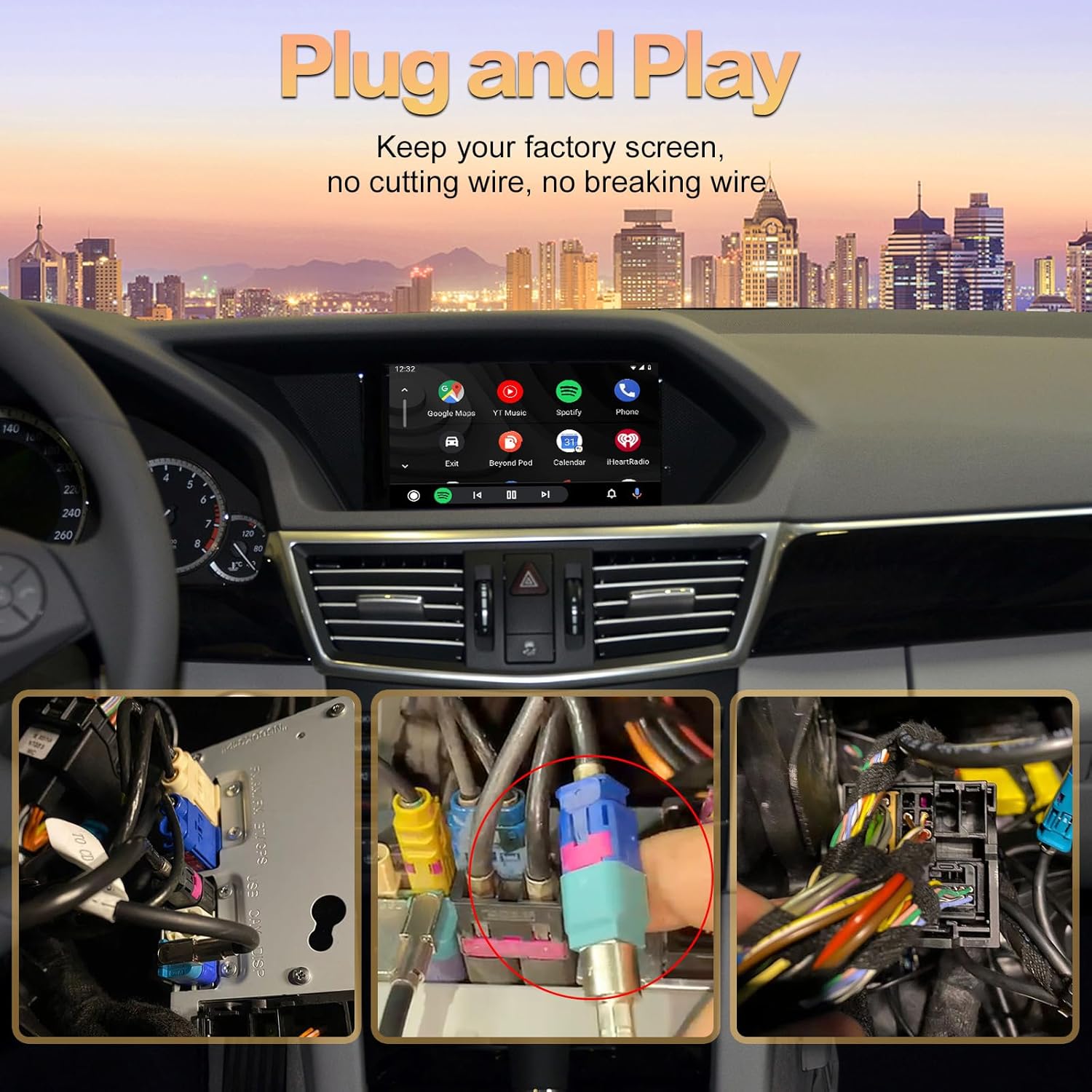
Illustration of the plug-and-play installation process, emphasizing no wire cutting.
Video demonstrating how to relocate optic cables for Mercedes Benz systems, a common step in retrofit installations.
3.3 Toggle Switch Setup
The decoder box features a toggle switch for screen size configuration. Set the switches according to your car's screen size (5.8-inch or 7-inch) as indicated in the manual. Incorrect settings may lead to display issues.
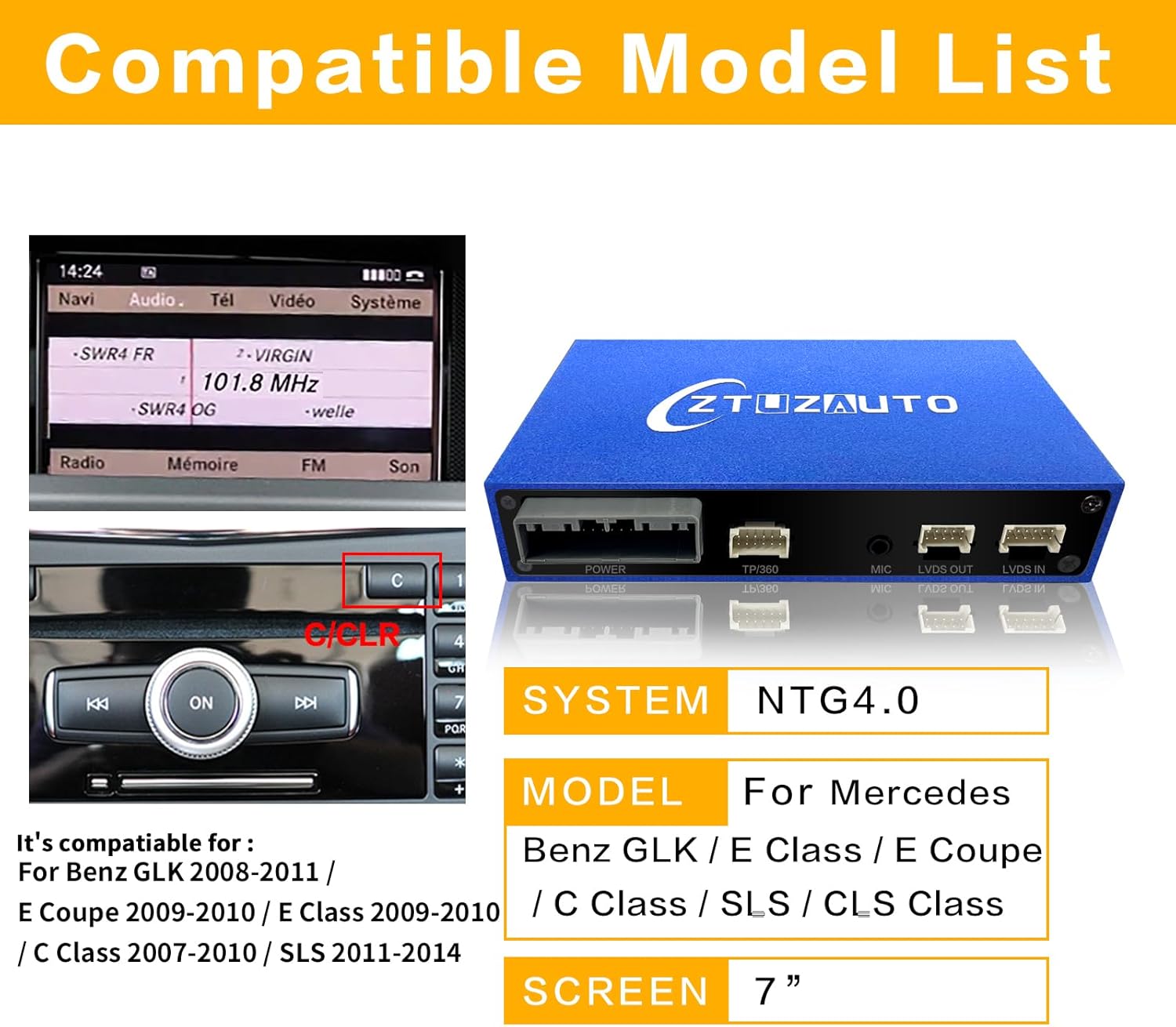
Image showing compatible Mercedes Benz models and screen sizes for the NTG4.0 system.
3.4 Reassembly
Once all connections are made and verified, carefully reassemble the head unit and dashboard components in reverse order of disassembly. Ensure no wires are pinched and all screws are tightened.
4. Operating Instructions
4.1 Switching Between Systems
To switch between the original NTG system and the Carplay/Android Auto system, press and hold the 'C' button on your car's center console knob control for 2 seconds.

Visual comparison of the dashboard before and after installation, highlighting the system switching function.
4.2 Wireless Carplay/Android Auto Connection
Simply connect your phone wirelessly via Bluetooth and Wi-Fi to enjoy CarPlay or Android Auto functions. This allows access to navigation, phone contacts, music, and more through voice assistants like Siri or Google Assistant.
- Ensure Bluetooth and Wi-Fi are enabled on your smartphone.
- On your phone, search for the device name starting with "CARABC-" or "ZTUZAUTO Box-" in the Bluetooth settings and pair.
- Confirm the pairing request on both your phone and the car screen.
- Once paired, the system will automatically connect to Wireless Carplay or Android Auto.

Diagram showing the wireless connection process for Carplay and Android Auto.
Video demonstrating the wireless usage of Carplay with the adapter.
Video showcasing the features of a Mercedes Benz Wireless Adapter, including connection and interface.
4.3 Mirrorlink Function
The adapter supports Airplay for iOS devices and AutoLink for Android devices, allowing you to mirror your phone's screen to the car display. This enables viewing content like YouTube, TV news, photos, and navigation directly on the car screen.
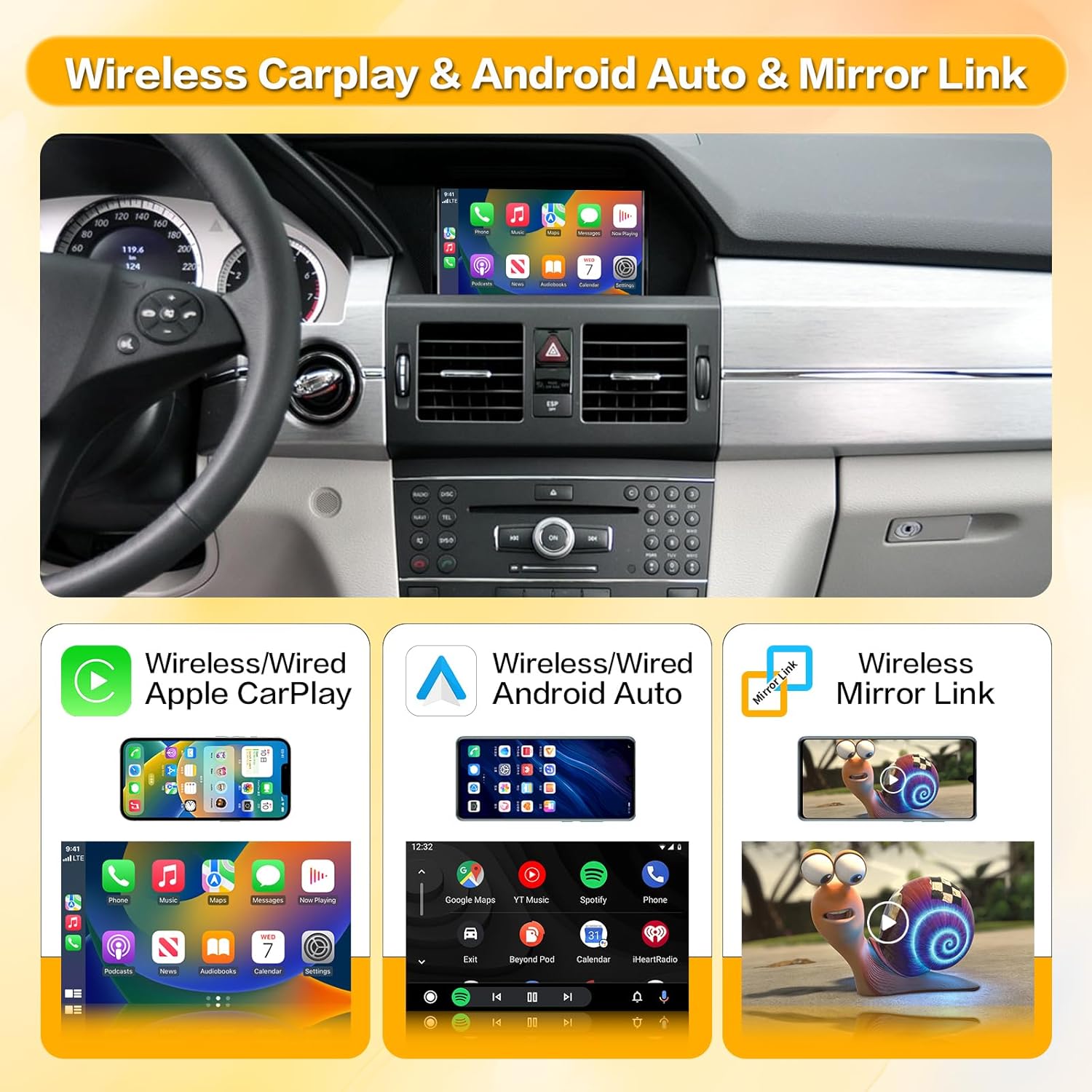
Overview of Wireless Carplay, Android Auto, and Mirror Link features.
Video tutorial on how to set up AirPlay on a Mercedes Benz system.
4.4 Camera Functions
The system supports aftermarket reverse cameras and 360-degree cameras. When the car is put into reverse, the camera view will automatically activate. It also supports front view camera DVR with dynamic guidance lines.

The car's display showing various navigation and entertainment applications.
5. Maintenance
To ensure optimal performance and longevity of your adapter, follow these maintenance guidelines:
- Keep the device and connections clean and free from dust and debris.
- Avoid exposing the device to extreme temperatures or direct sunlight for prolonged periods.
- Ensure all cables are securely connected and not under tension.
6. Troubleshooting
If you encounter any issues with your ZTUZAUTO Wireless Carplay Android Auto Adapter, consider the following basic troubleshooting steps:
- No Display/Black Screen: Check all cable connections, especially the LVDS cables. Verify the toggle switch settings match your screen size. Restart the car engine and reconnect the CAN power cable.
- Connection Issues: Ensure your phone's Bluetooth and Wi-Fi are enabled and correctly paired with the adapter. Try forgetting the device on your phone and re-pairing.
- Audio Problems: Confirm the car's audio input is set to AUX or Bluetooth audio from the adapter.
- Unresponsive Controls: Ensure the system is correctly switched to the Carplay/Android Auto interface.
For further assistance, please contact ZTUZAUTO customer support. Technical support is typically provided within 24 hours.
7. Specifications
- Product Dimensions: 5.54 x 3.34 x 0.94 inches
- Item Weight: 2.31 pounds
- Item Model Number: ZT-BZ-40
- Compatible Devices: Smartphone
- Connector Type: USB Type A
- Color: Blue
8. Warranty and Support
The ZTUZAUTO Wireless Carplay Android Auto Adapter comes with a 1-Year Warranty. For any questions, technical support, or warranty claims, please contact ZTUZAUTO customer service. We are committed to providing prompt assistance within 24 hours.


