
1. Introduction
The Autel AutoLink AL549 is an advanced OBD2 diagnostic scanner designed to assist in identifying and resolving vehicle issues. This tool provides comprehensive diagnostic functions for the engine, Anti-lock Braking System (ABS), and battery/charging systems. It is suitable for both automotive professionals and DIY enthusiasts.
The AL549 is an upgraded version of previous models like the AL519, AL529, and AL539, offering enhanced capabilities and user-friendly features.
2. What's in the Box
Upon unboxing your Autel AutoLink AL549, please ensure all components are present:
- Autel AutoLink AL549 OBD2 Scanner Unit
- OBDII Cable (integrated)
- USB Cable (for updates and data printing)
- User Manual (this document)
3. Key Features
The Autel AutoLink AL549 offers a range of diagnostic functionalities:
- Full OBD2 Diagnostic Functions: Supports all 10 modes of OBDII testing, including reading and erasing Diagnostic Trouble Codes (DTCs), viewing live data, and checking I/M Readiness status.
- ABS System Diagnosis: Reads and clears ABS fault codes and turns off ABS warning lights. Note: ABS diagnosis is compatible with OBD2 standard vehicles manufactured prior to 2020.
- Battery & Charging System Test: Evaluates the health of the vehicle's battery and alternator.
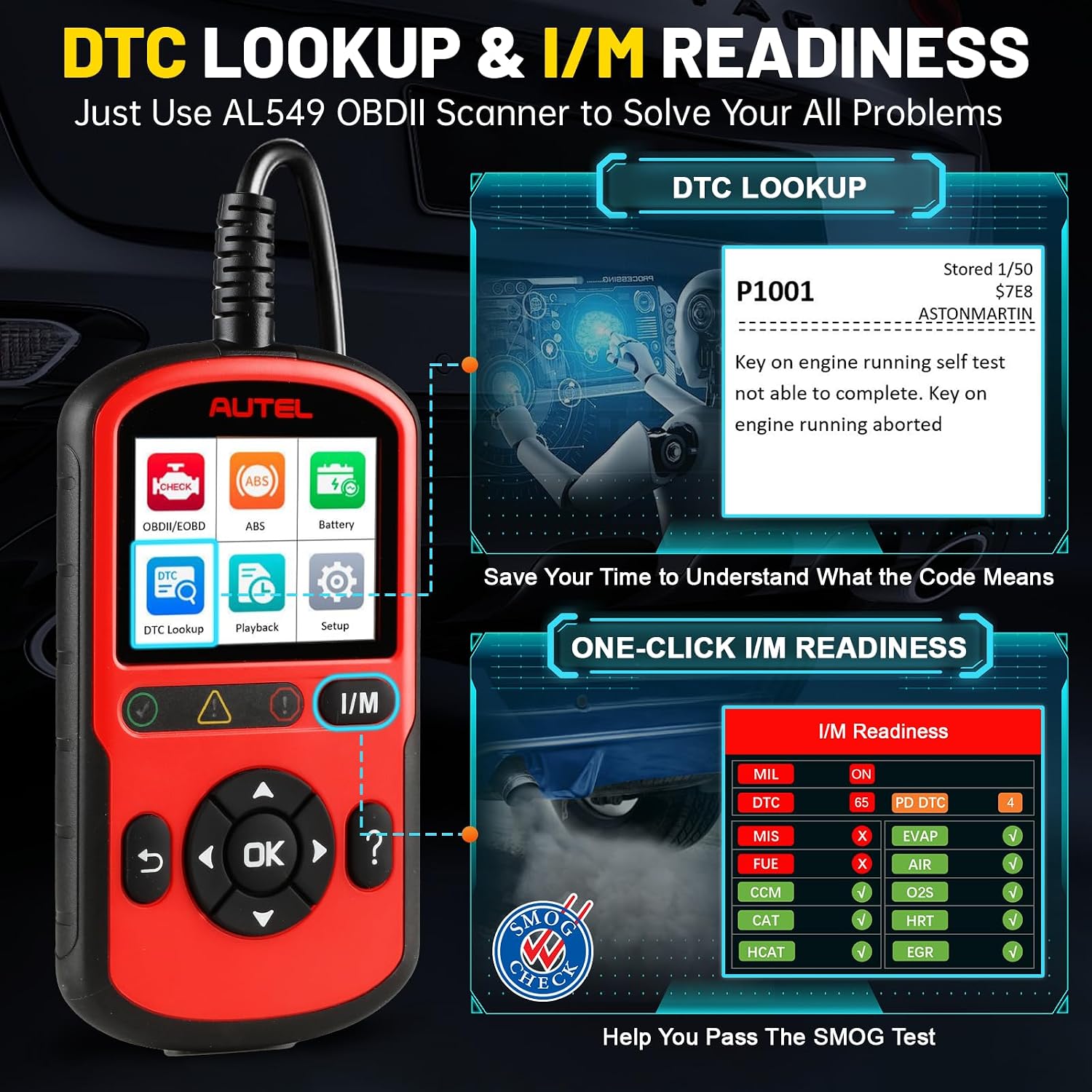
- One-Click I/M Readiness: Quickly checks emission system status for smog testing.
- AutoVIN Technology: Automatically identifies vehicle information for faster diagnostics.
- Live Data Stream: Displays real-time sensor data from the vehicle's modules.
- DTC Lookup Library: Provides definitions for diagnostic trouble codes directly on the device.
- Data Record & Playback: Allows recording and reviewing of live data and freeze frame data.
- Print Data: Enables printing of diagnostic reports via a Windows-based PC.
- Multilingual Support: Available in English, French, and Spanish.
- Lifetime Free Updates: Software updates are available free of charge to ensure compatibility with new vehicle models and bug fixes.
4. Setup
Follow these steps for initial setup and connection:
- Locate the OBD-II Port: The 16-pin Data Link Connector (DLC) is typically located under the dashboard on the driver's side of the vehicle. Refer to your vehicle's owner's manual if you cannot locate it.
- Connect the Scanner: Plug the integrated OBDII cable from the AL549 into the vehicle's DLC. The scanner will power on automatically.
- Vehicle Ignition: Turn the vehicle's ignition to the 'ON' position (engine off).

5. Operating Instructions
The AL549 features a user-friendly interface with a color display and navigation buttons. Use the directional arrows to navigate menus and the 'OK' button to confirm selections.
5.1. OBDII/EOBD Diagnostics
This function allows you to access engine-related diagnostic information.
- From the main menu, select OBDII/EOBD.
- The scanner will automatically link to the vehicle.
- Choose from options like Read Codes, Erase Codes, Live Data, View Freeze Frame, I/M Readiness, On-Board Monitor Test, Component Test, and Vehicle Information.

5.2. Reading and Erasing Codes
To read codes, select Read Codes from the diagnostic menu. The scanner will display any stored, pending, or permanent codes along with their descriptions. To erase codes, select Erase Codes. Confirm your selection to clear the codes and turn off the Check Engine Light (CEL) or Malfunction Indicator Lamp (MIL).

5.3. ABS System Diagnosis
The AL549 can diagnose issues with your vehicle's Anti-lock Braking System.
- From the main menu, select ABS.
- Choose your vehicle's manufacturer (e.g., Chrysler, Dodge, Ford, Lincoln, GM for USA vehicles).
- Select Read Codes to view ABS-related DTCs or Erase Codes to clear them.

5.4. Battery & Charging System Test
This function helps assess the condition of your vehicle's battery and charging system.
- From the main menu, select Battery.
- Follow the on-screen prompts to perform a Starting System Test or a Charging System Test.
- The device will provide results and potential fix tips.

5.5. I/M Readiness
The I/M Readiness function checks the operation of the emission system on OBDII compliant vehicles. This is crucial for preparing for state emission inspections.
- From the main menu, select I/M Readiness.
- The scanner will display the status of various monitors (e.g., MIL, MIS, FUEL, CCM, CAT, EVAP, O2S, HRT, EGR, HCAT).
- Green indicates OK, Yellow indicates Pending DTCs, and Red indicates DTCs detected.
5.6. Live Data Stream
View real-time sensor data to monitor vehicle performance and diagnose intermittent issues.
- From the diagnostic menu, select Live Data.
- The scanner will display various parameters such as RPM, vehicle speed, fuel system status, and sensor readings.

5.7. AutoVIN Feature
The AutoVIN feature automatically identifies the vehicle's year, make, and model, eliminating the need for manual selection and reducing the chance of errors.

5.8. Official Product Video: Autel OBD2 Scanner AutoLink AL549 Check Engine Code Reader
6. Maintenance
To ensure the longevity and optimal performance of your Autel AutoLink AL549:
- Keep the device clean and free from dust and moisture. Use a soft, dry cloth for cleaning.
- Avoid dropping the device or subjecting it to strong impacts.
- Store the device in a cool, dry place when not in use.
- Do not attempt to disassemble or repair the device yourself, as this will void the warranty.
7. Troubleshooting
If you encounter issues with your AL549, refer to the following common problems and solutions:
- Device does not power on: Ensure the OBDII cable is securely connected to the vehicle's DLC and the vehicle's ignition is in the 'ON' position. Check the vehicle's battery for sufficient charge.
- Linking error: Verify that the vehicle is OBDII compliant (1996 or newer for most vehicles). Ensure the connection is secure. Try connecting to a different OBDII compliant vehicle to rule out a vehicle-specific issue.
- Codes cannot be erased: Some permanent codes may require several drive cycles to clear after the underlying issue has been resolved. If the fault persists, the underlying problem may not be fully repaired.
- ABS function not working: Confirm your vehicle's ABS system is compatible with the AL549 (OBDII compliant 12V vehicles prior to 2020).
8. Specifications
| Feature | Detail |
|---|---|
| Brand | Autel |
| Model | Autel AutoLink AL549 |
| Product Dimensions | 3"L x 0.8"W x 5.9"H |
| Item Weight | 13.4 ounces |
| Operating System Features | Upgraded Ver. of AL519/AL529, Plug&Play, Lifetime Update, Read/Erase DTCs for ABS, Car Battery & Alternator Test, One-click I/M Readiness, Easy to Use, Wide Compatibility |
| Language | English, French, Spanish |
| Batteries | 1 Lithium Ion battery required (included) |
| Date First Available | March 28, 2024 |
9. Software Update
The Autel AutoLink AL549 offers lifetime free software updates to ensure it remains compatible with the latest vehicle models and diagnostic protocols. To update the device:
- Visit the official Autel website to download the MaxiPC Suite software.
- Install the software on a Windows-based PC.
- Register your device on the Autel website using its serial number and password (found in the device's settings menu).
- Connect the AL549 to your PC using the provided USB cable.
- Launch the MaxiPC Suite and follow the on-screen instructions to perform the update.

10. Warranty and Support
Autel provides lifetime free updates for the AutoLink AL549. For technical questions, support, or to request an electronic copy of the product manual, please contact Autel customer service:
- Email: autelpowerful@outlook.com
Please refer to the official Autel website for detailed warranty information.


