
Introduction
The NexiGo Meeting 360 Ultra (Next Gen) is an advanced all-in-one conference camera system designed to enhance your meeting experience. This system integrates multiple cameras, offers a built-in operating system for direct video conferencing, and provides high-quality 1080p 60FPS video streaming. It is equipped with HelloCam Pro featuring Windows Hello facial recognition for secure and convenient access. The comprehensive kit includes a versatile carrying case, making it ideal for various meeting environments from long-table rooms to lecture halls.
What's in the Box
Verify that all components are present in the package:
- NexiGo Meeting 360 Ultra Camera System
- HelloCam Pro Webcam
- Carrying Case
- USB Cable
- Remote Control
- Shoulder Strap

Figure 1: Included components of the NexiGo Meeting 360 Ultra kit.
Setup
- Placement: Position the NexiGo Meeting 360 Ultra camera centrally in your meeting space to ensure optimal 360-degree coverage. For best results, place it on a flat, stable surface at eye level.
- Connect Power: Connect the provided power adapter to the camera and plug it into a power outlet.
- Connect to Display: Use an HDMI cable (not included) to connect the camera to a TV or display screen.
- Connect HelloCam Pro (Optional): If using the HelloCam Pro webcam, connect it to an available USB port on the Meeting 360 Ultra or directly to your computer if using it independently for Windows Hello.
- Network Connection: Connect the device to your network via Ethernet or Wi-Fi for internet access and app downloads.
- Initial Boot-up: The system will power on automatically. Follow the on-screen prompts for initial setup, including language selection and network configuration.
Operating Instructions
Built-in Operating System and App Store
The Meeting 360 Ultra features a built-in operating system, eliminating the need for an external computer for video conferencing. You can directly initiate video calls by connecting the camera to a display. Access the integrated App Store to download and install popular video conferencing applications such as Zoom, Google Meet, Skype, and Microsoft Teams.
Multi-Camera Solution
The system supports integration of up to four video conferencing cameras, expanding the capture area for both image and audio. The NexiGo Meeting Studio app provides real-time status of all participants and allows for seamless switching between multiple conference modes.

Figure 2: 360° Panoramic Meeting view capturing the entire table.
Conference Modes
The NexiGo Meeting Studio app allows you to select from various conference modes to optimize the display for your specific meeting type:
- Discussion Mode: Ideal for interactive discussions, showing all participants equally.
- Presentation Mode: Focuses on the presenter while still showing other participants.
- Lecture Mode: Optimized for a single speaker in a lecture setting.
- Global Mode: Provides a wide overview of the entire meeting space.
- Patrol Mode: Automatically cycles through different views of the room.
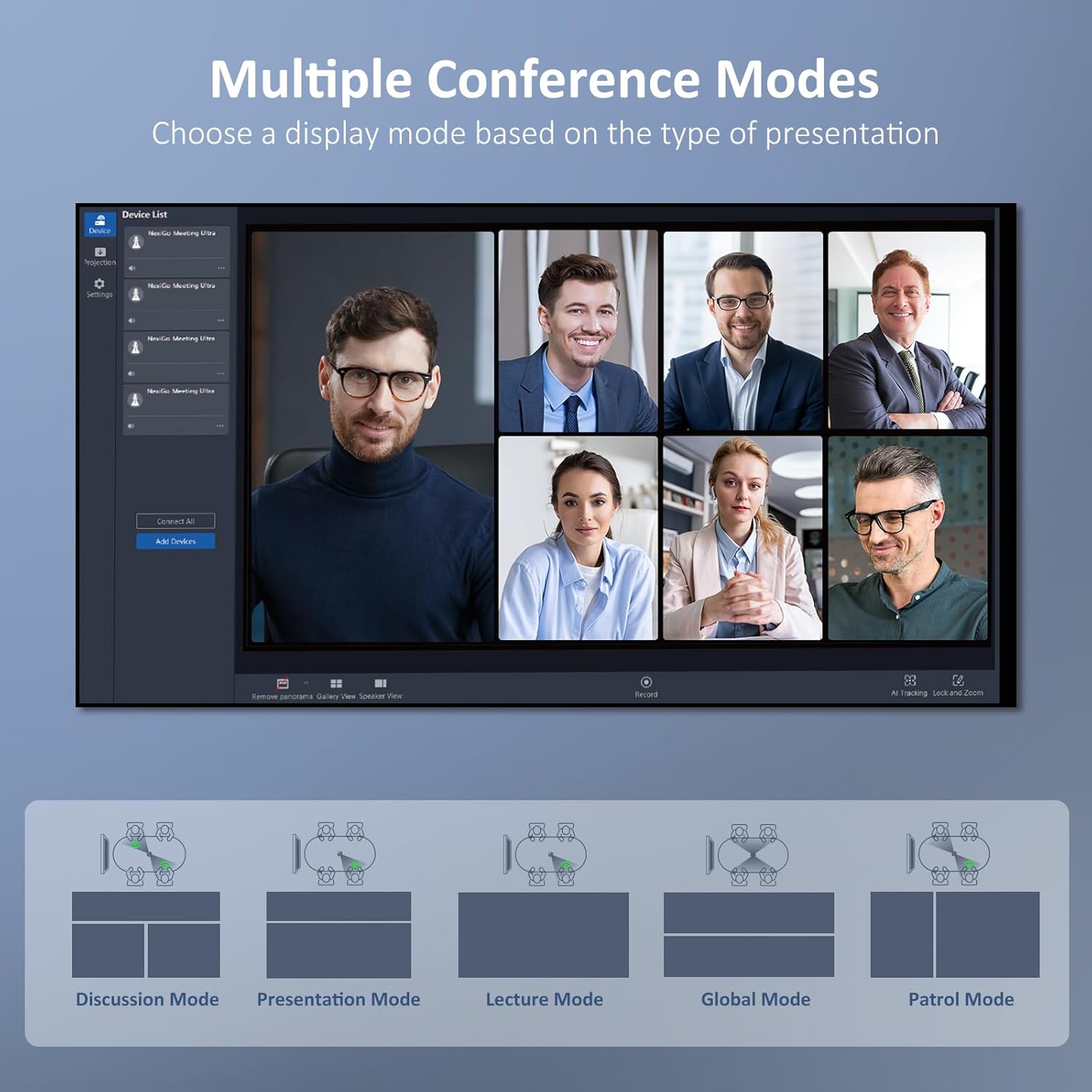
Figure 3: Different conference display modes.
Smart AI Active-Speaker Tracking
The system utilizes AI for real-time active-speaker tracking, employing low-latency voice and face recognition to automatically focus on the current speaker. This ensures that the active participant is always clearly visible.

Figure 4: AI Active-Speaker Tracking in action.
HelloCam Pro and Windows Hello
The included HelloCam Pro webcam is compatible with Windows Hello for Windows 10/11. This feature allows for quick and secure unlocking of your computer using facial recognition, enhancing both security and convenience.
Privacy Features
The HelloCam Pro webcam features an automatic privacy shutter that syncs with webcam activity, opening when in use and closing when not. Additionally, a physical privacy cover switch provides an added layer of security. You can tap to turn the privacy shutter on/off or press and hold to lock it.


Figure 5: Automatic privacy shutter and physical privacy control.
Specifications
| Feature | Detail |
|---|---|
| Brand | NexiGo |
| Model Name | Meeting 360 Ultra |
| Max Screen Resolution | FHD (1080p) |
| Video Capture Resolution | 1080p |
| Video Frame Rate | 60 FPS |
| Connectivity Technology | USB |
| Camcorder Type | Webcam |
| Special Feature | Low Light Performance |
| Flash Memory Type | Internal flash memory |
| Video Capture Format | MP4 |
| Included Components | Carrying Case, USB Cable |
| Lens Type | Zoom |

Figure 6: High-quality 1080p 60FPS video streaming.
Compatibility
The included carrying case features multi-functional padding that can be adjusted to fit various webcams, including the NexiGo Meeting 360 Ultra, Meeting 360, Logitech BCC950, and Meeting Owl Pro.

Figure 7: Carrying case with wide compatibility.
Maintenance
- Cleaning: Use a soft, dry cloth to clean the camera and its components. Avoid abrasive cleaners or solvents. For the lens, use a specialized lens cleaning cloth.
- Storage: When not in use, store the camera system in its provided carrying case to protect it from dust and physical damage.
- Software Updates: Periodically check for firmware and software updates through the device's settings or the NexiGo Meeting Studio app to ensure optimal performance and access to new features.
Troubleshooting
| Problem | Possible Cause | Solution |
|---|---|---|
| No power | Power cable not connected properly; power outlet issue. | Ensure power cable is securely connected. Try a different power outlet. |
| No video output on display | HDMI cable loose or faulty; incorrect input selected on display. | Check HDMI cable connection. Select the correct HDMI input on your display. |
| Microphone not picking up audio | Microphone muted; audio settings incorrect in app. | Unmute microphone. Check audio input settings within your conferencing application. |
| Video quality is poor | Low bandwidth; dirty lens; incorrect resolution setting. | Ensure stable internet connection. Clean the camera lens. Check video resolution settings in your app. |
| Windows Hello not working | HelloCam Pro not connected; Windows Hello not set up or configured correctly. | Ensure HelloCam Pro is connected. Reconfigure Windows Hello settings in your PC's system settings. |
Warranty Information
NexiGo products typically come with a standard manufacturer's warranty. For specific details regarding the warranty period, coverage, and terms and conditions for your NexiGo Meeting 360 Ultra, please refer to the warranty card included with your product or visit the official NexiGo website. Keep your proof of purchase for warranty claims.
Support
If you encounter any issues or have questions not covered in this manual, please contact NexiGo customer support:
- Online Support: Visit the official NexiGo website for FAQs, drivers, and support resources.
- Email Support: Refer to your product packaging or the NexiGo website for the customer support email address.
- Phone Support: Check the NexiGo website for available phone support numbers and operating hours.
When contacting support, please have your product model number (Meeting 360 Ultra) and purchase information ready.


