
TiMOVO TiMOVO EMR Pen
TiMOVO EMR Digital Stylus User Manual
Model: TiMOVO EMR Pen
Brand: TiMOVO
1. Introduction
Welcome to the user manual for your TiMOVO EMR Digital Stylus. This stylus is designed to provide a natural and precise writing and drawing experience on compatible EMR-enabled devices. It features advanced technology for seamless interaction without the need for charging or pairing.

The TiMOVO EMR Digital Stylus, a sleek black pen with three replacement nibs and a nib removal tool, ready for use.
2. Package Contents
Please verify that all items are present in your package:
- 1 x TiMOVO EMR Stylus
- 3 x Replacement Nibs
- 1 x Pen Nib Clip (Removal Tool)
- 1 x User Manual (This document)
Contents of the TiMOVO EMR Stylus package, including the stylus, three spare nibs, and a metal nib removal clip.
3. Setup
The TiMOVO EMR Digital Stylus is designed for immediate use with compatible EMR devices. No charging, Bluetooth pairing, or software installation is required.
First Use
- Unpack the stylus from its packaging.
- Ensure your device (e.g., reMarkable 2, Kindle Scribe, Samsung Galaxy Tab/Note/Book) has EMR technology integrated into its display.
- Begin writing or drawing directly on your device's screen. The stylus will be recognized automatically.

A user demonstrating the palm rejection feature, writing on a tablet with their hand resting comfortably on the screen.
4. Operating Instructions
Writing and Drawing
The stylus offers a natural writing experience with its precise tip and 4096 levels of pressure sensitivity.
- Pressure Sensitivity: The stylus responds to the lightest touch, allowing for varied line thickness and shading based on pressure applied.
- Tilt Support: Tilt the pen tip at an angle (e.g., 15°, 30°, 60°, 90°) to create different line effects, similar to a traditional pencil. This feature is ideal for shading and artistic strokes.

An illustration demonstrating the 4096 levels of pressure and tilt support, showing how different angles of the stylus create varying line widths and effects.
Eraser Function
The TiMOVO EMR Stylus features a convenient eraser function for quick corrections.
- End Eraser: For quick erasing, simply flip the stylus over and use the end opposite the nib to erase directly on the screen. This mimics the action of a traditional pencil eraser.
- Side Button Eraser: On some compatible tablets, you may need to press and hold the side button on the stylus while moving the tip over the area you wish to erase. Refer to your device's settings for specific button customization options.

A close-up image of the stylus erasing a drawing on a tablet, highlighting the built-in eraser function at the top of the pen.
Palm Rejection
The integrated palm rejection technology allows you to rest your hand naturally on the screen while writing or drawing, preventing accidental marks.
This feature ensures a comfortable and uninterrupted creative or note-taking process.
Magnetic Adsorption
The stylus is designed with magnetic adsorption, allowing it to securely attach to the side of compatible tablets for easy storage and transport.

The TiMOVO stylus magnetically attached to the side of a tablet, illustrating its strong magnetic adsorption feature.
5. Maintenance
Replacing Nibs
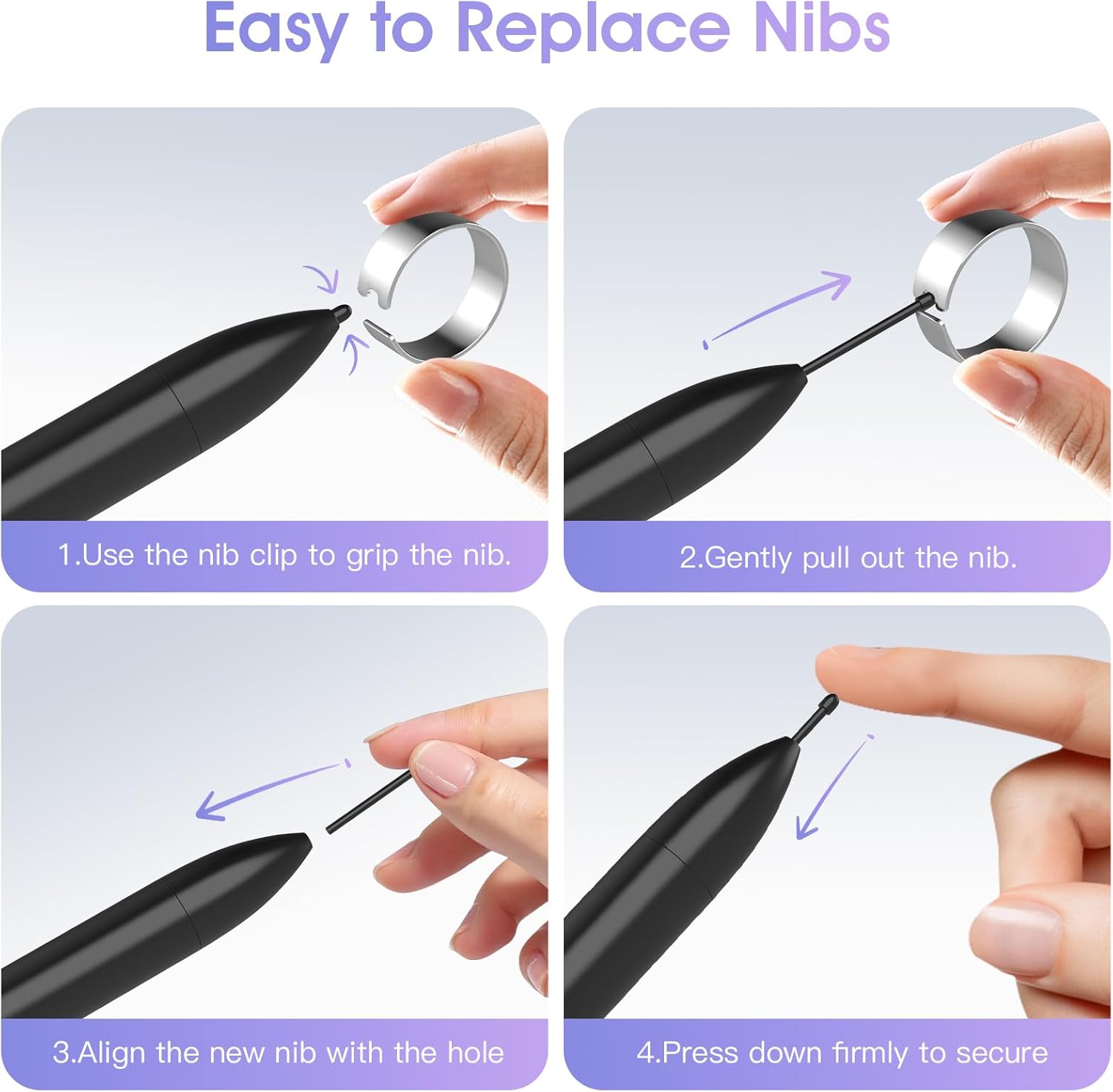
The stylus comes with three replacement nibs. Nibs may wear down over time and can be easily replaced.
- Use the Nib Clip: Gently grip the existing nib with the provided metal nib clip.
- Pull Out: Carefully pull the nib straight out from the stylus.
- Align New Nib: Take a new replacement nib and align its base with the hole at the tip of the stylus.
- Press Firmly: Press the new nib firmly into the stylus until it is securely seated.
The nibs are made from durable POM material, providing a smooth writing experience.
A four-step visual guide demonstrating how to easily replace the stylus nibs using the provided nib clip.
6. Compatibility
This EMR Digital Stylus is specifically designed for devices with integrated EMR technology.
Compatible Devices Include:
- reMarkable 2 / reMarkable 1 (Note: Not compatible with the latest version of Remarkable Paper Pro)
- Kindle Scribe
- Most Samsung Galaxy Tab, Galaxy Note, and Galaxy Book models
- BOOX devices
- Wacom devices
Please verify your device's compatibility with EMR technology before use.
7. Troubleshooting
Stylus Not Responding
- Check Compatibility: Ensure your device is listed as compatible with EMR technology. This stylus does not work with non-EMR screens.
- Nib Check: Verify that the nib is securely inserted. If it's loose or damaged, replace it with a new one.
- Device Restart: Try restarting your tablet or e-reader.
Eraser Function Issues
- End Eraser: Ensure you are using the correct end of the stylus for the physical eraser.
- Side Button Eraser: If using the side button, confirm that your device's software supports this function and that the button is correctly configured in your device settings.
Magnetic Attachment Issues
- Device Compatibility: Magnetic attachment is device-specific. Ensure your tablet has a magnetic strip designed for stylus attachment.
- Orientation: Try different orientations of the stylus on the tablet's side to find the strongest magnetic connection.
8. Specifications
| Feature | Specification |
|---|---|
| Brand | TiMOVO |
| Model | TiMOVO EMR Pen |
| Color | Black |
| Dimensions | 16.51 x 0.91 x 0.91 cm (6.5 x 0.36 x 0.36 inches) |
| Weight | 17 g (0.6 oz) |
| Material | Plastic (POM nibs) |
| Pressure Sensitivity | 4096 Levels |
| Battery Required | No |
| Features | Palm Rejection, Tilt Support, Magnetic Adsorption, Built-in Eraser |
9. Warranty and Support
For warranty information and customer support, please refer to the official TiMOVO website or contact your retailer. Keep your purchase receipt for warranty claims.
For further assistance or technical inquiries, please visit the TiMOVO store page: TiMOVO Official Store.
Ask a question about this manual
Ask about setup, troubleshooting, compatibility, parts, safety, or missing instructions. Manuals+ will review the question and use this page’s manual context to help answer it.