
1. Introduction
Thank you for purchasing the SOTEFE HY300 Pro Mini Projector. This portable smart projector is designed to deliver a high-quality viewing experience with its 1080P Full HD resolution, 4K support, and Android 12.0 operating system. Featuring dual-band WiFi, Bluetooth 5.2, automatic keystone correction, and a 180-degree rotatable design, it offers versatile entertainment and presentation options. This manual provides essential information for setting up, operating, and maintaining your projector.
2. Package Contents
Please check the package for the following items:
- 1 x SOTEFE HY300 Pro Mini Projector
- 1 x Power Adapter
- 1 x Remote Control
- 1 x HDMI Cable
- 1 x User Manual (this document)
3. Product Overview
Familiarize yourself with the components and features of your SOTEFE HY300 Pro Mini Projector.

Figure 3.1: The SOTEFE HY300 Pro Mini Projector, showcasing its compact cylindrical design, front lens, and ventilation grilles. It features a stable base for flexible positioning.

Figure 3.2: An overview of the SOTEFE HY300 Pro Mini Projector's core capabilities, including 4K video decoding, dual-band Wi-Fi 6, Bluetooth 5.0, 180-degree flexible projection, automatic keystone correction, native 720P resolution, and 160 ANSI lumens brightness.
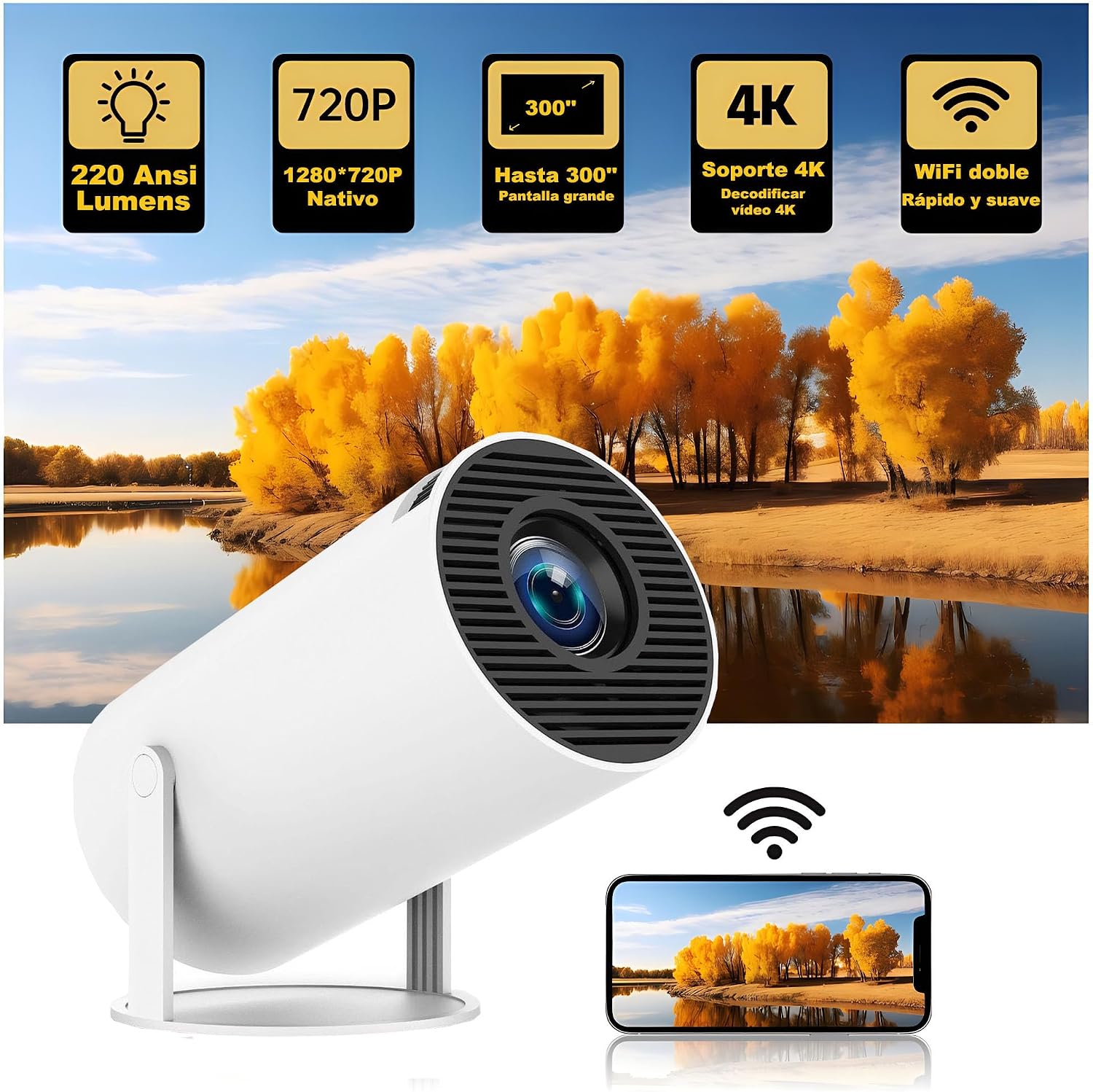
Figure 3.3: The SOTEFE HY300 Pro Mini Projector positioned in an outdoor setting, illustrating its capabilities such as 220 ANSI lumens brightness, native 720P resolution, up to 300-inch projection size, 4K video decoding support, and fast dual-band WiFi connectivity. A smartphone is shown mirroring its screen to the projector.
4. Setup
4.1 Initial Placement
Place the projector on a stable, flat surface. The 180-degree rotatable design allows for flexible positioning, enabling projection onto walls or ceilings. Ensure there are no obstructions in front of the lens.

Figure 4.1: The SOTEFE HY300 Pro Mini Projector's 180-degree flexible projection angle, enabling users to easily adjust the projection direction to display content on walls, ceilings, or any desired surface.
4.2 Power Connection
- Connect the provided power adapter to the projector's power input port.
- Plug the power adapter into a standard electrical outlet.
- Press the power button on the projector or the remote control to turn on the device.
5. Operating Instructions
5.1 Basic Operation
Once powered on, the projector will boot into the Android 12.0 smart system interface. Use the remote control to navigate through menus, select applications, and adjust settings.
5.2 Focus and Keystone Correction
The projector features automatic vertical keystone correction to ensure a rectangular image even when the projector is angled. Manual focus adjustment may be required for optimal clarity.

Figure 5.1: An illustration of the SOTEFE HY300 Pro Mini Projector's automatic vertical keystone correction feature, showing how it adjusts a distorted image into a perfect rectangle even when the projector is placed at an angle.
5.3 Wireless Connectivity (WiFi & Bluetooth)
The projector supports dual-band 2.4G and 5.8G WiFi for stable internet connection and Bluetooth 5.2 for audio output.
- WiFi Connection: Navigate to the 'Settings' menu, select 'Network & Internet', and choose your desired WiFi network. Enter the password if prompted.
- Bluetooth Connection: Go to 'Settings', select 'Connected Devices', and enable Bluetooth. Search for and pair with your Bluetooth speakers or headphones.
5.4 Screen Mirroring
The SOTEFE HY300 Pro supports Miracast, Airplay, and DLNA for screen mirroring from your smartphone or tablet.
- Ensure your projector and mobile device are connected to the same WiFi network.
- On the projector's home screen, select the 'Screen Mirroring' application (or similar).
- On your mobile device, activate the screen mirroring function (e.g., 'Smart View' on Android, 'Screen Mirroring' on iOS).
- Select the projector from the list of available devices to begin mirroring.

Figure 5.2: A scene depicting the SOTEFE HY300 Pro Mini Projector's screen mirroring function, where a smartphone's content is wirelessly displayed on a large screen, allowing a family to enjoy a sports game together.

Figure 5.3: An image illustrating the SOTEFE HY300 Pro Mini Projector's versatile wireless connection capabilities, showing it connected to an HDTV, game console, laptop, streaming stick, and smartphone for seamless content sharing.
5.5 Wired Connections
The projector includes HDMI and USB ports for connecting external devices.
- HDMI: Connect gaming consoles, laptops, TV sticks, or other HDMI-enabled devices using the provided HDMI cable. Select the HDMI input source from the projector's menu.
- USB: Plug in a USB drive to play media files directly. The projector supports various video, audio, and image formats.
6. Specifications
| Feature | Specification |
|---|---|
| Native Resolution | 1280 x 720P |
| Maximum Display Resolution | 3840 x 2160 (4K Support) |
| Brightness | 280 ANSI Lumens |
| Contrast Ratio | 12000:1 |
| Projection Size | 30 - 300 inches |
| Projection Distance | 4.9 - 18.4 feet (1.5 - 7.9 meters) |
| Operating System | Android 12.0 |
| WiFi | Dual-band 2.4G/5.8G |
| Bluetooth | Bluetooth 5.2 |
| Keystone Correction | Automatic Vertical Keystone |
| Rotation Angle | 180 degrees |
| Noise Level | <25 dB |
| Input Ports | HDMI, USB, 3.5mm Audio |
| Power Supply | 110-240V / 50-60Hz |
| Lamp Life | Up to 150,000 hours |
7. Maintenance
- Cleaning the Lens: Use a soft, lint-free cloth specifically designed for optical lenses. Do not use abrasive cleaners or cloths.
- Cleaning the Casing: Wipe the projector's exterior with a soft, dry cloth. For stubborn dirt, slightly dampen the cloth with water.
- Ventilation: Ensure the ventilation ports are clear of dust and debris to prevent overheating. Do not block the airflow.
- Storage: When not in use for extended periods, store the projector in a cool, dry place, away from direct sunlight and extreme temperatures.
8. Troubleshooting
- No Power:
• Ensure the power adapter is securely connected to both the projector and a working power outlet.
• Check if the power button has been pressed. - No Image:
• Verify that the correct input source (HDMI, USB, Screen Mirroring) is selected.
• Check all cable connections (HDMI).
• Ensure the lens cap is removed. - Blurred Image:
• Adjust the manual focus ring on the projector.
• Ensure the projection surface is flat and the projector is stable. - Distorted Image (Trapezoid Shape):
• The projector features automatic vertical keystone correction. If the image is still distorted, try repositioning the projector or check for any manual keystone settings in the menu. - No Sound:
• Check the volume settings on both the projector and the connected source device.
• If using Bluetooth, ensure the projector is correctly paired with your audio device and the volume is up.
• If using HDMI, ensure the audio output is correctly configured on the source device. - WiFi/Bluetooth Connection Issues:
• Ensure the projector is within range of your WiFi router or Bluetooth device.
• Restart the projector and your network devices.
• Re-enter WiFi passwords to ensure accuracy.
9. Warranty and Support
The SOTEFE HY300 Pro Mini Projector comes with a 3-year warranty. For any questions, technical assistance, or warranty claims, please contact SOTEFE customer service. Our goal is to provide high-quality products and excellent service.