
SOTEFE HY320 Pro Smart Android Projector User Manual
Model: HY320 Pro
1. Introduction
Thank you for purchasing the SOTEFE HY320 Pro Smart Android Projector. This manual provides essential information for setting up, operating, and maintaining your projector. Please read it thoroughly before use to ensure optimal performance and longevity of the device.

A white SOTEFE HY320 Pro projector shown from a front-side angle, highlighting its lens and ventilation grilles.
2. Package Contents
Verify that all items are present in the package:
- SOTEFE HY320 Pro Projector
- Power Plug
- Remote Control
- HDMI Cable
- User Manual (this document)
3. Product Overview
The SOTEFE HY320 Pro is a portable smart projector featuring Android 12.0, dual-band Wi-Fi, Bluetooth 5.2, and automatic keystone correction. It supports 1080P Full HD and 4K video input, offering a flexible 180° projection angle.

The SOTEFE HY320 Pro projector displayed with graphical overlays indicating key features: 4K support, WiFi 6, Android operating system, and auto keystone correction.
4. Setup
4.1 Power Connection
- Connect the power plug to the projector's power input port.
- Plug the power adapter into a standard electrical outlet (110-240V/50-60Hz).
- Press the power button on the projector or remote control to turn it on.
4.2 Placement and Projection Angle
Position the projector on a stable surface. The HY320 Pro features a 180° flexible projection angle, allowing you to project images onto walls or ceilings.
- Adjust the projector body to achieve the desired projection angle.
- The optimal projection distance ranges from 4.9 feet to 18.4 feet for screen sizes between 40 inches and 300 inches.
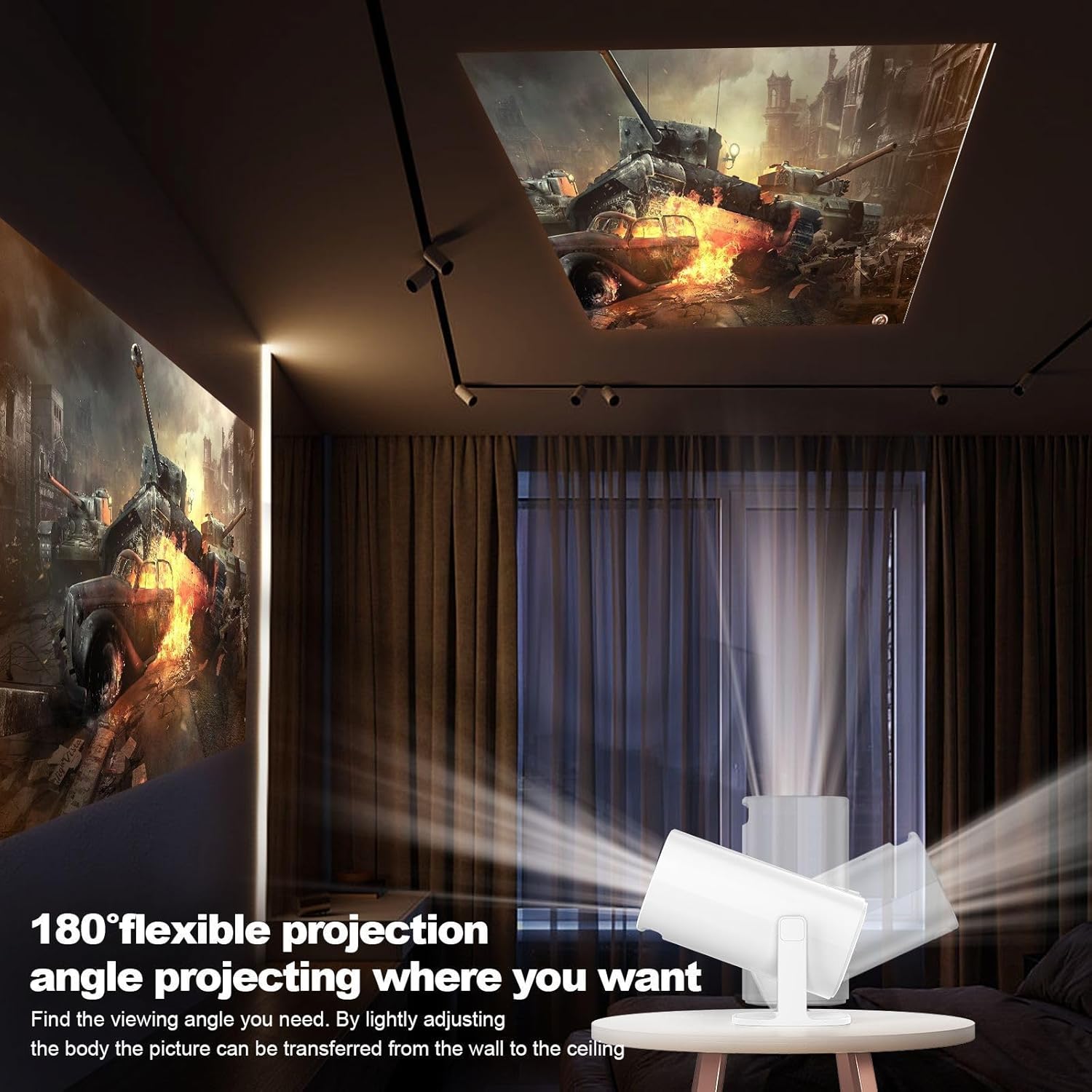
An illustration showing the SOTEFE HY320 Pro projector's ability to rotate 180 degrees, projecting an image from a table onto a wall and then onto the ceiling in a living room setting.
4.3 Focus Adjustment
Manually adjust the focus ring on the projector lens until the projected image is clear and sharp.
4.4 Keystone Correction
The projector supports automatic vertical keystone correction. It will automatically adjust the image to a rectangular shape. Manual keystone correction is also available for fine-tuning.

An image demonstrating the automatic keystone correction feature of the SOTEFE HY320 Pro projector, showing a skewed projected image being automatically corrected into a perfect rectangle.
5. Operating Instructions
5.1 Android 12.0 System Navigation
The projector runs on an integrated Android 12.0 system. Use the remote control to navigate the interface, select applications, and adjust settings. Popular apps are pre-installed, and more can be downloaded from the Play Store.

The SOTEFE HY320 Pro projector displaying its Android interface with popular applications like Netflix, YouTube, and Play Store, indicating its smart functionality.
5.2 Wired Connectivity
Connect external devices using the available ports:
- HDMI Port: Connect TV sticks, game consoles (PS5), PCs, laptops, or other HDMI-enabled devices using the included HDMI cable.
- USB Port: Plug in USB drives for media playback.
- AV Port: Connect older devices using an AV cable (not included).
- 3.5mm Audio Port: Connect external speakers or headphones.
5.3 Wireless Connectivity
- Wi-Fi: The projector supports dual-band Wi-Fi (2.4G and 5.8G) for stable and fast internet connection. Go to Settings > Network > Wi-Fi to connect to your wireless network.
- Bluetooth 5.2: Connect Bluetooth speakers or headphones for enhanced audio. Go to Settings > Bluetooth to pair your devices.
5.4 Screen Mirroring
The projector supports Miracast, Airplay, and DLNA for screen mirroring from smartphones, tablets, and other compatible devices.
- Ensure your device and the projector are connected to the same Wi-Fi network.
- Select the appropriate screen mirroring function (e.g., Airplay for iOS, Miracast for Android) on the projector's interface.
- Initiate screen mirroring from your smartphone or tablet.

The SOTEFE HY320 Pro projector displaying a mirrored screen from various devices including a smartphone, tablet, and laptop, illustrating its convenient screen mirroring capability via Wi-Fi.
6. Maintenance
6.1 Cleaning
- Use a soft, dry cloth to clean the projector's exterior.
- For the lens, use a specialized lens cleaning cloth and solution to avoid scratches.
- Ensure ventilation grilles are free from dust to prevent overheating.
6.2 Lamp Life
The projector utilizes a long-lasting LCD light source with an estimated lifespan of up to 150,000 hours.
7. Troubleshooting
- No Image: Check power connection, ensure the correct input source is selected, and verify that the connected device is powered on and outputting a signal.
- Blurry Image: Adjust the focus ring on the lens. Ensure the projection distance is within the recommended range.
- Skewed Image: The projector features automatic keystone correction. If the image is still skewed, try manual keystone adjustment in the settings.
- No Sound: Check the volume settings on both the projector and the connected device. Ensure external speakers/headphones are properly connected or paired via Bluetooth.
- Wi-Fi/Bluetooth Connectivity Issues: Ensure the projector is within range of your router/Bluetooth device. Restart the projector and your network equipment.
8. Specifications
| Feature | Specification |
|---|---|
| Brand | SOTEFE |
| Model | HY320 Pro |
| Display Technology | LCD |
| Native Resolution | 1280 x 720P (Supports 1080P Full HD, 4K) |
| Brightness | 280 ANSI Lumens (12000 Lumens marketing value) |
| Contrast Ratio | 15000:1 |
| Aspect Ratio | 16:9 / 4:3 |
| Projection Size | 40 - 300 inches |
| Projection Distance | 4.9 - 18.4 feet (1.5 - 7.9 meters) |
| Operating System | Android 12.0 |
| Wi-Fi | Dual-band (2.4G & 5.8G) |
| Bluetooth | 5.2 |
| Keystone Correction | Automatic Vertical, Manual |
| Connectivity Ports | HDMI, USB (1), AV, 3.5mm Audio |
| Power Consumption | 85W |
| Noise Level | <25 dB |
| Color | White |
| Rechargeable Battery | No |
9. Warranty and Support
9.1 Warranty Information
The SOTEFE HY320 Pro Projector comes with a 3-year warranty from the date of purchase. This warranty covers manufacturing defects and malfunctions under normal use. Please retain your proof of purchase for warranty claims.
9.2 Customer Support
For any questions, technical assistance, or warranty claims, please contact SOTEFE customer support. Refer to the contact information provided with your purchase or visit the official SOTEFE website for support details.